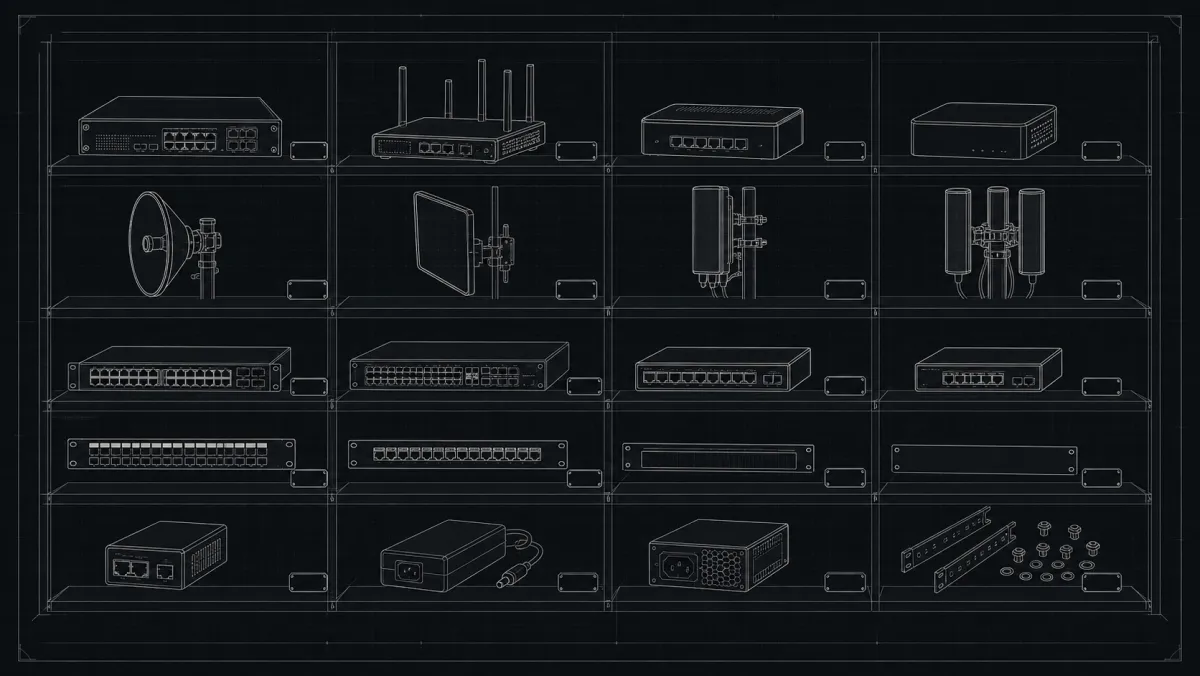
Every ISP operator knows this pain: you buy 50 routers, install 45, and have no idea where the other 5 went. Your technician says "I think I left some at the warehouse" or "that one went to that client last month."
Hardware inventory might not be the most exciting part of running an ISP, but it's one of the most important. Lost equipment = lost money. Poor tracking = operational chaos.
This guide shows you how to build an inventory system that actually works - and how ISPBox makes it effortless.
Why ISP Hardware Inventory Matters
The Hidden Cost of Poor Tracking
Let's do quick math. If you lose just $50 worth of equipment per month, that's $600/year. If you have 5 technicians and lose $50 each? That's $3,000/year - and that's being conservative.
But the real cost isn't just the hardware:
- Wasted time - technicians searching for available equipment
- Double ordering - buying what you already have
- Installation delays - can't find the right device
- Audit nightmares - tax time, insurance claims, or selling the business
What Good Inventory Management Gives You
A solid inventory system provides:
- Know exactly what you have - count, location, status
- Track where everything is - warehouse, technician, or installed
- Audit trail - who had what, when, and why
- Prevent loss - spot missing equipment before it adds up
- Better purchasing - know when you're running low
What to Track in Your ISP Inventory
Equipment Categories
| Category | Examples | Why It Matters |
|---|---|---|
| Routers/Edge | MikroTik, Ubiquiti, TP-Link | Core to customer connectivity |
| ONTs/Fiber | GPON ONTs, SFPs | Fiber installations |
| Wireless | Sectors, APs, radios | WISP backbone |
| Cabling | Cat6, fiber patch cords | Installations |
| Power | UPS, PoE injectors | Critical infrastructure |
| Antennas | Dish, yagi, omnidirectional | Point-to-point links |
Key Data Points Per Device
For each piece of equipment, track:
- Serial number - unique identifier
- Model/template - what type of device
- Status - In Stock, With Technician, Installed, Maintenance, Lost
- Location - warehouse, vehicle, or client site
- Purchase date - for warranty and depreciation
- Assignment - who has it, which client (if installed)
- History - every change logged
Inventory Workflow That Actually Works
1. Receiving New Equipment
When shipment arrives:
□ Unpack and count items
□ Verify against packing slip
□ Check each serial number
□ Log in inventory system
□ Move to warehouse location
□ Update purchase records
2. Assigning to Technicians
Before a tech goes on-site:
□ Technician checks out device from inventory
□ System logs: who, what, when
□ Update status to "With Technician"
□ Note any damage/issues
3. Installation
When installing at client:
□ Remove device from technician's inventory
□ Assign to client service
□ Update status to "Installed"
□ Log installation date
□ Note on service record
4. Returns/Repairs
When equipment comes back:
□ Inspect returned device
□ Update status (Maintenance if broken, In Stock if OK)
□ Log return reason
□ Update client service record
Common Inventory Mistakes (And How to Avoid Them)
Mistake #1: Skipping Serial Numbers
"Serial numbers take too long to enter!"
Reality: Not tracking serials means you can't:
- Claim warranty
- Prove ownership for insurance
- Track which client has which device
Solution: Make serial entry mandatory for all routers, ONTs, and valuable equipment.
Mistake #2: No Location Tracking
Devices just "somewhere" - warehouse, truck, or office.
Solution: Define clear locations:
- Warehouse bins
- Service vehicles
- Office storage
Mistake #3: One Person Knowledge
Only the warehouse manager knows what's in stock.
Solution: Everyone should use the system. No exceptions.
Mistake #4: Never Counting
You think you have 50 routers. Reality: 35.
Solution: Monthly spot counts. Pick one category, count, reconcile.
How ISPBox Handles Inventory
ISPBox includes full inventory management built specifically for ISPs:
What ISPBox Tracks
- Equipment templates - define device types you stock
- Serial numbers - unique tracking per unit
- Locations - warehouses, offices, vehicles
- Technicians - who has what
- Services - which client has which device
- Status - In Stock, With Technician, Installed, Maintenance, Lost, Retired
- Activity history - full audit trail
The ISPBox Workflow
Receiving:
- Select equipment template
- Enter serial numbers
- Assign to warehouse location
- Done - inventory updated
Assigning to Tech:
- Open device
- Select technician
- Status changes to "With Technician"
- Full history logged
Installation:
- Open device
- Assign to client service
- Status changes to "Installed"
- Connected to billing
Returns:
- Detach from service
- Assign to location
- Status back to "In Stock"
Why This Beats Spreadsheets
Spreadsheets work until:
- Multiple people edit at once
- Someone deletes a row by accident
- You need to search by serial number
- You want audit history
ISPBox solves all of this - and it's already connected to your billing and service data.
Free Inventory Tools for Small ISPs
If you're not ready for ISPBox, some options:
| Tool | Best For | Cost |
|---|---|---|
| Snipe-IT | Self-hosted asset tracking | Free |
| Google Sheets | Basic tracking | Free |
| PartKeepr | Small inventory | Free |
| TradeGecko | General inventory | Paid |
But here's the thing: these aren't built for ISPs. ISPBox tracks inventory that connects to your actual installations, billing, and technicians - no manual linking required.
Inventory Best Practices Summary
Daily Habits
- Log every device movement immediately
- Update status when tech receives/returns equipment
Weekly Reviews
- Check "With Technician" devices
- Follow up on overdue returns
Monthly
- Spot count one category
- Review "Maintenance" items
- Order replacements for low stock
Quarterly
- Full inventory audit
- Reconciliation with accounting
- Clean up "Lost" items
Getting Started: 30-Day Plan
Week 1: Foundation
- Choose your inventory system
- Define equipment categories
- Set up warehouse locations
- Create equipment templates
Week 2: Initial Stock Take
- Count all existing equipment
- Enter into system with serials
- Assign locations
Week 3: Process Implementation
- Train technicians on check-in/check-out
- Make inventory part of work orders
- Start logging all new receipts
Week 4: Habit Building
- Daily inventory updates required
- First monthly spot count
- Review and refine processes
The Bottom Line
Hardware inventory isn't optional. Every ISP that has grown past 100 customers without proper tracking has horror stories - lost equipment, confused technicians, wasted money.
Start simple. Start now. But start.
And if you want inventory that actually works with your ISP operations - billing, provisioning, and support - ISPBox has you covered.
Ready to get organized? ISPBox offers a free plan with full inventory management built in.
Check out our Wiki for step-by-step guides on setting up your ISP inventory system.
More from ISPBox: How to Build a Network Map for Your ISP, Network Documentation Best Practices for WISPs