FUP Data Caps: Throttling Heavy Users
How to set a monthly data cap on a package: configuring the FUP limit and reduced speeds, automatic 80% warnings and 100% throttling, the customer portal usage bar, and automatic monthly restore.
A Fair Use Policy (FUP) data cap lets a package automatically reduce a customer's speed once they pass a monthly data limit, then restore full speed when the month resets. It runs on its own, per package - you set the cap once and ISPBox handles the throttling, the warning emails and the reset. This guide covers how to configure it, how enforcement works, and what the customer sees.
1. Turn a package into a capped plan
FUP is a per-package setting. Edit a package under Settings > Packages and enable Monthly data limit (FUP):
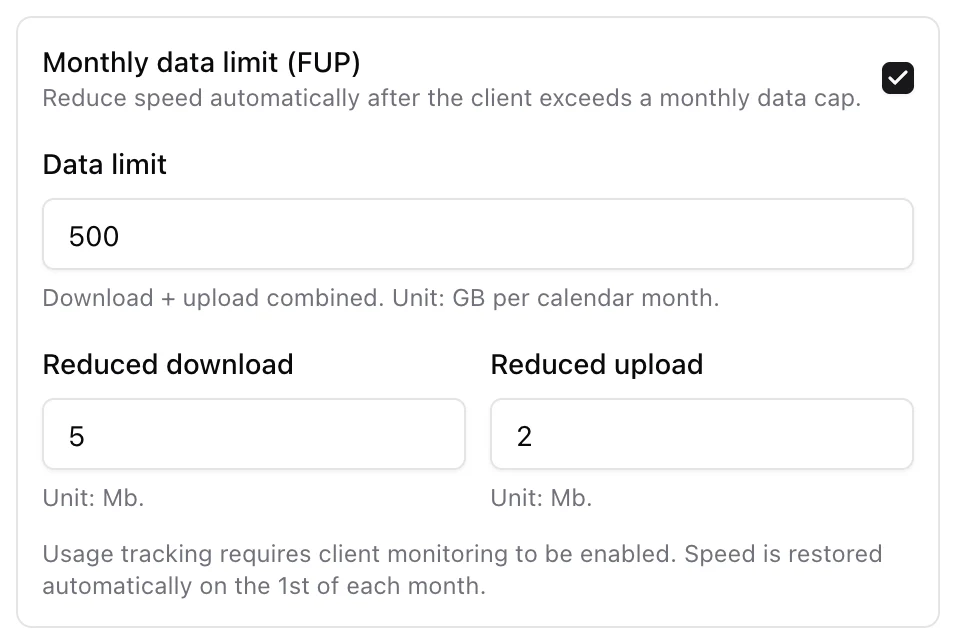
Three fields define the policy:
- Data limit - the monthly cap in GB. This counts download and upload combined, per calendar month.
- Reduced download and Reduced upload - the throttled speeds (in Mb) applied once the cap is hit. Both must be lower than the package's full speed - ISPBox rejects a throttle that is equal to or faster than the plan.
FUP only activates when all three are set (cap greater than zero and both reduced speeds greater than zero). As the form notes, usage tracking requires client monitoring to be enabled, and speed is restored automatically on the 1st of each month.
2. How usage is measured
Usage is derived from the per-service traffic samples ISPBox collects (RADIUS accounting and API queue counters), summed as download + upload over the current calendar month in your tenant timezone. The cap is decimal GB - a 500 GB cap is 500,000,000,000 bytes.
3. How enforcement works
An hourly job (fup:enforce) checks every service on a FUP package and acts on two thresholds:
- 80% - warning. The customer is emailed once for the period that they are approaching the cap. Nothing changes on the connection.
- 100% - throttle. The service is switched to the reduced speeds. On RADIUS routers the new limit is pushed to FreeRADIUS; on MikroTik API routers it is applied through the API. If the router has RADIUS CoA enabled, the change can reach the live session without waiting for a reconnect.
Only active (and overdue-but-still-connected) services are throttled, and the whole action is written to the audit log. Because the check runs hourly, throttling takes effect within the hour of crossing the cap.
4. What the customer sees
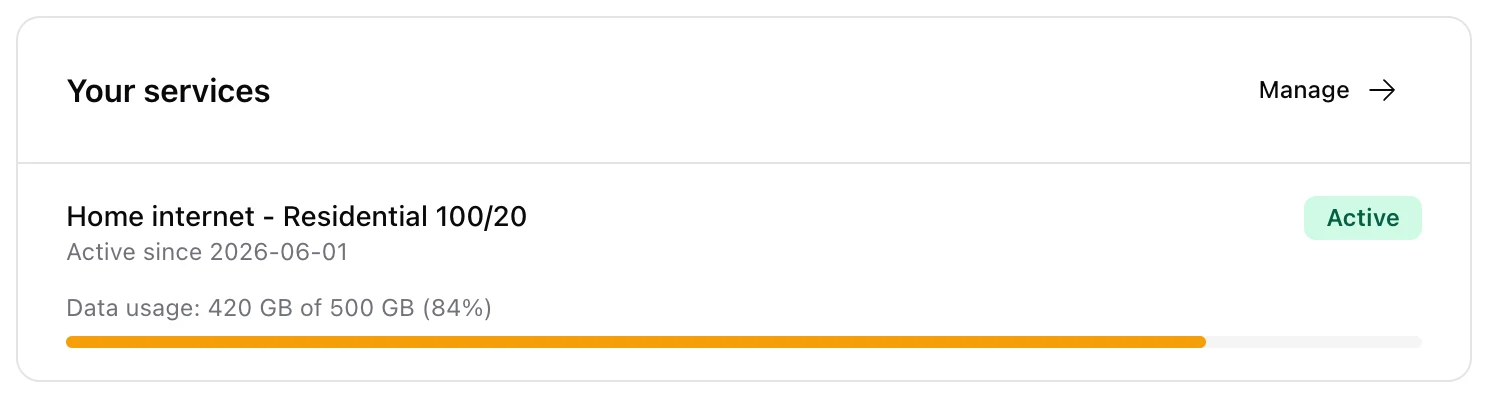
The customer portal dashboard shows a live usage bar on each capped service. Below 80% it is green; from 80% it turns amber with the warning shade:
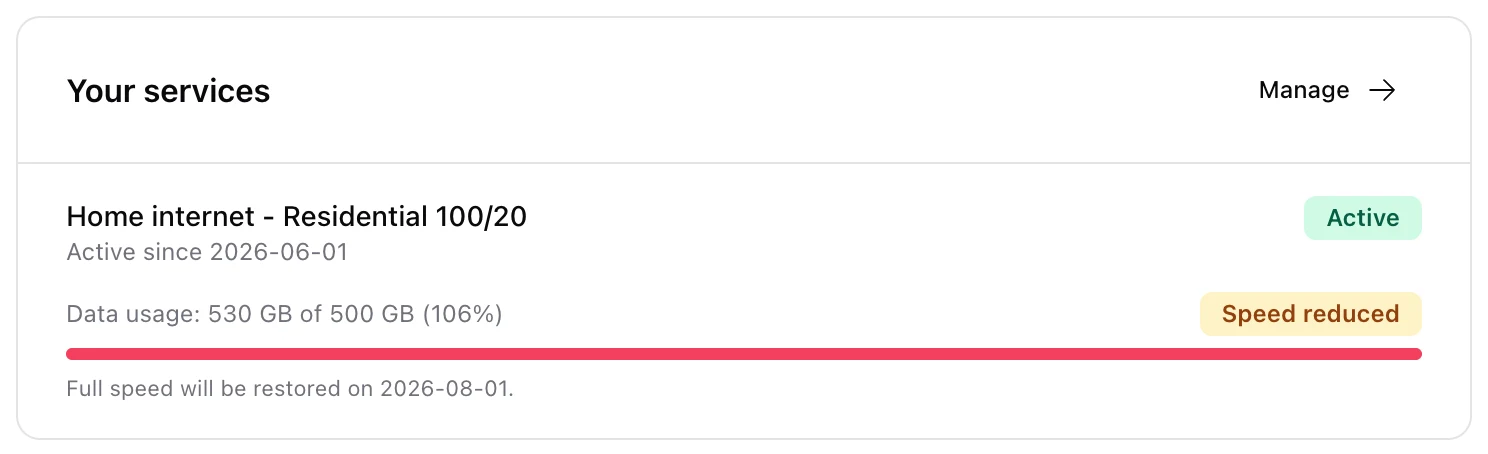
Once throttled, the bar turns red, a Speed reduced badge appears, and the customer is told exactly when full speed returns:
Two emails back this up - an 80% warning and a throttled notice - each sent once per period. Both are editable templates and support placeholders for the used and limit GB, the usage percent, the package name, the reduced speeds and the reset date.
5. Automatic restore
You never lift a throttle by hand. On the 1st of the month the usage window resets, the customer falls back below the cap, and the next hourly run restores the package's full speed and clears the throttled state. The portal shows the reset date while a service is throttled.
6. FUP and delinquency
Delinquency enforcement always wins. If a service is currently blocked or limited for non-payment, FUP will not touch its connection - the dunning engine owns the network state. FUP still tracks usage in the background, so once the customer pays and delinquency clears, the correct speed (full or throttled) is applied on the next run.