How to Add a Router with WireGuard + API (MikroTik)
The recommended MikroTik setup: ISPBox reaches the router over a secure WireGuard tunnel and drives it via the RouterOS API. Auto-generate the tunnel config, set auth, and optionally enable RADIUS CoA.
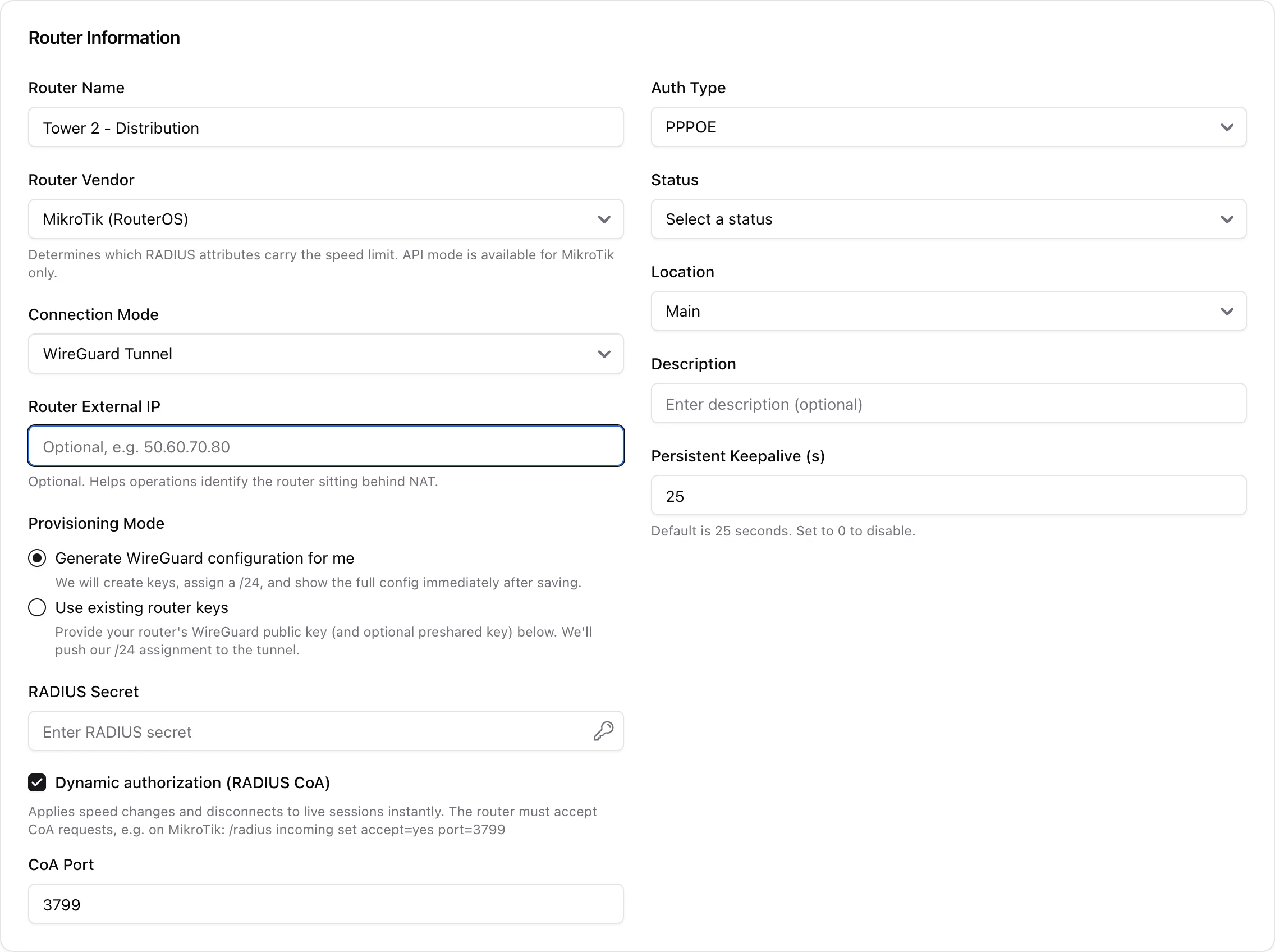
This is the recommended way to connect a MikroTik: ISPBox reaches the router over a secure WireGuard tunnel and drives it through the RouterOS API. You get encrypted communication, automated provisioning, and router health (online/offline + latency) in the Routers list - without exposing the router to the public internet. Add a router from Settings > Routers > Add (needs network edit).
1. Before you start
- The MikroTik can reach ISPBox's WireGuard endpoint (outbound UDP).
- RouterOS API is enabled (default port 8728).
- An API user in a group with the read, write, policy and api policies. The built-in
fullgroup works, or create a dedicated one:/user group add name=ispbox policy=read,write,policy,apithen/user add name=ispbox group=ispbox password=YOUR-PASSWORD. A read-only user makes Apply First Config fail with "not enough permissions". - You know whether you are using PPPoE or DHCP for client access.
2. Router information
Fill in the form:
- Router Name and Vendor - choose MikroTik (RouterOS). The vendor determines how the speed limit is applied; API mode is available for MikroTik only.
- Connection Mode - WireGuard Tunnel.
- Router External IP - optional, just helps you identify a router sitting behind NAT.
- Auth Type - PPPoE or DHCP, matching how your clients authenticate.
- Location, Status and an optional description.
3. WireGuard provisioning
Under Provisioning Mode you choose how the tunnel keys are handled:
- Generate WireGuard configuration for me (easiest) - ISPBox creates the keypair, assigns a /24, and shows you the full config to paste into the router right after saving.
- Use existing router keys - paste your router's WireGuard public key (and optional preshared key) and ISPBox pushes its /24 assignment to the tunnel.
Persistent Keepalive defaults to 25 seconds, which keeps the tunnel alive through NAT.
4. RADIUS and CoA (optional)
Even with API automation you can set a RADIUS secret so authentication runs through FreeRADIUS. Enable Dynamic authorization (RADIUS CoA) to push speed changes and disconnects to live sessions instantly - on MikroTik, enable it with /radius incoming set accept=yes port=3799. The CoA port defaults to 3799.
Save the router; if you chose "generate for me", copy the WireGuard config it shows onto the MikroTik and the tunnel comes up.