Managing Agents and Their Wallets
The agents list, the add/edit form, the agent page with prices and wallet history, top-up requests, portal access, and Reports > Agents.
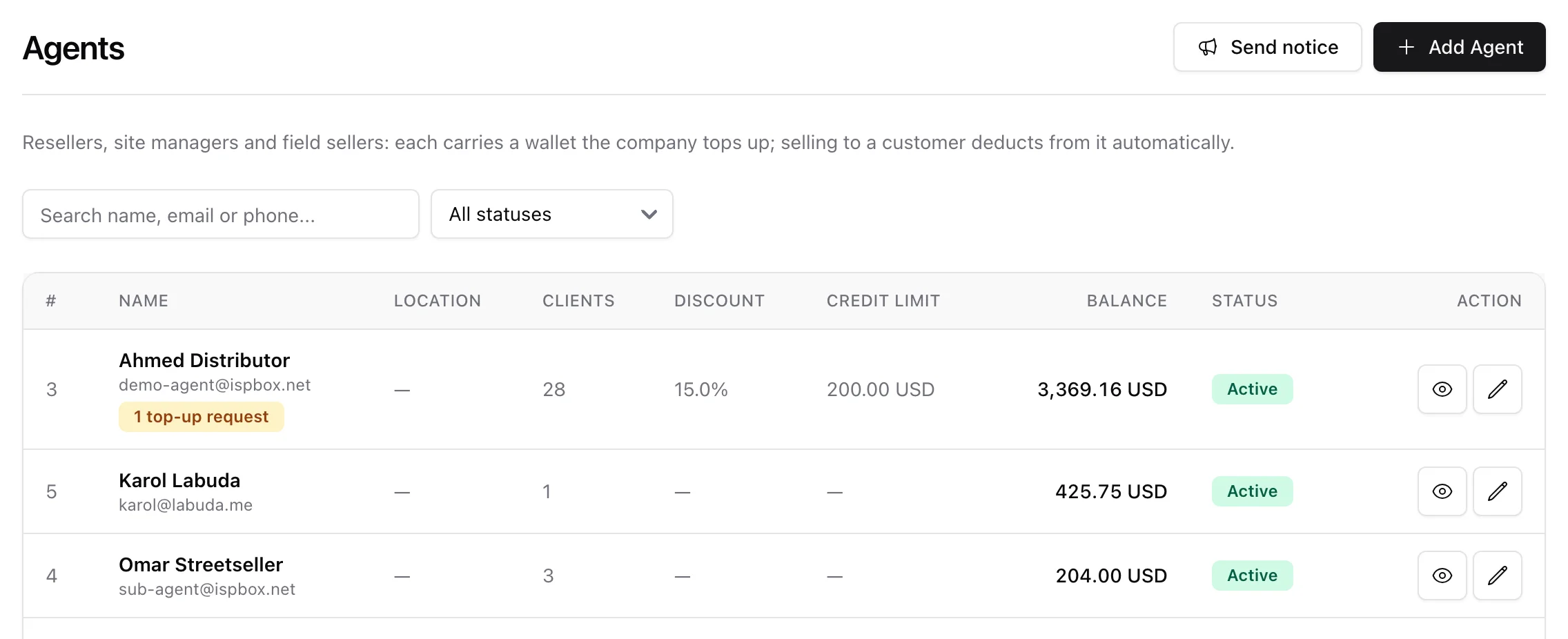
Agents live under Clients > Agents. The page needs the agents.view permission to open and agents.manage to change anything, so a support user can look up a reseller's balance without being able to top it up. This guide covers the list, the agent record, the money, and the report that tells you which of them actually sells.
1. The agents list
One row per agent, sorted by name, twenty-five to a page. The columns are the per-tenant number, name with email underneath, location, how many customers they brought in, their legacy discount, their credit limit, the wallet balance (red when negative) and their status. Search matches name, email or phone; the dropdown beside it filters active or suspended.
An amber N top-up requests badge under a name means that agent asked the office for money and nobody has decided yet - open them and the request is waiting at the top of their page.
Send notice only appears when your company offers the Notices from the company email in Settings > Agents; it is covered in Agent Notifications.

Two more things appear on the list only when there is something to say. A red line above the table - N agents owe the company X - sums every wallet spent past zero and, in the owed cash mode, every agent's cash on hand. And a Customers owe column, shown while you allow selling on credit or while any agent's customers still owe them: the outstanding total, the number of customers and how many are late.
2. Adding and editing an agent
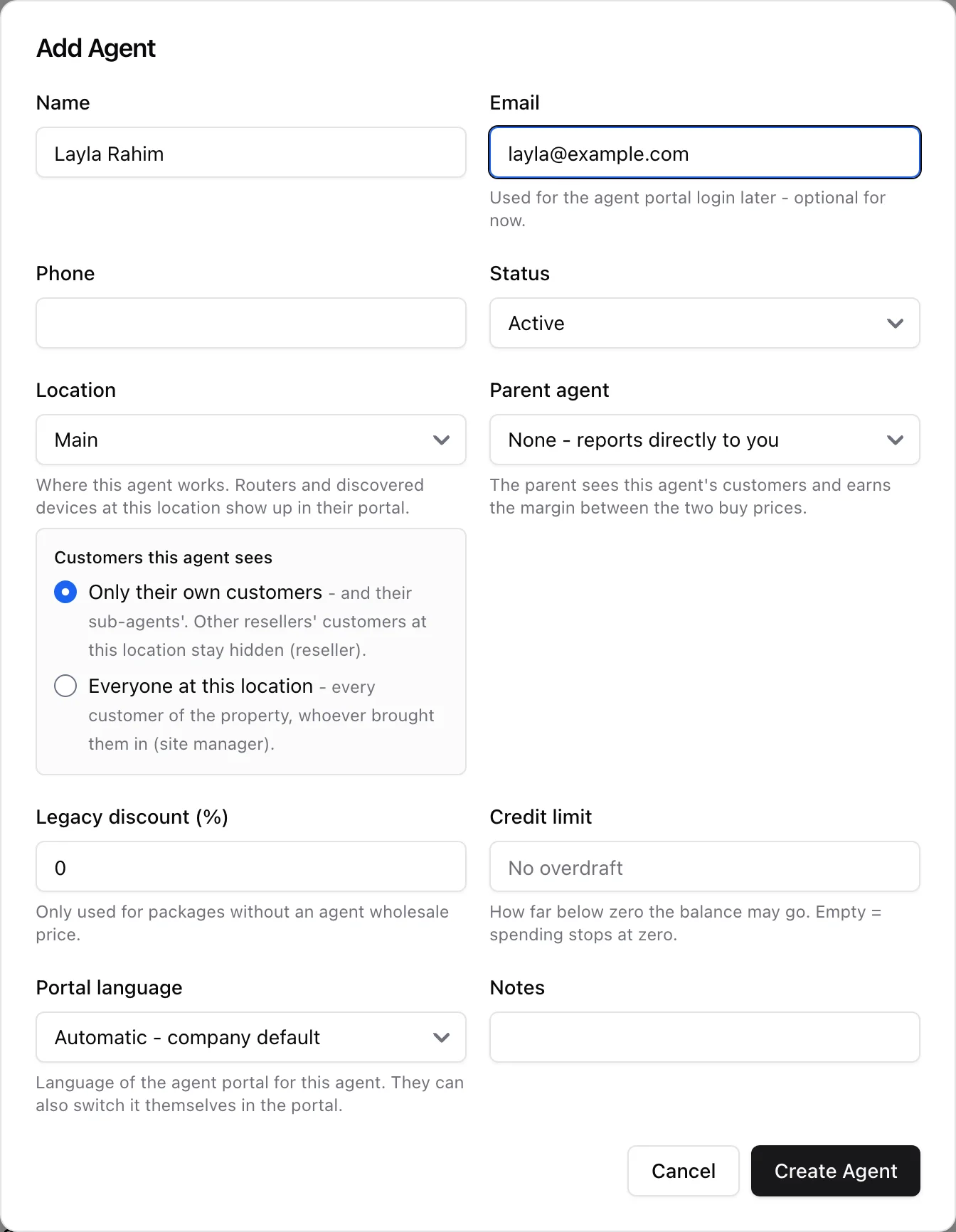
Add Agent opens the same form as the pencil on a row and the Edit button on the agent's page.
- Name - the only required field.
- Email - their portal login. It has to be unique among your agents; the form says so if it is taken. Creating an agent with an email sends them an invitation with a set-password link straight away, and the toast tells you whether it went out - if you have no mailbox connected yet, hand them a password by hand instead (section 7).
- Status - Suspended means the wallet cannot be charged, the portal refuses them at login and logs them out mid-session, and any support ticket they were holding goes back to your queue.
- Location - where the agent works. Routers and discovered devices at that location are the ones they see in their portal.
- Parent agent - only shown when sub-agents are enabled. An agent can never be their own parent or report to one of their own sub-agents.
- Legacy discount (%) - the old flat rule, used only for packages that have no agent wholesale price. With the pricing engine set up per package you can leave it at zero.
- Credit limit - how far below zero the balance may go. Empty means spending stops at zero.
- Portal language - the agent portal speaks eleven languages; leave it on Automatic and the agent can switch it themselves.
- Notes - your own reminder, never shown to the agent.
Whose customers they see
Picking a location reveals the sensitive choice, because a location can either narrow or widen access:
- Only their own customers - the reseller shape, and the default. They see the customers attributed to them and to their sub-agents. Another reseller's customers at the same property stay invisible.
- Everyone at this location - the site manager shape. They see every customer of that property, whoever brought them in.
This one rule decides what an agent can reach on every portal page and in every portal action, so a customer outside it simply does not exist for them.
3. The agent page
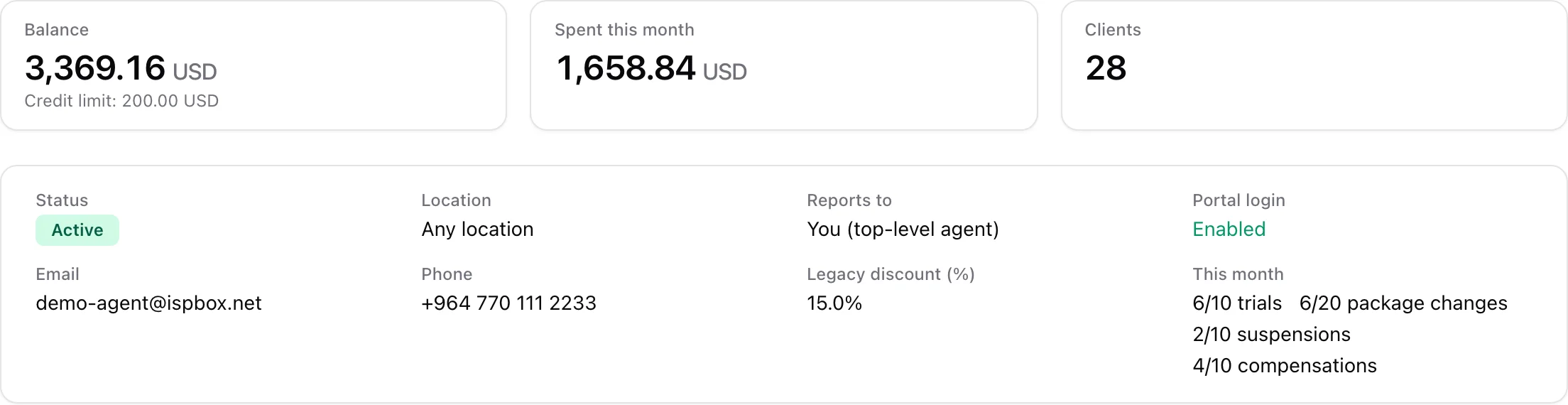
Opening an agent gives you three numbers first: the current Balance (with their credit limit underneath), what they spent this month - sales only, manual corrections are excluded so a large adjustment cannot masquerade as trade - and how many clients they brought in.
The card below is the profile: status, location with the customer scope spelled out, who they report to, whether their portal login is set up, contact details, the legacy discount, and a This month line counting the lifecycle actions they used against their caps (trials, package changes, suspensions, compensations). That line only lists the actions you actually enabled.

Owes the company is one red card that appears only while the agent owes you something: the wallet spent past zero (settled by Top Up) plus customer cash on hand (settled by Cash handover), each with the date of the last settlement. Every movement with its date and note is in the wallet and cash histories further down the page.
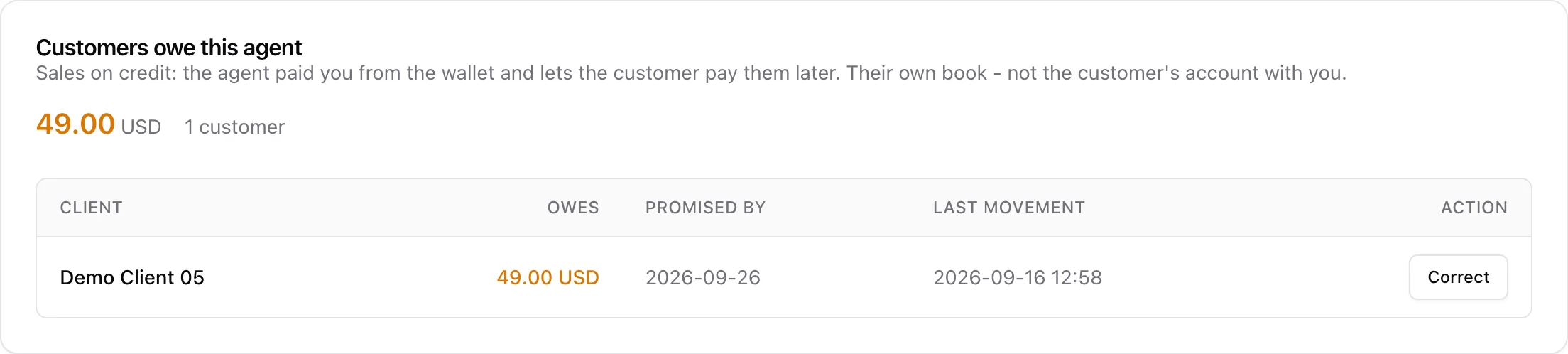
Customers owe this agent lists the agent's own book of sales on credit (see Selling on credit in Settings > Agents): who owes them, how much, the promised date (red when it has passed) and the last movement. Correct lets the office write part of a debt off or add to it, with a required reason; the entry is marked as made by the office. This is the agent's money, not yours: the customer's invoice was paid from the wallet, so nothing here touches the customer's account.
4. Package prices
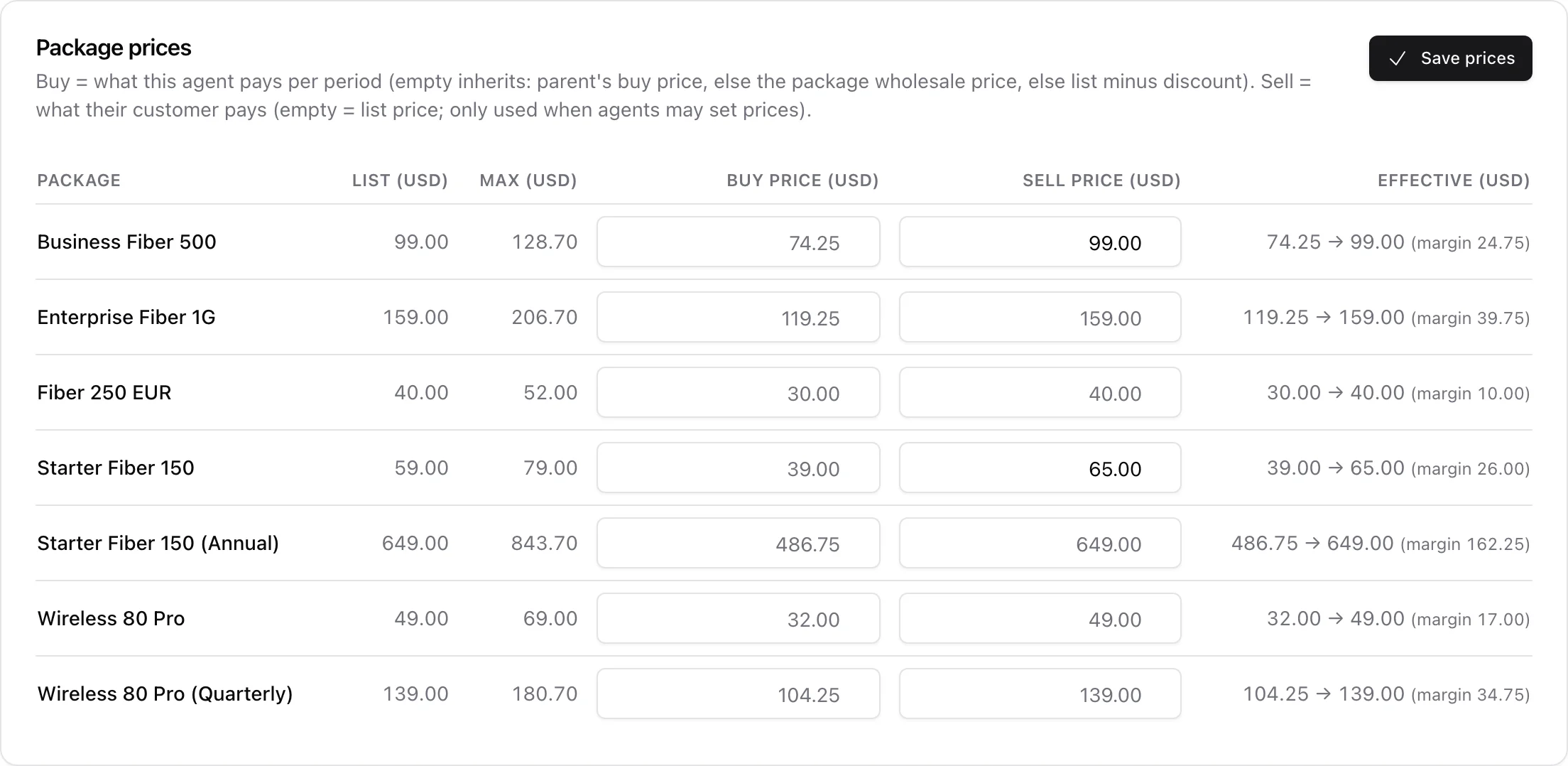
Every package, with what this agent pays and what their customer pays:
- List and Max come from the package - the normal price and the agent max price, the ceiling for any customer price.
- Buy price is what this agent pays you per period. Leave it empty and it inherits: their parent's buy price, else the package's agent wholesale price, else list minus their discount. The grey number in an empty box is what they are paying right now.
- Sell price is what their customer is invoiced. Empty means the list price. It only has an effect when agents are allowed to set prices.
- Effective reads buy to sell with the margin in brackets - the money that stays with the agent.
Prices are checked before anything is written, so one bad row never leaves the table half-saved. A buy price cannot go below what the agent's parent pays (the parent would be selling at a loss) or above the package maximum, and a sell price cannot go below the buy price or above the maximum. Clearing both boxes deletes the override and puts the row back on inheritance.
5. Sub-agents and clients
When the agent has sub-agents, a Sub-agents card lists them with their balance and status - each name opens that agent's own page. Beside it, Clients brought in lists the customers attributed to this agent. Attribution is set when you add or edit a customer, and claimed automatically by the first wallet-paid sale, never overwritten afterwards.
6. Wallet: top up, adjust, history
Top Up records a deposit: an amount and an optional note such as a transfer reference. That is all it does - it moves money into the wallet, and revenue is only booked when the balance is spent on a customer.
Adjust is the manual correction, in either direction, and it demands a reason because the reason is the paper trail. An adjustment deliberately ignores the credit limit, but pushing an agent past their overdraft asks you to confirm first, showing the balance it would leave behind.
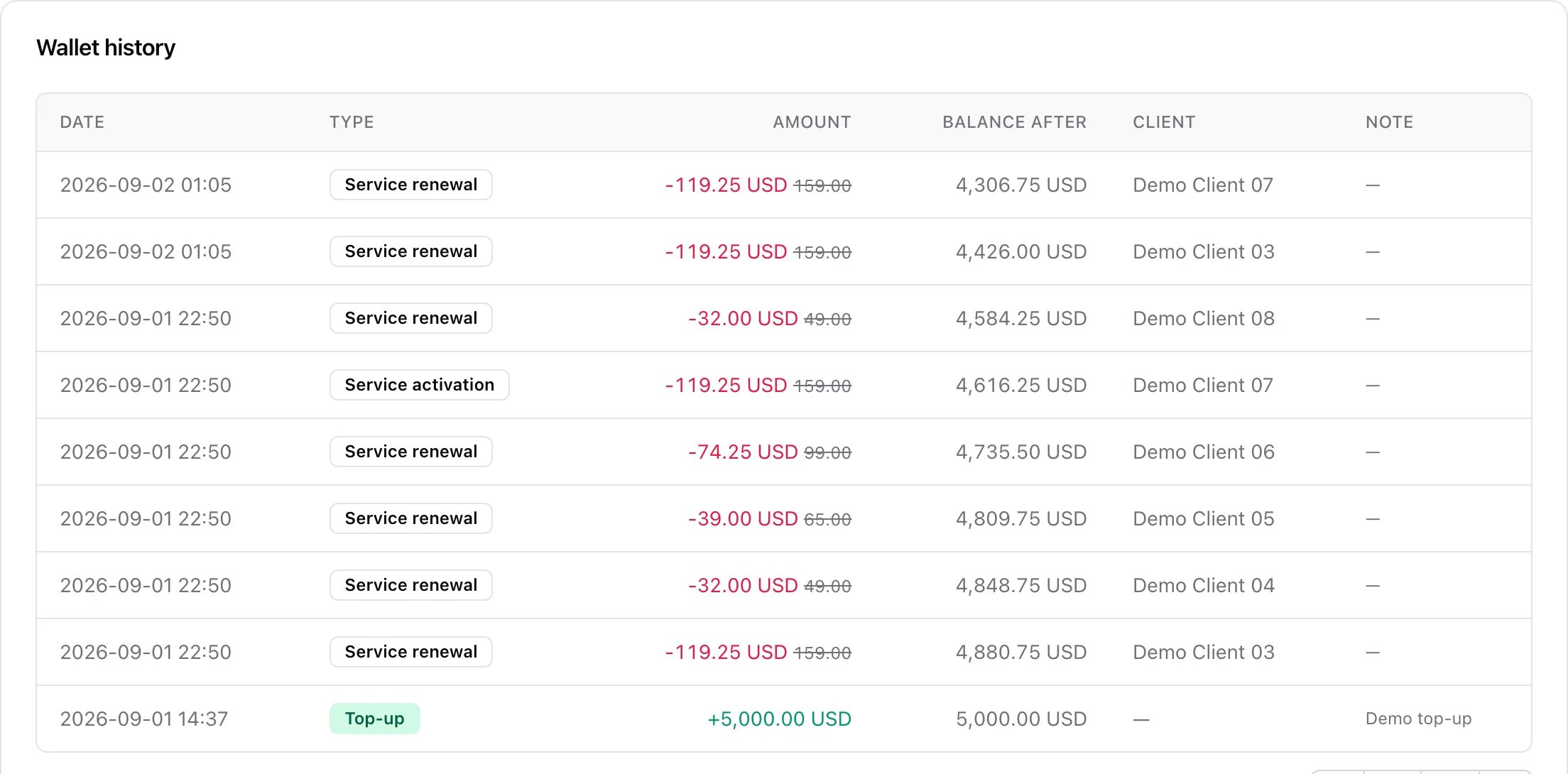
The Wallet history below lists every movement newest first with the running balance after it: activations and renewals, invoice payments and account credits the agent collected in the field, card and voucher batches, commissions from sub-agents, top-ups and adjustments. Where the agent paid less than the customer, the customer's price is shown struck through beside the amount. The whole chain is written under a row lock, so balance-after always reconciles.
7. Top-up requests

Agents can ask for money from their own Wallet page, one open request at a time. Pending asks sit at the top of the agent's page with what they wrote.
- Approve opens the normal top-up dialog with the amount filled in. You can correct it before booking - the row then keeps both figures, what they asked and what you actually gave, so neither side loses the history.
- Decline takes an optional reply the agent reads on their Wallet page, for example "no deposit received yet".
An approved request books an ordinary top-up transaction linked back to the request, so the wallet history looks the same however the money was asked for.
8. Portal access
Portal access in the page header sets the password the agent signs in with at /agent/login on your domain. Type one or hit Generate for a twelve-character suggestion, which is shown once and never again. The agent needs an email first, because the email is their username. Disable login clears the password and shuts the portal for them without touching their record, their wallet or their customers.
9. Reports > Agents
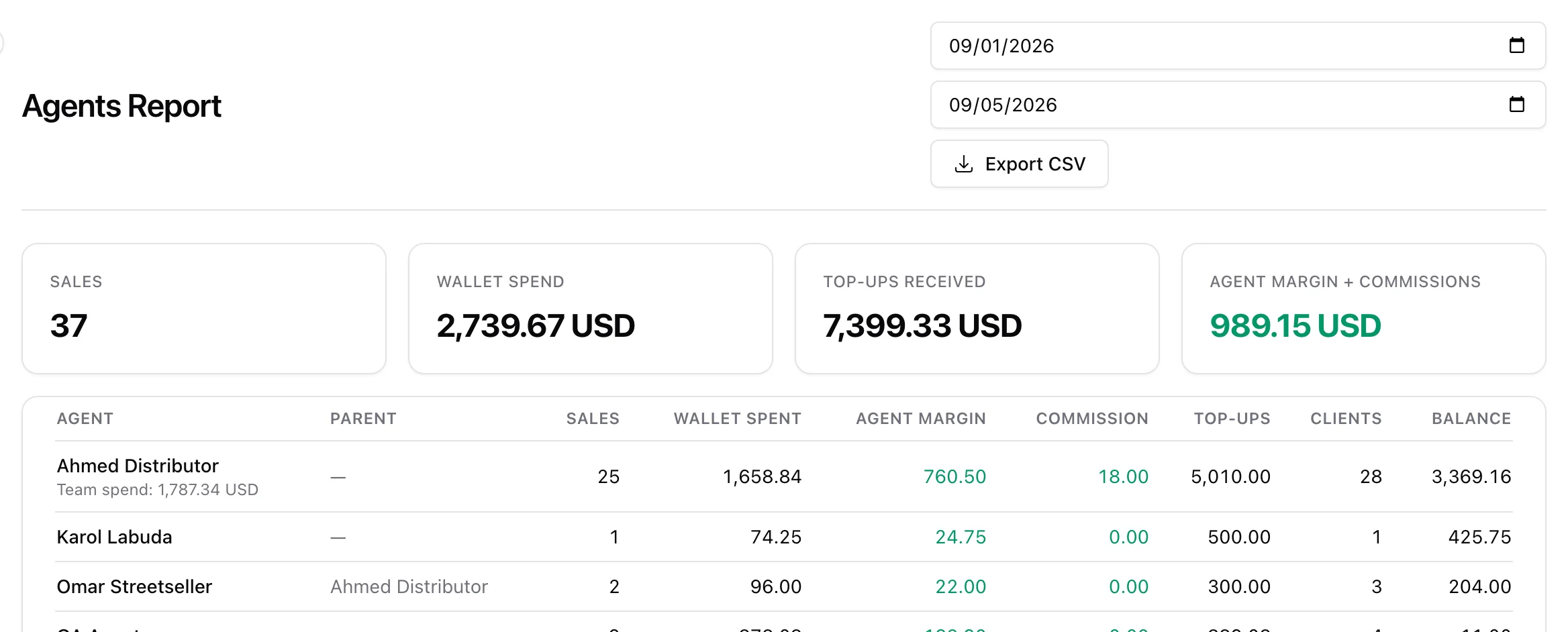
Reports > Agents is the channel in numbers over a date range, which starts at the first of the current month. Four totals sit on top - sales, wallet spend, top-ups received, and agent margin plus commissions - over a table of one row per agent:
- Sales - how many activations and renewals they paid for from the wallet.
- Wallet spent - everything the wallet paid out except manual corrections.
- Agent margin - the difference between what the customer paid and what the agent paid, over sales and printed card or voucher batches.
- Commission - what they earned from their sub-agents' sales.
- Top-ups, Clients and the current Balance.
An agent with sub-agents also gets a Team spend line under their name: the whole subtree's wallet spend in the same range, which is the number that says whether a distributor is really moving money. Export CSV gives you the same columns plus the team roll-up.
With selling on credit switched on (or anything still owed), the table and the CSV gain a Customers owe column: what each agent's customers still owe them.
Related guides
- Setting Up the Reseller Channel - the toggles in Settings > Agents that decide what your agents may do.
- Agent Notifications - the eight email kinds and the two switches in front of each.
- The Agent Portal - the same records seen from the reseller's side.
- DHCP Device Discovery - the devices an agent can claim for a customer.