Saved Replies, Merging and Ratings
Insert answers you wrote once, merge the ticket that was reported twice, and let customers rate support after a ticket is closed.
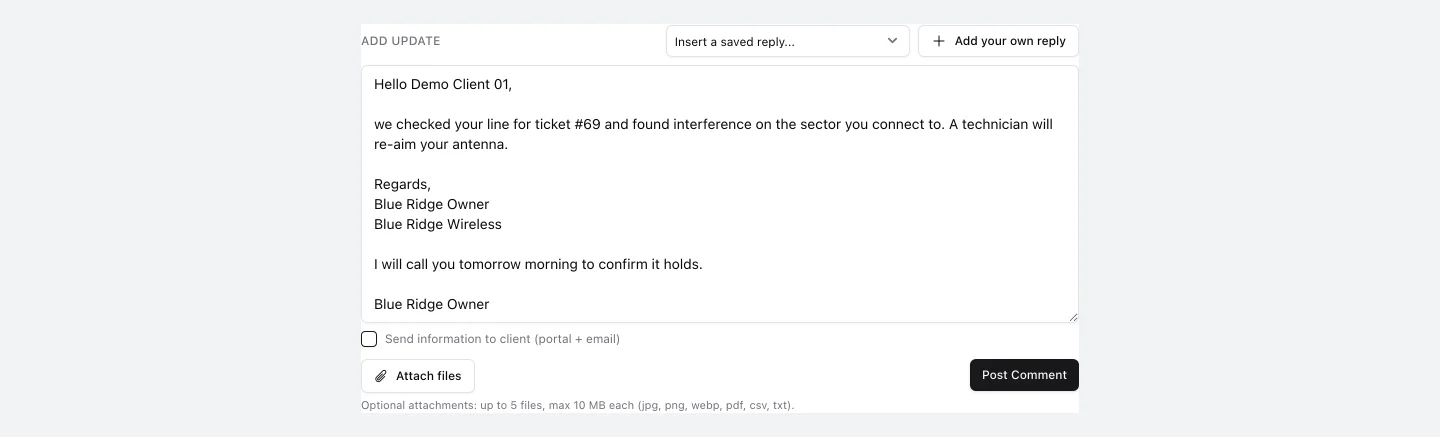
Three tools for a support team that answers the same questions every day: saved replies you insert with one pick, merging for the problem that was reported twice, and a rating the customer gives after the ticket is closed. All three live on the ticket page of Support Tickets and need the tickets manage permission.
1. Saved replies
Above the Add update box click Add your own reply. Give the reply a name and write its text. If you already typed an answer worth keeping, the form opens with that text in it.
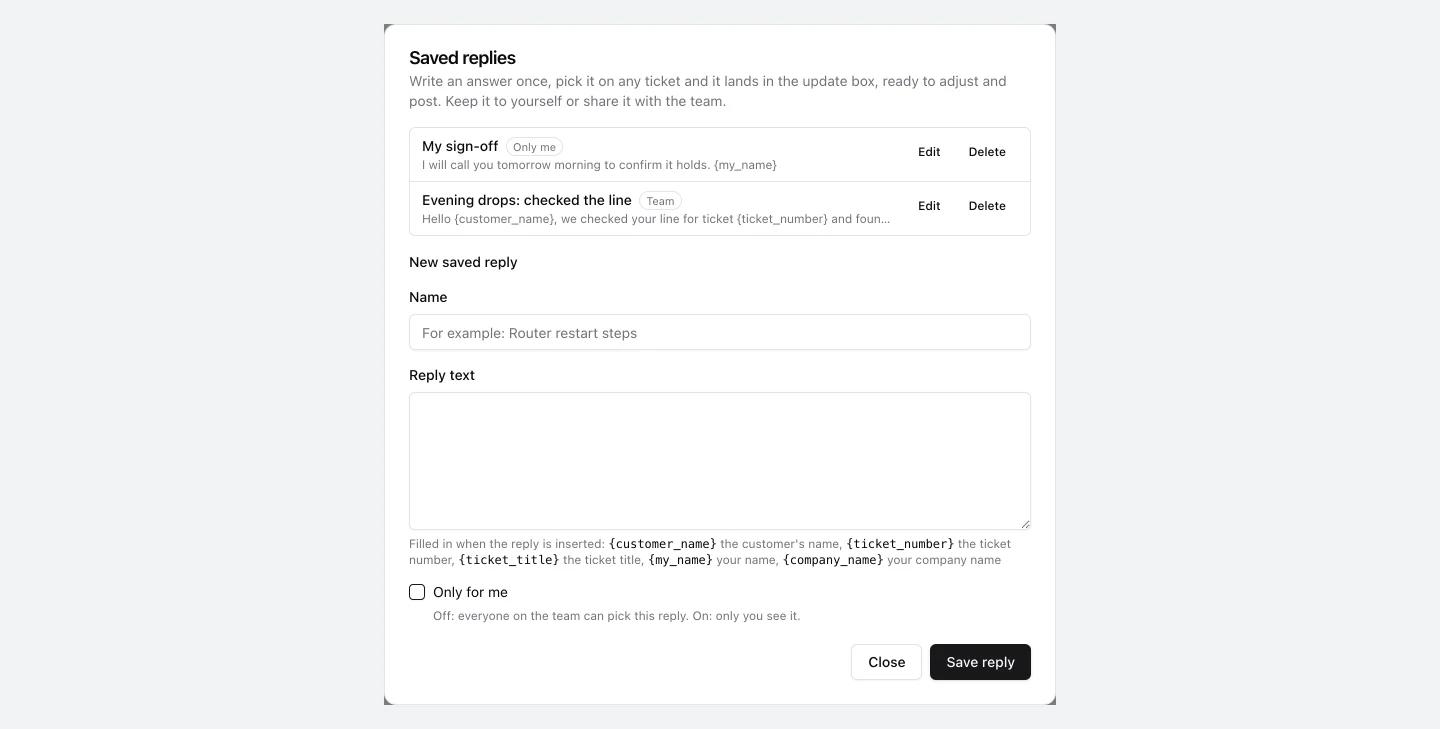
A reply belongs to one of two lists:
- Team - everyone on the team can pick it. This is the default.
- Only me - tick Only for me and nobody else sees, uses or edits it. You can share it with the team later by unticking the box.
A team reply cannot be turned into one person's own, so nobody can take it away from the others. Your own reply may carry the same name as a team one.
Placeholders
These are filled in at the moment you insert the reply:
{customer_name}- the customer's name{ticket_number}- the ticket number{ticket_title}- the ticket title{my_name}- your name{company_name}- your company name
To use a reply, pick it from Insert a saved reply. It lands in the update box after anything you already typed, so you can combine several and adjust the text before you post. Nothing is sent until you click Post Comment.
2. Merging duplicate tickets
When the same problem arrives twice, open the duplicate and click Merge in the client card, next to Move. The dialog first offers the customer's other tickets; you can also search by ticket number or words from the title.
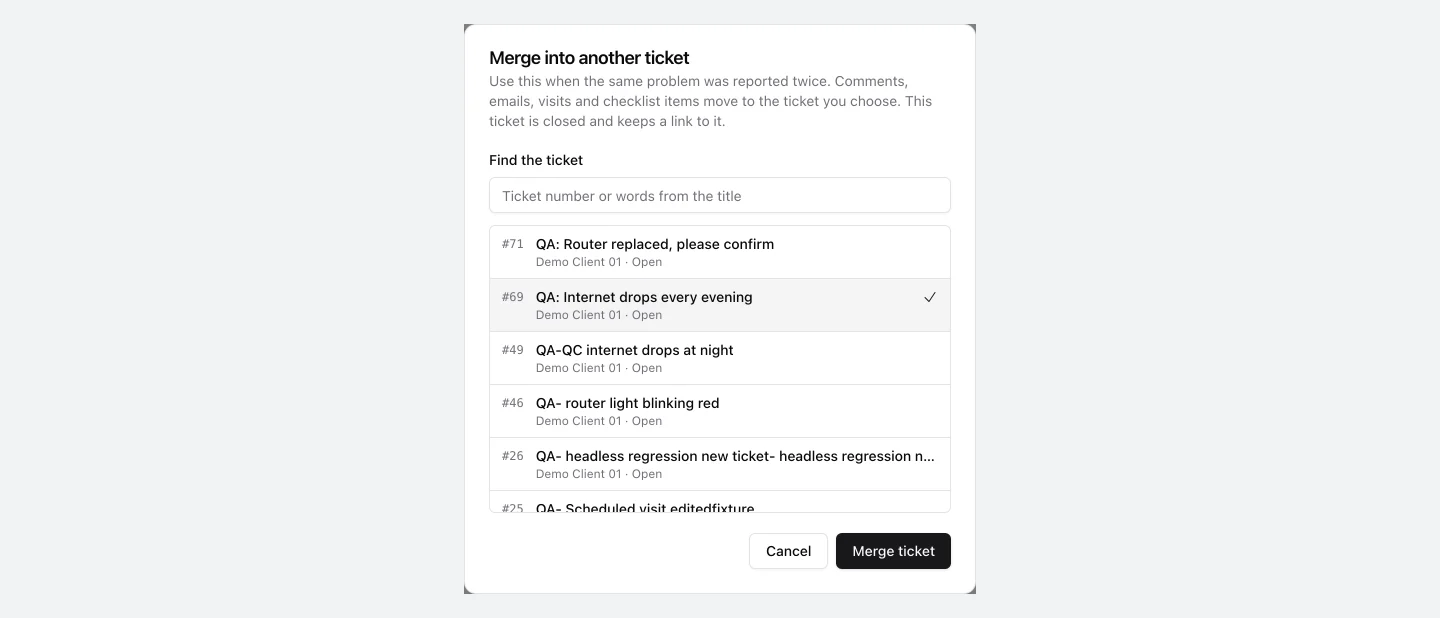
Choose the ticket that should keep the conversation and click Merge ticket. What happens:
- Comments with their attachments, email messages, scheduled visits, checklist items, participants and tags move to the ticket you chose.
- The description of the merged ticket is kept as a note on the target, so nothing the customer wrote is lost.
- If the target had no customer, service or premise, it takes them from the merged ticket.
- The merged ticket is closed and shows a banner with a link to the target.
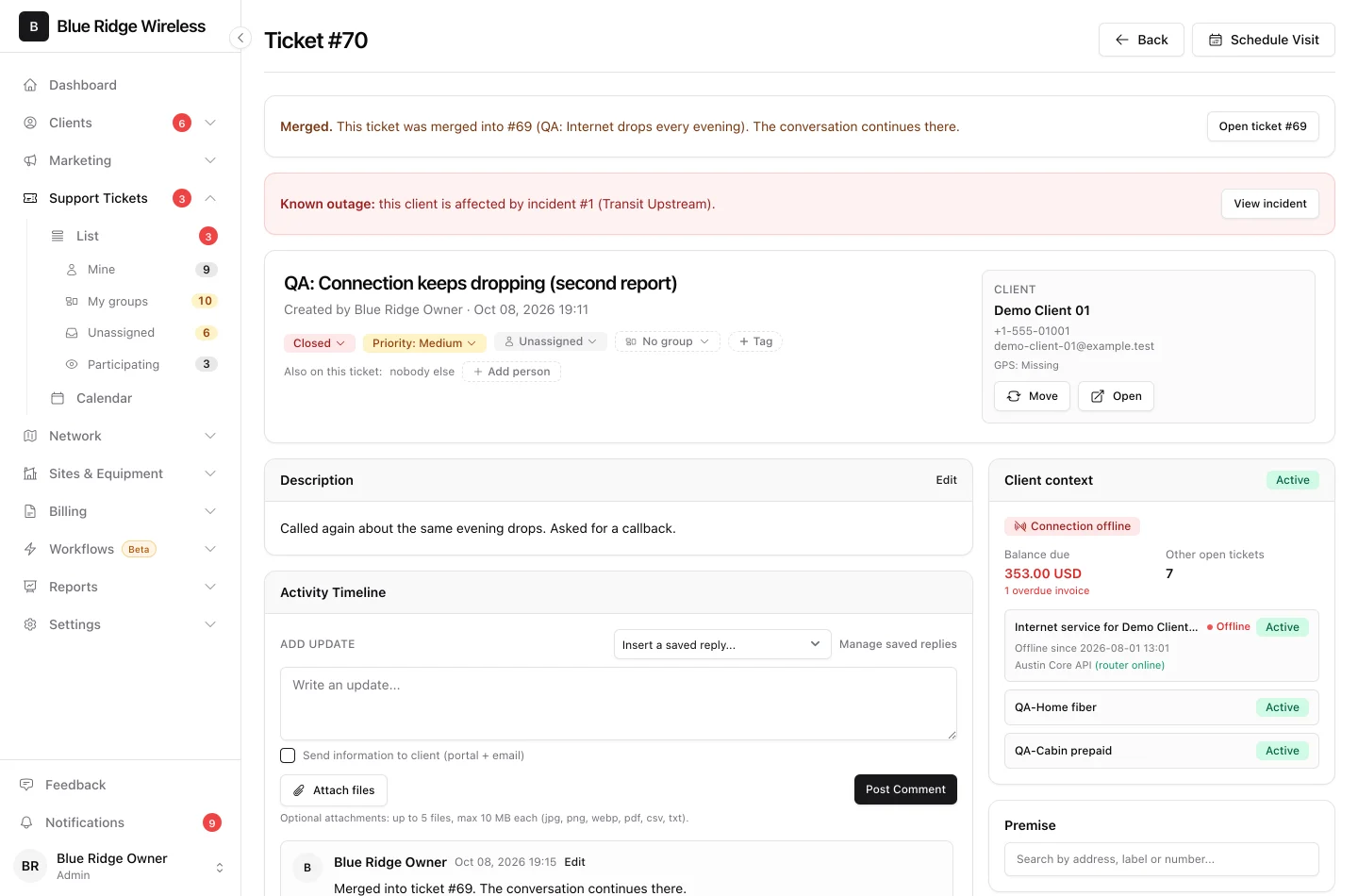
Later replies follow the conversation: an email answer to the old ticket, a reply from the customer portal or app, or a comment from an integration all land on the target. A customer reply reopens the target, never the merged ticket. Closing a ticket by merging does not send the rating email or a review request.
Two things cannot be merged: tickets of different customers (move one to the same customer first), and a ticket that is already merged.
3. Asking customers to rate support
This is off until you switch it on in Settings > Customer portal: Ask customers to rate support when a ticket is closed.

Ten minutes after a ticket of a customer with an email address is closed, and only if it is still closed, the customer gets one email in their own language with a Rate our support button. The page behind it needs no login: a score from 1 to 5 and an optional note.
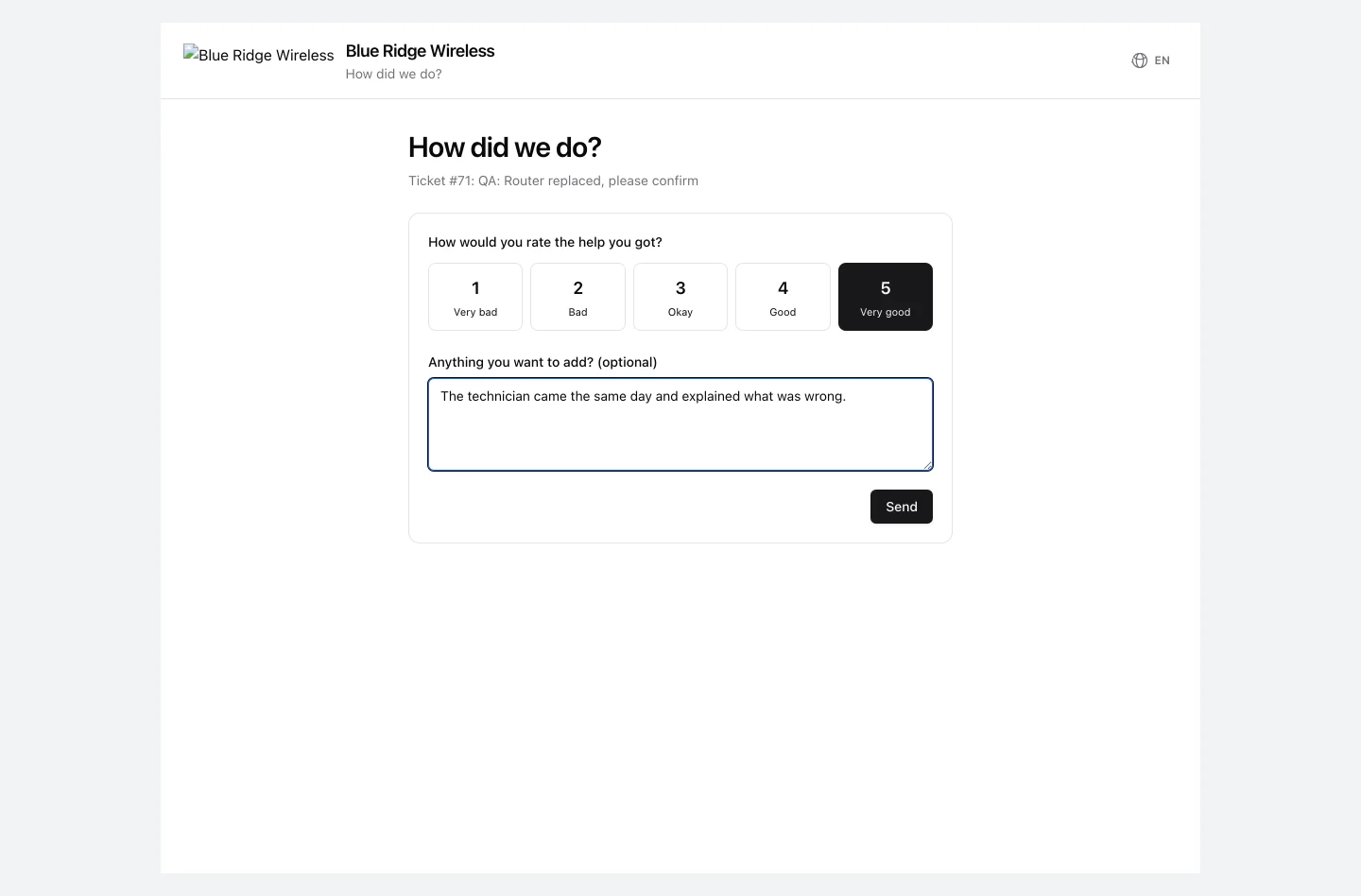
Each ticket is asked once, even if it is reopened and closed again. Opening the link records nothing; the answer is stored when the customer clicks Send, and they can change it by opening the link again.
The answer shows at the top of the ticket with the score, the note and the time. Until the customer answers, the ticket says when they were asked.
