Giving a Customer a Credit
Credit a customer from their Billing tab: against an open invoice as a credit note, or on the next invoice when everything is paid, with an optional email to the customer.
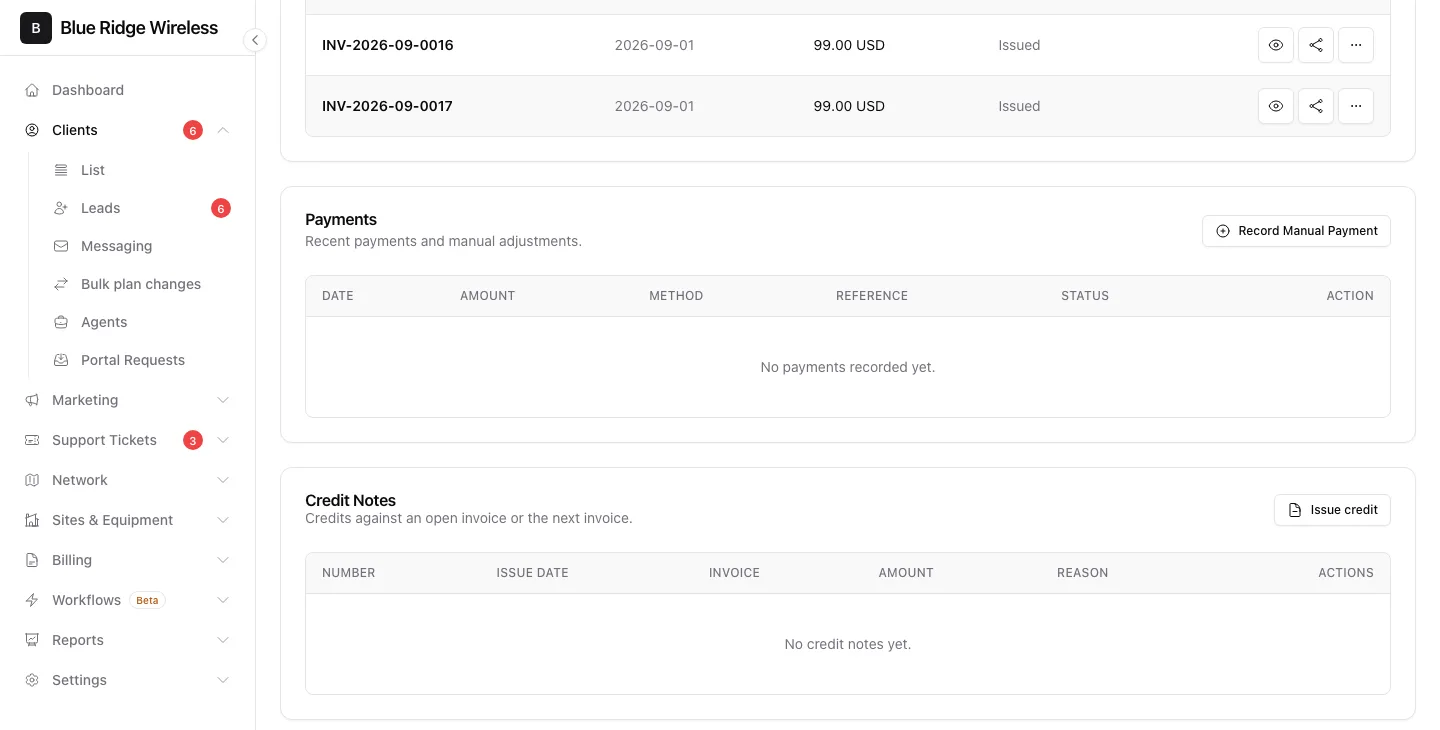
When a customer should pay less - their internet was down for a few days, a technician was late, you agreed a goodwill discount - you give them a credit. Everything happens on the client's Billing tab with the Issue credit button, and you decide in the same window whether the customer gets an email about it. You need the billing edit permission.
A credit can go to one of two places:
- An open invoice - the customer still owes money on it. ISPBox issues a credit note (a numbered document with its own PDF) and the invoice balance goes down right away.
- The next invoice - for example when every invoice is already paid. The credit waits and is printed as a minus line on the customer's next invoice, so they simply pay less next time.
1. Open the credit window
Open the client, switch to the Billing tab and scroll to the Credit Notes card. Click Issue credit in the card's header. You can also open the same window from an invoice: click the ... button on the invoice row and choose Issue Credit Note - that invoice is then already picked and the amount is filled in with what is left to pay on it.
2. Choose where the credit goes
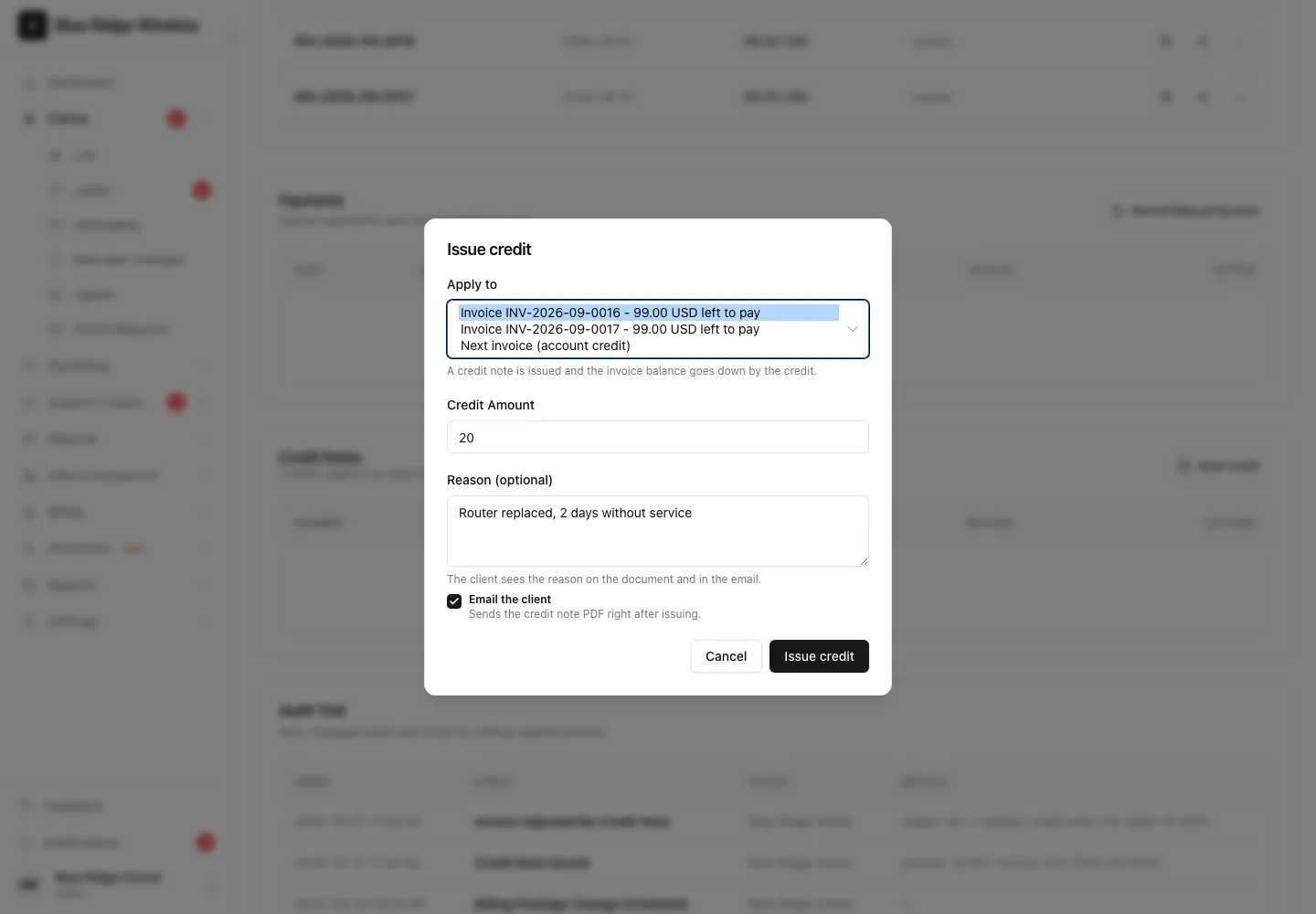
The Apply to list shows every open invoice of the customer with the amount left to pay, oldest first, and at the end Next invoice (account credit). The oldest open invoice is picked for you; when nothing is open, the next invoice is picked. The line under the list tells you what will happen with the option you chose.
Next invoice is only offered when an invoice is actually coming for this customer: they have an active, billable, monthly (or quarterly, yearly) service and their billing is not paused - not prepaid only, not archived or inactive, not paused by a block or a seasonal suspension, and the service has not ended. Otherwise the credit would wait forever. If the customer has no open invoice and no invoice coming, the window says Nothing to credit and the button stays grey.
3. Credit against an open invoice
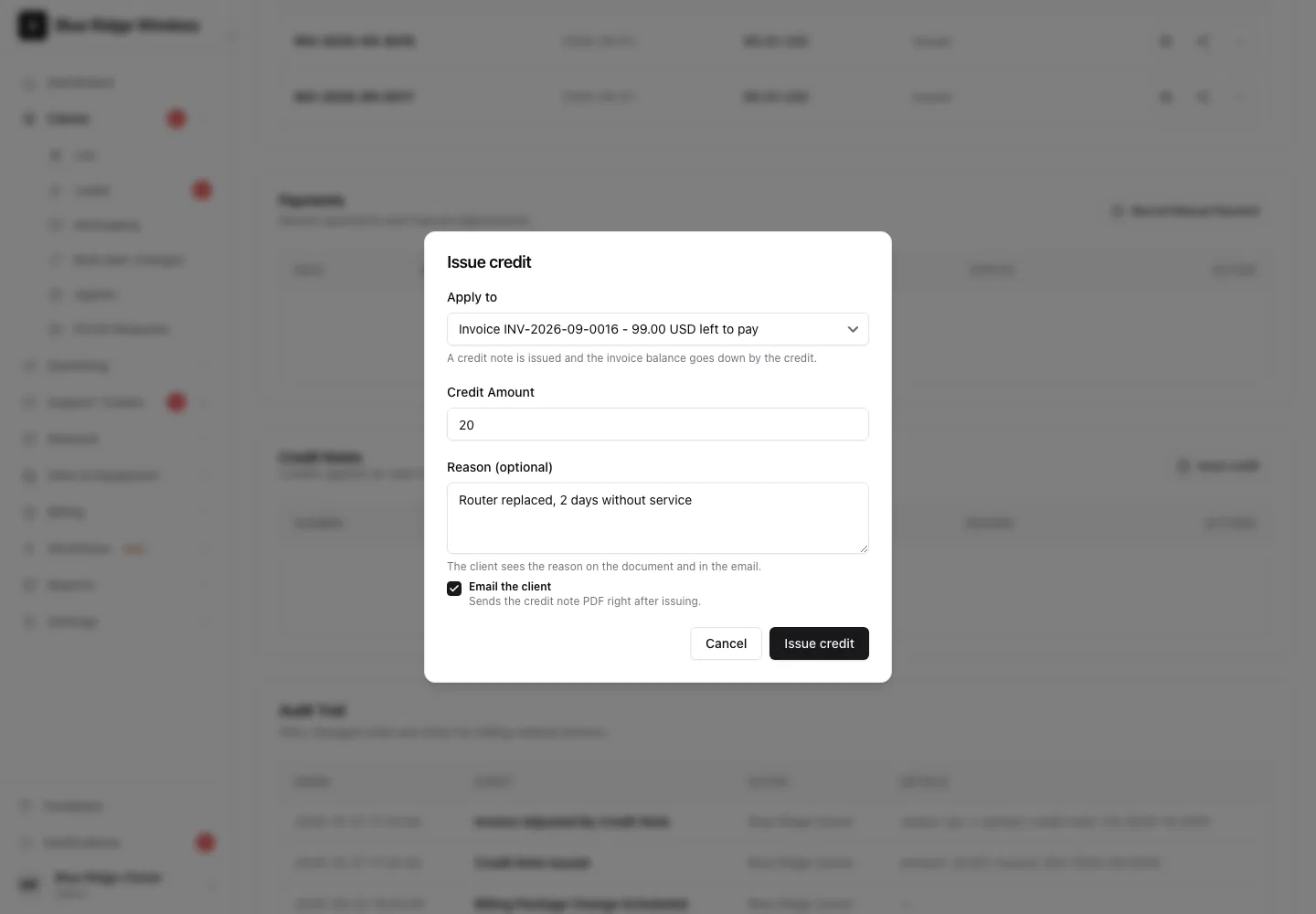
Type the amount and, if you like, a reason. The customer sees the reason on the credit note and in the email, so write it for them: Router replaced, 2 days without service. The amount can not be more than what is left to pay on the invoice; if it is, the window tells you how much is left and suggests putting the rest on the next invoice.
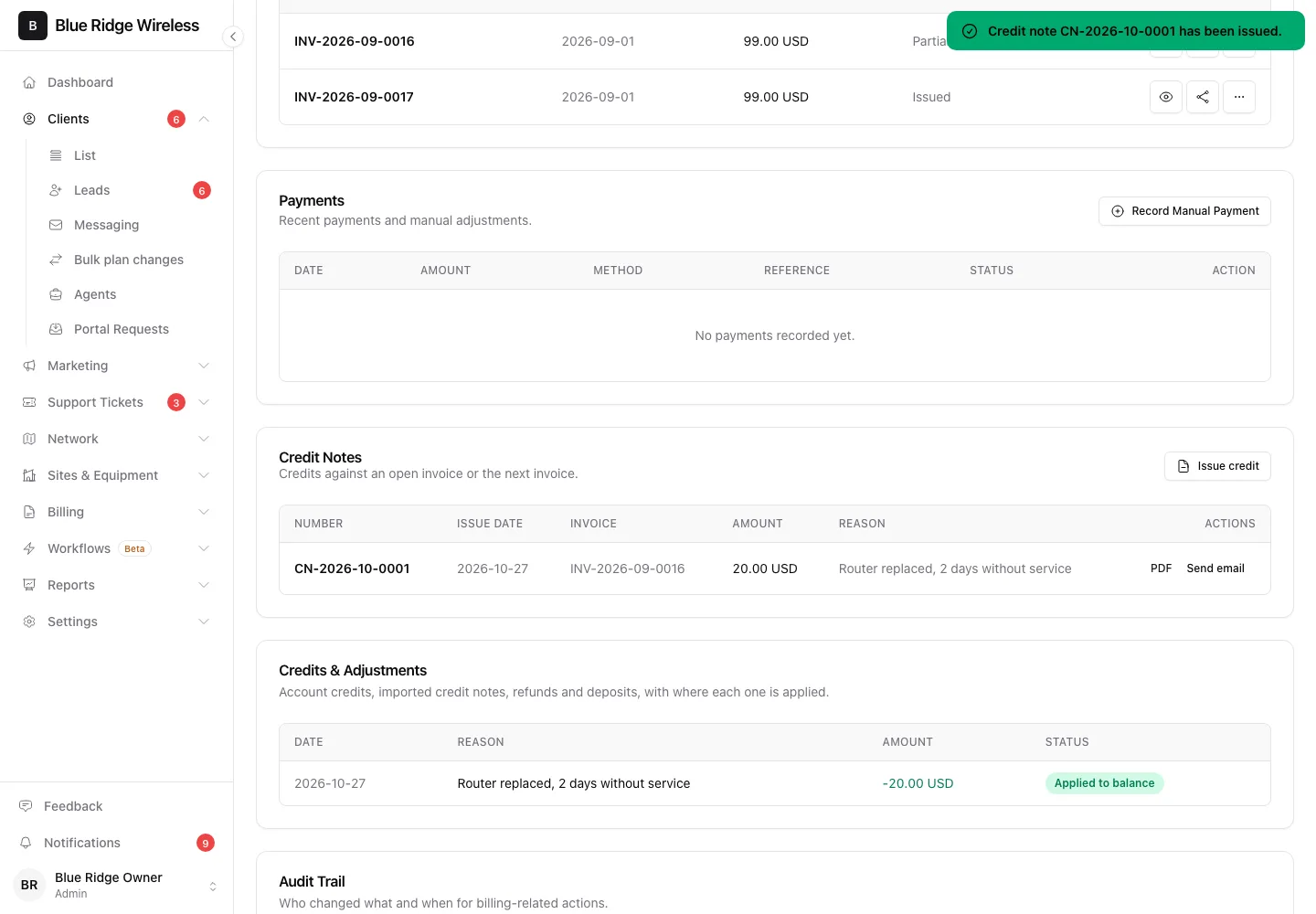
Click Issue credit. The credit note gets the next number (for example CN-2026-10-0001) and appears in the Credit Notes card with a PDF link and a Send email button for sending it (again) later. The invoice balance goes down by the credit: partly credited invoices become Partial, fully credited ones Paid. If you sync to QuickBooks, the credit note is sent there as a credit memo against the same invoice.
4. Credit on the next invoice
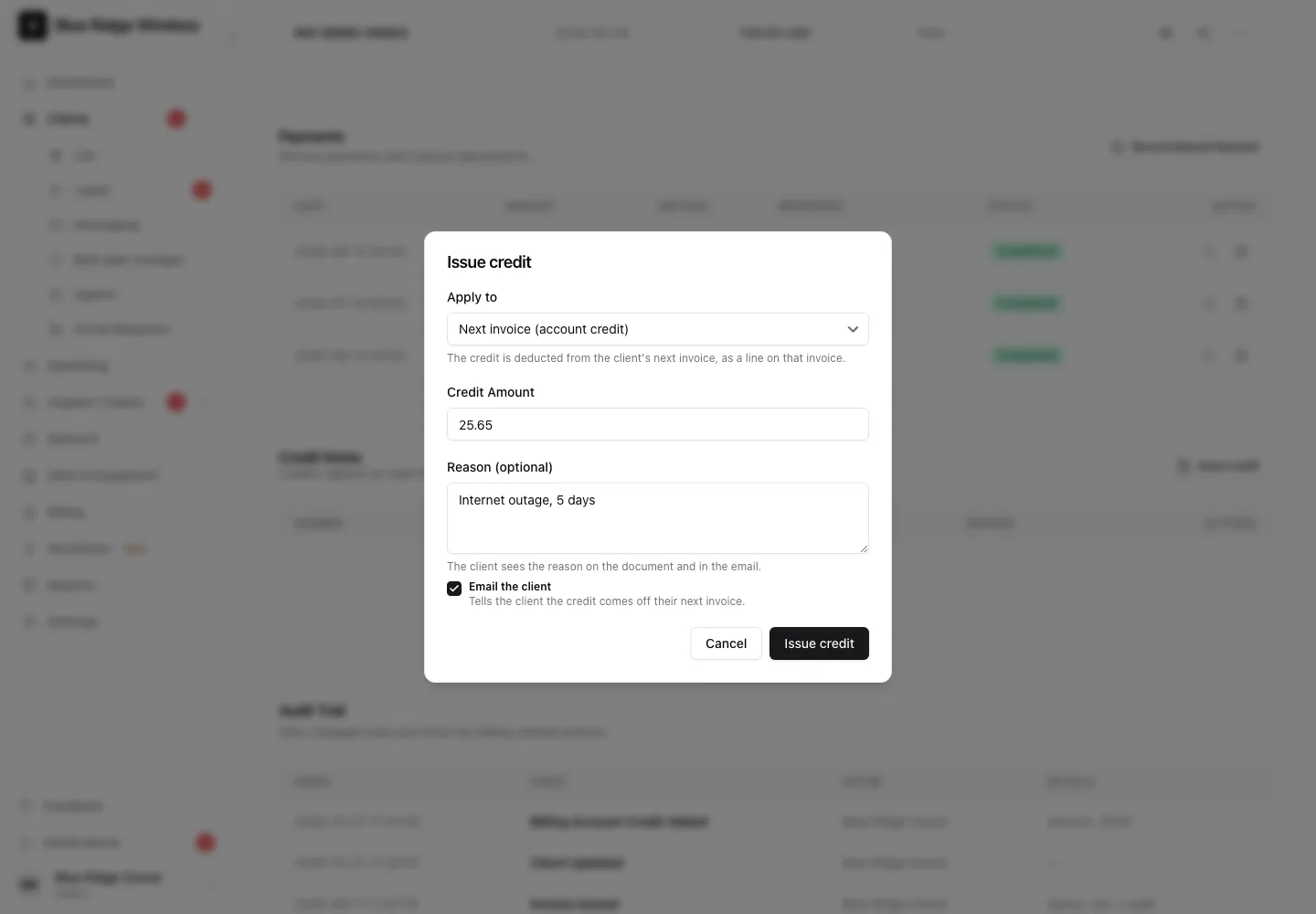
Pick Next invoice (account credit), type the amount and the reason, and click Issue credit. Nothing changes on the invoices that already exist. Instead the credit waits for the next invoice:
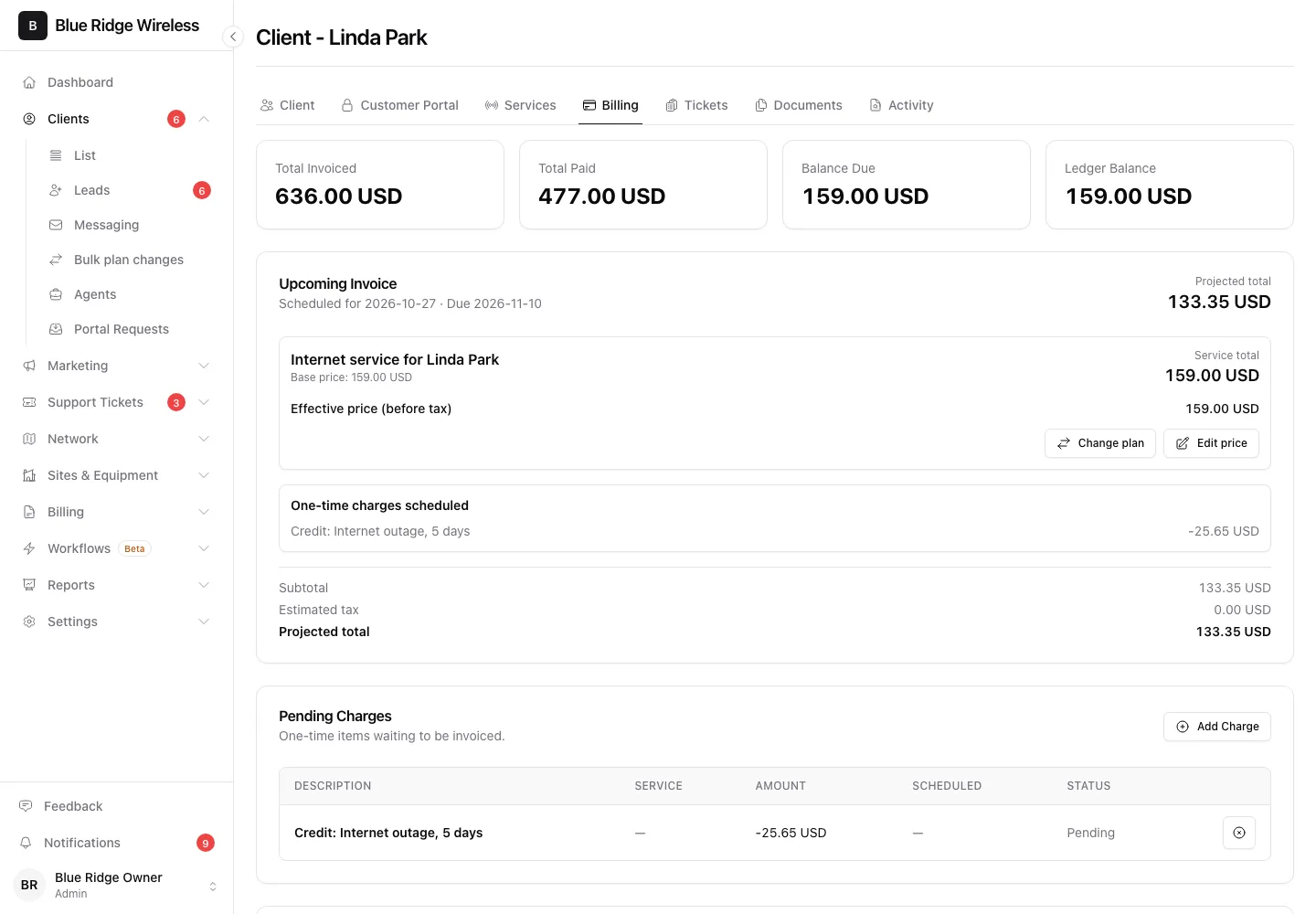
- The Upcoming Invoice preview at the top of the Billing tab already counts it: the line Credit: Internet outage, 5 days with a minus amount, and a lower projected total.
- The same line waits in Pending Charges until the invoice is issued. On the invoice it is printed in the customer's language.
- When the invoice run issues the next invoice, the credit is on it and the customer pays the lower total. If the credit is bigger than that invoice, the invoice comes out at zero and the rest moves on to the following invoice (marked carried over).
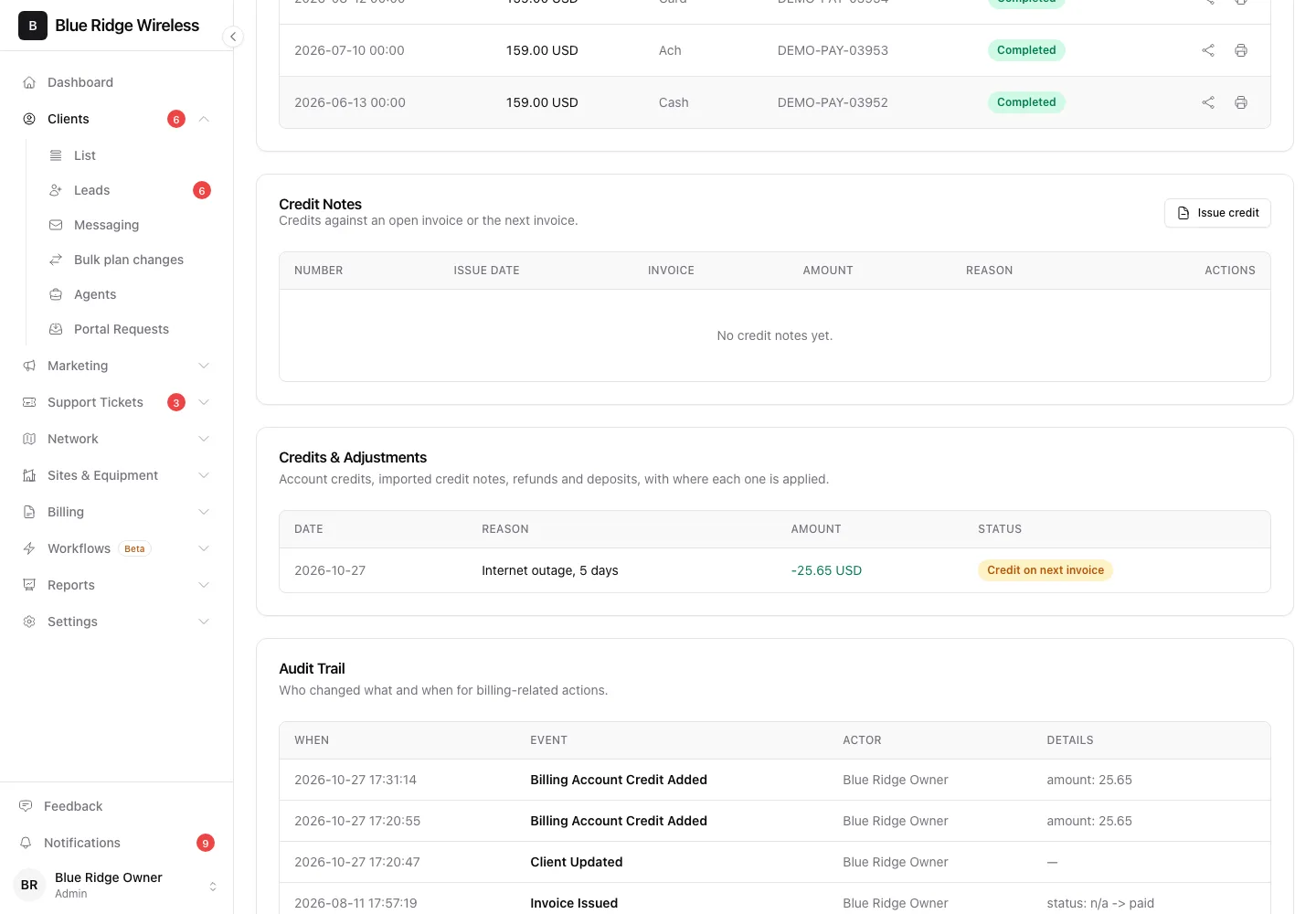
The Credits & Adjustments card keeps track of it: Credit on next invoice while it waits, Applied to invoice once an invoice took it. In QuickBooks the credit shows up once, as the minus line on that invoice.
5. Emailing the customer
Tick Email the client to tell the customer straight away. The box starts ticked when Automatically email invoices when issued is on in Settings > Invoices, and unticked otherwise - you can change it every time.
- For a credit against an invoice the customer gets the credit note PDF: the number, the amount, the reason and what is left to pay on the invoice.
- For a credit on the next invoice they get a short message that the credit will be deducted from their next invoice:
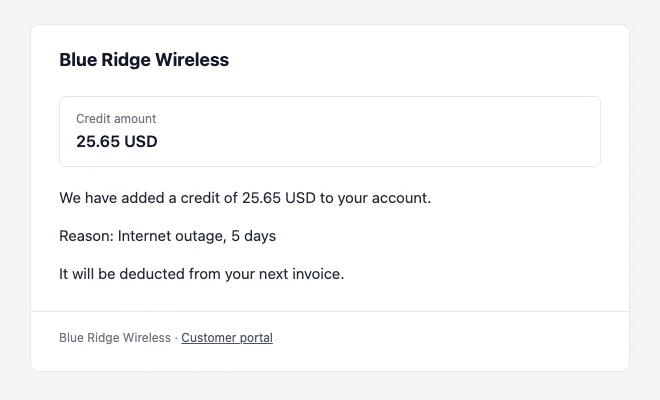
Both go out from your connected mailbox, in the customer's language when one is set on their profile. If the customer has no email address or your mailbox is not connected, the credit is still saved and the message at the top right says the email was not sent.
6. Working out an outage credit
A fair credit for days without service is the monthly price divided by the days in that month, times the days the customer was down. For a 59.00 plan and a 5-day outage in October (31 days): 59.00 / 31 x 5 = 9.52. Many ISPs round this to whole days or a round amount - type whatever you agreed with the customer.
When a whole area was down, you do not need to credit customers one by one: open the outage under Outage Incidents and compensate everyone affected in one go.
7. Fixing a mistake
- A credit on the next invoice can be withdrawn until the invoice is issued: click the x next to it in Pending Charges. Credits & Adjustments then shows it as Cancelled. If you had emailed the customer, let them know.
- A credit note can not be deleted, so check the amount before you click. If one was too high, add the difference back with Add Charge in Pending Charges; it is billed on the next invoice.