How to Add the Package
Packages are your service plans - name, speeds, price and billing period (monthly to yearly) - and every service is based on one. Create a plan, set its speeds and price, pick how often it bills, and optionally add a monthly data cap.
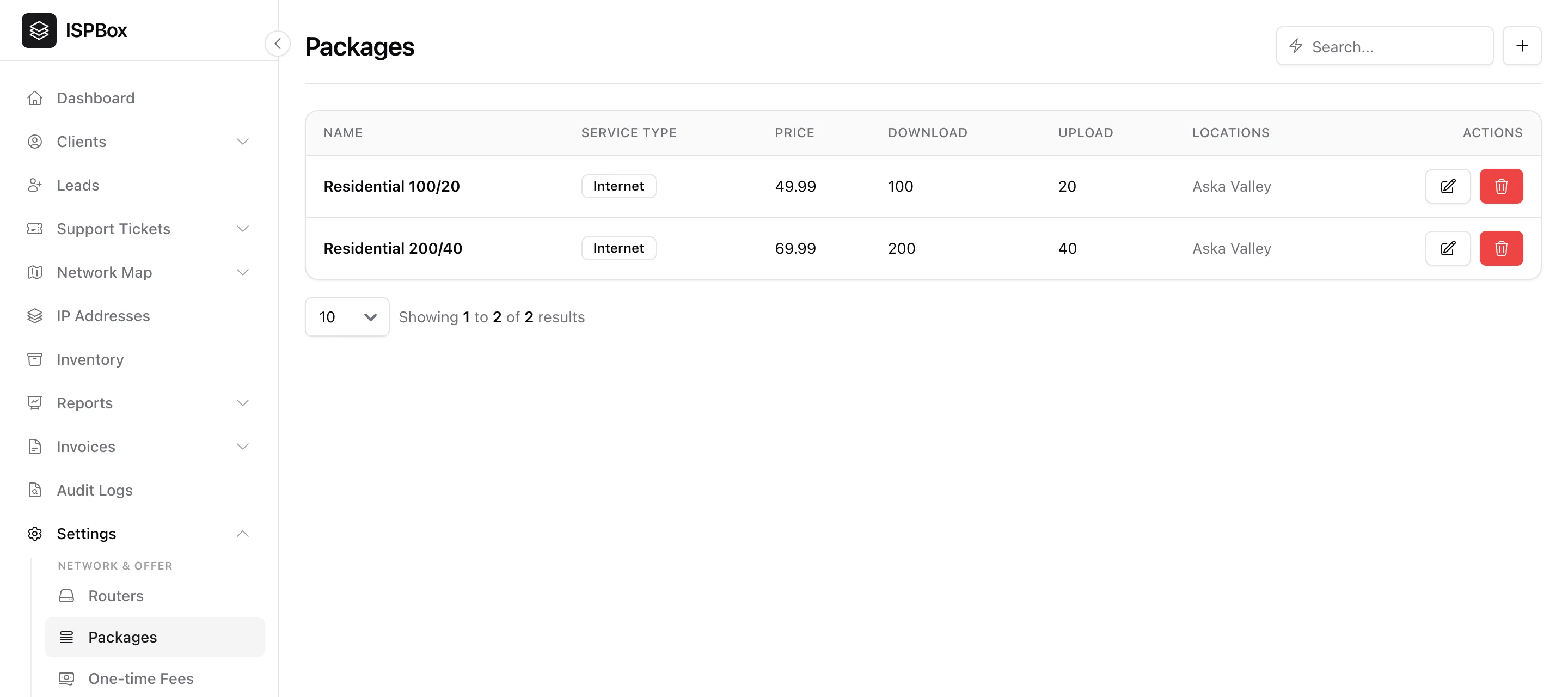
Packages are your service plans - the products you sell, with a name, price, billing period and speeds. Every customer service is based on a package, so setting these up is one of the first things you do in ISPBox. Manage them under Settings > Packages (needs settings manage).
1. Adding a package
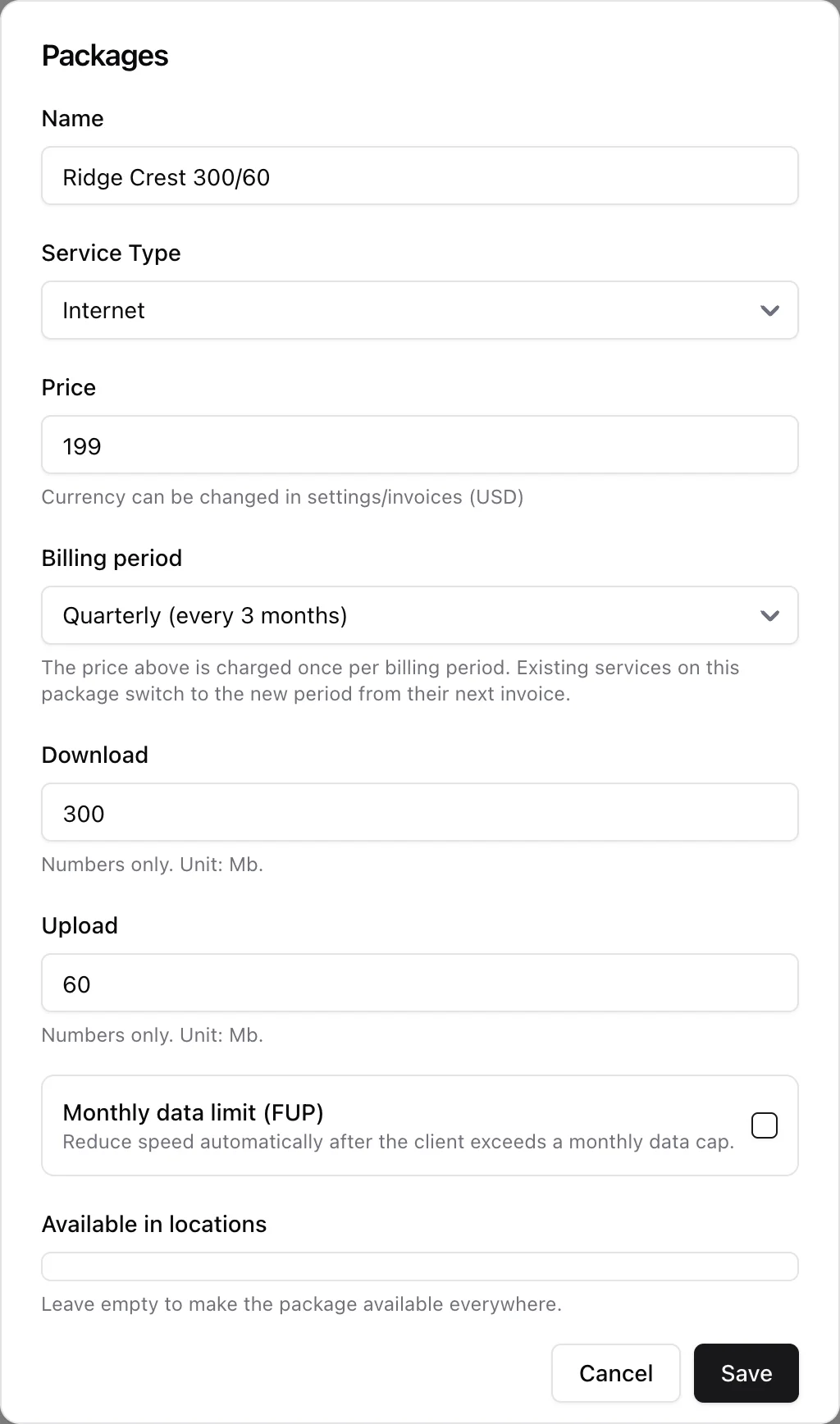
Click + to open the package form and fill in:
- Name - what customers see, e.g. "Residential 100/20".
- Service type - Internet, TV, Voice or Other. Only Internet has a network side; see section 2.
- Price - the amount charged once per billing period, in your workspace currency (change it under Settings > Invoices).
- Billing period - Monthly, Quarterly (every 3 months), Semi-annually (every 6 months) or Yearly. See below.
- Download and Upload speeds in Mbps - these are also what ISPBox pushes to your router as the customer's rate limit. They only matter on an Internet package; leave them at zero on a TV, voice or other plan.
- Monthly data limit (FUP) - optional, see section 4.
- Available in locations - tick the locations that may sell this plan, or leave empty to offer it everywhere.
Click Save and the plan is ready to attach to services. In a brand new workspace the empty Packages page also offers three starter tiers (50/10, 100/20, 200/50) you can create with one click and edit afterwards.
2. Service type: internet, TV, voice or other
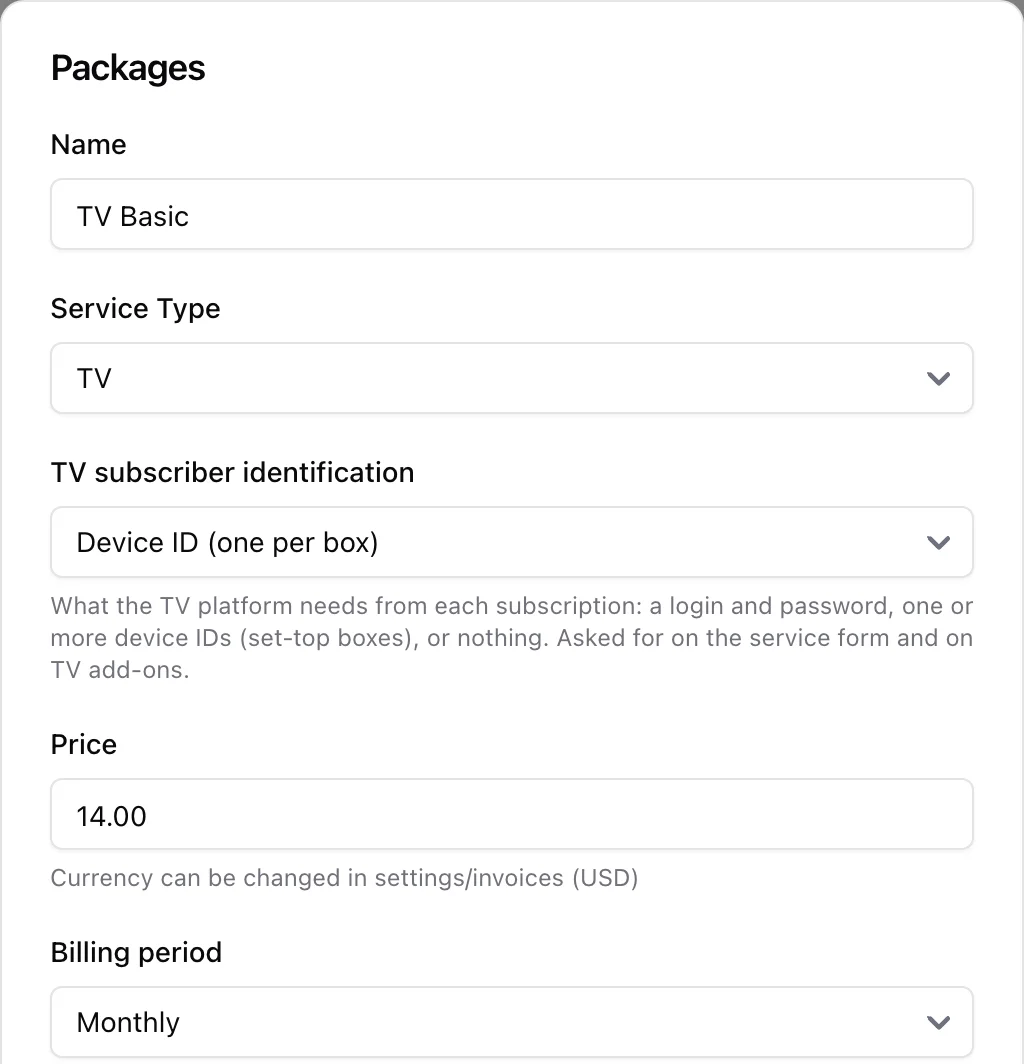
Internet is the only service type with a network side. A package set to TV, Voice or Other is a pure billing product: a service on it needs no router, no credentials and no provisioning, nothing is written to RADIUS or pushed to your MikroTik, and the speed fields are ignored. Price, billing period, tax and locations all work the same way.
A TV package carries one extra setting, TV subscriber identification, which appears as soon as you pick TV. It says what your TV platform needs in order to recognise a subscriber:
- Login and password - the classic IPTV account, and the default for every package that existed before this setting.
- Device ID (one per box) - the platform authenticates the set-top box, and a customer may own several.
- None - the platform gets its subscribers elsewhere and ISPBox only bills the pack.
The mode decides which fields the service form and the add-on dialog ask for, and what "Finish setup" means for a TV subscription. Packages without a network side are also the only ones that can be sold as an add-on on someone else's internet service - see TV and Add-on Services.
3. Billing periods
A package is not monthly-only. The Billing period you pick decides how often the price is charged, and the Billing column in the packages list shows it for every plan at a glance:
- The price is per period, not per month. A yearly plan priced at 649.00 bills 649.00 once a year, not every month.
- Existing services keep running - if you change the period on a plan that customers are already on, they switch to the new period from their next invoice.
- The first invoice is prorated against the whole period. With First invoice for a new service set to Prorate (Settings > Invoices), a customer who starts mid-cycle is charged for the days up to their first bill day divided by one full billing interval - so a quarterly plan prorates over roughly 90 days, not 30.
- Revenue figures are normalised to a month. The dashboard MRR tile and the revenue reports divide each plan's price by its number of months, so a 649.00 yearly plan counts as about 54.08 per month rather than 649.00.
Switching a customer between plans with different periods is a plan change and is settled there, not here.
4. Changing the speed of a live plan
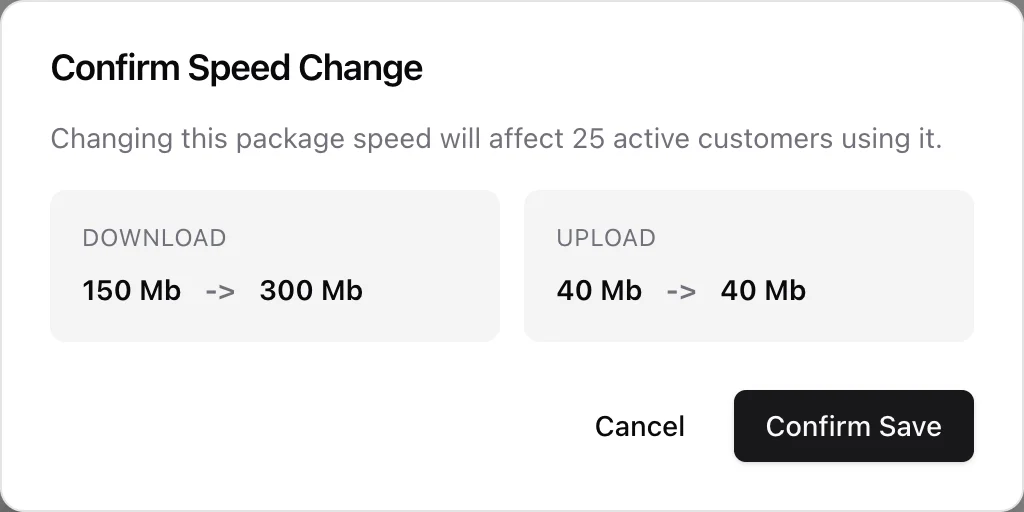
Editing the download or upload speed of a plan that customers are already on does not save silently. ISPBox counts the active customers on that plan and asks you to confirm:
- the number of active customers the change affects;
- the old and new download and upload values.
Choose Cancel to go back to the form, or Confirm Save to apply it. On confirm, ISPBox saves the plan and queues a re-sync of every affected service so the new rate limit reaches your routers - you will see "Synchronization for affected customers has been queued". Keep your queue worker running or the new speeds stay in ISPBox only.
A plan that is assigned to services cannot be deleted; ISPBox lists the customers blocking the deletion instead.
5. Monthly data limit (FUP)
Optionally cap a plan's monthly data with a Fair Usage Policy - set a data limit and the reduced speeds to apply once a customer passes it. The cap is always per calendar month, whatever the billing period is. See FUP Data Caps for the full behaviour.
6. Where packages are used
- On a service - the plan a customer is subscribed to, which drives their speed and their recurring charge.
- Per location - offer specific plans only in the areas you serve.
- On the coverage checker - the plans a prospect sees as available at their address.