Groups: Routing Work to Teams
Create teams such as Office, Field techs or NOC and route tickets, leads and tasks to a team instead of one person. A user can be in several groups; groups never change permissions.
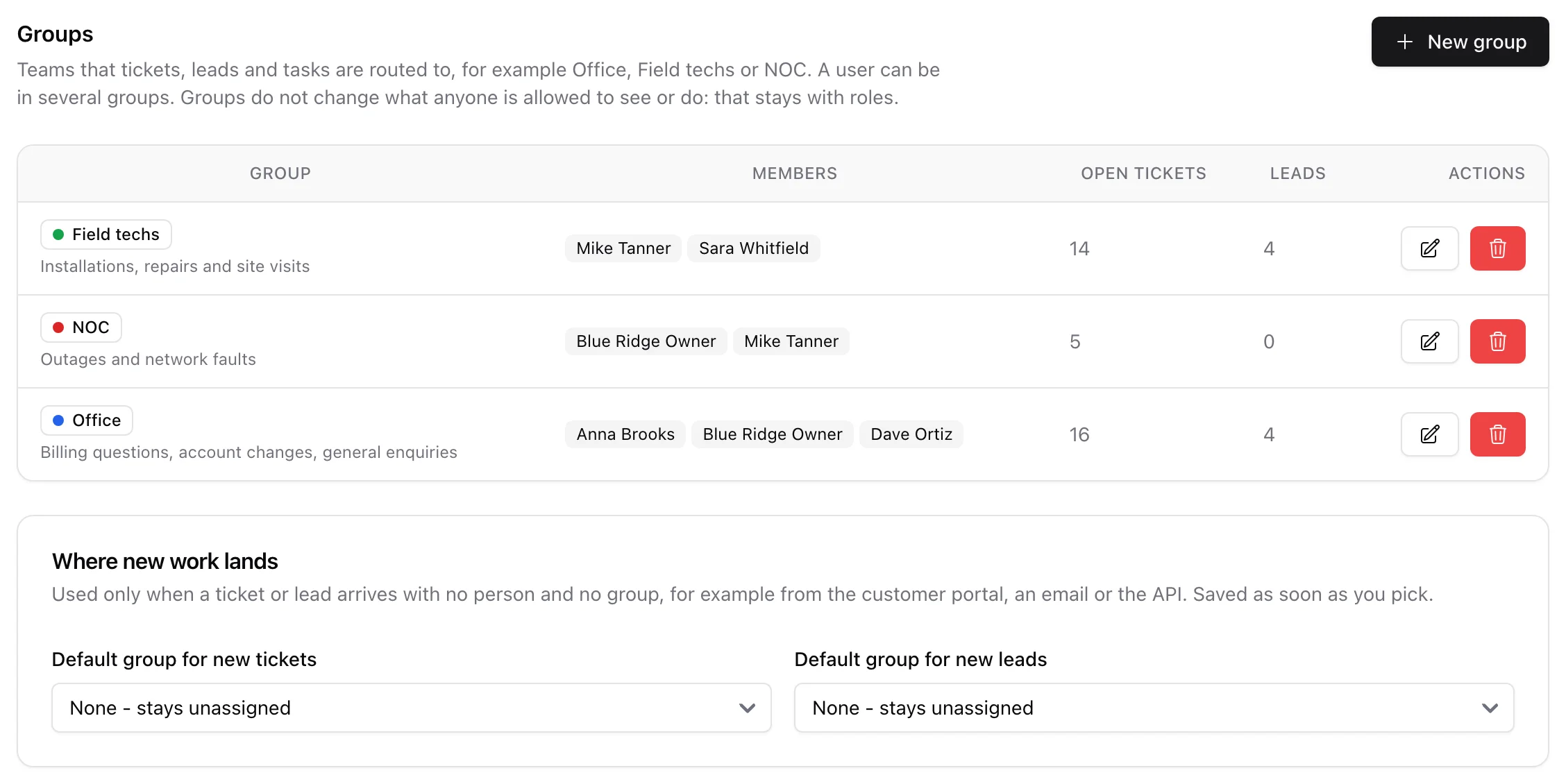
Groups are the teams your work is routed to: Office, Field techs, NOC, Sales, whatever your company calls them. A ticket, a lead or a lead task can sit in a group's queue before any one person has taken it, and everybody in the group hears about it. Groups are separate from roles: a role says what someone is allowed to see and do, a group says whose queue the work is in. A group never grants or removes access.
1. Creating groups
Open Settings > Users and the Groups tab, then New group.
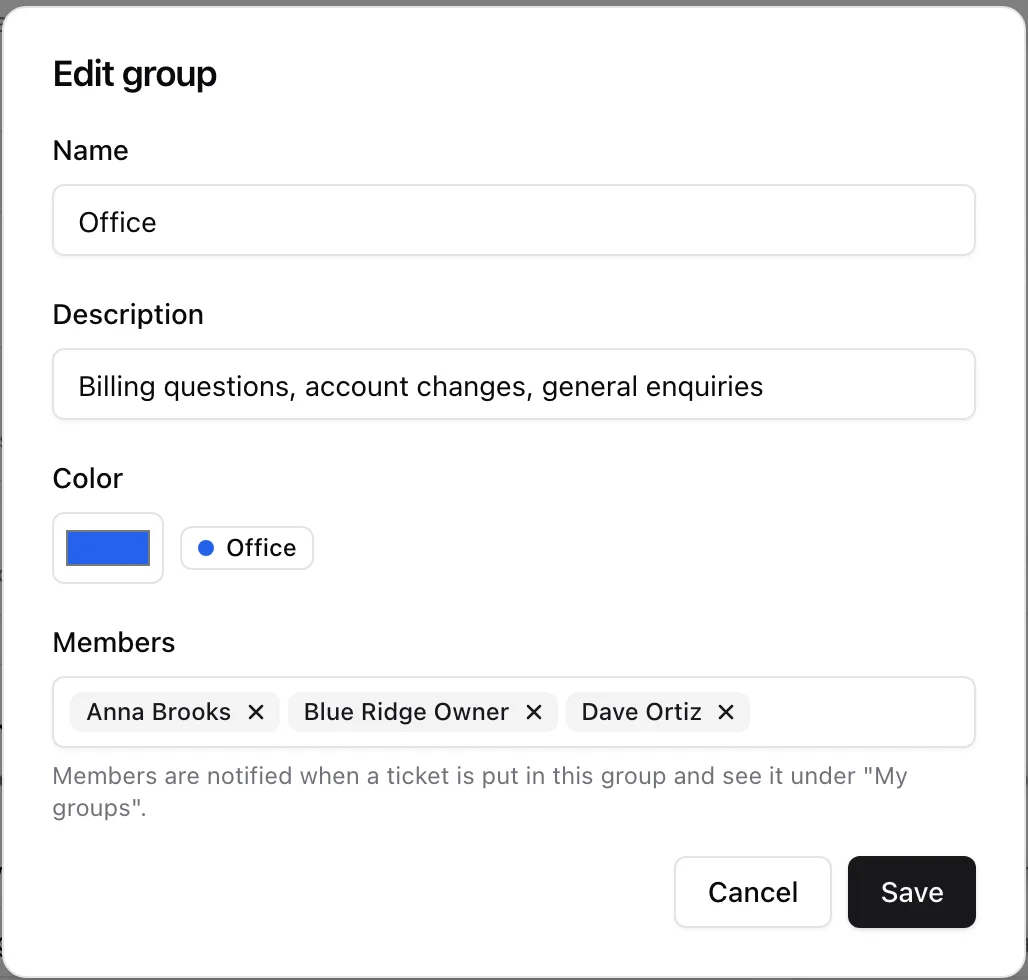
- Name - unique in your workspace.
- Description - what the team takes care of. It is shown under the name, and it is what an AI assistant reads when it decides which team a ticket belongs to.
- Color - the dot shown next to the group wherever it appears.
- Members - any number of staff users. A user can be in several groups.
The table shows each group's members and how many open tickets and leads it holds.
2. Putting a user in groups
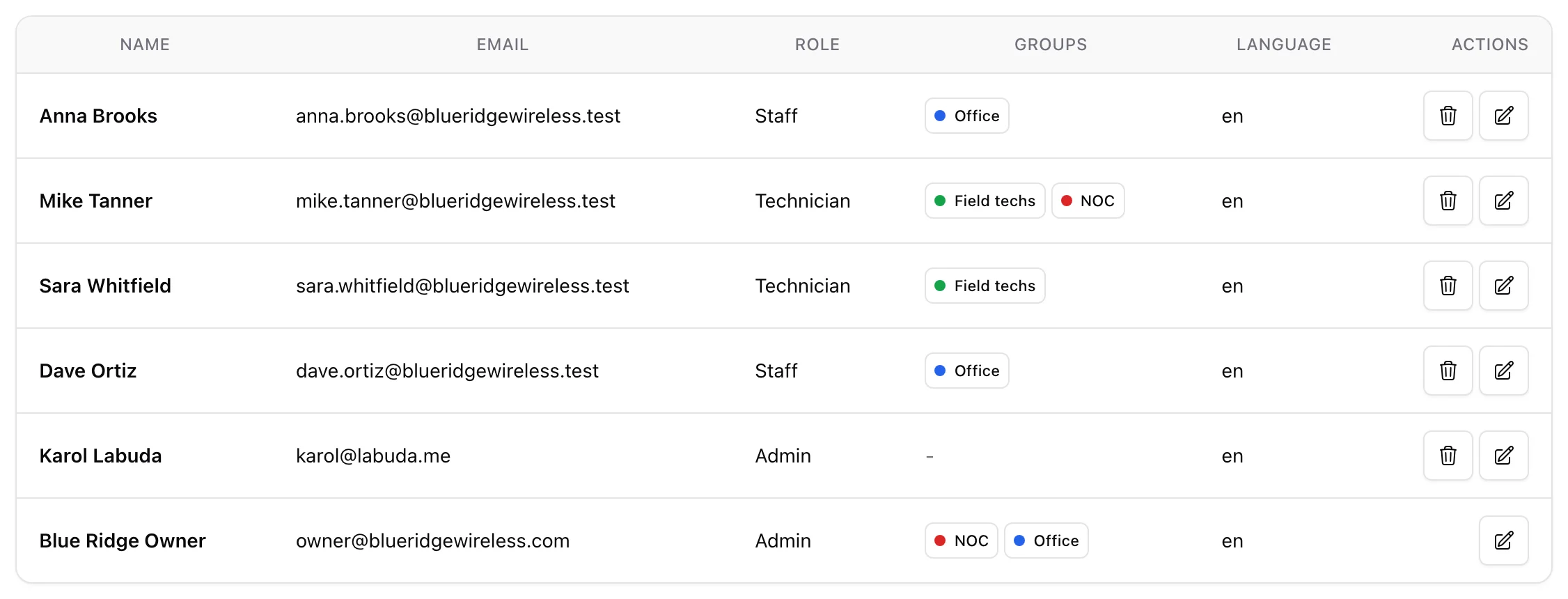
You can also set membership from the user's side: Add User and Edit User have a Groups field, and the Users tab shows each person's groups.
3. Where groups are used
- Tickets - a ticket has one owner and, separately, a group. See Support Tickets for the group pill, Take it and the queues in the side menu.
- Leads and lead tasks - a Group field next to Owner, a group filter on the lead list. See Leads.
4. Where new work lands
Under the table, two selects decide what happens to work that arrives with no person and no group, for example a ticket from the customer portal, an email or the API:
- Default group for new tickets
- Default group for new leads
Both are empty until you pick, and until then everything behaves as it did before groups existed. The default applies to work nobody on your staff opened. When you open a ticket or add a lead yourself, the default group is offered preselected in the form and you can change it or choose No group.
5. Who gets told
When a ticket is put in a group and nobody owns it yet, the members of that group get the Ticket for my group notification, not the whole office. A customer's reply on such a ticket also goes to the group. Each person chooses in-app, email and push for it under My account > Notifications. A group with no members routes nothing, so a new ticket landing there is still announced to everyone.
6. Deleting a group
Deleting a group never deletes work. Its tickets, leads and tasks lose the group and keep the person they were assigned to; the ones without a person become unassigned. If the group was a default for new tickets or leads, that default is cleared.
7. API and AI assistant
GET /api/v1/staff-groups lists the groups with their members. Tickets and leads accept assigned_group_id on create and update, and tickets can be filtered by it. The MCP server has a matching list-staff-groups tool, so an assistant can route a ticket to the team whose description fits. See REST API & Webhooks.