Staff Notifications
Red badges in the sidebar, a bell, a Notifications page and email per event kind: how the office hears about new tickets, replies, portal requests, discovered devices and agent top-ups.
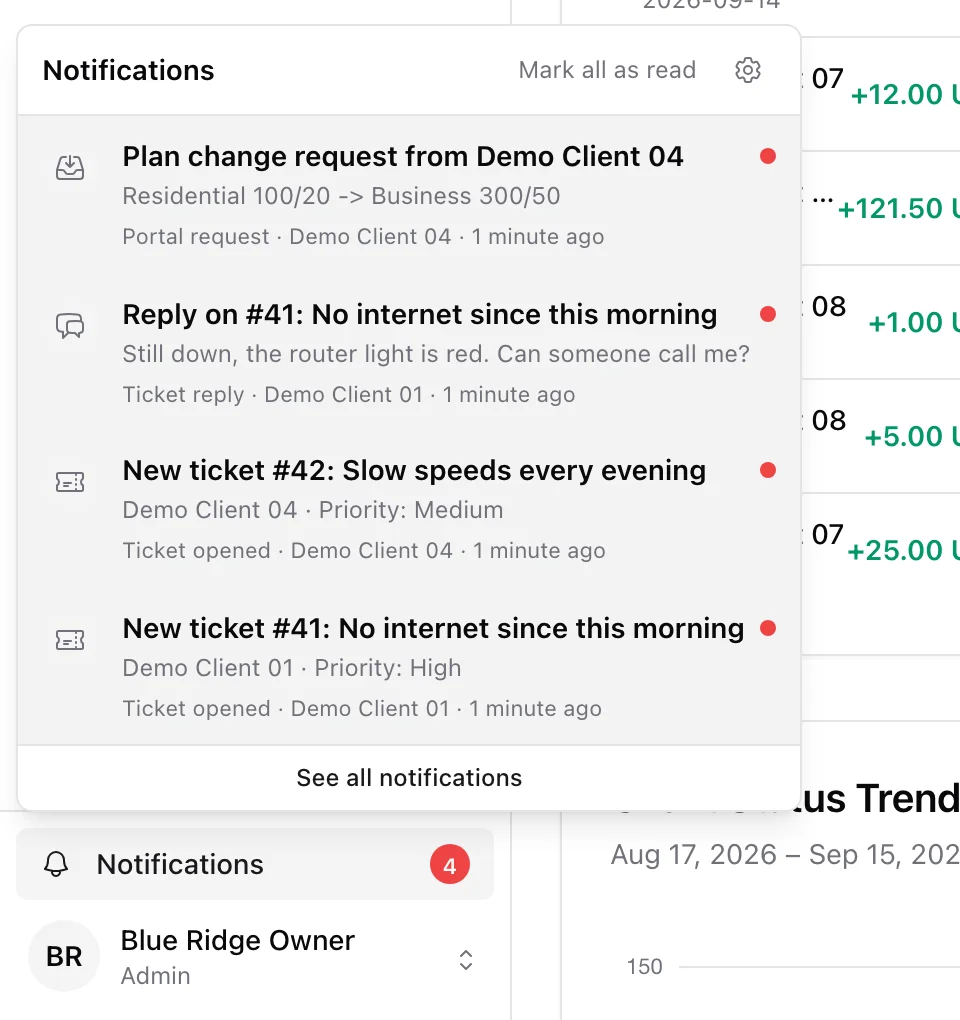
When a customer opens a ticket at midnight, an agent asks for a wallet top-up, or someone in the portal requests a plan change, the office has to notice. ISPBox tells every staff member who is allowed to act on it: a red counter on the sidebar item, a bell with the latest events, a full Notifications page, and email the way each person wants it.
1. What you get told about
Eight kinds of events produce a notification. Each one goes to the staff users whose role can see that area, never to the person who caused it.
- Ticket opened - a customer (portal, email or the API) or an agent opened a support ticket. Tickets your own staff open are their doing and produce nothing.
- Ticket reply - a customer or an agent replied in a ticket. It goes to the assignee and the participants of the ticket; when nobody is assigned, to the members of the ticket's group; when it has no group either, to everyone who may see tickets. Staff replies and internal notes never trigger it.
- Ticket assigned to me - someone assigned a ticket to you. Assigning a ticket to yourself stays quiet.
- Ticket for my group - a ticket was put in the queue of a group you belong to and nobody has taken it yet. A new ticket that lands in a group is announced to that group instead of to everyone.
- Added to a ticket - someone added you to a ticket as a participant. From then on you get its replies too. Adding yourself stays quiet.
- Portal request - a customer asked for a plan change or a seasonal pause that needs your approval. Workspaces that apply plan changes automatically get no notification, since there is nothing to decide.
- New devices found - a DHCP discovery sweep found devices on a router that are not tied to a service yet. One notification per router, saying how many wait there, however many the sweep brought.
- Agent top-up request - a reseller agent asked for a wallet top-up.
Imports never produce notifications, so migrating a few thousand tickets from another system does not light up the panel. When the same thing happens again before you have looked (a customer replies three times in a row), the existing notification moves back to the top and shows how many times, instead of piling up.
2. The red badges in the sidebar
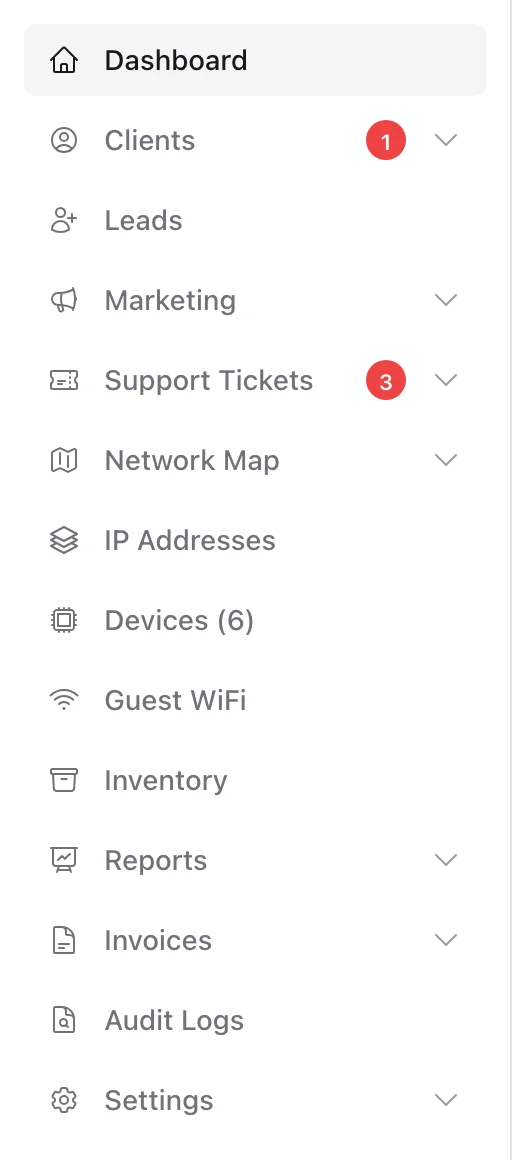
Each sidebar item that can receive news carries your own unread count: Support Tickets (the group and its List), Portal Requests and Agents (summed on the Clients group while it is folded) and Devices. The counters you already know, like "Devices (6)", mean something else and stay: they count what is pending in the workspace, while the red badge counts what is new for you.
A badge clears when you have seen the thing behind it: opening a ticket clears that ticket's notifications, opening the Portal Requests, Devices or Agents list clears that kind, and opening an agent clears their top-up requests. On the ticket list, tickets with something unread carry a New chip.
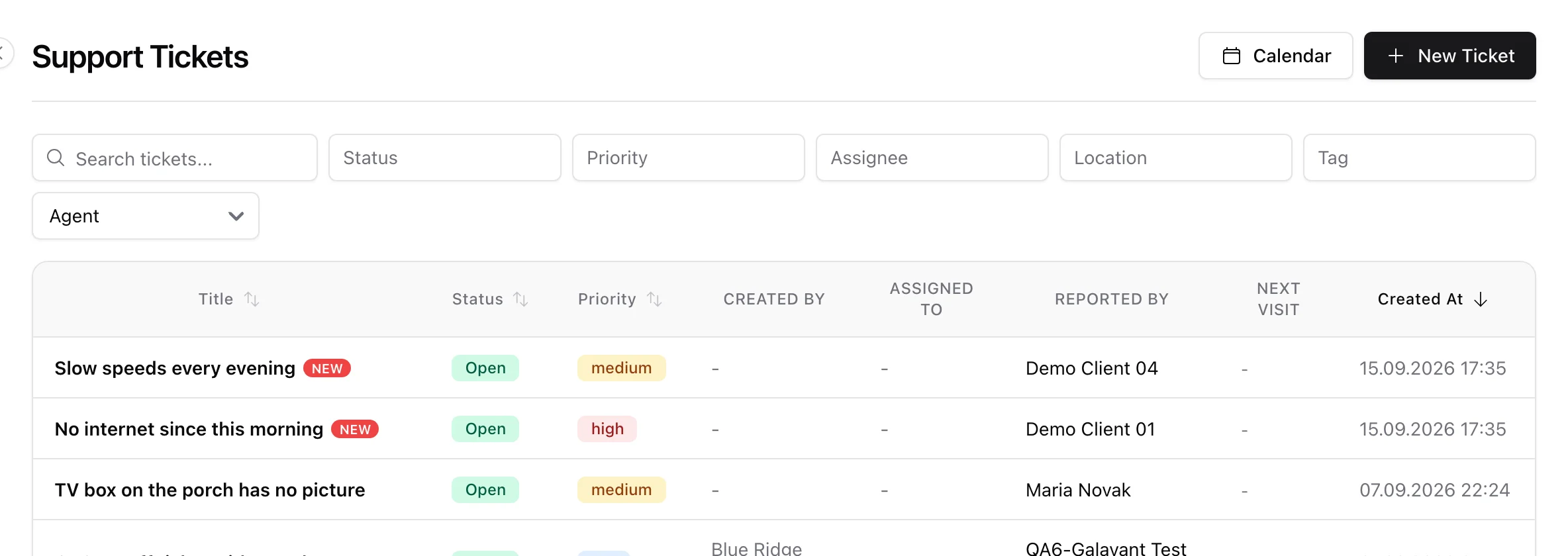
With the sidebar collapsed, a red dot on the icon stands in for the number. The counts refresh on their own about once a minute while the tab is open, so a ticket that arrives while you are on another page shows up without a reload.
3. The bell and the Notifications page
The bell sits above your account menu at the bottom of the sidebar (on a phone, in the top bar). It opens the latest fifteen events: the kind, the title, who it came from, how long ago, and an unread dot. Click one to open the ticket, request or list it points to; it is marked read on the way. Mark all as read clears everything at once.
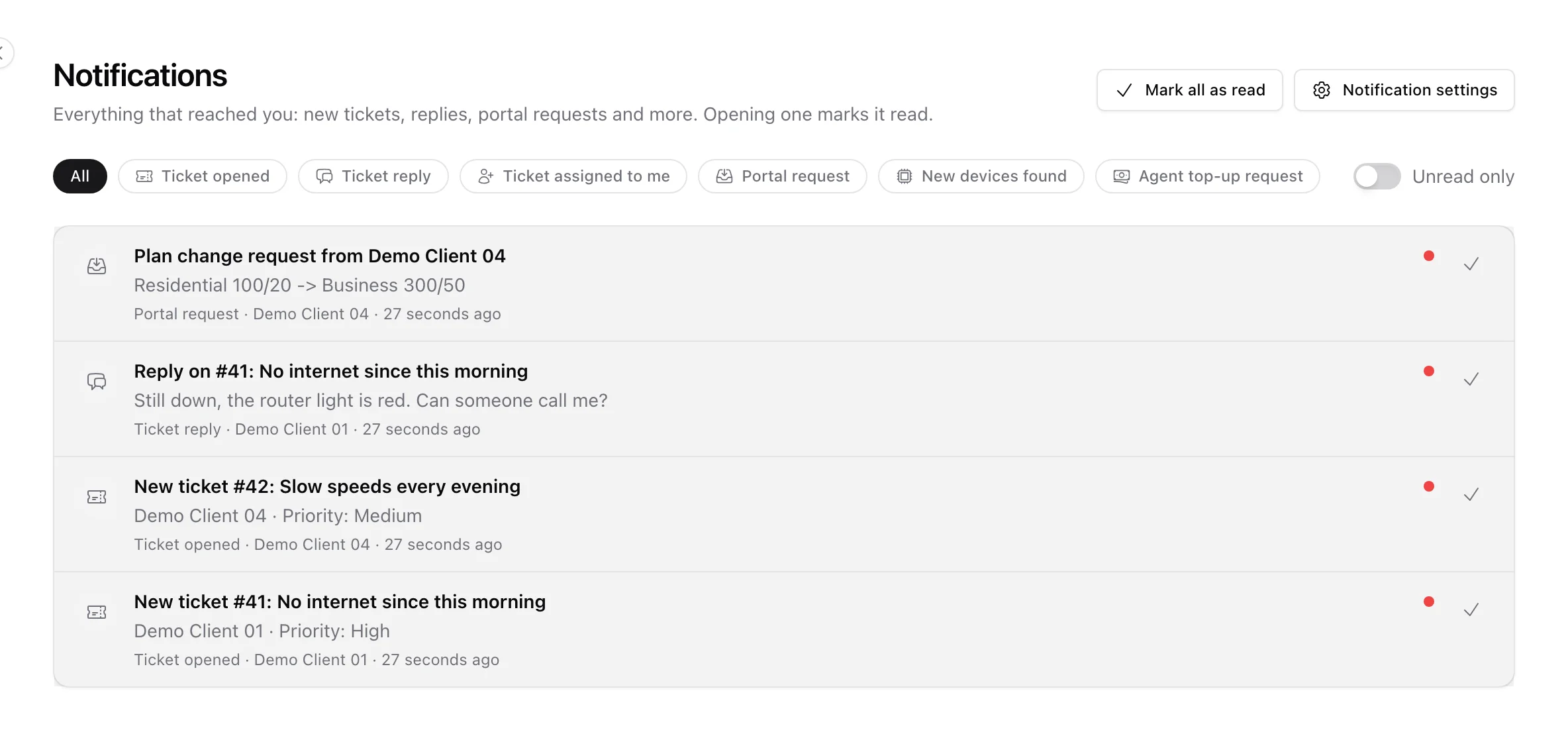
See all notifications (or the Notifications entry in the account menu) opens the full page: everything that reached you, newest first, with a filter chip per kind and an Unread only switch. Notifications you have read are kept for 90 days, unread ones for 180, then they are cleaned up.
4. Your own settings
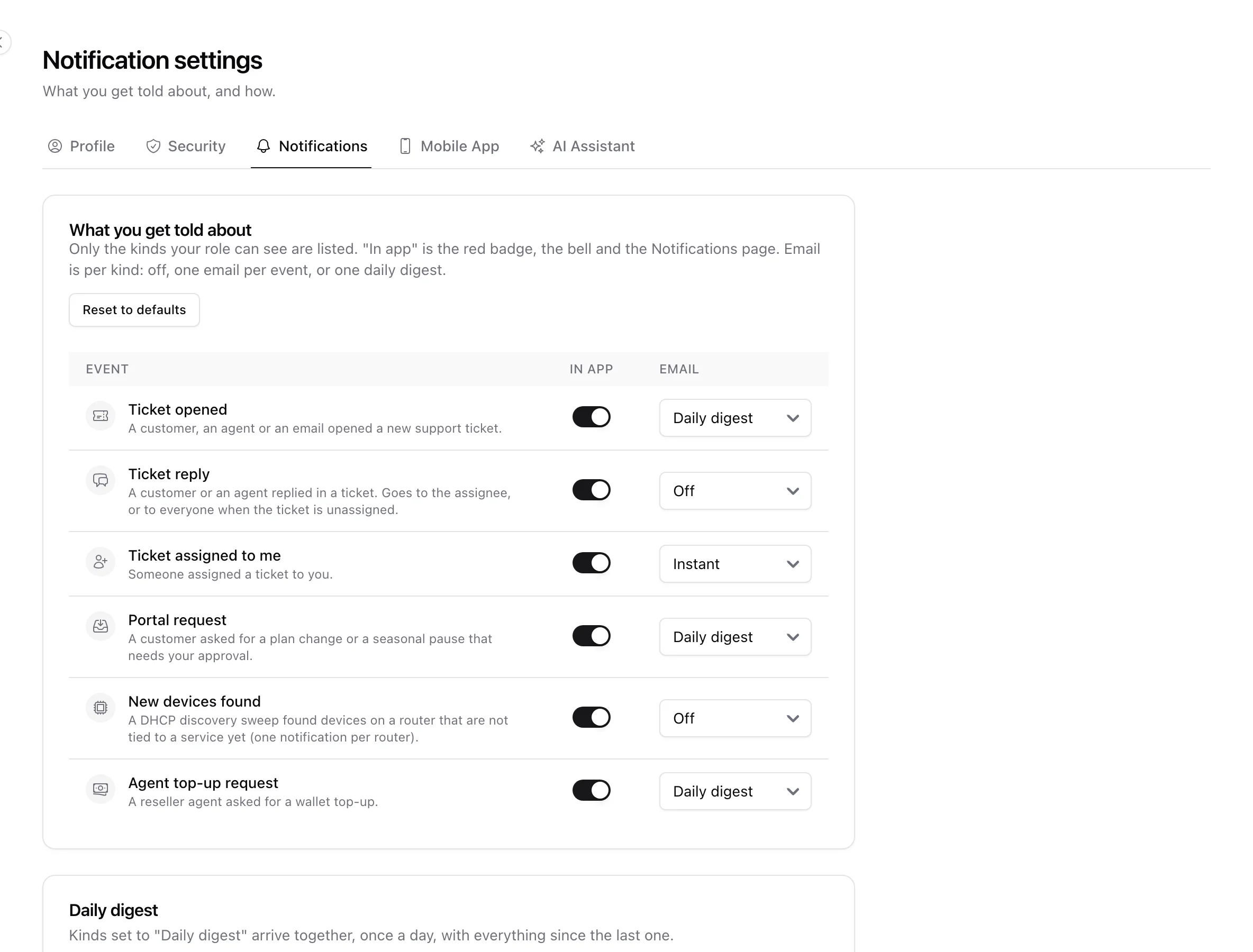
Open My account > Notifications (also reachable from the cog in the bell). The page lists only the kinds your role can receive, and for each one:
- In app - whether it counts in the badges, the bell and the page. Switch a kind off and it stops appearing for you entirely.
- Email - Off, Instant (one email per event, as it happens) or Daily digest (one email a day with everything since the last one, grouped by kind).
The defaults are deliberately quiet: tickets assigned to you arrive instantly, new tickets, portal requests and top-up requests come in the daily digest, and replies and discovered devices are not emailed at all. Pick the hour the digest should go out; it follows the workspace time zone. Reset to defaults takes you back to the shipped choices.
Emails come from the platform address like invitations and password resets - unless your workspace ticked Send staff emails from this mailbox too under Settings > Mail > Send-as identity, in which case notifications, digests and user invitations leave from your company mailbox instead (if that mailbox ever refuses a message, that one email falls back to the platform address so no alert is lost). Staff password resets always come from the platform address, so a reset link never sits in a shared mailbox. Either way they arrive in your own language, with a link that opens the ticket or list directly. A digest only contains the kinds you set to daily and nothing older than two days, so switching a kind on never floods you with history.
5. Where the older settings went
Before this, the only office email was "an agent opened a ticket", sent to every Admin under a switch in Settings > Agents. That email is now one of the notifications above, so each person decides about it for themselves. The switch in Settings > Agents remains for the field-app push to Admins and is labelled accordingly.