Monitoring Alerts
Get notified the instant a router or monitored device goes down. Define alert rules (target, condition, delay, cooldown) and deliver them to email, Discord, Slack or SMS channels.
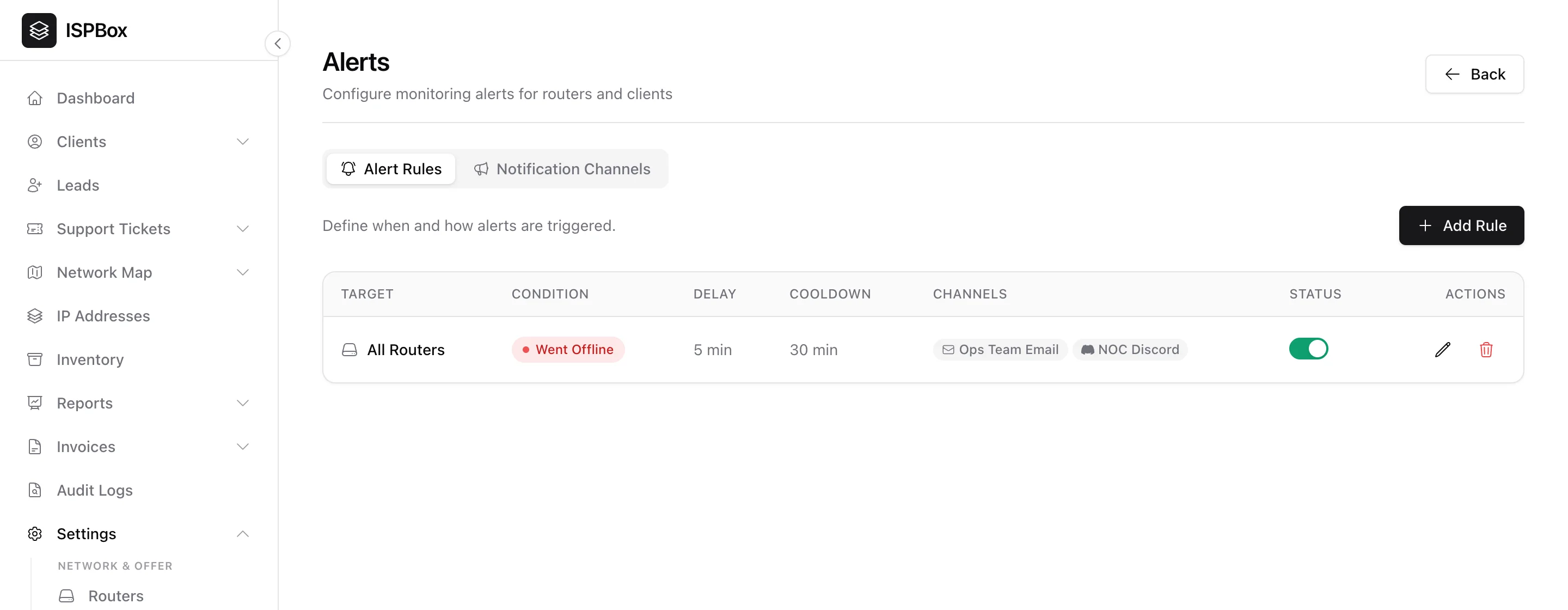
Alerts push a notification to your team the moment infrastructure goes down - a router or a monitored map device drops offline - so you hear about it from ISPBox, not from an angry customer. Configure them under Settings > Alerts (part of the Alerts feature; needs settings manage). Alerts are internal team notifications; customer-facing outage messaging is handled by incidents.
1. Alert rules
A rule defines when to alert and where to send it. Add a rule and choose:
- Target - all routers, a specific router, all monitored map devices, or a specific device.
- Condition - went offline or came back online.
- Delay - how long the target must stay down before alerting (damps brief blips).
- Cooldown - the minimum gap between repeat alerts, so you are not spammed.
- Channels - one or more notification channels to fire.
Toggle a rule on or off any time without deleting it.
2. Notification channels
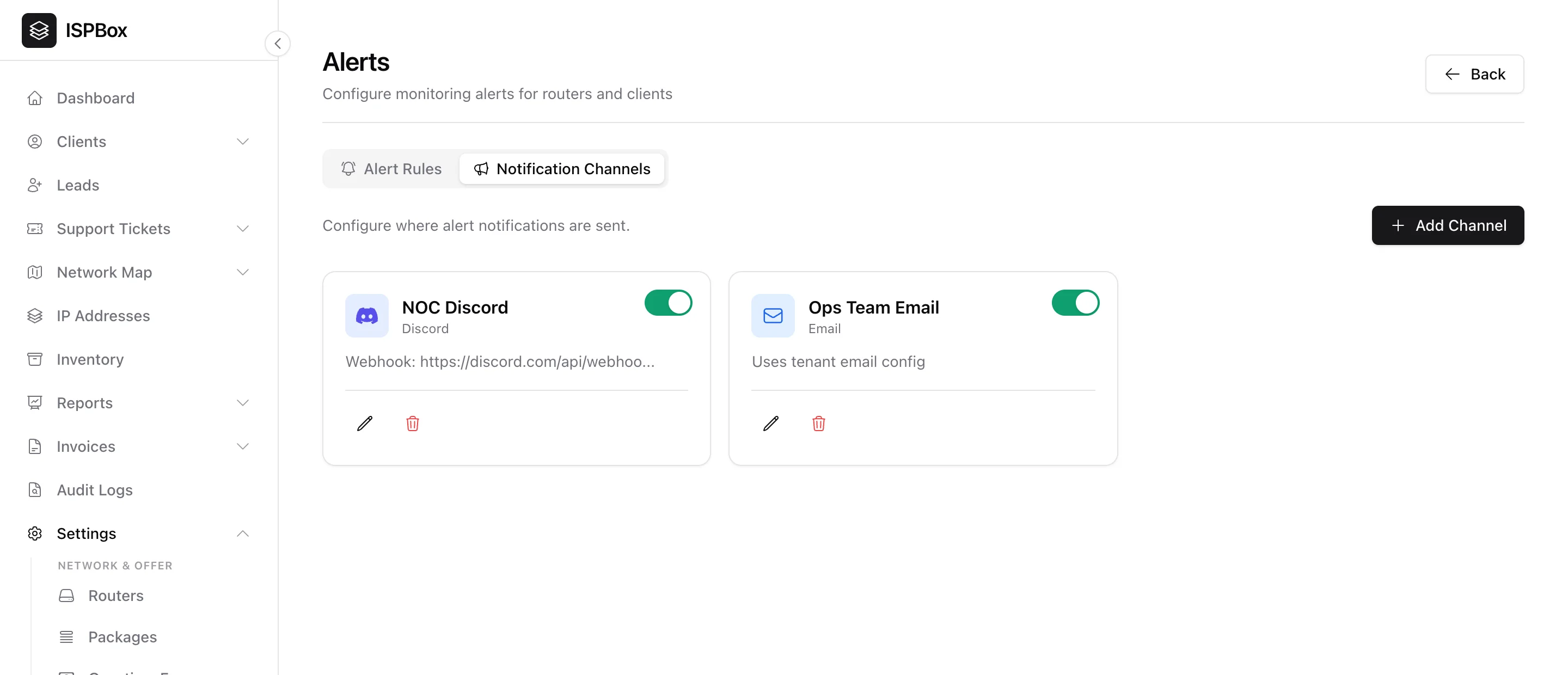
Channels are the destinations your rules deliver to. Add as many as you like:
- Email - uses your tenant's mail configuration.
- Discord and Slack - paste a webhook URL to post into a NOC channel.
- SMS (beta) - text alerts via Twilio.
Each channel has an enable toggle, so you can silence one (say, overnight Slack) without touching your rules.
3. How it fits together
Alerts build on network monitoring: monitoring detects that a device is down, a rule decides whether it clears the delay and matches, and your channels deliver the notification. Pair alerts (your team hears first) with incidents and the status page (customers are kept informed) for full outage coverage.