Public Status Page
A customer-facing outage page that updates itself from your incidents - without leaking device names. Enable it, choose public or account-verified visibility, add an announcement, and share the link.
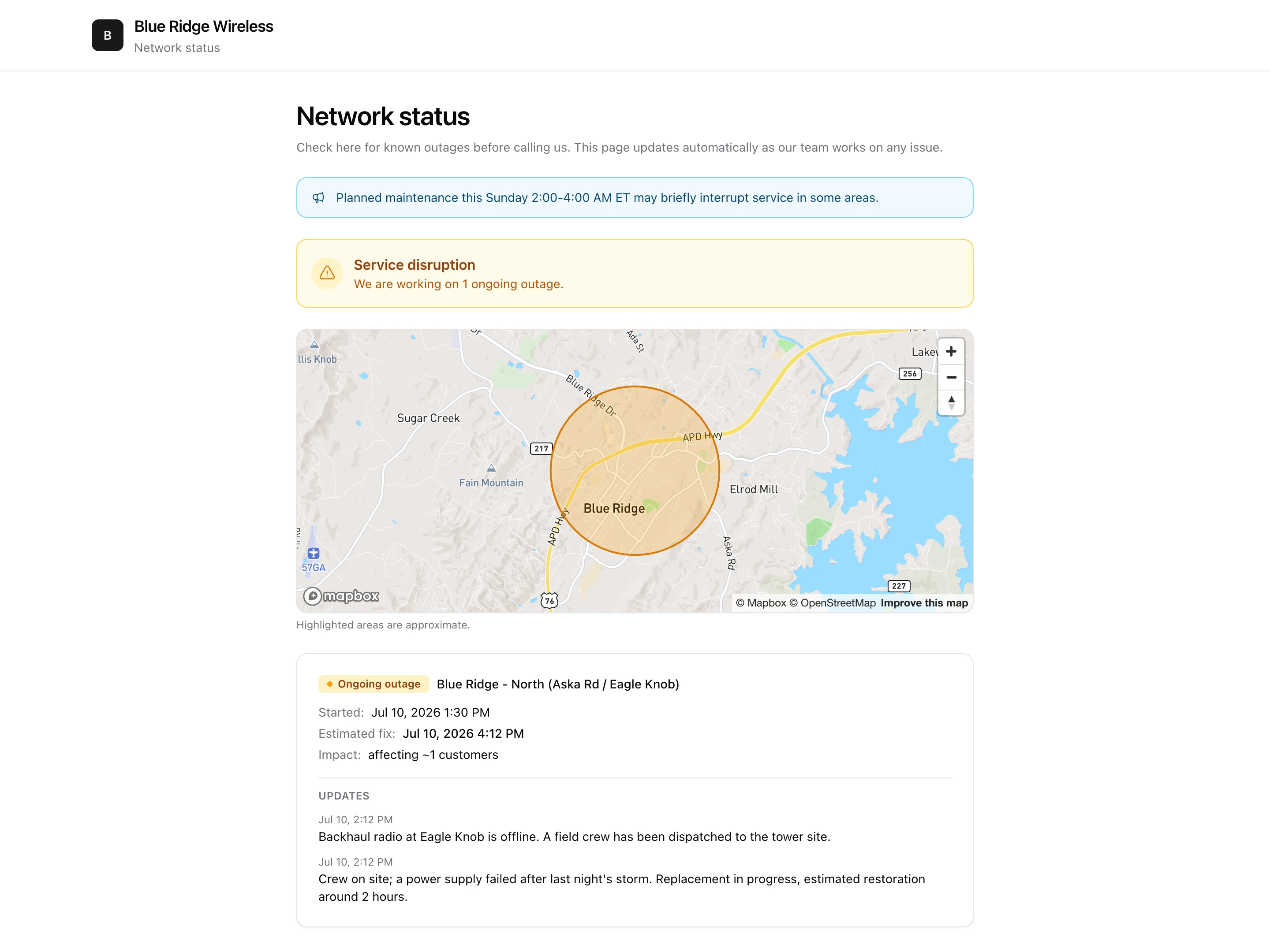
The public status page is a customer-facing outage page you can link from your website or voicemail, so people check there instead of calling you. It updates itself from your outage incidents - open outages appear automatically, with an approximate area and your public updates, and never your device names or internal details. Configure it under Settings > Status Page.
1. What customers see
When there are no open outages the page simply reads All systems operational. During an outage it shows a service disruption notice, a map highlighting the approximate affected area, and a card per outage with the area label, when it started, your estimated fix time, roughly how many customers are affected, and the running feed of updates you post on the incident. Recently resolved outages (last 7 days) are listed too, so customers can see you fixed it.
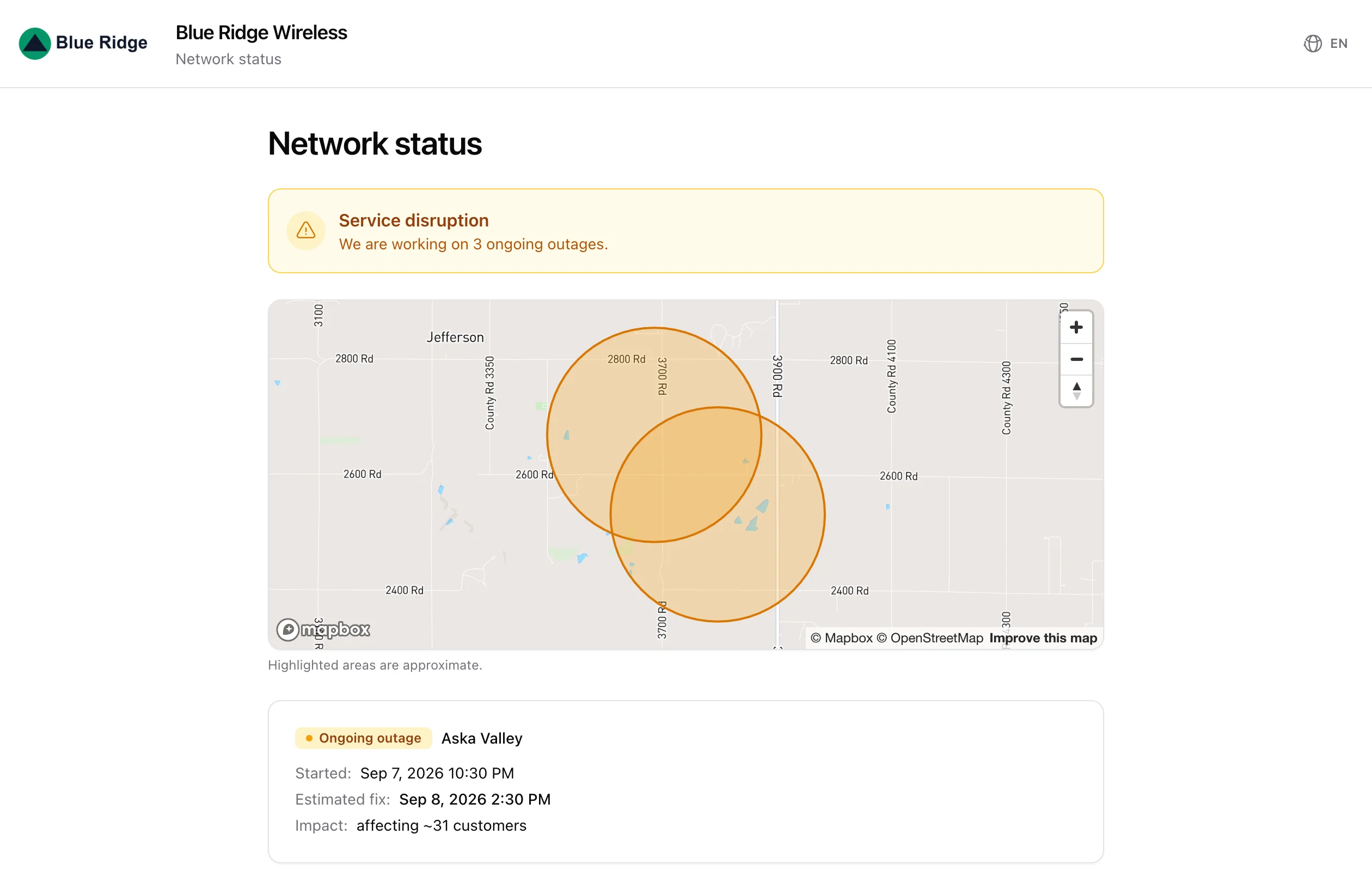
An incident you opened by hand - for everyone on a router, everyone in a location, or the whole network - shows up here exactly like one monitoring found, from the moment you open it. The only difference is the map: a manual incident that is not tied to a map device has no coordinates, so it gets a card but no highlighted circle. That makes the area label worth filling in, because it is the only thing telling a customer whether the outage is theirs. Give it a name people recognise ("Aska Valley", "North Ridge"), never a device or router name.
2. Turning it on
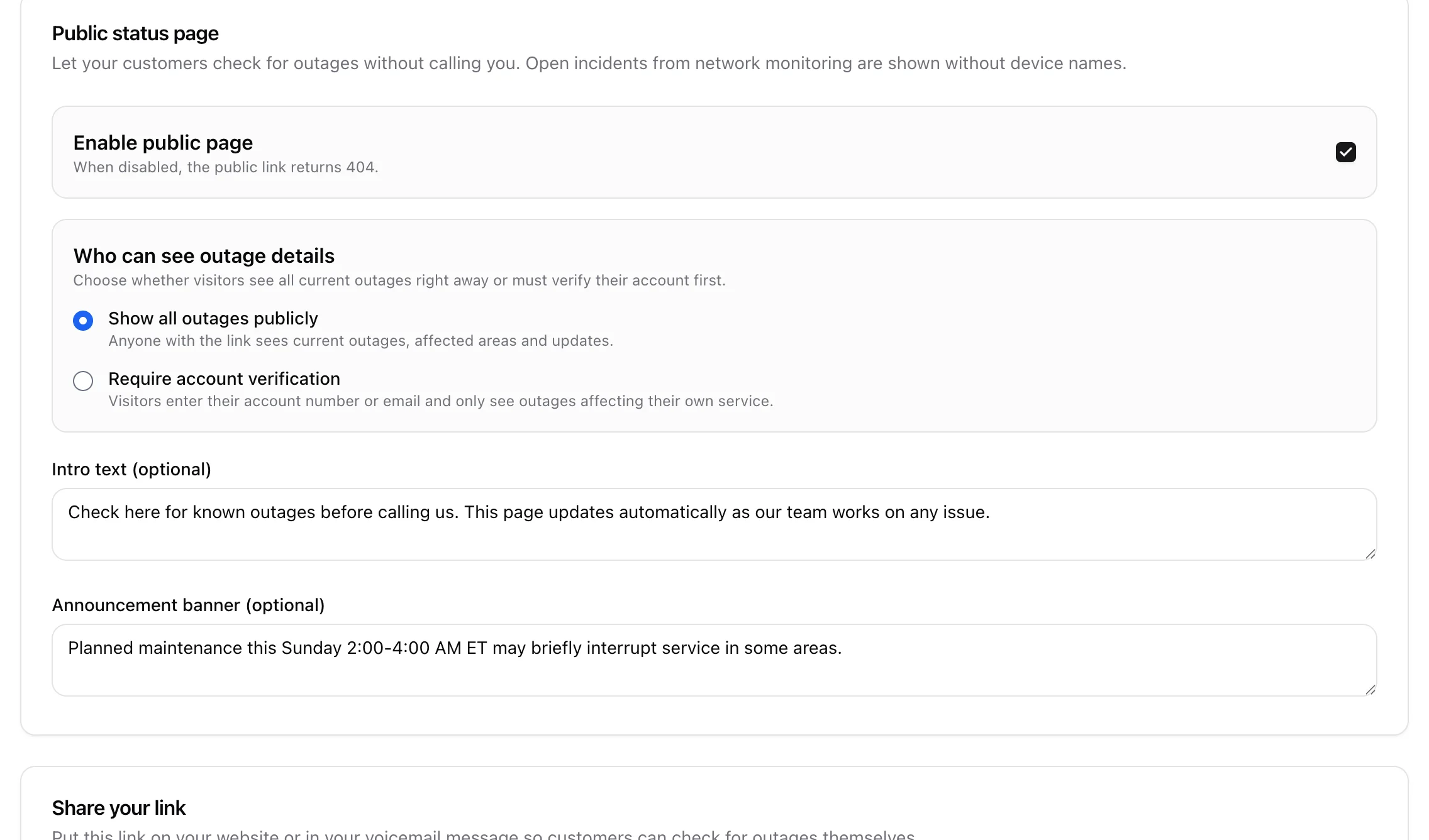
Tick Enable public page. While it is off, the public link returns a 404 - so the page is invisible until you are ready. Then click Save.
3. Who can see outage details
Choose how much a visitor sees:
- Show all outages publicly - anyone with the link sees every current outage, its area and updates. Best for a simple, open status page.
- Require account verification - visitors enter their account number or email and only see outages affecting their own service. Best if you would rather not broadcast every outage. Look-ups are rate-limited to prevent abuse.
4. Intro text and announcements
- Intro text - a short line at the top of the page (e.g. "Check here for known outages before calling us").
- Announcement banner - a highlighted banner shown whenever it is filled in, ideal for planned maintenance ("Planned maintenance Sunday 2-4 AM"). Clear it to remove the banner.
The page is automatically branded with your company name and logo from your company settings.
5. Sharing the link
The settings page shows your ready-to-share URL with a Copy button, and tells you how many open incidents would currently be visible on it. Put the link on your website, in your voicemail greeting, or in outage emails so customers can self-serve.