Connect AI to ISPBox (MCP)
Connect Claude, ChatGPT or Cursor to your workspace with the built-in MCP server: per-user sign-in, permission scopes, a full audit trail and admin controls.
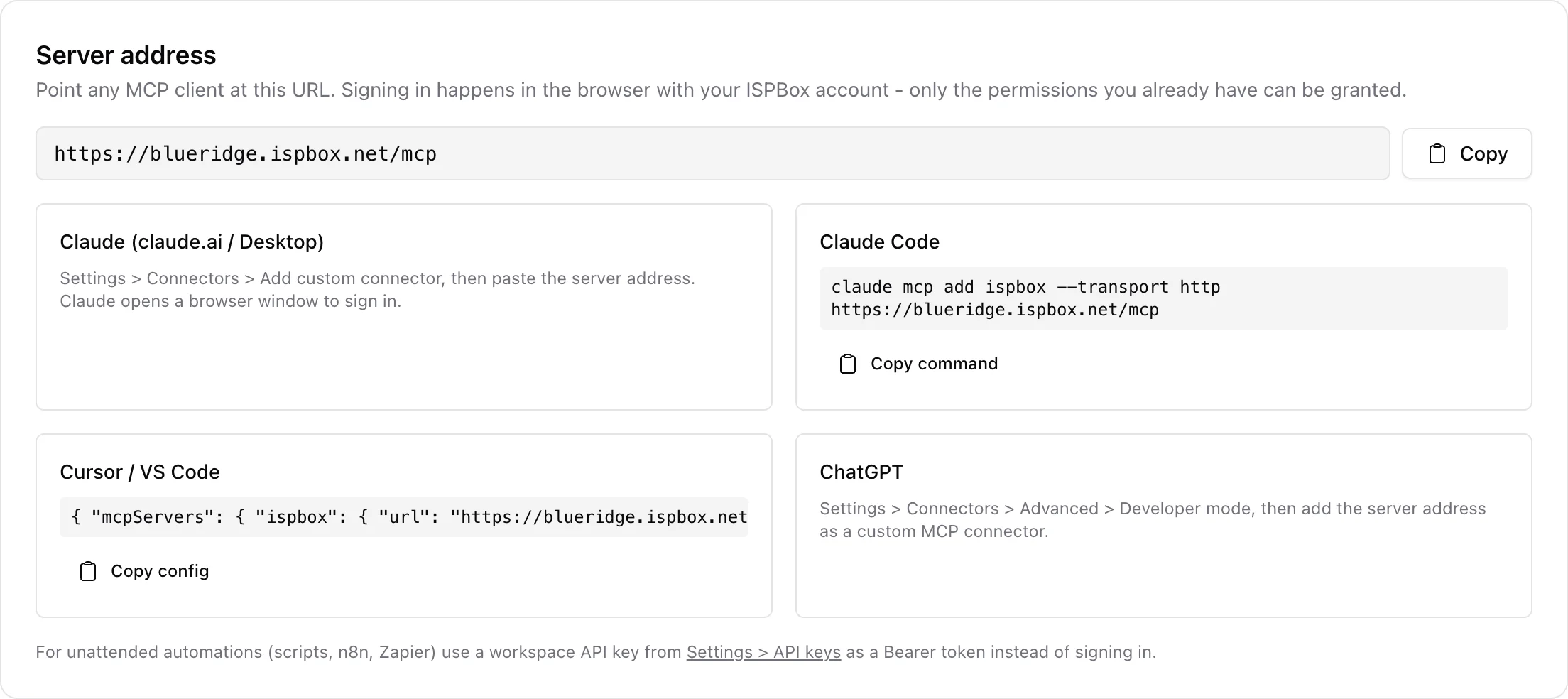
Every ISPBox workspace ships a built-in MCP server - the open standard (Model Context Protocol) that AI assistants like Claude, ChatGPT and Cursor use to work with external systems. Connect your AI client to your workspace and it can look up customers, diagnose connectivity problems, manage tickets, record payments and pull billing summaries - always limited to the permissions you grant, with every action recorded in the audit log.
1. What your AI can do
The server exposes 58 tools built around real ISP work, so you can ask things like:
- "Why is Sarah Coleman offline?" - the AI finds the customer and runs a full diagnosis in one step: billing suspension, RADIUS session, router health, and a plain-language verdict ("the tower is down, 46 other customers affected - not her equipment").
- "How is the network right now?" - routers online and offline, open incidents, live session counts.
- "How much is overdue this month?" - collected payments, invoiced totals and overdue balances with counts.
- "Open a ticket for John about slow evening speeds and assign it to Mike" - the AI creates and updates tickets, replies to threads and adds internal notes.
- "Record the $45 check he just mailed" - manual payments land in billing exactly as if entered in the panel.
- "Warn everyone behind Tower 3 about tomorrow night's maintenance" - the AI resolves the customers behind a router, map device or incident, previews the audience and (after your explicit approval) sends the email/SMS.
- "Any alerts in LibreNMS?" - with a connected LibreNMS or Zabbix the AI lists active alerts live, links them to the affected customers and can acknowledge them with a note.
- "How much is overdue, and how old is it?" - the AI runs the panel reports: AR aging, billing trend, revenue by location, package mix, client growth, top data users and more.
- "How do I configure dunning?" - the AI searches this documentation and answers with cited article links.
You do not have to phrase the long ones yourself. The server also ships three ready-made prompts, which most AI clients offer as slash commands or starter templates:
- daily-briefing - a morning operations summary: what is offline or in an incident, money collected and overdue this month, open and high-priority tickets, and a short "what needs attention today" list.
- diagnose-client-connectivity - guided troubleshooting for one customer. Give it a name, client number, email or phone and it resolves the client, diagnoses each internet service, says whether the fault is on your side or theirs, and offers to open a ticket with the diagnosis.
- collections-review - walks the overdue invoices, groups them by client and produces an action list (amount, age of the oldest unpaid invoice, whether service is already suspended, suggested next step). It never sends or suspends anything by itself.
2. Connect from Claude, ChatGPT, Cursor or Claude Code
Open My Account > AI Assistant in your panel (every staff member has this page) and copy your workspace server address - it looks like https://yourcompany.ispbox.net/mcp. Then:
- Claude (claude.ai or the desktop app): Settings > Connectors > Add custom connector, paste the address.
- ChatGPT: Settings > Connectors > Advanced > Developer mode, add the address as a custom MCP connector.
- Cursor / VS Code: add the server to your MCP config - the AI Assistant page has a ready-to-copy snippet.
- Claude Code:
claude mcp add ispbox --transport http https://yourcompany.ispbox.net/mcp
The client opens a browser window where you sign in with your normal ISPBox account and approve the connection - no API keys to copy, no passwords typed into the AI.
3. Choosing what the AI may touch
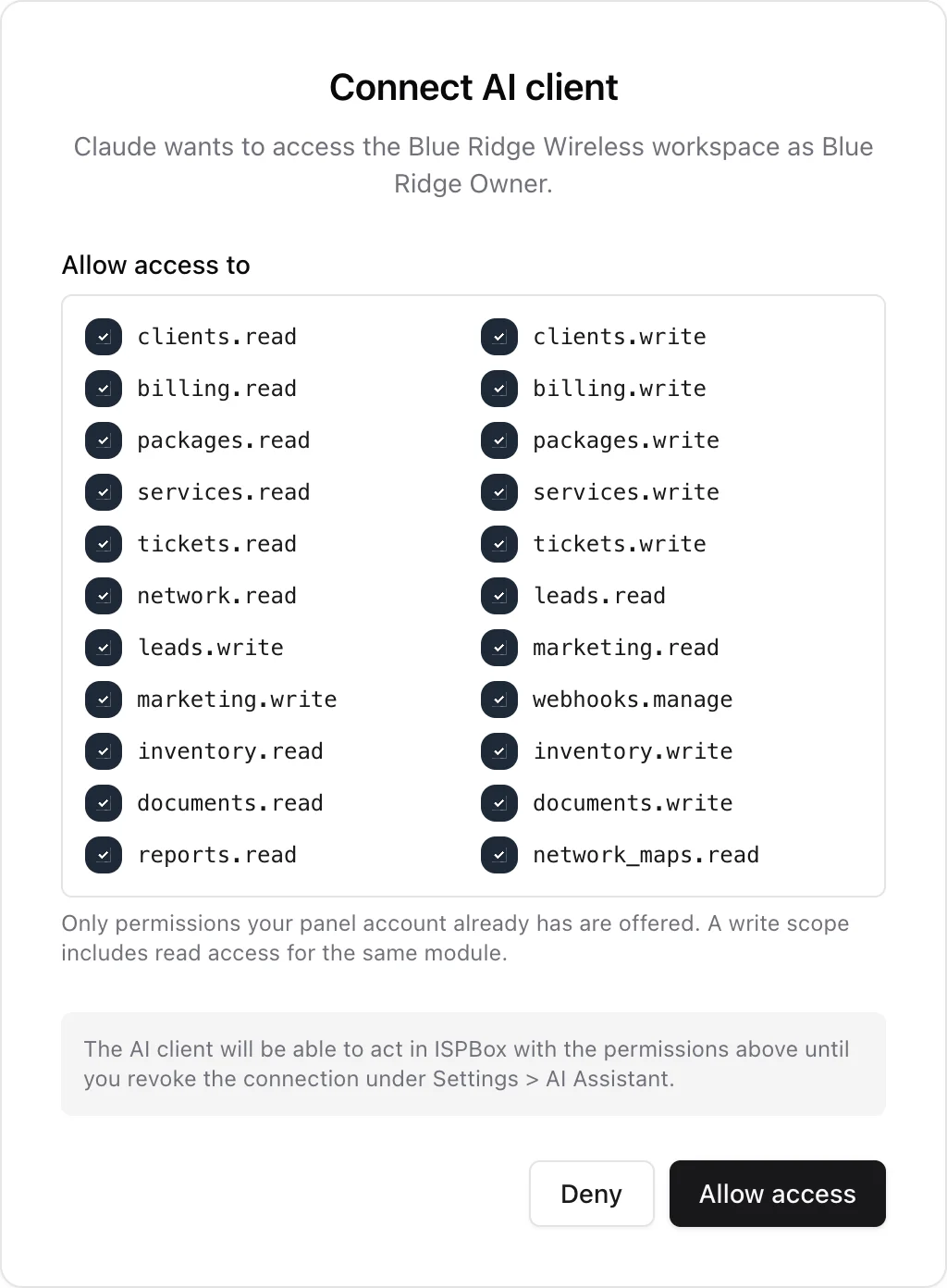
During sign-in ISPBox shows a consent screen listing permission scopes - clients, billing, tickets, network and so on, split into read and write. Untick anything you do not want the AI to have. Two rules always apply:
- Only permissions your panel account already has are offered. A technician without billing access can never grant billing access to an AI.
- The grant follows your account. If your panel permissions are reduced later, the AI connection loses those abilities on its next request - no cleanup needed.
Tools outside the granted scopes are not just blocked - the AI never even sees them. You can revoke a connection anytime from My Account > AI Assistant; the client is signed out immediately.
4. For automations: API keys
Scripts and no-code tools (n8n, Zapier, cron jobs) should not sign in through a browser. For those, create a workspace API key under Settings > API and send it as a Bearer token - the key's scopes decide which tools are available. See the REST API article for key management.
5. Admin controls and the audit trail
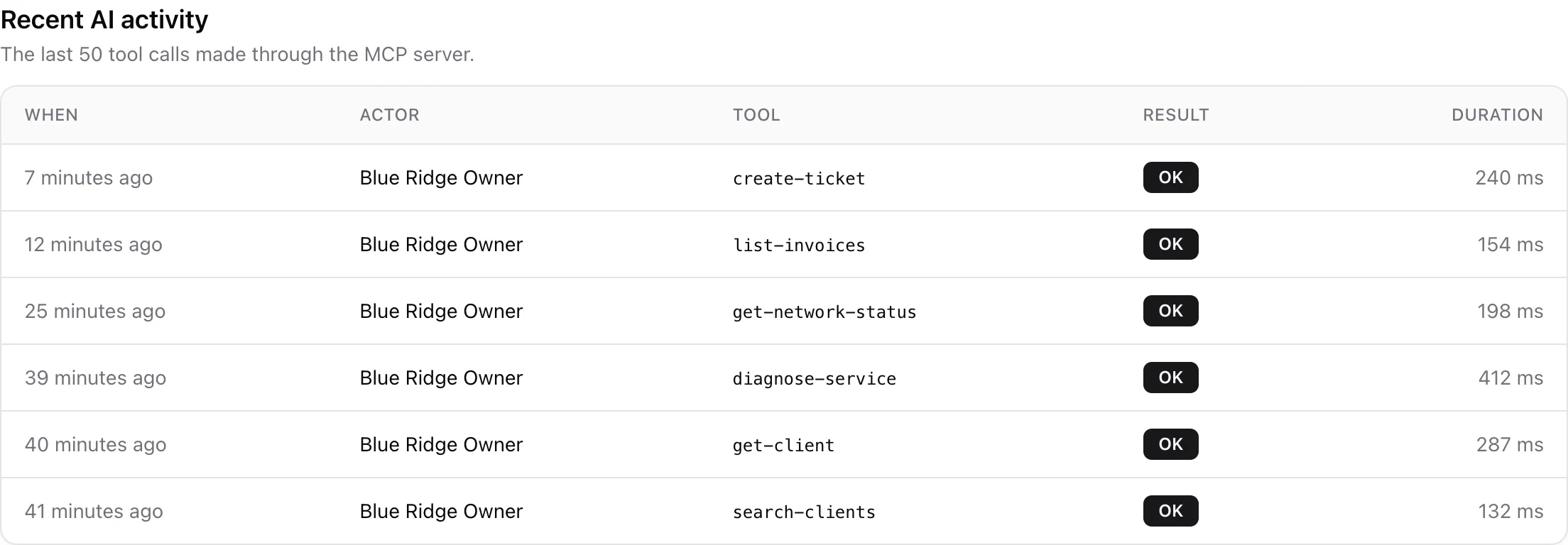
Workspace admins (the settings.manage permission) see an extra section on the AI Assistant page:
- All connections in the workspace - who connected which AI client, with which scopes, and when it was last used - with the power to revoke any of them.
- Recent AI activity - the last tool calls with actor, tool, result and duration. Every call is logged, including its arguments.
- A workspace-wide kill switch that disables the MCP server entirely - every AI connection is rejected until it is turned back on.
Writes made by an AI (a created ticket, a recorded payment) also appear in the regular audit log next to human actions, attributed to the connected user.
6. Built-in guardrails
- Irreversible billing actions (voiding an invoice, reversing a payment) are marked destructive, so well-behaved AI clients ask you to confirm before executing them.
- Customer-written text (ticket bodies, notes) is delivered to the AI wrapped in untrusted-content markers, so instructions hidden in a ticket cannot steer your assistant.
- Rate limits and tenant isolation - the same protections as the REST API apply to every AI call.
7. Availability
The MCP server is part of the ISPBox subscription - the current per-subscriber plan includes it for every workspace, under the same entitlement as the REST API, with nothing extra to buy. Two things can switch it off: an inactive subscription (connections are refused while billing is unresolved), and the retired Starter plan, which never included the API entitlement - grandfathered Starter workspaces need to move to the current plan first. See Your ISPBox Plan.
Developers can find the full technical reference - discovery endpoints, auth modes and the complete tool catalog - at ispbox.net/developers/mcp.
8. Outage messaging, monitoring and reports
The tools compose into real workflows. When your monitoring reports a tower down, the AI links the alert to the device on your network map, resolves every customer downstream and previews exactly who would be notified. Nothing is ever sent without a preview and your explicit confirmation - and messages use the same mass-messaging engine, placeholders and history as the panel.
Outages the panel cannot see are covered too: open-incident takes the same scopes as the Open incident button - a map device and everything behind it, everyone on a router, everyone in a location, or the whole network - with an optional start time and a notify-now flag.
With a LibreNMS or Zabbix integration connected under Settings > Monitoring, the AI also sees your live NMS: device inventory with up/down status, active alerts by severity, and acknowledging alerts with an explanatory note (a dedicated monitoring.manage permission scope guards that). Support actions are covered too: portal invitations, reasoned client blocks, seasonal pauses, technician visit scheduling and inventory lookups - each gated by its own scope and recorded in the audit trail.