The Agent Portal
A walk through the reseller portal at /agent on your own domain: the wallet strip and working list, the customer page, activating and renewing from the wallet, trials and package changes, payments, wallet, prices, the phone layout, and exactly what an agent can never see.
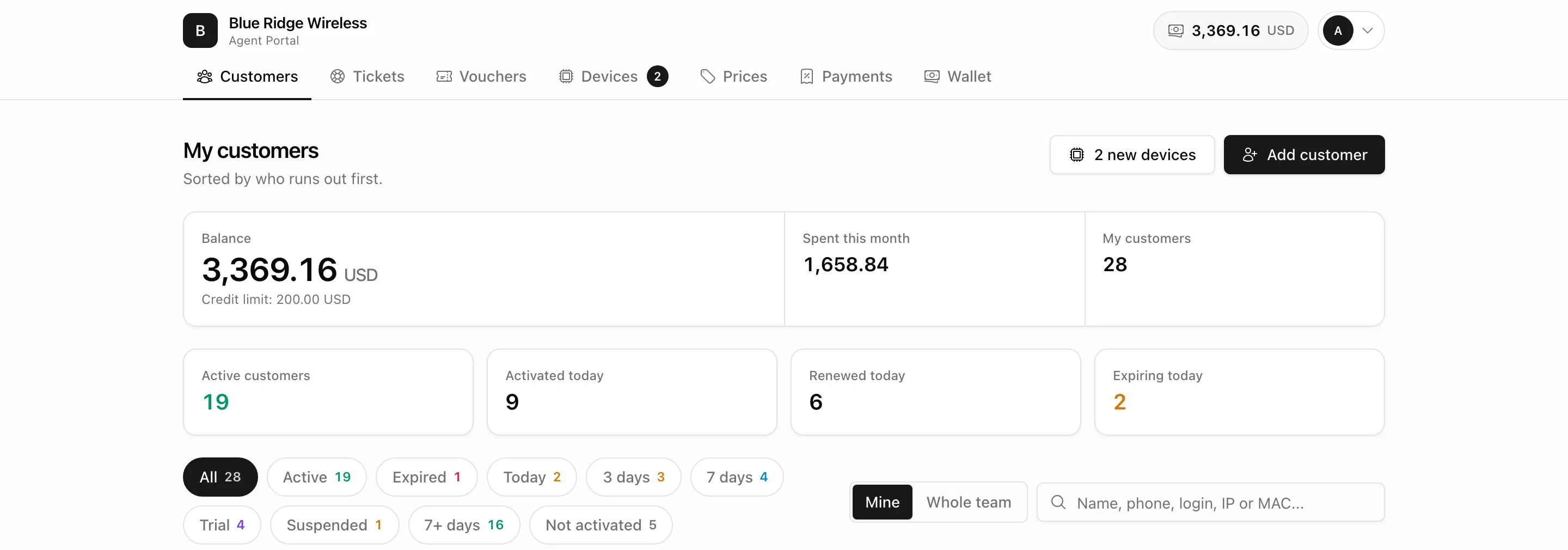
The agent portal is the small, separate screen your resellers, site managers and street sellers work in. It lives on your own domain at /agent (the friendlier /reseller is an alias, deep links included), it carries your logo and name rather than ours, and it has its own login - an agent never touches the admin panel.
This guide walks the portal the way a reseller uses it, so you know exactly what you are handing out. Setting the channel up (agents, wallets, toggles, prices) is covered in Reseller channel setup and Managing agents.
1. Signing in
Send the agent to https://yourdomain.com/agent. The sign-in page shows your logo, your company name, a theme toggle and a language switcher - nothing of ours. An agent signs in with the email on their record and the password you set (or the one they picked from the invitation mail), and Forgot your password? emails them a reset link in their own language.
Two rules are enforced on every request, not just at login: a suspended agent cannot sign in, and an agent suspended while they are working is signed out on their next click.
The portal speaks 11 languages (the same set your customer portal uses). Each agent picks theirs from the account menu; every email they get follows the same choice.
2. The home screen
An agent opens the portal to answer one question: who runs out today. So the home screen is the customer list sorted by expiry, with the money facts pinned above it.
- Balance - what is left in their wallet, with their credit limit underneath when you granted one. The same figure sits in the header on every page and turns red when the balance goes negative.
- Spent this month - what left the wallet since the 1st. Manual balance corrections you made are bookkeeping, not sales, so they are excluded.
- My customers (or Team customers when they switch scope) - the size of the book the list below is showing.
- Active customers - a prepaid service that is running and has not run out. Not "status = active": an expired customer keeps that status until the sweep cuts them off, and a suspended one has time left but no access. Neither counts here.
- Activated today and Renewed today - counted off the agent's own wallet ledger, so a scratch card the customer redeemed themselves never inflates the tally.
- Expiring today - a button, not a number: it filters the list to exactly those customers. "Today" means before midnight in your company's timezone, not "within 24 hours".
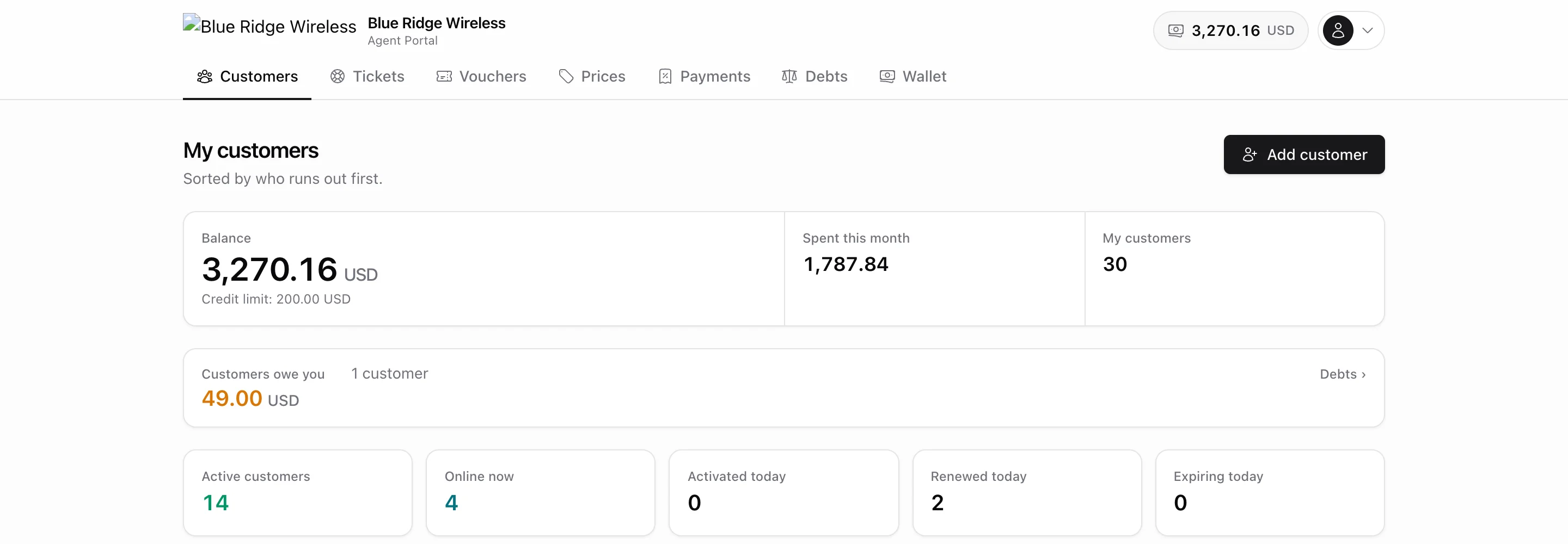
Online now is how many customers the router sees at this moment, next to the active count. It is link state, not billing state: an expired customer the enforcer has not cut yet still counts, a paid-up one with a dead radio does not. Tapping it opens the list filtered to them. When you let agents sell on credit, a Customers owe you line sits above the tiles: what is outstanding, from how many customers, how many are past their promised date, and a link to the Debts page.
3. The working list
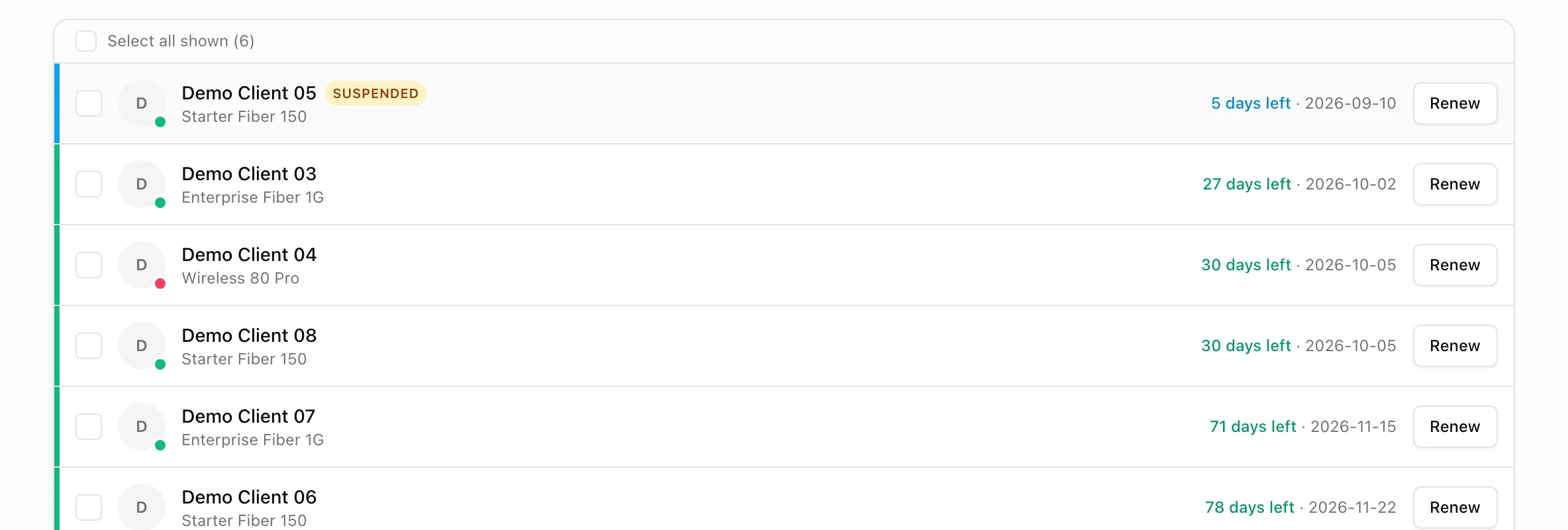
One row per customer, most overdue first, never-activated last. Each row carries the package, the days left with a colour rail, the expiry date and a one-tap Renew (or Activate, when the service has never run). The dot on the avatar is the live link state of that same service - green online, red offline, nothing when there is no monitoring data.
Above the list:
- Filter chips with live counts - All, Active, Expired, Today, 3 days, 7 days, Trial, Suspended, 7+ days and Not activated. The main chips stay clickable at zero so "nobody expired" can actually be confirmed; the horizon chips hide when they hold nobody. Trial and Suspended are derived, not stored: a customer is on trial when the period that set their current clock came from a free trial and that clock still runs, and suspended when an already-activated prepaid service is not active now.
- Mine / Whole team - only offered to an agent who has sub-agents. "Mine" is their own book, "Whole team" the whole subtree under them.
- One search box over every identifier - name, email, phone, the customer number, and the network identity of any of their services: PPPoE login, IP address, or the MAC in whatever notation the sticker uses (
aa:bb:cc:dd:ee:01,AA-BB-CC-DD-EE-01,aabbccddee01, or just the last few characters). A short all-digit term is read as a customer number or the tail of a phone, so typing "6" does not return the whole book.
The search and the filter ride in the URL (?search= and ?filter=), so a filtered list survives a reload and can be sent as a link.
Bulk renew: rows with a prepaid service get a checkbox and a Select all shown control. The confirmation lists every ticked customer with the agent's price, the total, what customers pay and the balance afterwards - and it says how many of them the wallet can actually cover, because each customer is renewed in its own wallet transaction. One that fails (wallet dry, no package, router refused) is named in the summary and does not undo the ones already done.
The chip row also carries Online with its count - the same link state as the dot on every avatar, as a filter.
4. Recent activity and new devices
Under the list sit the last eight things the agent actually did: activations, renewals, invoice payments, account credits, voucher and card batches, each with the customer, the time and the amount. Top-ups, your balance corrections and sub-agent commissions are deliberately left out - that is money moving toward the agent, not work they performed. The full ledger is one tap away on the Wallet page.
When device claiming is switched on, a N new devices chip appears beside Add customer. It counts the unassigned DHCP devices the agent may claim; see DHCP device discovery.
5. The customer page
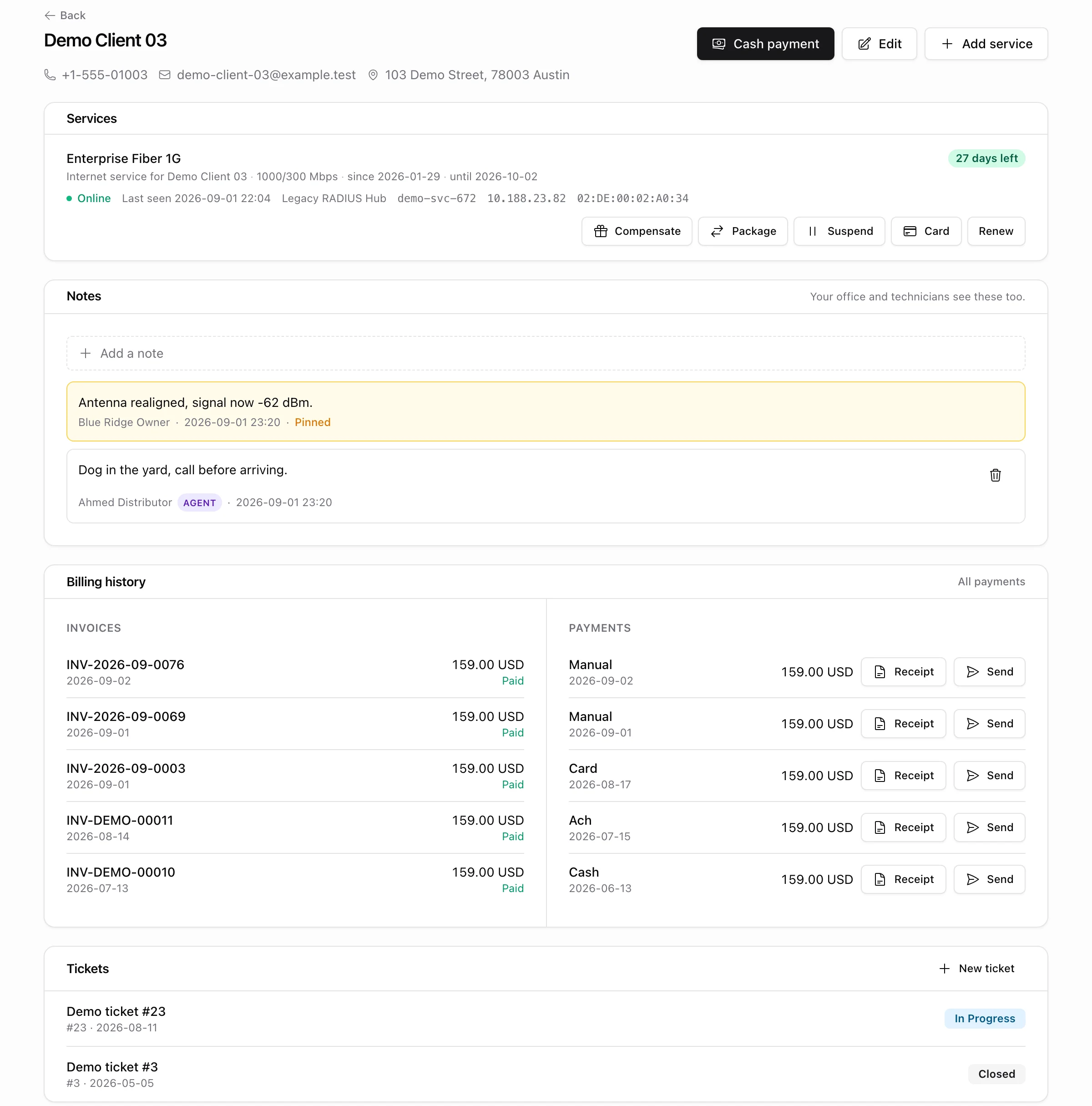
The header is the identity: name, then tappable chips - the phone dials, the email opens the mail app, the address opens maps. If money is owed, an amber Unpaid card appears above everything with a Pay button per invoice that settles it straight from the wallet. When nothing is owed, that card does not exist at all.
Each service is one line with a coloured state chip on the right - days left, hours left in the last day, Expired, Suspended or Not activated - plus one facts line: the package, the speed it sells, since when the customer has had it and until when it is paid.
Under that sits the connection line, and it is strictly read-only: Online / Offline / Link unknown, last seen or offline-since, the router name (with a "router offline" flag when your monitoring says so), the PPPoE login, the IP and the MAC. The agent can see whether the customer is connected without calling your office, and can change nothing about the router.
6. Selling from the customer page
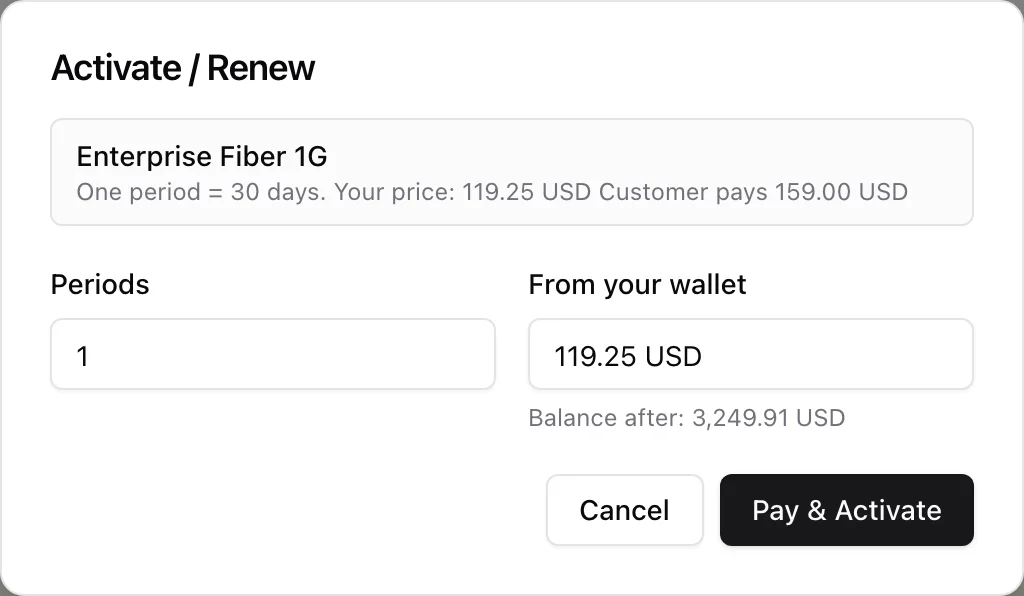
Activate / Renew is the main button. The modal states the package, how long one period is, what the agent pays and what the customer pays, takes a number of periods (1 to 36) and shows the balance afterwards. Confirming books the customer's invoice as PAID at the customer price and debits the agent's own price from their wallet, in one transaction. If the wallet cannot cover it, the sale only goes through when you granted a credit limit that reaches.
If the money moved but the router refused the setup, the agent is told exactly that - "Paid, but the router refused the setup" with the reason - instead of a green "activated". The service is flagged, your office is notified, and the network side is retried automatically.
Card redeems a prepaid renewal card for the customer (the agent scratches it at the counter). The card's package and length win, whatever the service is on now, and the code is one-shot.
Cash payment is for money collected at the door: the amount comes out of the agent's wallet and lands on the customer's account, settling open invoices oldest first and leaving the rest as credit. It hands back a PDF receipt immediately.
Add service exists for a customer who was created without a package: pick the package (priced at the agent's own customer price) and, when you allow it, the connection point. The service starts switched off and is activated from the same page once the customer pays.
Selling on credit
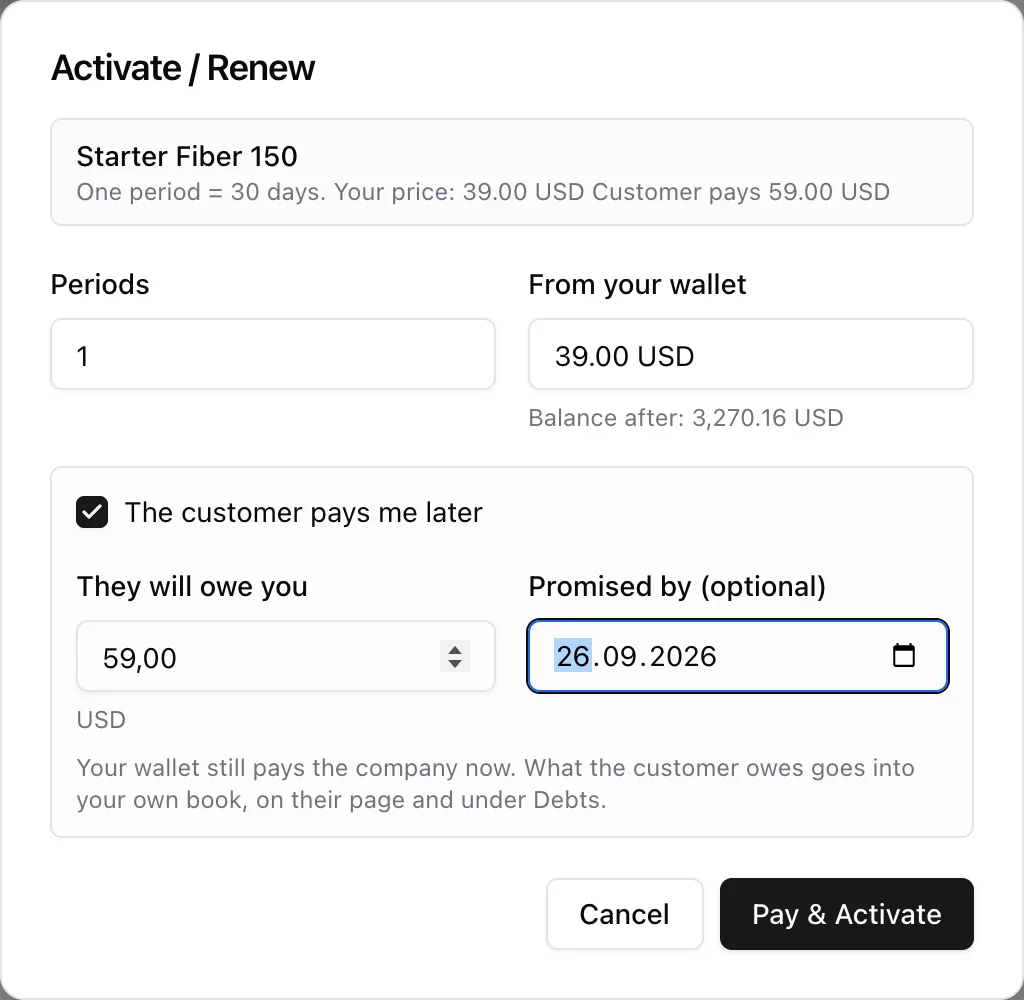
When you switch on Selling on credit (Settings > Agents), the Activate / Renew window has one more box: The customer pays me later. The wallet still pays you on the spot, exactly as above. What changes is that the customer price of the sale - prefilled, editable - is written into the agent's own book as owed to them, with an optional promised date. The customer's invoice is paid and your money is in; this is a private matter between the agent and their customer, and it never touches the customer's account with you, the wallet or cash on hand.

The customer page then carries an Owes you card: the balance, the promised date (red once it has passed), every movement with the balance after it, Record payment for money the customer hands over (part or all - never more than they owe) and Add for something owed outside a sale, such as an installation or a router the agent fronted. A balance booked before you switch the feature off stays on the page until it is paid.
7. Lifecycle actions
Everything in this section is off by default and switched on per company in Settings > Agents. Each one is also capped per month, and each one is written to the agent's action log so you can see who did what.
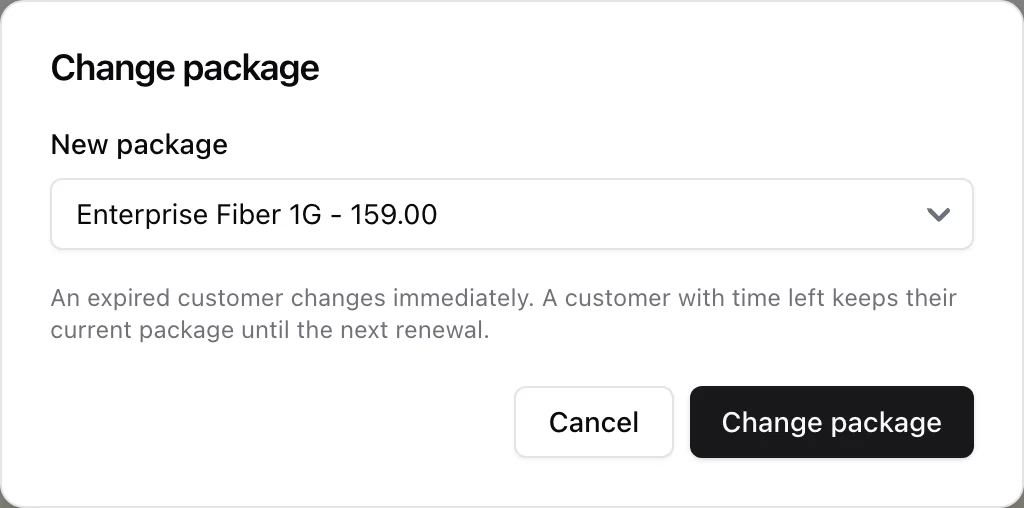
- Package - change the customer's package. The rule is the one street resellers already know: an expired customer changes immediately, a customer with time left keeps their current package until the next paid period starts, and the next renewal is priced on the new package. The page shows "Changes to X at next renewal" until it lands.
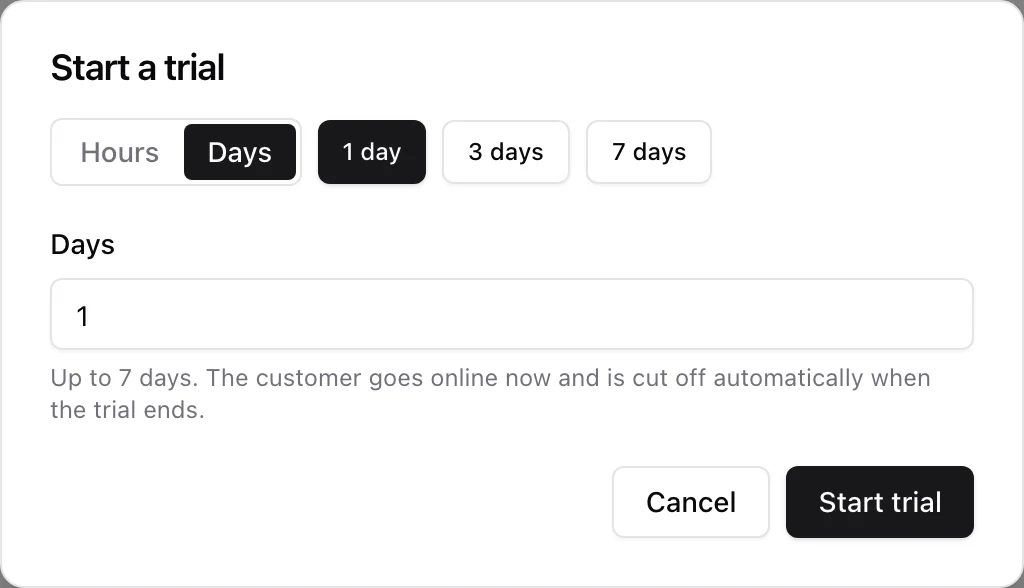
- Trial - free time for a customer who has never been activated or has expired. Hours or days, with 1 / 3 / 6 / 12 hour and 1 / 3 / 7 day presets, up to the maximum you set. The customer goes online now and is cut off automatically when the trial ends.
- Compensate - free time on top of what the customer already paid for, after an outage, with an optional reason. Hours or days again. Nothing is charged to the wallet, which is why it is capped both per grant and per month.
- Suspend / Resume - cut a customer off and put them back. Resume only restores access if the prepaid clock is still running.
Bulk compensation by incident, router or location stays with you: an agent cannot see how far an outage reached.
8. Notes, billing history and receipts
The Notes card writes into the same thread your admin client page uses, so "dog in the yard, call before arriving" reaches your technician and your "antenna realigned" reaches the reseller. Notes carry their author on both sides with an AGENT badge, your pinned notes stay on top, and an agent may delete only what they wrote themselves.
Billing history lists the last five invoices and the last five payments side by side. Invoice numbers open the same PDF your office issues; every payment has a Receipt button and a Send button. Send opens a sheet with only the channels that can actually work for this customer: WhatsApp (message prefilled in the customer's language, the seller taps send), SMS through your Twilio, email with the PDF attached, and a copyable public link that opens the receipt without any login.
9. Payments
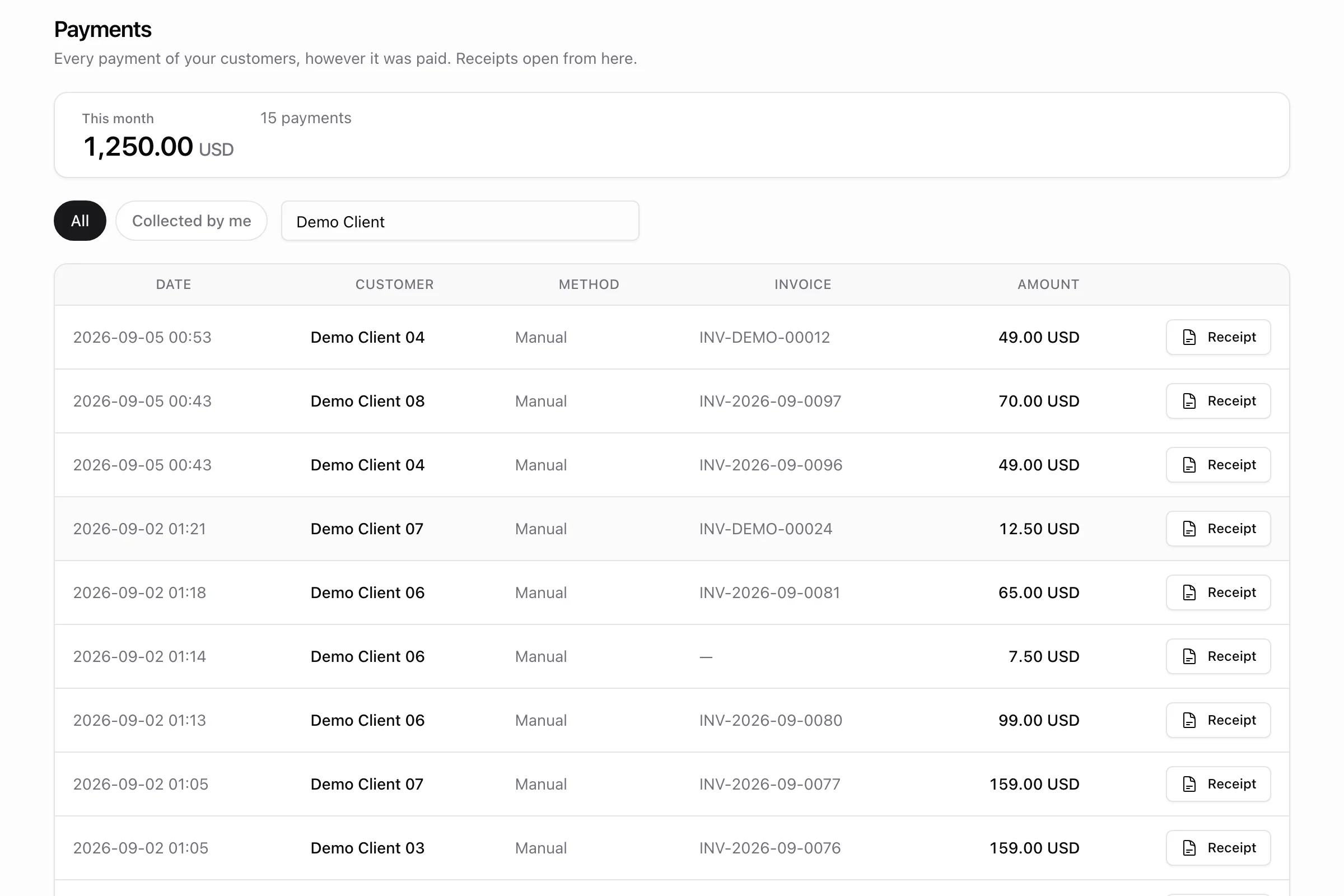
/agent/payments is every completed or reversed payment of the agent's customers, however it was paid - the agent's wallet, cash at the door, the customer's own card in the customer portal, a redeemed scratch card. Newest first, with method, invoice number (which opens the PDF) and the receipt button.
Collected by me narrows it to money that actually went through this agent's wallet, matched either by the payment itself or by the invoice their prepaid sale booked. A commission credited off a sub-agent's sale is money earned, not collected, so it never pulls that sale in.
The search covers customer name, phone and number, with the same short-digit rule the working list uses, and the card at the top totals whatever the list is currently showing for this month. The customer page's "All payments" link pins this page to one customer.
10. Debts
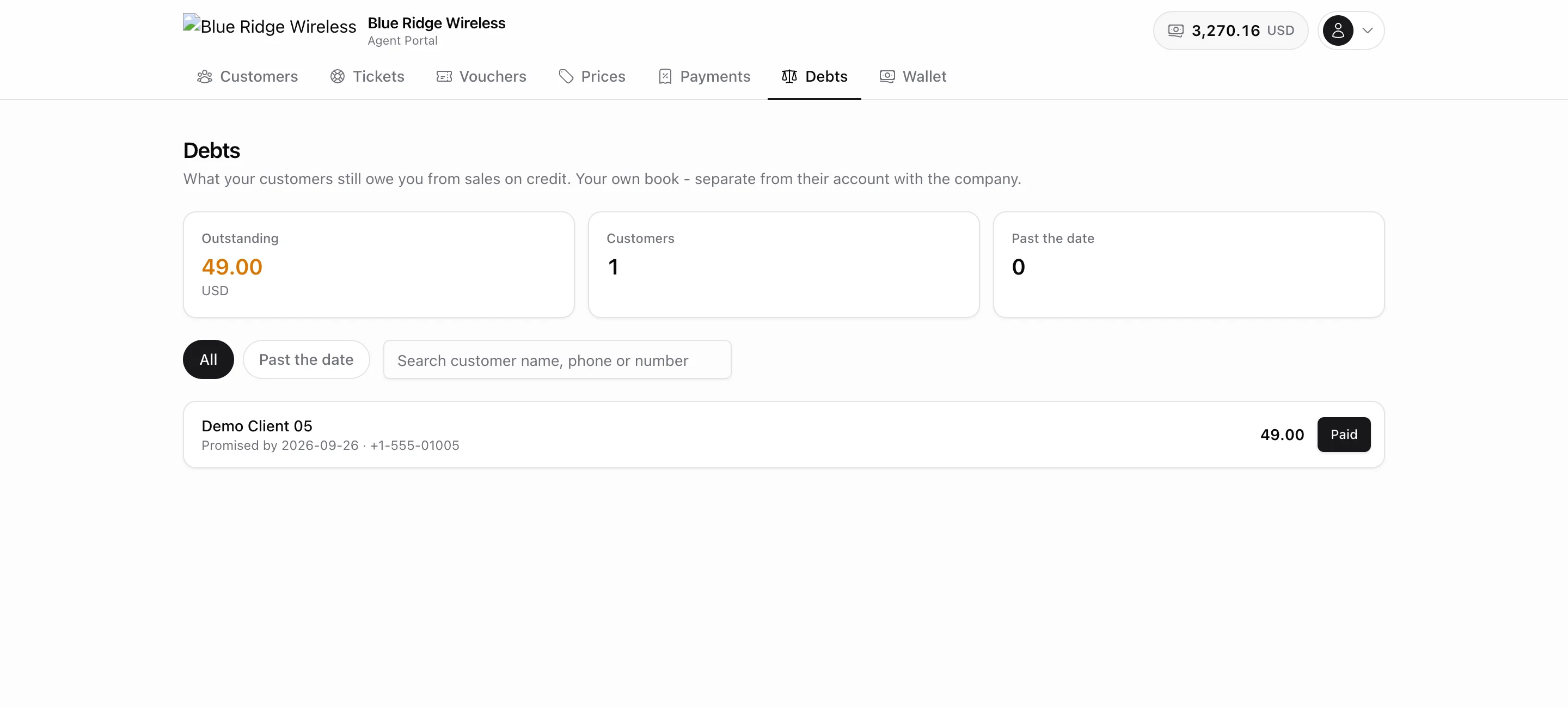
/agent/debts is the agent's book of sales on credit in one place: what is outstanding in total, from how many customers, and how many are past their promised date. Rows are sorted worst first - past the date, then due soonest, then the largest - each with the promised date, the phone number and a Paid button that records a payment without opening the customer. The Past the date chip narrows the list; the search box takes a name, phone or customer number. The page and its nav entry appear while you allow selling on credit, or while a customer still owes the agent from when you did.
11. Wallet
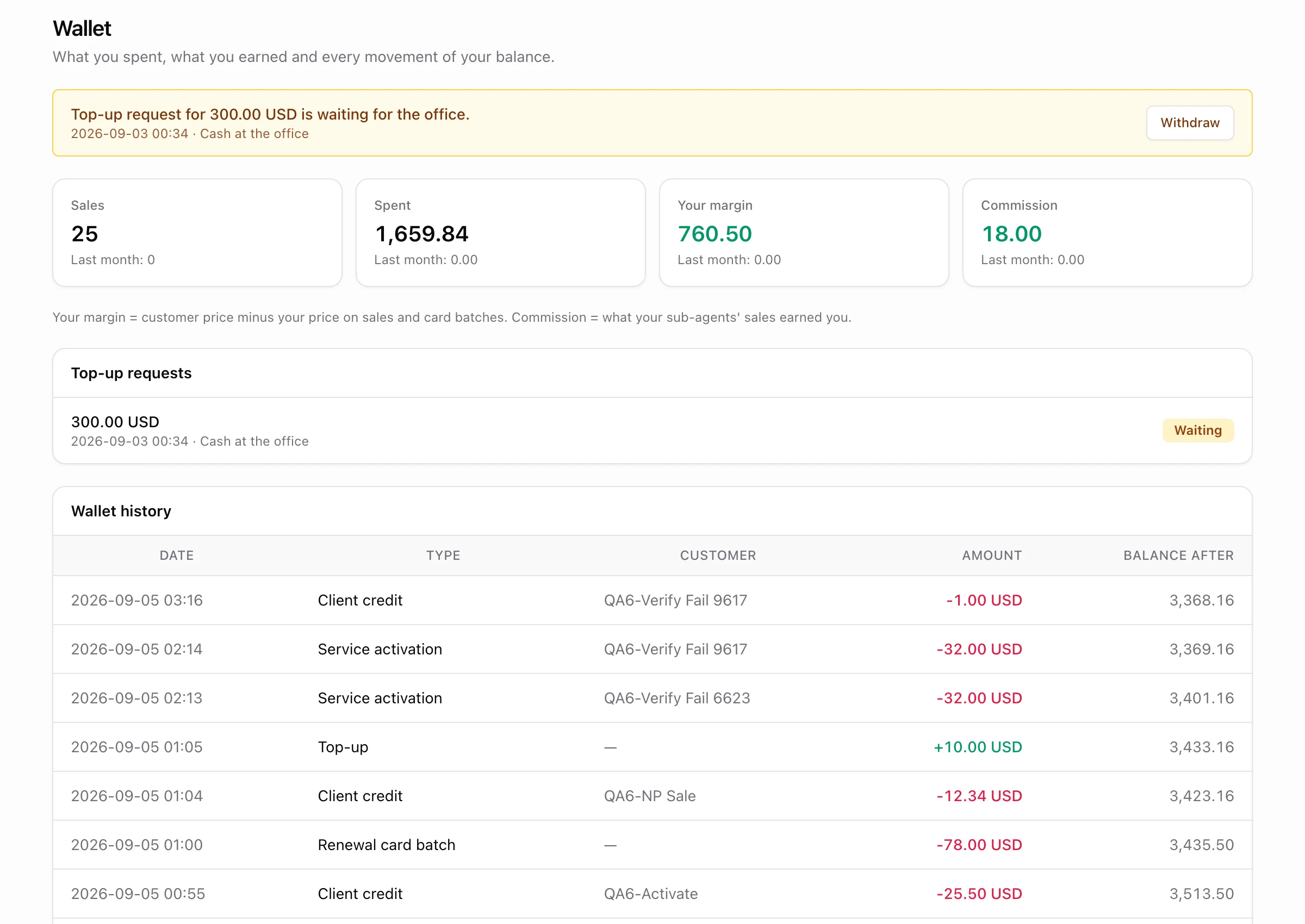
The Wallet page opens with this month against last month: how many sales, what left the wallet, the agent's own margin (customer price minus their price, on sales and card batches) and what their sub-agents' sales earned them as commission.
Under that is the wallet history: every movement, append-only, with the balance after each one, so the ledger always reconciles. Top-ups, activations, renewals, invoice payments, account credits, card and voucher batches, commissions and your manual corrections all appear here.
Request a top-up lets the agent ask for money instead of phoning: an amount and a note, one open request at a time, withdrawable. Your office sees a badge on the agents list and can approve it (which opens the normal top-up modal, amount correctable) or decline with a reply the agent reads right here.
When the agent owes the company - the wallet spent past zero into their credit limit, or customer cash still on hand in the owed cash mode - a red You owe the company card opens the page with the sum and its two parts, so the figure they are asked for at the office is the one they see.
12. Prices
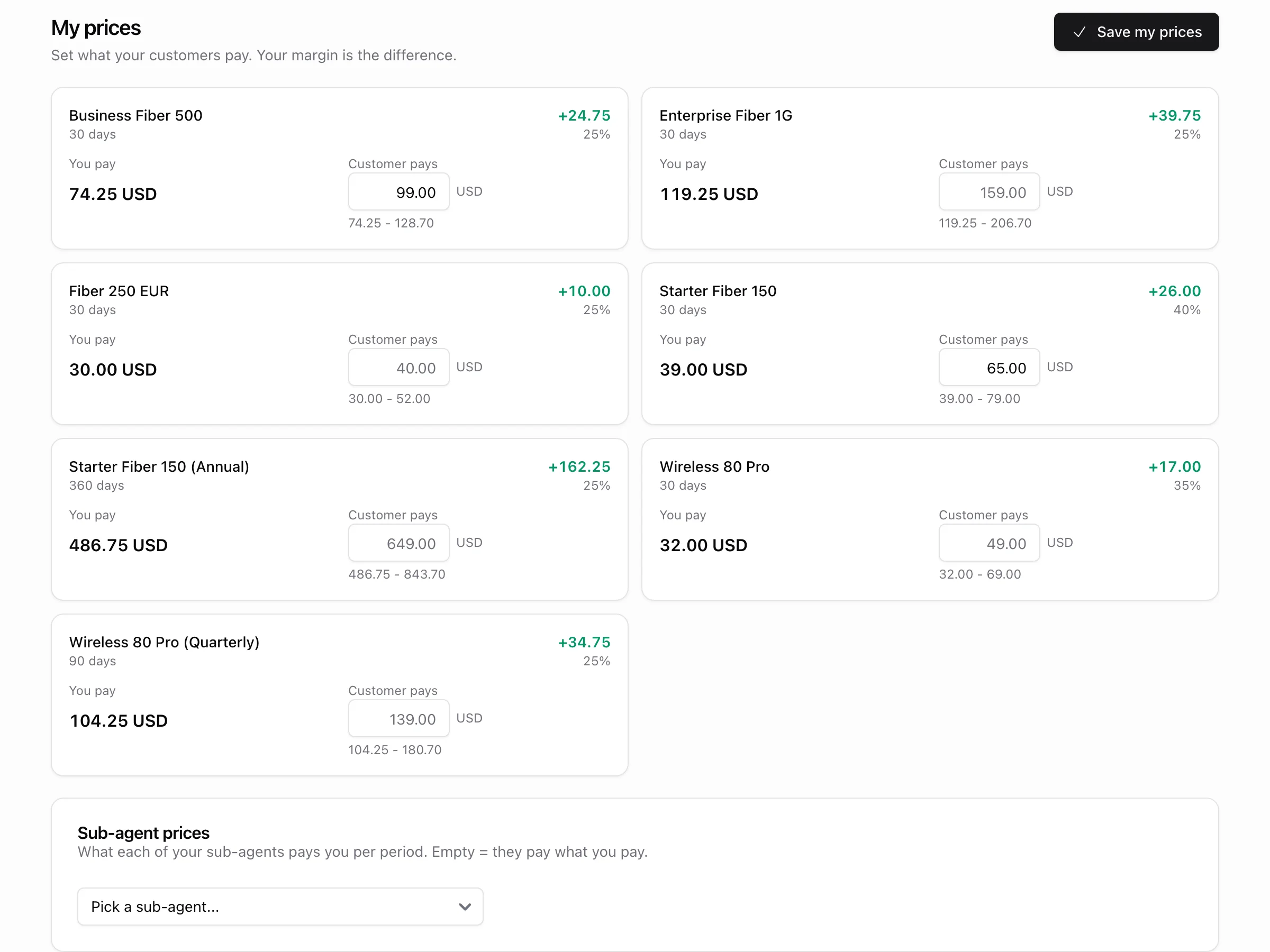
One card per package: what the agent pays per period, what the customer pays, the margin in money and percent, and the allowed range underneath the input. The margin recomputes while they type and the range turns red the moment a price leaves it, instead of only failing on save.
The customer price is editable only when you switched on "agents set prices", and it is always clamped between the agent's own buy price and the package's maximum customer price. Whatever the page allows, the price is resolved and clamped again at sale time, so this screen is convenience rather than enforcement.
Below it, a parent agent prices each of their sub-agents per package. Three rules apply: never below the parent's own buy price (a parent cannot sell at a loss), never above the package's maximum customer price, and never above what the child currently charges their customers - the child has to raise their price first.
13. Tickets, devices and notifications
Three more pages appear only when you switch them on:
- Tickets - open / closed / all with a search, a New ticket modal whose customer picker is scoped like everything else, photo attachments, and the client-visible thread only. Internal staff notes never leave your admin panel.
- Devices - unassigned DHCP devices on the routers at the agent's location, ready to be attached to one of their customers. Covered in DHCP device discovery.
- Notifications - each agent ticks which of the emails you offer they actually want; nothing goes out until both you and they say yes. See Agent notifications.
A Vouchers page is always in the nav for the hotspot side of the business - see Guest WiFi and hotspot vouchers.
14. On a phone
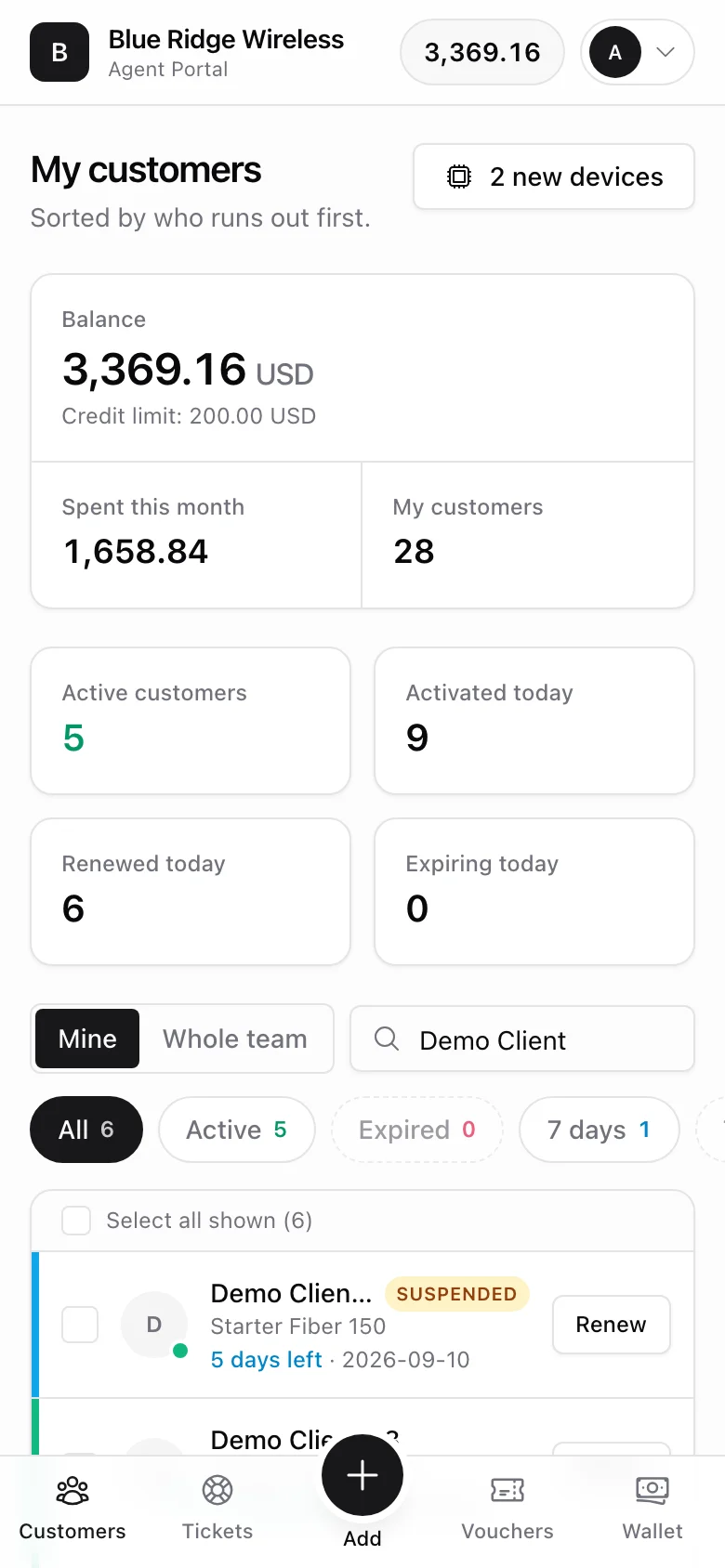
The portal was built for the phone first, because that is where a field seller works. The header keeps one brand line, the balance pill and one account menu. A bottom tab bar sits under the thumb with five destinations - Customers, Tickets (or Prices when tickets are off), a round Add button in the middle, Vouchers and Wallet. Prices, Payments and Devices move into the account menu on small screens.

The account menu is where the agent's own settings live: Language (behind one row that opens a picker, so eleven languages do not become a wall of text), Toggle dark mode, Notifications, Password and Log out.
15. What an agent can never see
The portal is a separate surface with its own guard, and every page and every action resolves its target through one isolation rule. That rule is: the customers attributed to this agent or to anyone in their subtree, plus - only when you marked them a site manager - every customer at their location. A customer outside it simply does not exist for them; a hand-typed or wire-tampered id is a 404, not a leak.
Concretely, an agent never sees:
- Your routers. There is no router page, no API credentials, no WireGuard keys, no RADIUS secrets. The connection line on the customer page is read-only, and where you allow an agent to name a connection point, they get a name in a dropdown and nothing else.
- Another agent's customers, including a parent's when they are the child. Search, payments, tickets and devices are all scoped the same way.
- Your company's finances. The wallet is their own ledger; the Payments page only shows payments of customers they can already see. There is no revenue, no cost, no other agent's balance, no tenant-wide report.
- Your internal notes on tickets. Only the client-visible thread reaches the portal.