Users, Roles & Permissions
Control who can do what in ISPBox: the four built-in roles (Admin, Staff, Technician, DemoViewer), building custom roles from module permissions, and adding and assigning staff.
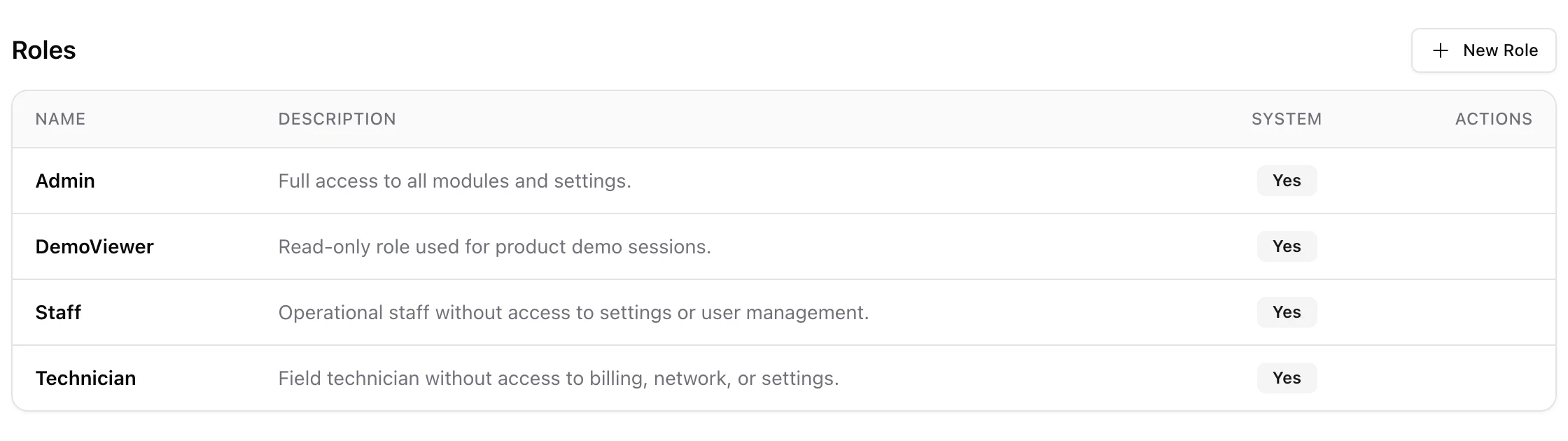
ISPBox controls who can do what through roles. Every staff member is assigned a role, and the role grants a set of permissions across the modules - clients, billing, network, tickets, settings and more. Four roles ship built in, and you can add your own. This lives under Settings > Users, on the Users and Roles & Permissions tabs. The Groups tab between them is about something else: which team a ticket or lead is routed to. See Groups: Routing Work to Teams.
1. The built-in roles
Four system roles come ready to use:
- Admin - full access to all modules and settings.
- Staff - operational staff without access to settings or user management.
- Technician - field technician without access to billing, network or settings.
- DemoViewer - read-only, used for product demo sessions.
These are marked as system roles and are a sensible starting point for most teams.
2. Custom roles
Need something in between - say a billing clerk who can see clients and invoices but not touch the network? Click New Role on the Roles & Permissions tab and pick exactly the permissions it should have. Permissions come as view/manage pairs across the modules (clients, services, billing, leads, documents, inventory, network, reports, tickets, and settings), so you can grant read-only or full control per area.
3. Adding and assigning users
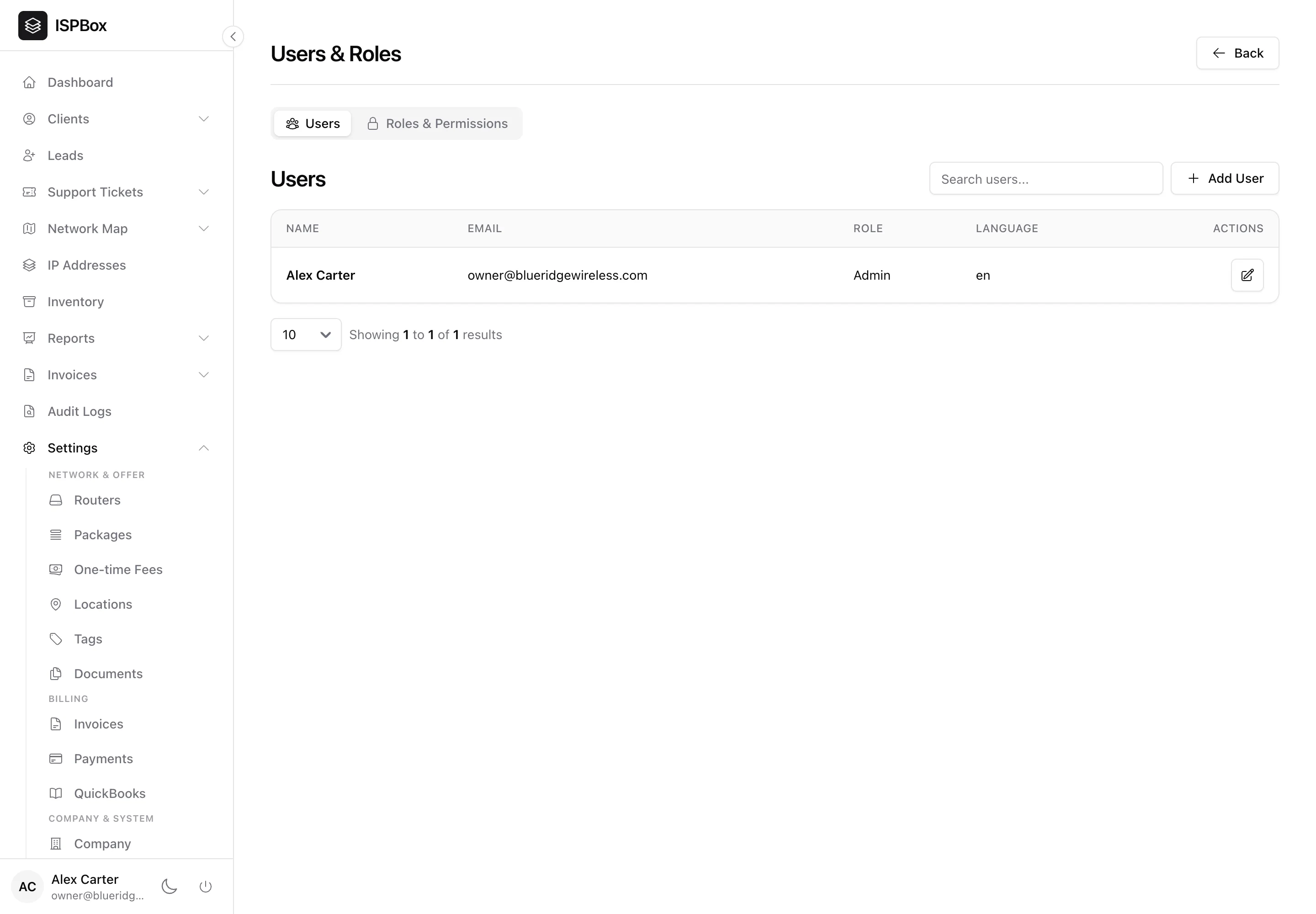
On the Users tab you see each staff member with their email, role and language. Use Add User to bring someone on - you can invite them by email or add them directly - and assign their role, interface language and, if you use them, the groups they work in. You can also mark a user inactive to revoke access without deleting them.
4. How permissions are enforced
Permissions are per tenant, so a role only ever applies within your own workspace. Throughout the panel, actions and even whole pages are gated by the matching permission - a Technician, for example, simply will not see billing or settings. Give each teammate the narrowest role that lets them do their job.