Changing a Client's Plan
Upgrade, downgrade or fix a plan mid-period with fair automatic settlement - settle now or on the next invoice, or schedule the change for renewal.
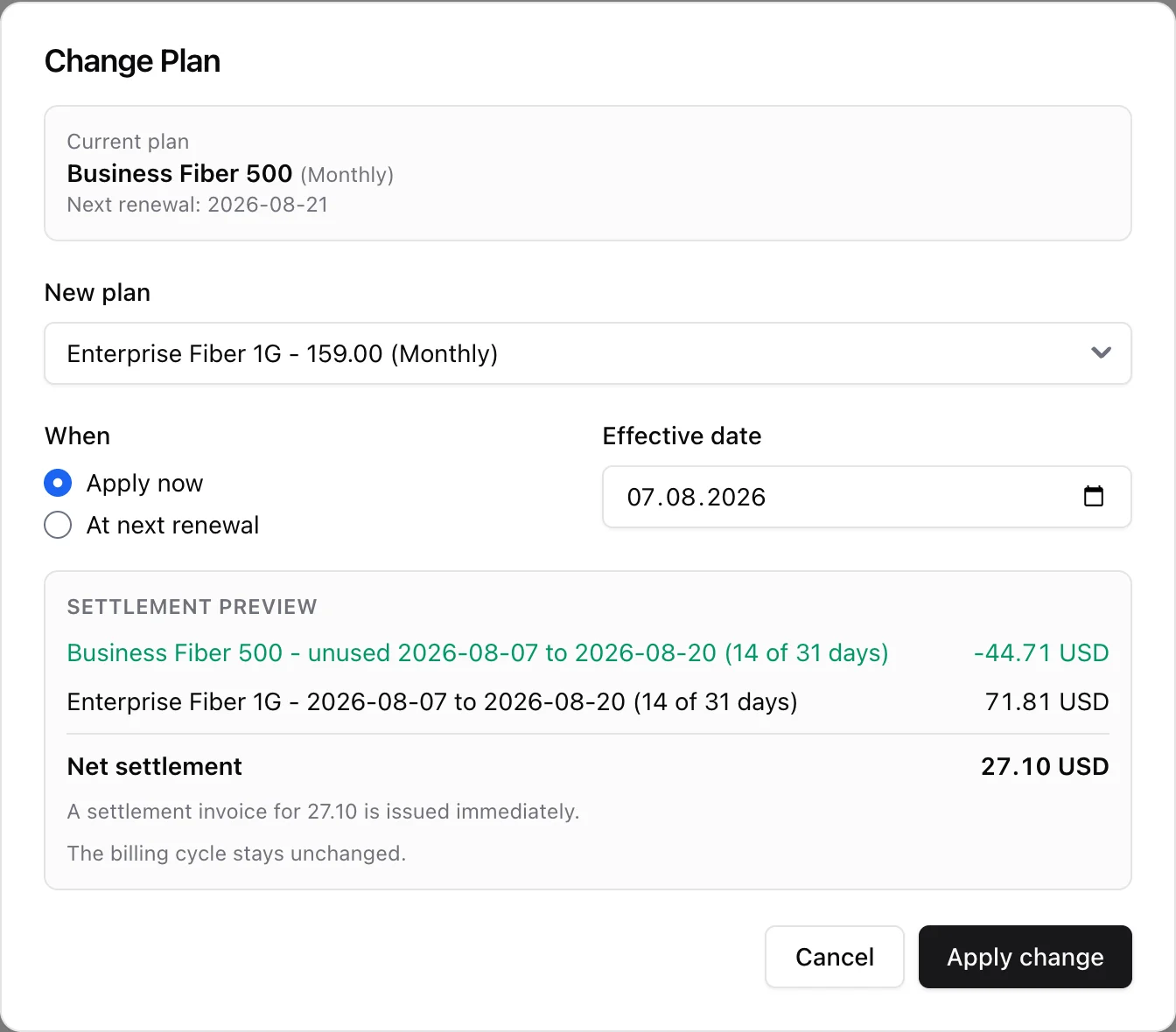
Customers change their minds mid-contract - they upgrade for a home office, downgrade to save money, or you simply put them on the wrong plan at signup. ISPBox handles all of it from one place with fair, automatic mid-period settlement: the customer is credited for the unused time of the old plan and charged a prorated amount for the new one, day-accurate, with the math shown to you before you confirm. Changes can also be scheduled for any future date, with an automatic switch back - a seasonal rate is one form.
1. Where to change a plan
Open the client, switch to the Billing tab and click Change plan on the service. You pick the new plan, choose when it takes effect - Apply now (today or backdated within the billed period) or Schedule (any future date) - and ISPBox shows a settlement preview with the exact credit, charge and net amount before anything is applied.
The service edit page offers both paths too. Changing the package in the dropdown goes through the same engine: instead of silently swapping, ISPBox shows the settlement and asks you to confirm - or to swap without billing when you are just correcting a data entry mistake (see below). The Scheduled plan changes block under Package Details lists what is scheduled for the service and lets you schedule a change without leaving the page.
2. How the settlement is calculated
- The credit refunds the unused remainder of what was actually invoiced - so price overrides and prorated first cycles credit exactly what the customer paid for, never the list price.
- The charge bills the new plan for the same remaining days, prorated against a full billing interval - exactly how the engine would have billed those days.
- Both lines share the same day counts, so the invoice reads as one coherent story, and the settlement invoice PDF carries a plain-language explanation of the change for the customer.
- A second change in the same period settles against the previous change's charge - the same days are never credited twice, and the credit carries the tax rate the charge was actually invoiced with.
3. Settle now, or on the next invoice
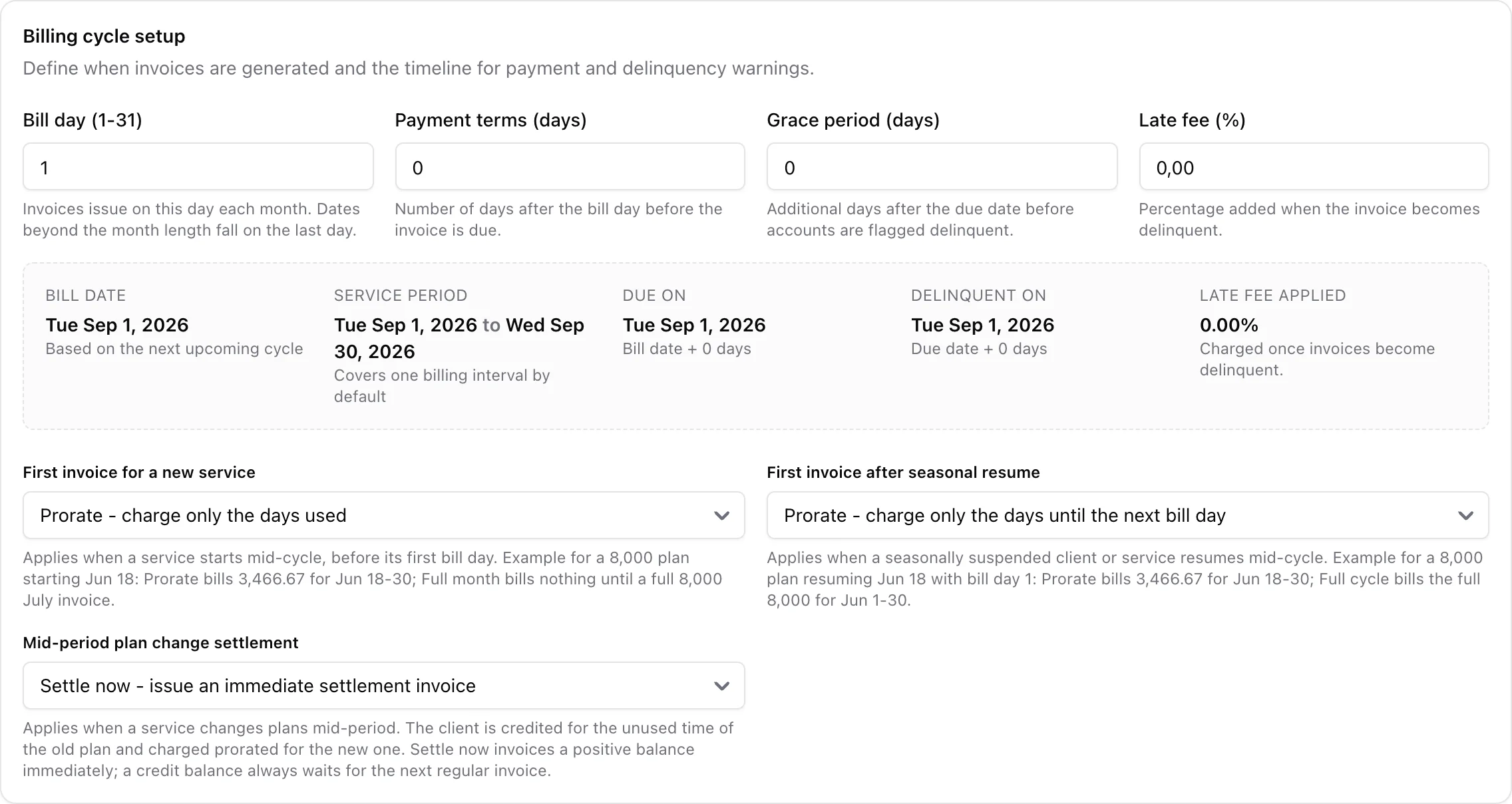
Under Settings > Invoices > Billing cycle you choose what happens with the settlement money:
- Settle now - a positive balance (upgrades) becomes an immediate settlement invoice, emailed like any other invoice per your automation settings.
- Next invoice - the credit and charge wait as pending lines and are merged into the next regular invoice.
Two rules hold in both modes: a credit balance never becomes an invoice - it always waits for the next regular invoice - and an invoice never goes negative. If a credit is larger than the next invoice's charges, the invoice is reduced to zero and the remainder automatically carries over to the following one.
4. Scheduling a change for later
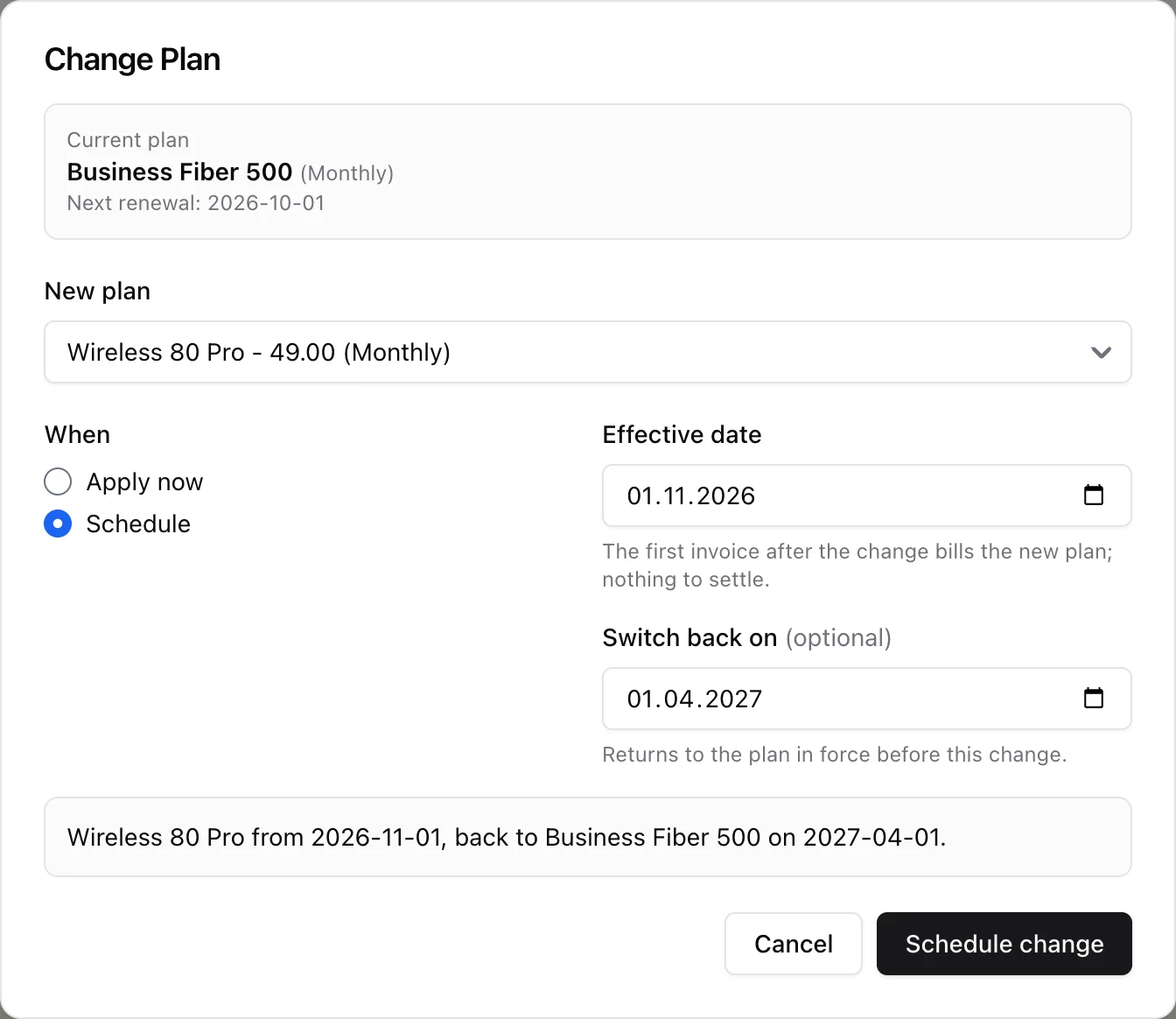
Choose Schedule and two date fields appear. Effective date is prefilled with the service's next renewal - ISPBox works it out the way the invoice run does, so a freshly imported service without billing dates still gets one - and can be any future date. Switch back on is optional: fill it in and ISPBox stores a second change that returns the customer to the plan they had before. A summary line spells out the result before you click Schedule change, for example "Winter 10 Mb from 2026-10-01, back to Fiber 75 Mb on 2027-07-01."
The hint under the date tells you what will happen on that day:
- On a renewal date the first invoice after the change simply bills the new plan - nothing to settle.
- On any other date the change is applied that day and settled the same way an Apply now would be, per your settlement mode.
Scheduled changes run automatically in the early morning of their effective date - before that day's invoices are generated - and are reprovisioned on the network right away. You can schedule several changes for one service; each starts from the plan the previous one leaves behind, and ISPBox keeps the chain consistent whenever you add, cancel or apply a change in between (a switch back always returns to the plan from before its change, whatever was scheduled around it).
Everything scheduled shows in the Plan changes card on the billing tab and in the Scheduled plan changes block on the service edit page, each row with a Cancel button. Cancelling a change that has a switch back cancels both (the button says Cancel both); cancelling only the switch back keeps the change. A cancel that would make a later scheduled change pointless is refused with a message, so a chain never ends up switching a plan to itself. The card also keeps the history of applied changes with their settlement amounts.
5. Switching between billing periods
A move between plans with different billing periods - say monthly to yearly - has no meaningful mid-period math, so ISPBox applies it on a renewal date: the picker switches to Schedule and pins the effective date to the next renewal. A switch back from such a plan must also land on one of the new plan's renewal dates (one year later for a yearly plan); any other date is refused with the right date in the message. If the renewal-day invoice already went out with the old plan, ISPBox recovers cleanly: the old charge is credited in full, the new plan is billed for its own cycle, and the billing calendar moves to the new interval - all visible on the settlement invoice.
6. When the scheduler cancels a change
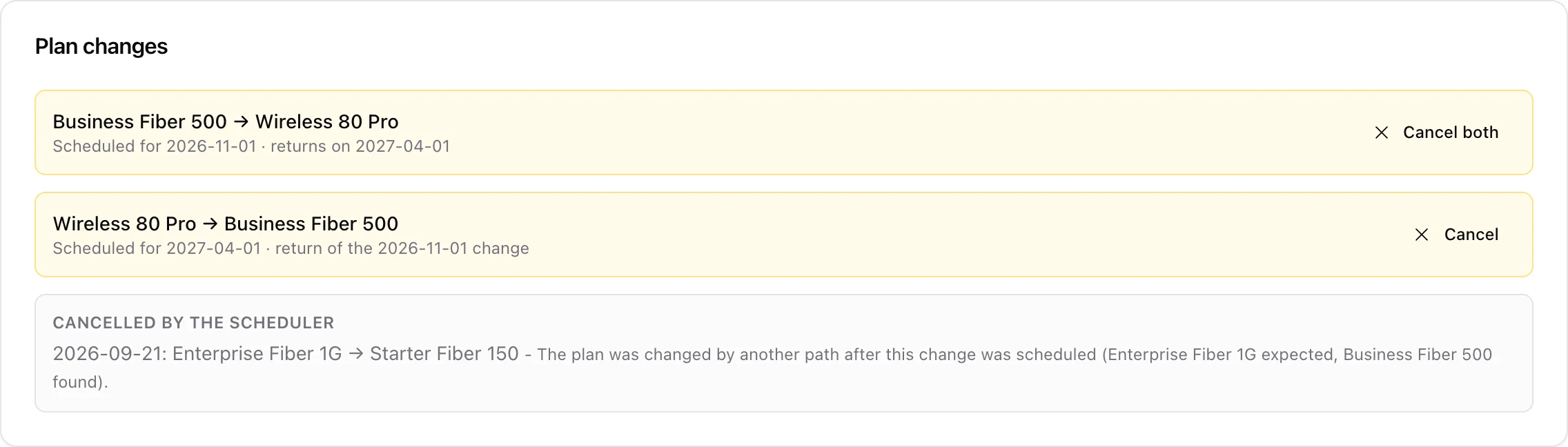
A scheduled change is applied only when the service still is where the schedule expects it. ISPBox cancels a row instead of guessing when:
- the plan was changed around the engine in the meantime - by an importer, the Splynx sync, or the package dropdown on a blocked or paused service, none of which re-chain scheduled rows;
- the service is already on the target plan when the day comes;
- the target package or the service no longer exists;
- a billing-period switch had to move to the next renewal and that date is already taken by another change, or comes after its own switch back.
A change the scheduler cancels takes its switch back with it (one notification, the switch-back date named in it) - except when the customer already reached the target plan by another route, where the switch back still makes sense and is kept. A contract that would block the change as a downgrade on its day cancels it the same way instead of failing night after night. Every such row stays on the billing tab under Cancelled by the scheduler for 90 days with the reason, and raises a staff notification ("Scheduled plan change cancelled", on the Clients badge and in the daily email digest for users who manage clients). Opening the client clears it. Reschedule what is still wanted and nobody is left on a winter rate in July.
7. Fixing mistakes without billing anyone
Sometimes the plan on file is simply wrong - a typo at signup, an import mismatch. When you change the package on the service edit page, you can choose swap without a settlement: the service moves to the correct plan and is reprovisioned, but no credit or charge is created. The change is still recorded in the history and audit log.
8. What else happens on a change
- The service is reprovisioned to the new speeds on RADIUS / MikroTik immediately; if the network sync hiccups, the change stays billed and the sync retries automatically in the background.
- An active FUP throttle is lifted when the new plan has no data cap, and preserved when it has one.
- Changes are refused while the service is blocked for non-payment, seasonally suspended or the client is blocked - same guardrails as the customer portal. A contract that blocks downgrades is checked against the plan in force on the scheduled date, so a downgrade dated after the contract ends goes through.
- Every change lands in the audit log with who, when and the settlement amounts.