Scheduling & the Team Calendar
Turn tickets into scheduled field work: book a visit against a technician, see everyone's day on a shared timeline, and optimise the driving route with live ETAs.
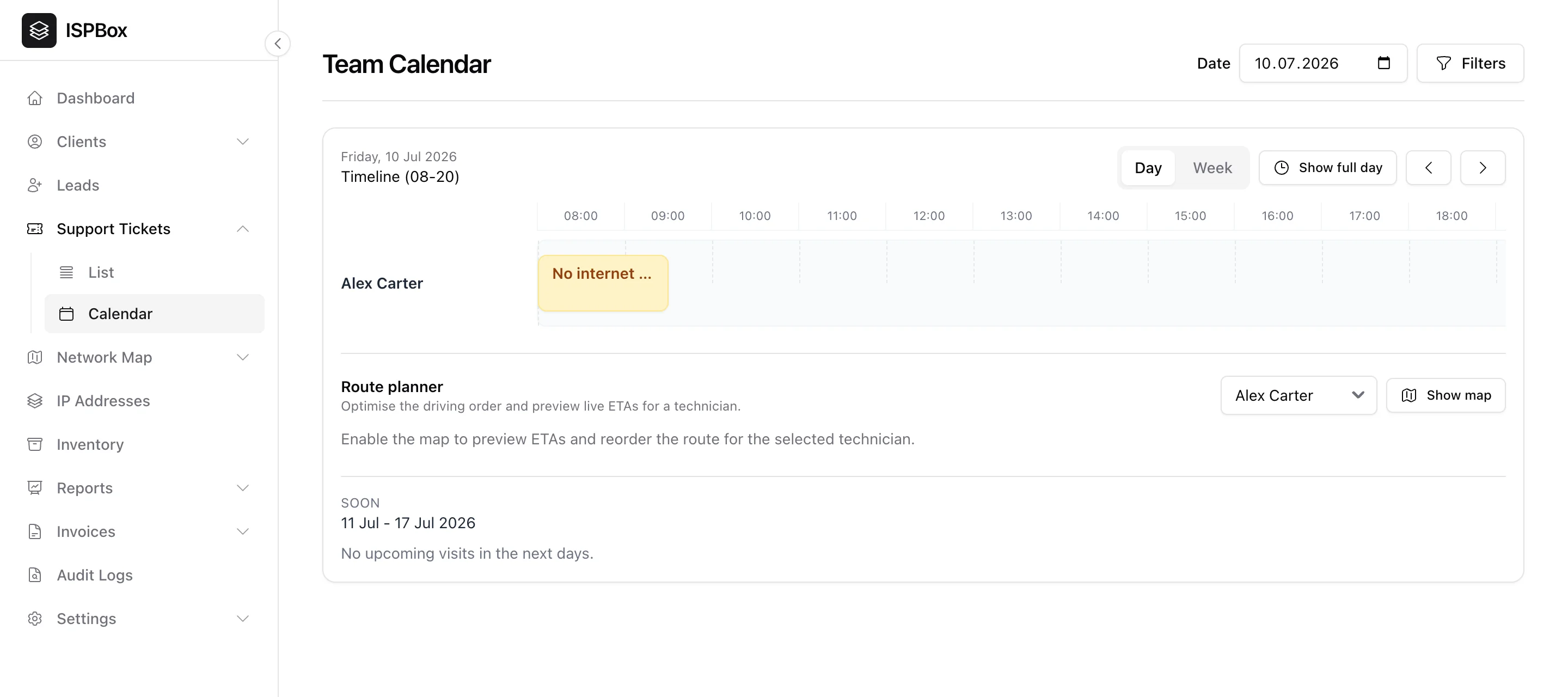
The team calendar turns support tickets into scheduled field work. When a ticket needs a site visit, you book it against a technician and it lands on a shared calendar - so dispatch can see everyone's day at a glance and even plan the driving route. Open it from Support Tickets > Calendar (needs the tickets view permission).
1. Booking a visit
From any ticket, click Schedule Visit and pick a start/end time, the technician(s), and an optional note. The visit then shows on the ticket (as its Next visit) and on the team calendar. Because the visit is tied to the ticket, the technician has the full customer context - address, service, history - when they arrive.
2. Reading the calendar
The calendar shows a timeline per technician for the selected day, so overlaps and gaps are obvious. Switch between Day and Week views, jump with the arrows or the date picker, and use Show full day to widen the hours. The Filters let you focus on specific technicians. Each booked visit appears as a block you can click through to its ticket.
3. Route planner
For a technician with several stops in a day, the Route planner optimises the driving order and previews live ETAs between visits (using the address on each ticket's client). Pick the technician, enable the map, and reorder the stops - handy for keeping a full day of installs and repairs running on time. Live travel times need a Mapbox token configured on your ISPBox instance.
4. Upcoming visits
Below the timeline, a Soon section lists visits coming up in the next days, so nothing scheduled ahead slips through the cracks.