Network Monitoring
Detect outages automatically with ISPBox's built-in router and client checks, or by connecting LibreNMS or Zabbix. Then tune incident automation: grace period, auto-notify, and message templates.
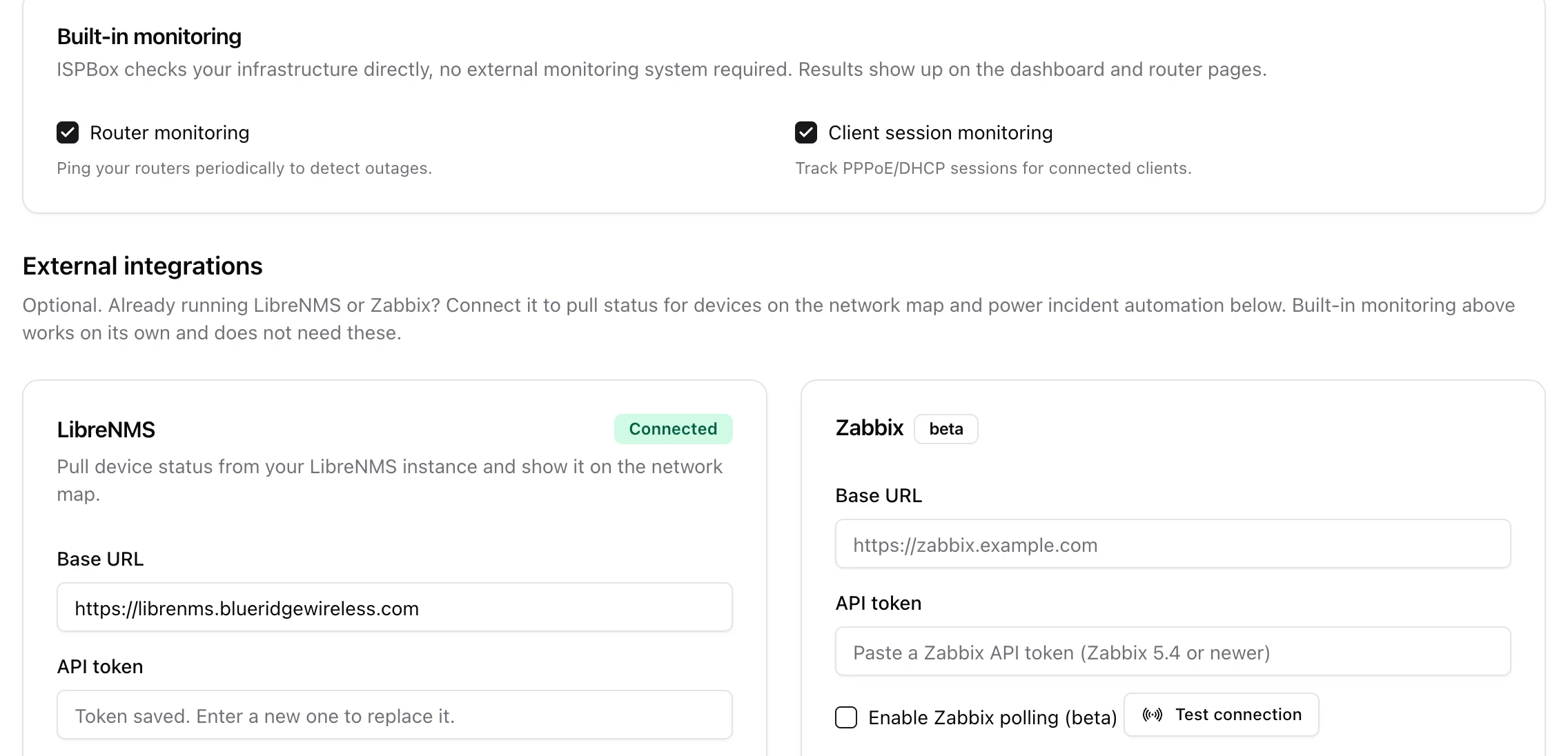
Monitoring is how ISPBox knows when part of your network goes down - so an outage incident can open, the right customers can be told, and your public status page can update itself. You can use ISPBox's built-in checks, connect an existing LibreNMS or Zabbix, or both. It lives under Settings > Monitoring and is part of the Monitoring feature (a premium plan; if it shows locked, upgrade from Settings > ISPBox Plan).
1. Built-in monitoring
ISPBox can check your infrastructure directly, with no external system required. Two independent switches:
- Router monitoring - pings your routers periodically to detect when one drops off.
- Client session monitoring - tracks PPPoE / DHCP sessions so you can see connected clients.
Results show up on the dashboard and router pages. This works on its own - you do not need LibreNMS or Zabbix for it.
2. External integrations (optional)
Already running a monitoring stack? Connect it and ISPBox will pull device status onto the network map and use it to drive incidents.
- LibreNMS - enter your instance's Base URL and an API token, tick Enable LibreNMS polling, and click Test connection. On success the card shows a green Connected badge with the version and device count.
- Zabbix (beta) - the same fields for a Zabbix 5.4+ API token.
Your saved token is never shown back to you; to change it, paste a new one. Test connection tells you immediately whether the URL and token are right.
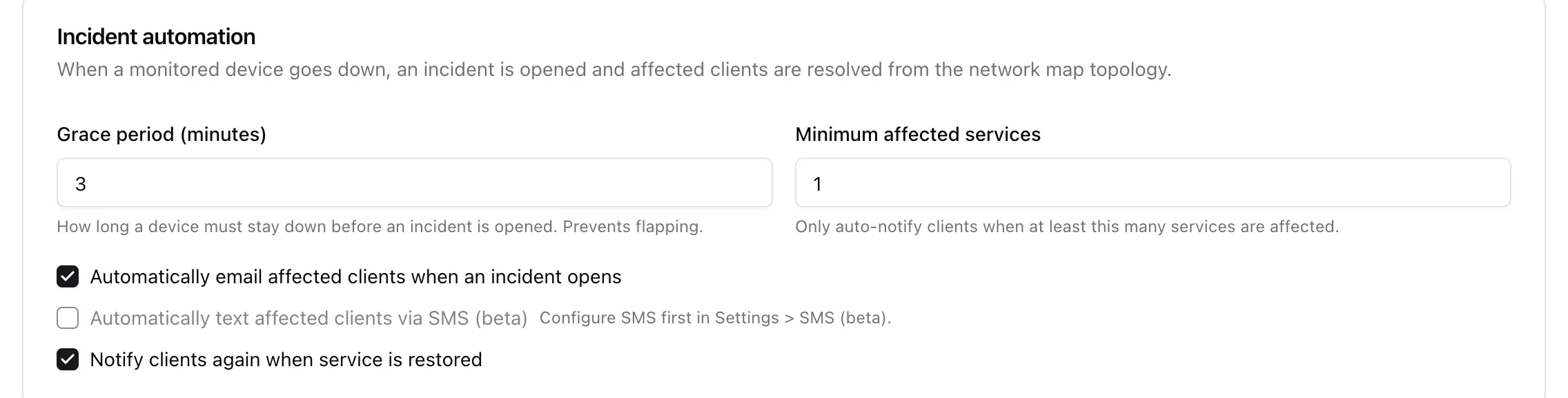
3. Incident automation
This section decides what happens when a monitored device goes down:
- Grace period (minutes) - how long a device must stay down before an incident opens. This damps flapping so a brief blip does not alarm anyone.
- Minimum affected services - only auto-notify customers when at least this many services are impacted, so a single-home issue does not trigger a mass message.
- Auto-notify by email and by SMS (beta) - message affected customers automatically when an incident opens. SMS needs Twilio configured first.
- Notify on restore - send a second "you're back" message when the outage clears (only to customers who were told about it).
4. Incident messages
Customise the outage and restoration templates ISPBox sends. Placeholders like {client_name}, {feature_name}, {started_at}, {tenant_name} and {portal_url} are filled in per customer. The subject line doubles as the SMS text, so keep it short. Reset to default copy restores the built-in wording at any time.
Click Save at the top to apply everything on the page.