Sending SMS with Twilio
Connect Twilio so ISPBox can text customers and staff: entering your Account SID and auth token, choosing a from-number or messaging service, sending a test, and where SMS is used.
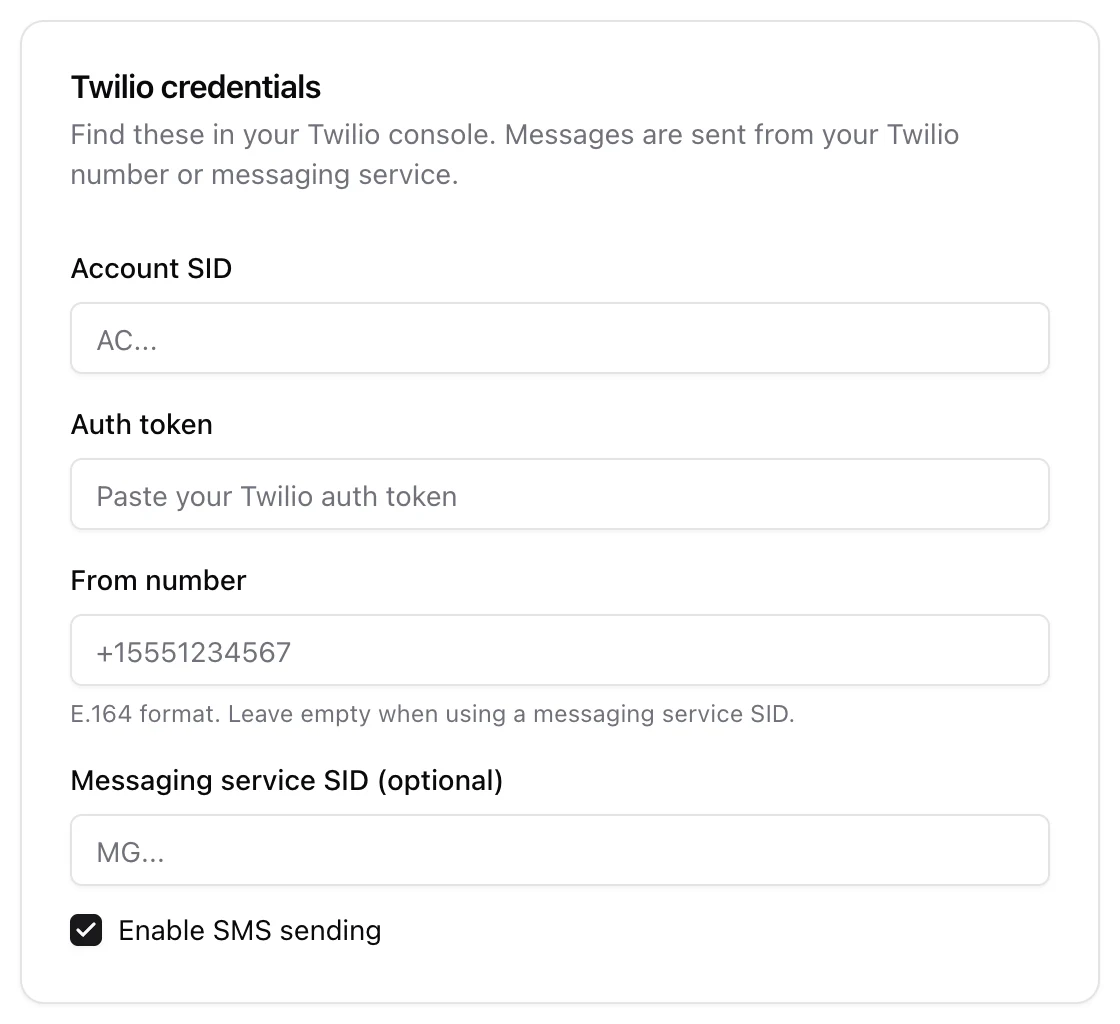
Connect a Twilio account and ISPBox can send text messages - outage alerts to affected customers, mass messages, and network alerts to your team. It is a one-time credential setup under Settings. SMS sending is currently marked beta.
1. Enter your Twilio credentials
Go to Settings > SMS and fill in the values from your Twilio console:
- Account SID - your Twilio account identifier (starts with
AC). - Auth token - your Twilio auth token. It is stored securely; once saved the field shows "Token saved" and you only re-enter it to replace it.
2. Choose where messages send from
You need one of two senders:
- From number - a Twilio number in E.164 format (e.g.
+15551234567). - Messaging service SID - optional; use this instead if you route through a Twilio Messaging Service (starts with
MG). Leave the From number empty when you use one.
Then tick Enable SMS sending and save.
3. Send a test
Save your settings first, then use Send a test SMS - enter your own phone number and send yourself a message to confirm delivery end to end. If a send fails, the page surfaces the last error so you can see what Twilio reported.
4. Where SMS is used
Once enabled, SMS backs several features:
- Network incident notifications - texting affected customers when an outage opens or resolves.
- Mass messaging - reaching a filtered or hand-picked set of clients by SMS.
- Alert rules - sending went-offline / went-online alerts to your team.
Each of those features chooses SMS as a channel; this page is the shared Twilio connection they all use.