Tags
Colour-coded labels for clients and tickets - VIPs, business accounts, follow-ups and more. Create tags, see how many records carry each, and filter by them.
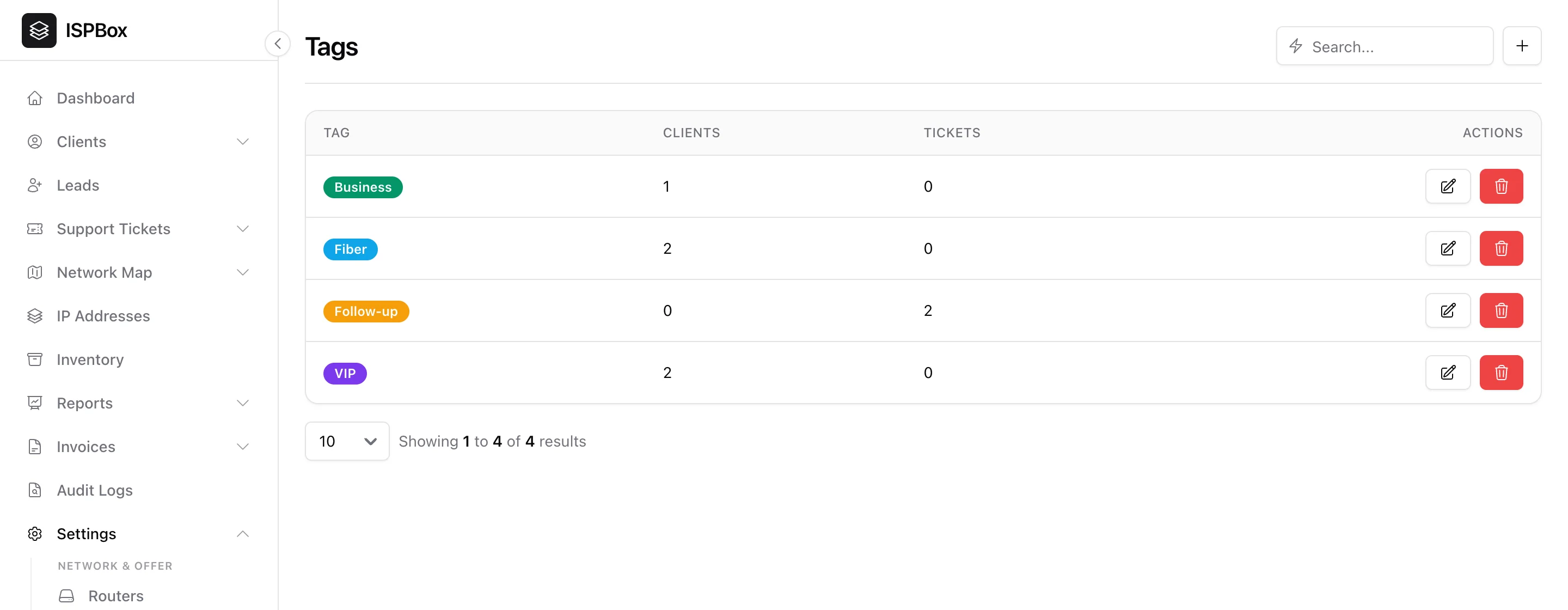
Tags are colour-coded labels you attach to clients and support tickets to flag anything your workflow cares about - VIPs, business accounts, "follow-up", a promo cohort, whatever you like. They give you a fast, visual way to segment and filter. Manage them under Settings > Tags (needs settings manage).
1. Creating tags
Click + to add a tag: give it a name and pick a colour. The colour is what makes tags scannable - a purple "VIP" or amber "Follow-up" stands out at a glance wherever it appears.
2. Where tags show up
Once created, a tag can be applied to clients and tickets. The tags list shows, for each tag, how many clients and tickets currently carry it - a quick read on how big each segment is. On the ticket list you can filter by tag to pull up, say, every "Follow-up" ticket at once.
3. Using them well
Keep the set small and meaningful - a handful of tags you will actually use beats dozens you will not. Good candidates: account type (Business, Residential), attention flags (VIP, At-risk, Follow-up), or a rollout/promo cohort. Edit a tag's name or colour any time, or delete one you have retired.