Client Billing Tab
Manage one customer's money in one place: invoiced/paid/balance KPIs, a preview of the next invoice with per-client price overrides, pending one-time charges, and full invoice and payment history.
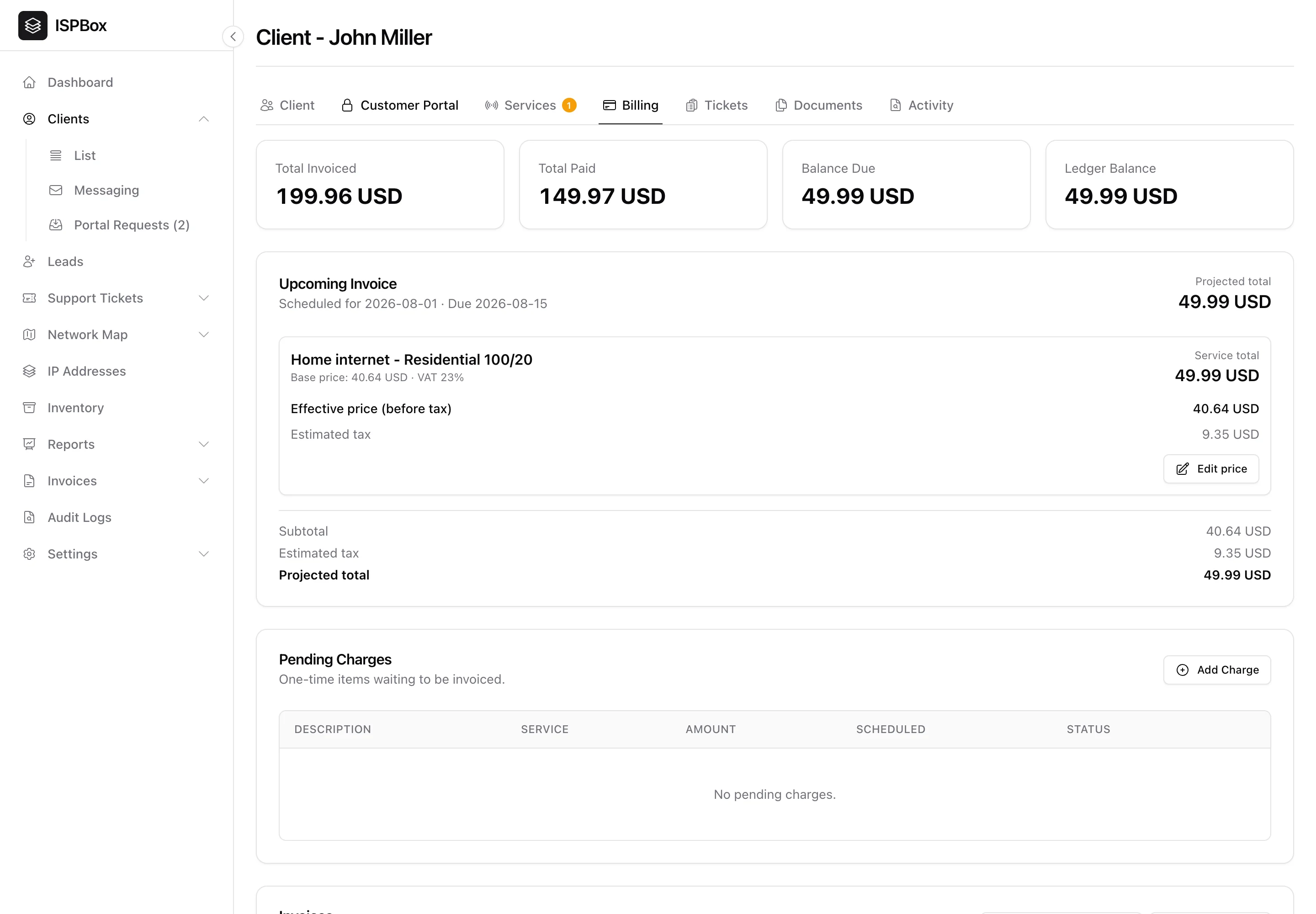
The Billing tab on a client's profile is the single place to manage one customer's money - what they have been invoiced, what they have paid, what they owe, and what is coming next. Open any client and switch to the Billing tab (needs the billing view permission).
1. The money at a glance
Four KPI cards summarise the account: Total Invoiced, Total Paid, Balance Due and Ledger Balance. This is the fast answer to "where does this customer stand?" before a call or a truck roll.
2. Upcoming invoice
ISPBox shows a preview of the next invoice before it is issued - its scheduled and due dates, each service line with base price and tax, and the projected total. You can edit the price for this customer here (a per-client override) if you have agreed special pricing.
3. Changing the plan
Each service line has a Change plan action: pick the new plan, apply it now (with a fair mid-period settlement previewed up front) or schedule it for the next renewal. Scheduled changes and the change history live in the Plan changes card on this tab. The full flow - settlement modes, scheduling, billing-period switches - is covered in Changing a Client's Plan.
4. Pending charges and one-time fees
Add one-time charges - an install fee, a hardware sale, a one-time fee - that wait in Pending Charges until the next invoice, where they are rolled in automatically. This is also where late fees and proration adjustments land.
5. Recurring add-ons on a service
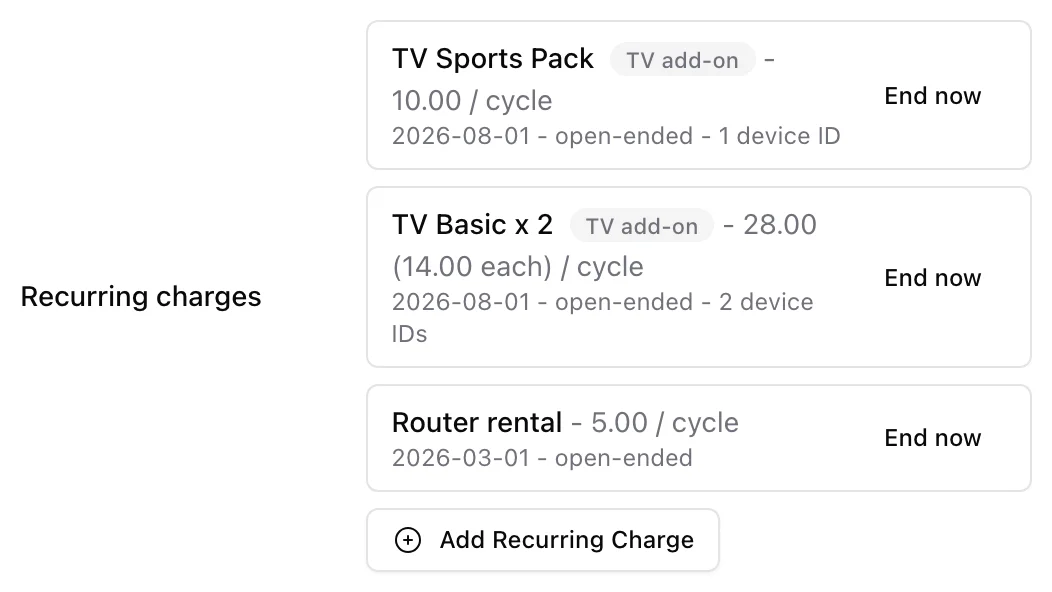
Some charges come back with every cycle rather than once. Those live on the service itself, not here: open the service (the pencil on the client's Services tab), find Recurring charges and click Add Recurring Charge. Two kinds share the dialog:
- A charge you type - router rental, a static IP, insurance. Description, amount per cycle, optional tax rate, start and end dates.
- A package from the catalog - a TV, voice or other package sold on top of this service. Pick it in From the catalog and ISPBox prefills the description, the amount converted to this service's cycle and the tax rate, and adds a quantity so two set-top boxes bill as one line, "TV Basic x 2". Internet packages are never offered as add-ons.
Either way the charge is an extra line on the same invoice as the service, prorated on partial periods, and it shows in the upcoming-invoice preview above. Prepaid services are the exception: they renew at the package price only, so recurring charges are not billed on them. Catalog add-ons are covered in full in TV and Add-on Services.
6. Invoices and payments
Further down, the tab lists this client's full invoices (with status and balance) and payments. You can generate an off-cycle invoice, record a manual payment, or open an invoice PDF - everything for one customer without leaving their profile. For a portfolio-wide view, use the Invoices overview.