The Referral Program
Reward customers for bringing their neighbors: per-side reward types (credit, free months, % off), payout triggers, fairness caps, a portal share card and full staff tooling.
Your happiest customers are your cheapest sales channel. The referral program gives every client a personal code and share link, rewards both sides automatically when a referred neighbor becomes a paying customer, and keeps the whole loop measurable - from the first shared link to the credited reward. This guide covers turning it on, choosing rewards, and how referrals are recorded and paid.
1. Turn it on
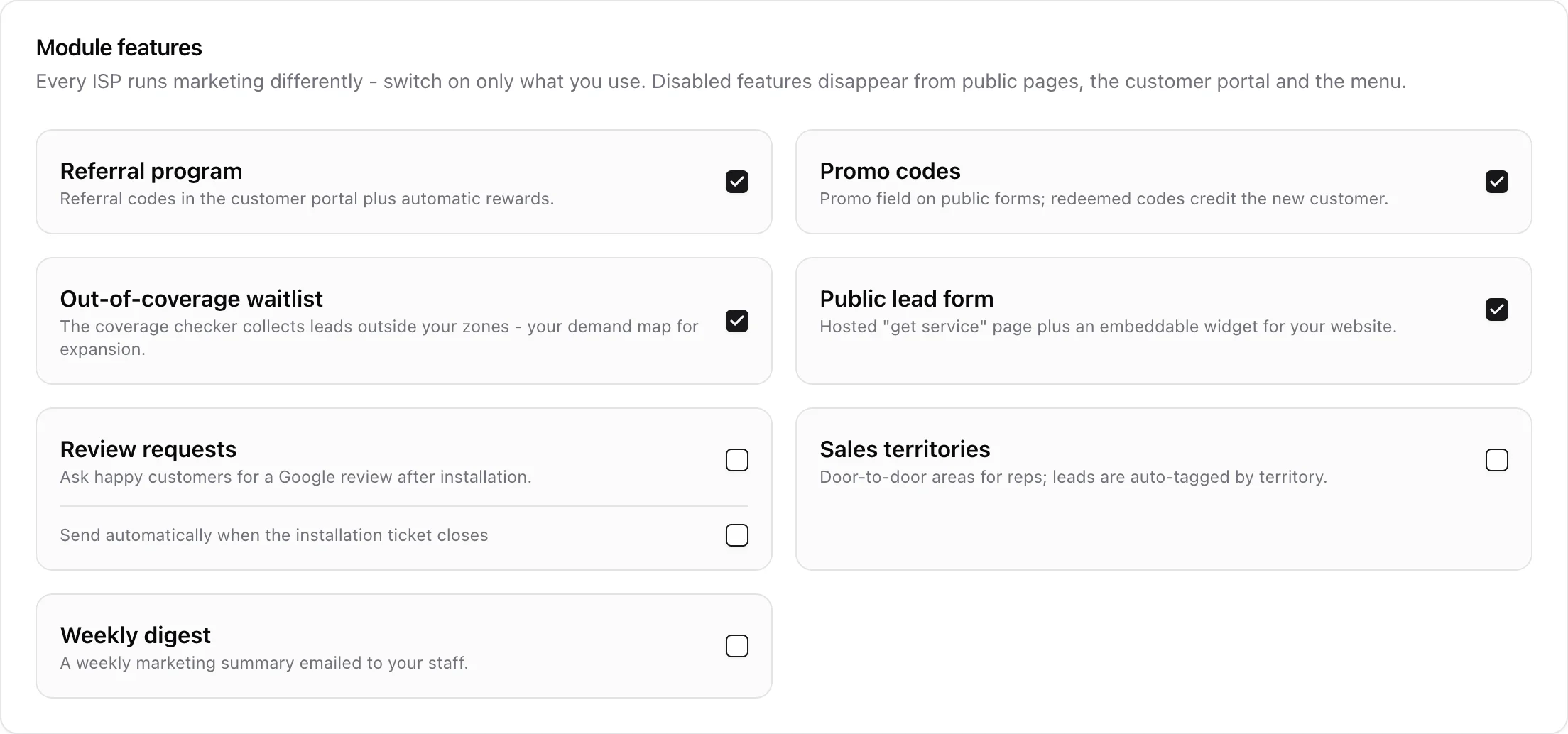
Go to Settings > Marketing and enable Referral program. Like every marketing sub-feature it is off by default, so nothing shows in the customer portal until you flip it.
2. Choose the rewards
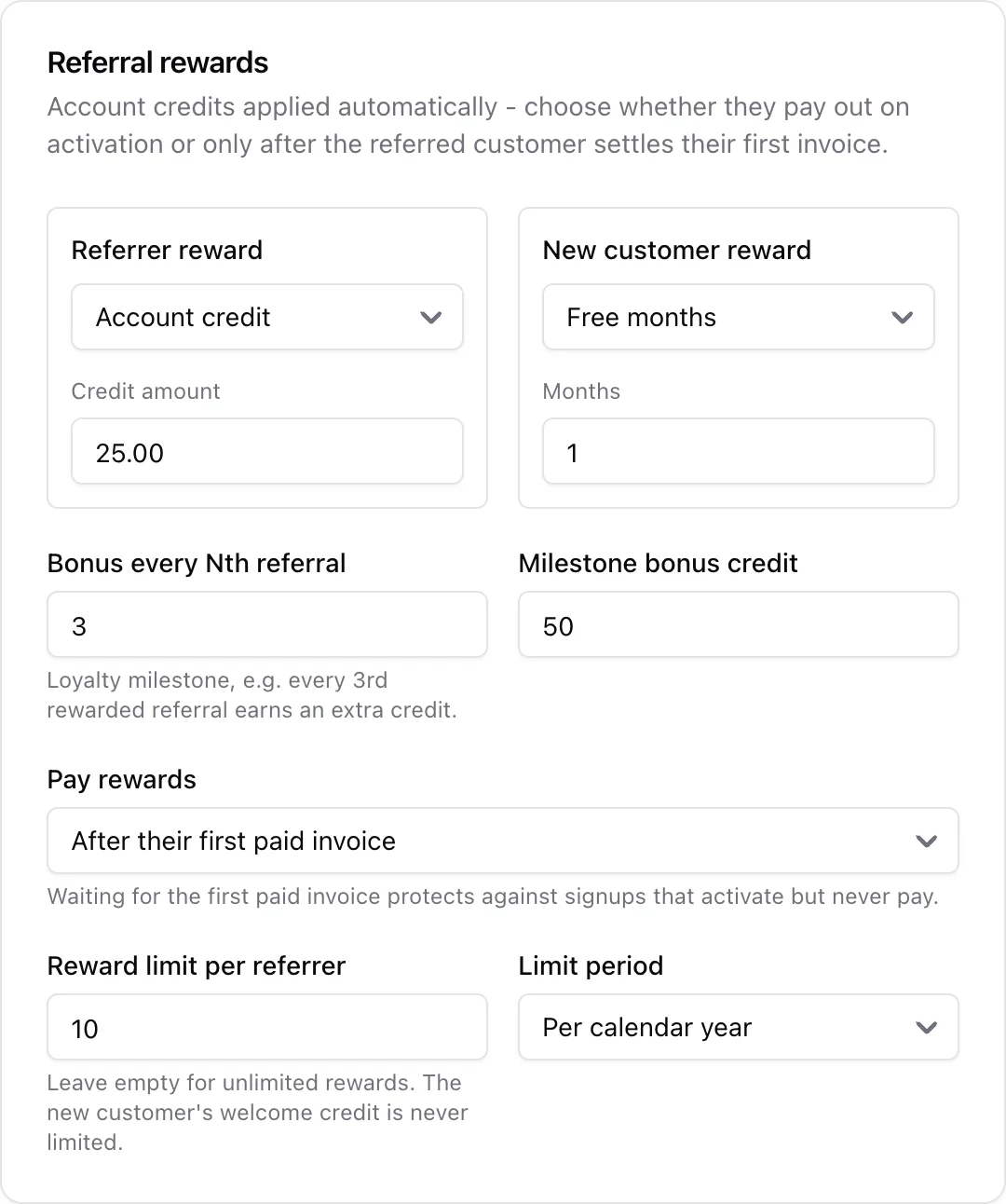
The Referral rewards card configures each side of the deal separately - what the referrer (your existing customer) earns, and what the new customer gets for joining. Each side has three reward types:
- Account credit - a fixed amount credited to the account. It is deducted automatically from the next invoice; a credit larger than one invoice carries over to the following ones.
- Free months - the next N monthly invoices are free (a 100% discount on recurring charges for N months).
- % discount for N months - e.g. 10% off for 6 months, applied automatically to recurring charges on upcoming invoices.
Mix and match freely: many ISPs pay the referrer a flat credit and give the new customer a free first month.
Below the reward types you can add a loyalty milestone: every Nth rewarded referral earns the referrer an extra credit on top of the base reward - for example, an extra 50 for every 3rd neighbor they bring in.
3. When rewards pay out
The Pay rewards setting picks the payout moment:
- When the referred customer is activated - the default. Both sides are rewarded the moment the new client's account goes active.
- After their first paid invoice - the anti-gaming option. Rewards wait until the referred customer actually settles a real invoice, so signups that activate but never pay earn nobody anything.
Both sides get a notification email in their own language the moment their reward lands, and the reward itself needs no manual work: credits net against invoices, discounts apply to upcoming invoices, all automatically.
4. Keep it fair
- Reward limit per referrer - cap how many rewards one client can earn per calendar month, per calendar year, or lifetime. When a referrer is at their limit, the new customer still receives the full welcome reward - only the referrer side pauses. Leave the field empty for no limit.
- Self-referrals are void - a code that resolves to the same person is discarded at conversion.
- One referral per customer - a client can only ever be referred once, and rewards for a given referral pay exactly once, no matter how the payout is triggered.
5. What the customer sees
Once enabled, every client's portal dashboard shows a Refer a neighbor card with their personal code, a ready-to-share link, and their progress - how many neighbors they invited, how many rewards they earned, and how much of their reward limit is used.

The share link points at your public lead form (or coverage checker) with the code pre-filled, so a neighbor who clicks it is attributed automatically.
6. How referrals get recorded
A referral can enter the system four ways - pick whichever fits the conversation:
- The share link - the neighbor opens the client's link; the public form carries the code automatically.
- Typed on the public form - the form has a referral code field with live validation.
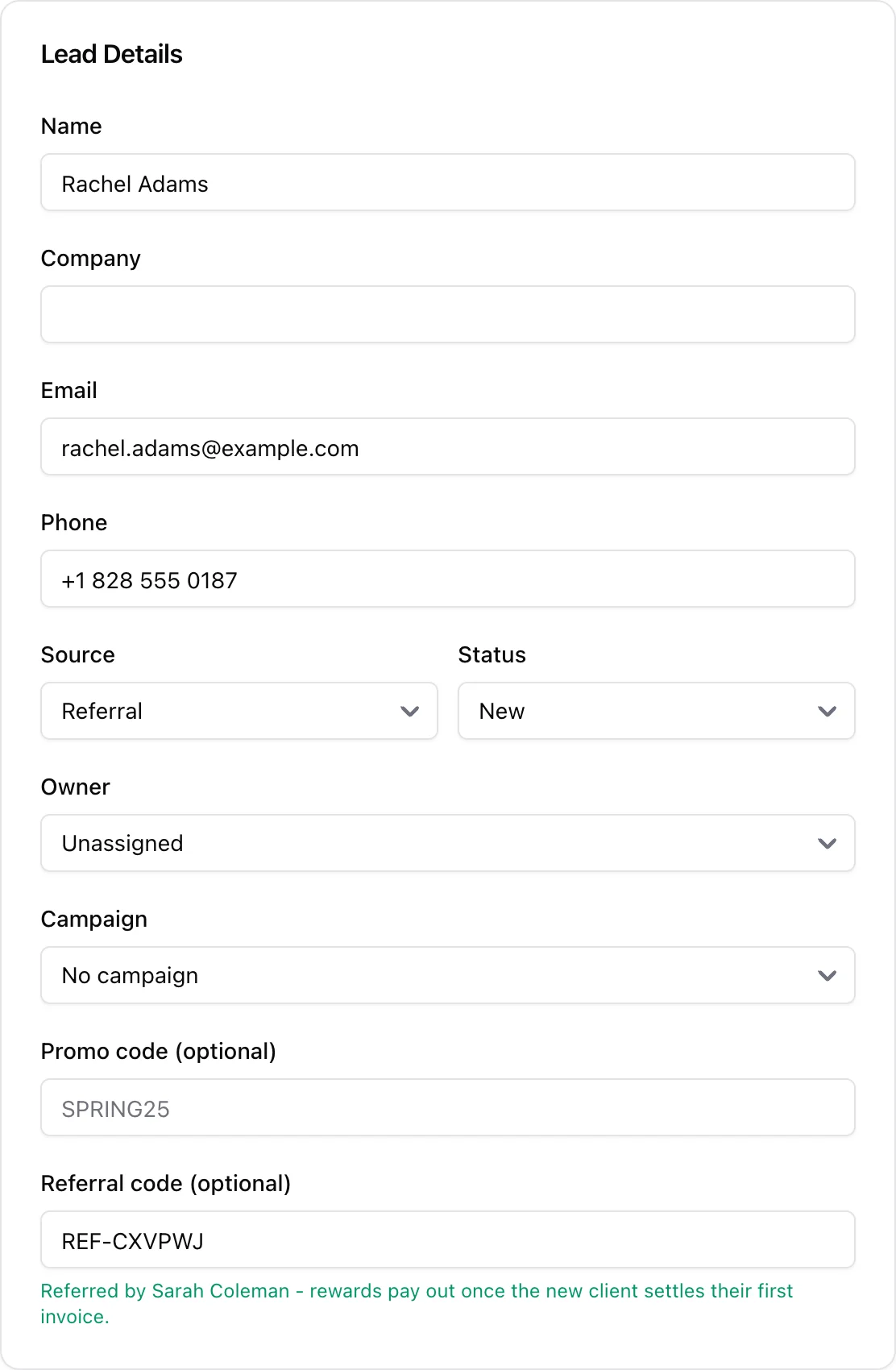
- Staff, while logging a lead - the Add Lead form has a referral code field. A valid code shows who is referring right away; a typo blocks the save so a promised reward never silently disappears. A lead that arrived without a code can also get one attached later, on the lead view, any time before conversion.
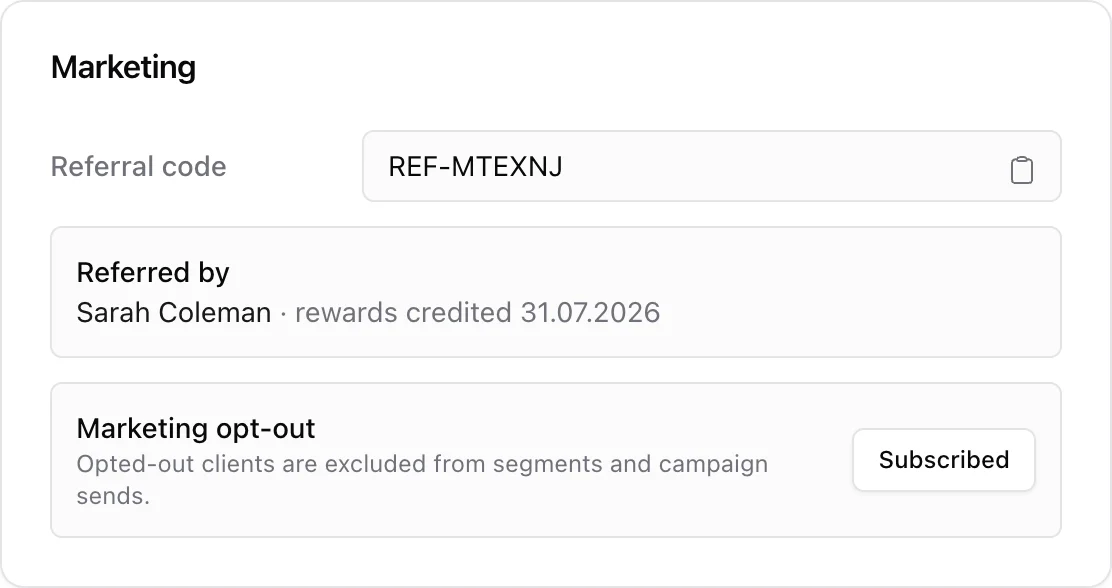
- Staff, on an existing client - the classic "my neighbor recommended you" mentioned at installation time. On the client's profile, the Marketing card has Record referral: search the referring customer by name, account number, or code. If the new client already crossed the payout milestone, rewards are credited immediately.
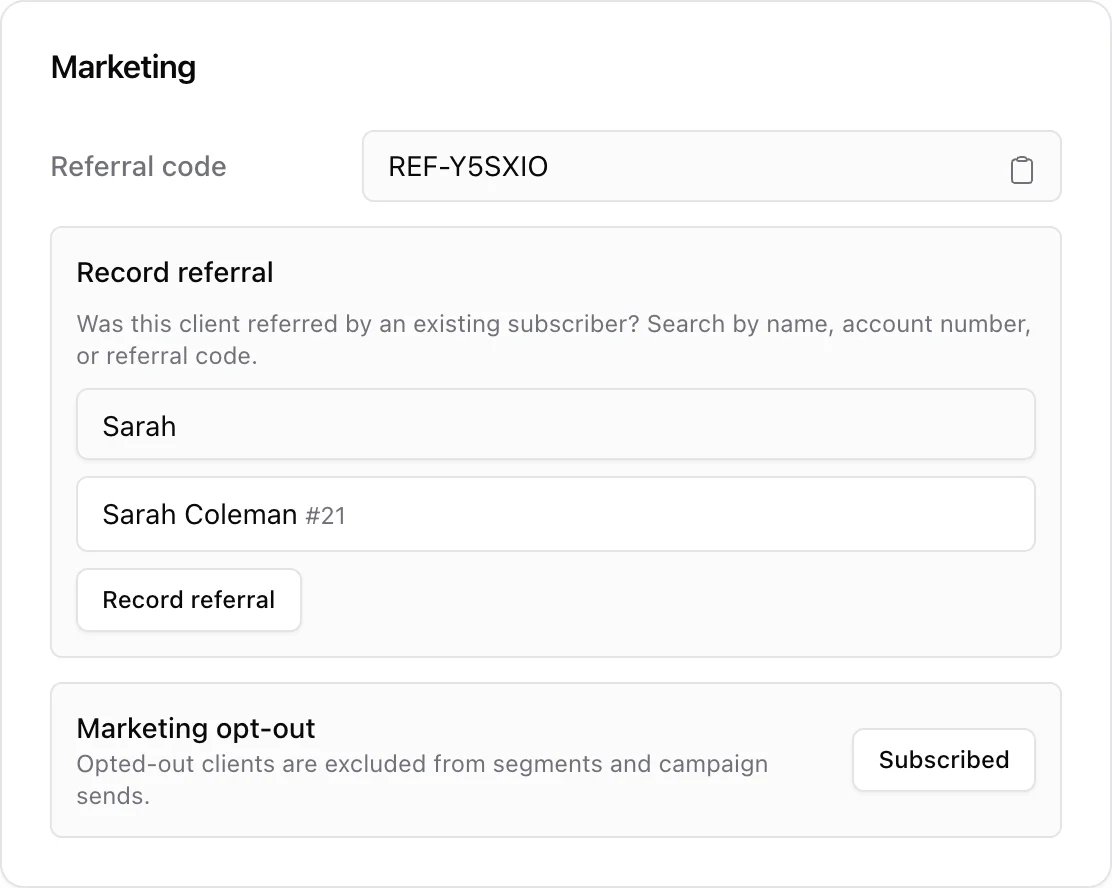
Once recorded, the client's profile always shows who referred them and when the rewards were credited:
7. Managing referrals
Marketing > Referrals lists every referral with its lifecycle status - pending (a lead carries the code), converted (the lead became a client), rewarded (both sides credited) - next to a leaderboard of your top referrers.
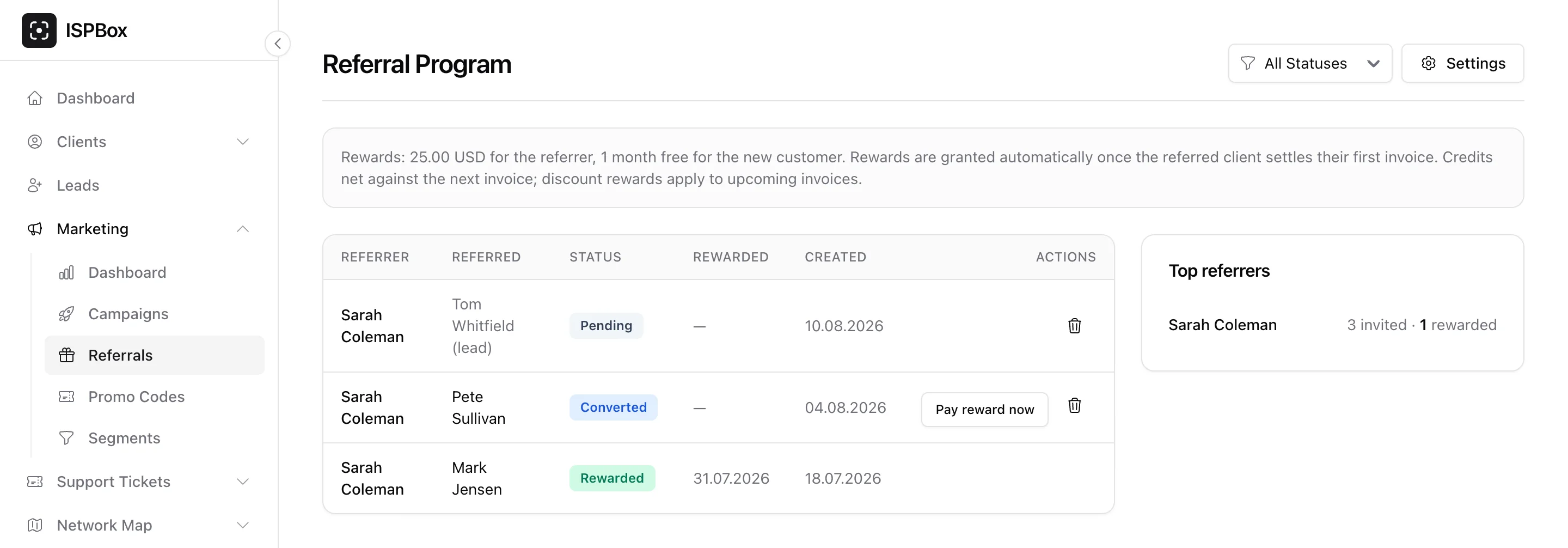
- Pay reward now - a manual payout for a converted referral that is stuck (for example the client was already active when staff recorded it, or the program was disabled at activation time). It is an explicit staff override, so it also works past the referrer's reward limit.
- Delete - removes a mistaken pending or converted referral. Rewarded referrals are immutable history and cannot be deleted.
Good to know
- Referral codes are created lazily - a client gets theirs the first time it is needed (portal card, staff lookup), in the form
REF-XXXXXX. - Reward credits appear on the client's Billing tab as pending credit lines until the next invoice consumes them; discount rewards appear among the client's billing discounts.
- Reward notification emails follow the client's language, like every other client email.
- Leads show their referral attribution (code and referrer) read-only in the Marketing attribution box on the lead view.