Your Own Customer Fields
Add up to 20 fields of your own to a customer: text, a number or a list of choices.
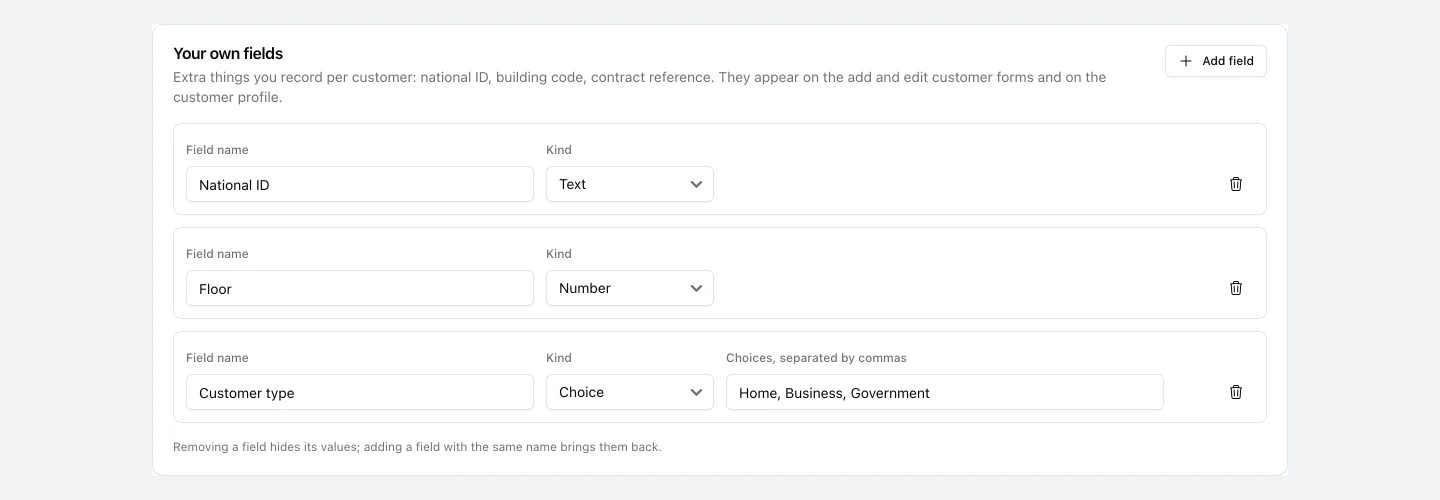
The customer form has a place for a name, an address and a phone number. For everything else your company records - a national ID, a building code, a contract reference - add fields of your own in Settings > Customer fields (needs settings manage).
1. Adding fields
Click Add field, give it a name and pick its kind:
- Text - anything up to 255 characters.
- Number - only numbers are kept.
- Choice - a list you define, separated by commas (Home, Business, Government).
You can have up to 20 fields. Click Save when you are done.
2. Filling them in
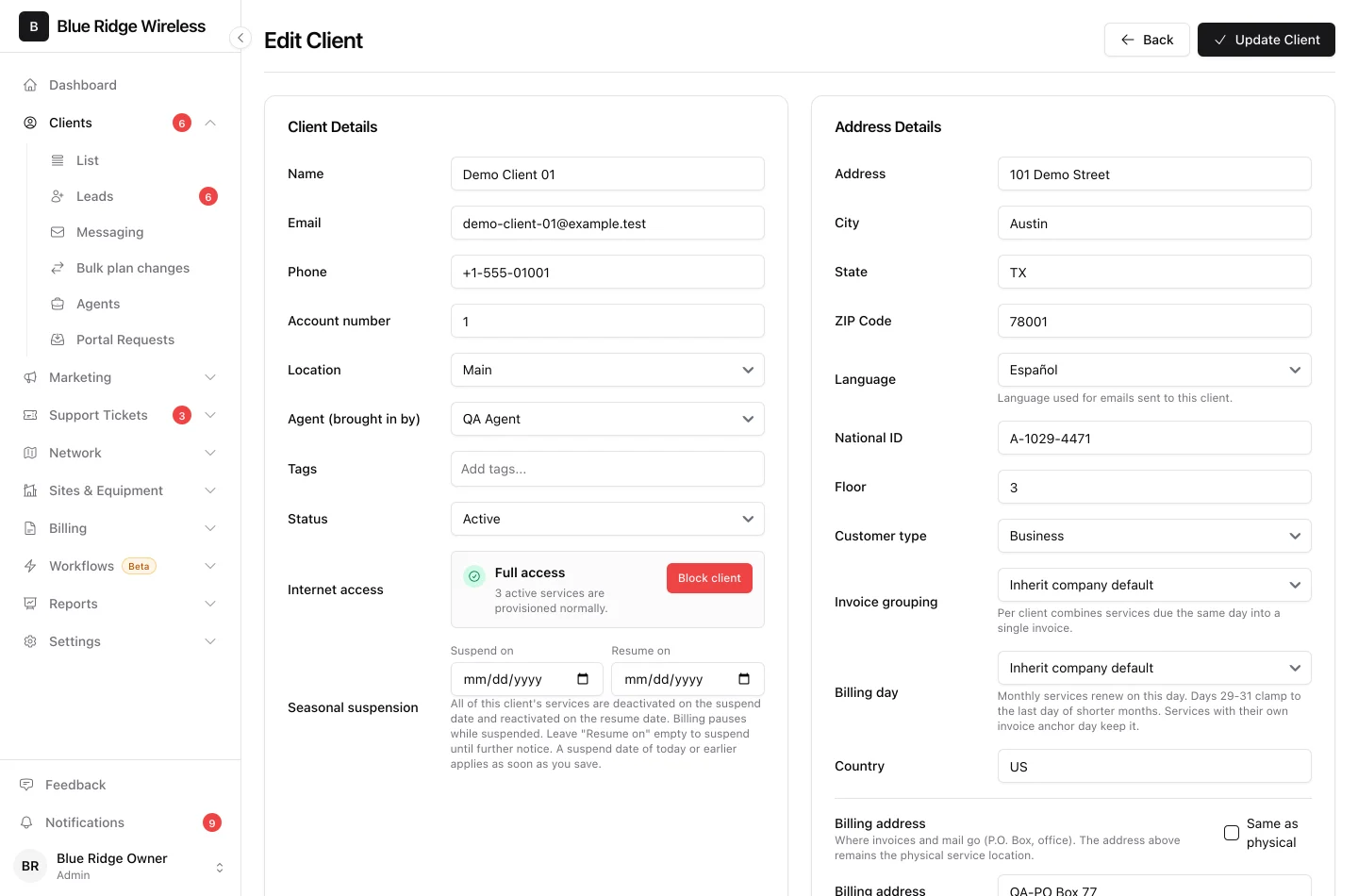
Your fields appear on the Add client and Edit client forms, under Language.
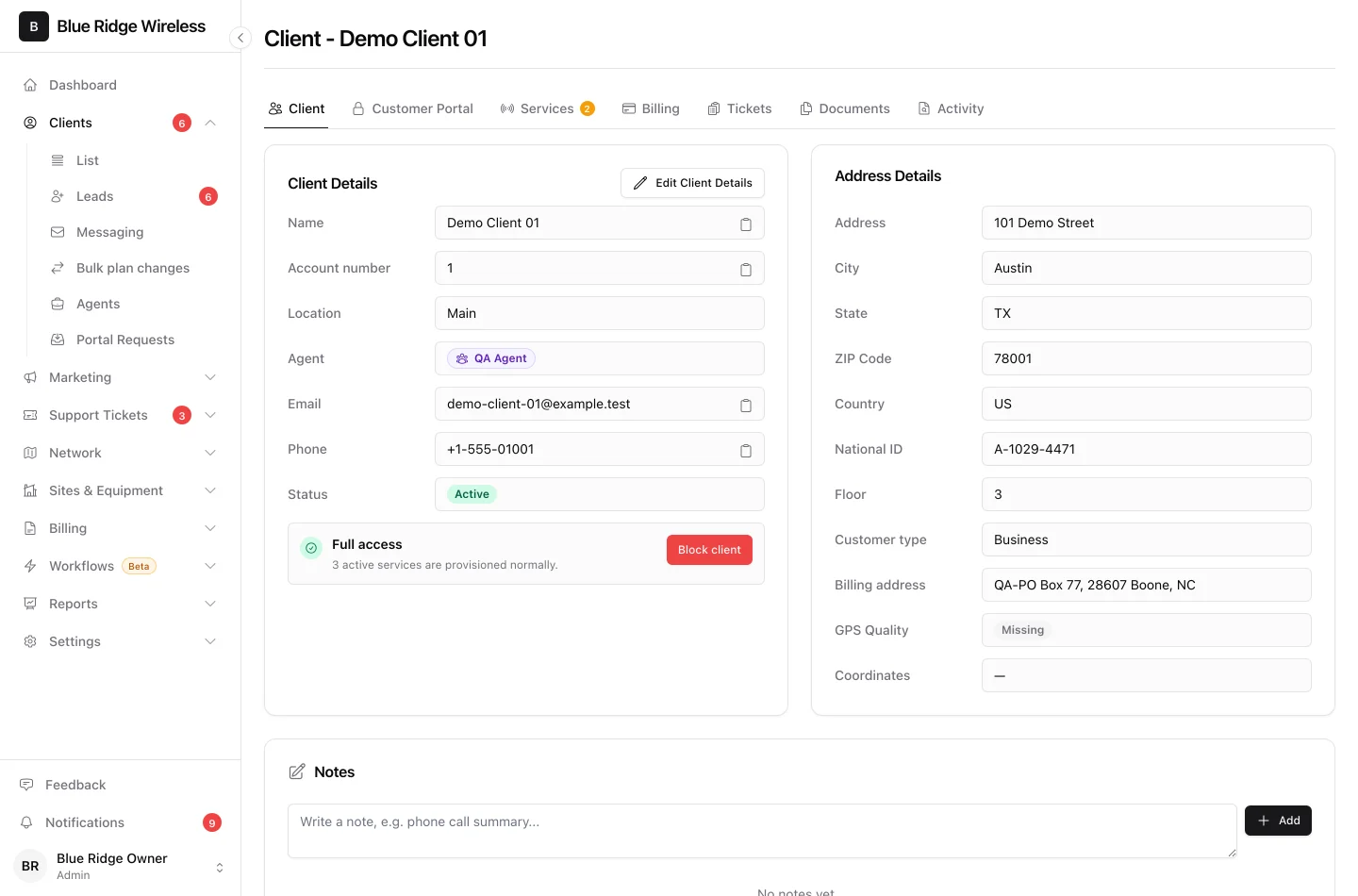
Filled fields show on the client profile under the address. Empty ones are left out.
3. Renaming and removing
Renaming a field keeps the values customers already have. Removing a field hides its values; add a field with the same name again and they come back.
4. In the API
The REST API returns the values as custom_fields on a client and accepts them on create and update. An update changes only the fields it sends.