SMTP Email Setup
Connect any standard mail server over SMTP so ISPBox can send invoices, receipts and notifications from your address. Enter host, port, encryption and credentials, then save.
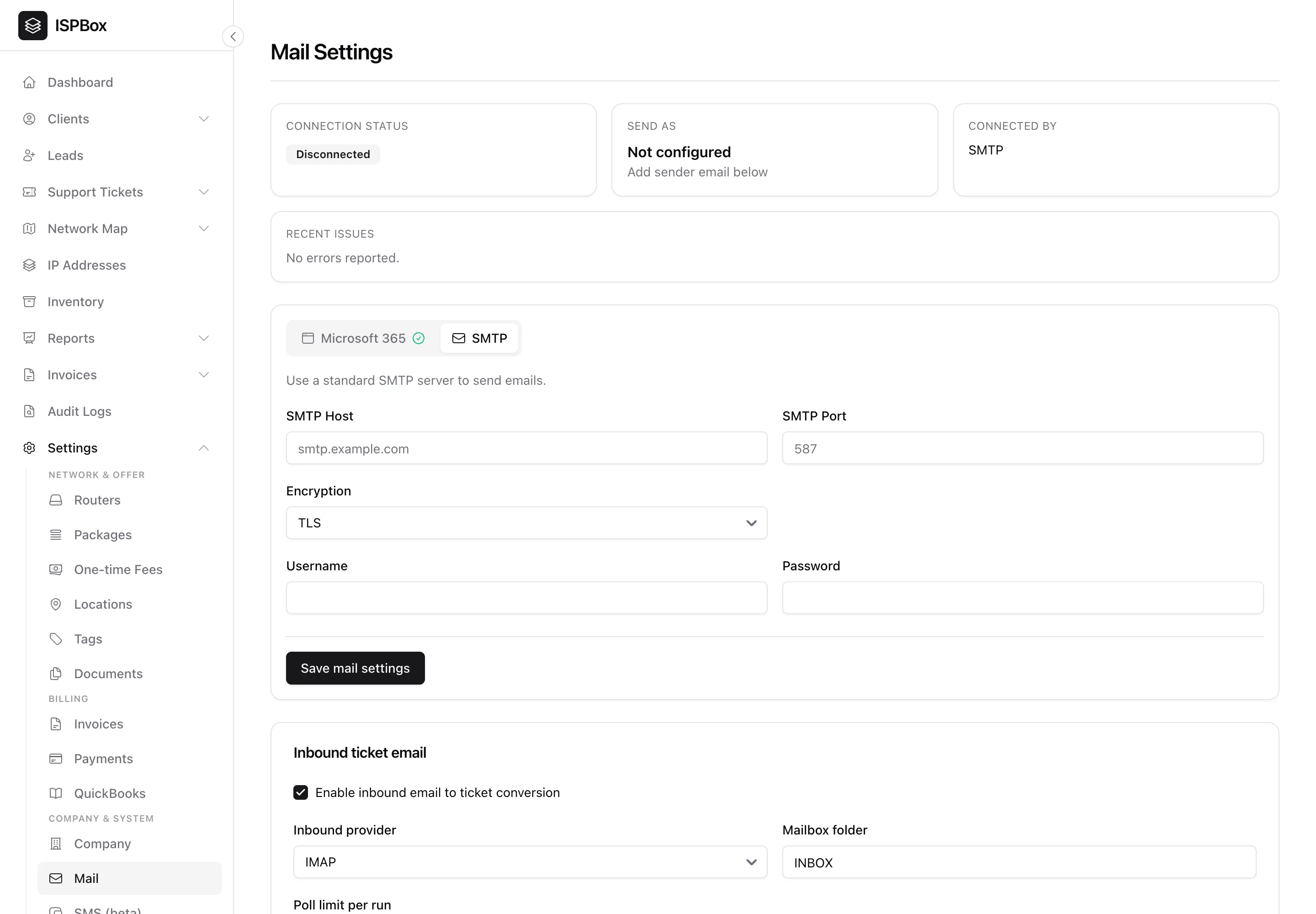
SMTP is the universal way to send email - use it to connect any standard mail server (your hosting provider, Google Workspace with an app password, a transactional service like Postmark or SendGrid, and so on) so ISPBox can send invoices, receipts and notifications from your address. Set it up under Settings > Mail on the SMTP tab (needs settings manage).
1. What you need
From your mail provider, gather the SMTP details: the host, port, encryption type, and the username and password for the sending account. Common ports are 587 (STARTTLS/TLS) and 465 (SSL).
2. Enter the settings
On the SMTP tab, fill in:
- SMTP Host - e.g.
smtp.yourprovider.com. - SMTP Port - usually 587.
- Encryption - TLS or SSL to match your port.
- Username and Password - the sending account's credentials (an app password if your provider requires one).
Click Save mail settings. The status cards at the top show whether the connection is working and surface any recent errors.
3. When to use SMTP vs Microsoft 365
SMTP works with almost any provider and is the simplest path. If your business runs on Microsoft 365, the Microsoft 365 (Graph) connection is a more modern, token-based alternative that avoids storing a password. Either way, once mail is connected, ISPBox sends all outbound messages - invoices, receipts, ticket replies and mass messages - from your address.
Related guides
Staff emails from your own mailbox
Emails to your customers and agents always leave from the mailbox you connect here. Emails to your own team - staff notifications, daily digests and user invitations - come from the platform address by default. Tick Send staff emails from this mailbox too in the Send-as identity card and they use your mailbox and sender name as well; the switch saves by itself. Staff password resets are the exception: they always come from the platform address, so a reset link never sits in a shared mailbox. A mailbox that cannot send, or refuses a message, never costs you an alert: that one email goes out from the platform address and the error shows on this page. The same switch works for a Microsoft 365 mailbox.