How to Add a Router with RADIUS Authentication (MikroTik)
Connect a router over its public IP and authenticate clients with RADIUS (FreeRADIUS) - works with any RADIUS-capable vendor. Set the connection mode, vendor, RADIUS secret and CoA.
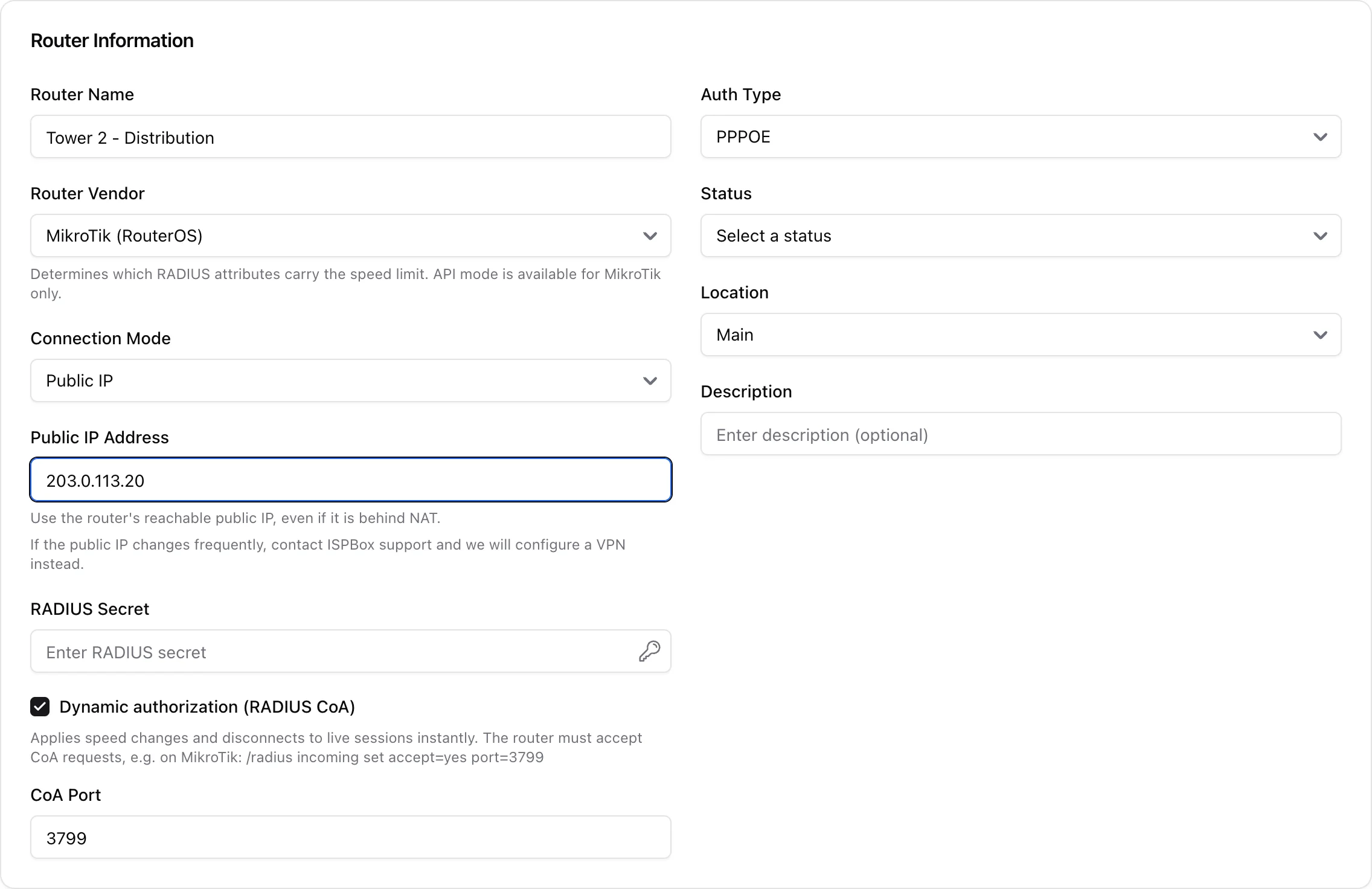
This method connects a router over its public IP and authenticates clients with RADIUS (FreeRADIUS). It works with any RADIUS-capable router - MikroTik and other vendors alike - and is the right choice when a WireGuard tunnel is not available. If you can, prefer WireGuard + API for the extra security and automation. Add a router from Settings > Routers > Add (needs network edit).
1. Requirements
- The router has a reachable public IP that ISPBox can send RADIUS to (if it is behind NAT, use the real upstream/WAN public address).
- The IP is stable - if it changes often, use WireGuard instead.
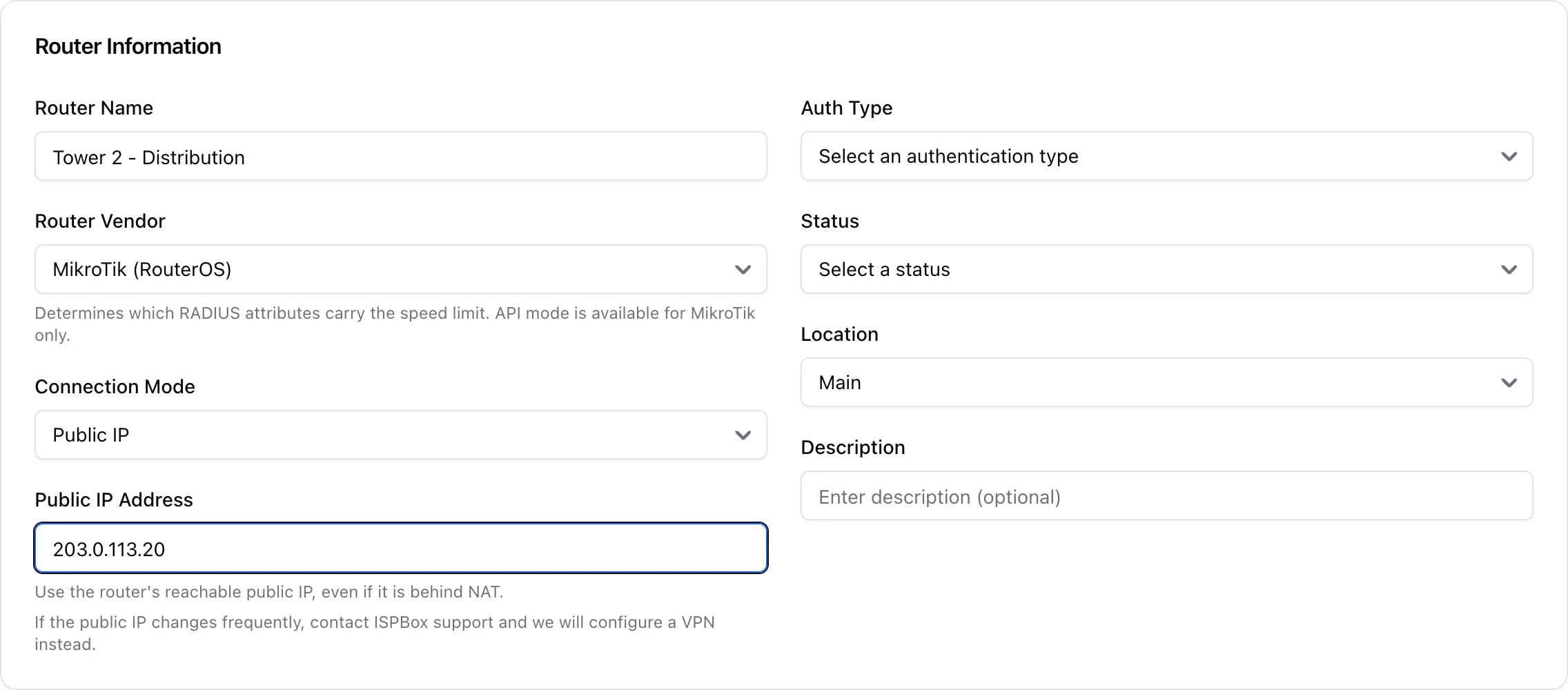
2. Connection and vendor
Set the Connection Mode to Public IP and enter the router's public IP. Choose your Router Vendor - ISPBox is multi-vendor (MikroTik, Accel-ppp, Huawei, ZTE, Cisco, Juniper, generic WISPr), and the vendor decides how the speed limit is delivered over RADIUS. Pick the Auth Type (PPPoE or Hotspot/DHCP) that matches your setup, and set the location and status.
3. RADIUS secret and NAS
Enter a RADIUS secret - a shared password the router and ISPBox's FreeRADIUS use to trust each other. Saving the router in public-IP mode registers it as a NAS (its public IP becomes the nasname), so FreeRADIUS accepts requests from it. Configure the same RADIUS server address and secret on the router side.
4. Dynamic authorization (CoA)
Enable Dynamic authorization (RADIUS CoA) so ISPBox can apply speed changes and disconnects to live sessions immediately, rather than only at the next reconnect. The CoA port defaults to 3799; make sure the router accepts CoA on that port.
Save the router. Once it appears in the Routers list and your first client authenticates, you are up and running.