Archiving a Client
When a customer leaves, archive them: the history stays, running services are switched off for you, and you choose per device whether it is collected, stays at the address or returns to stock.
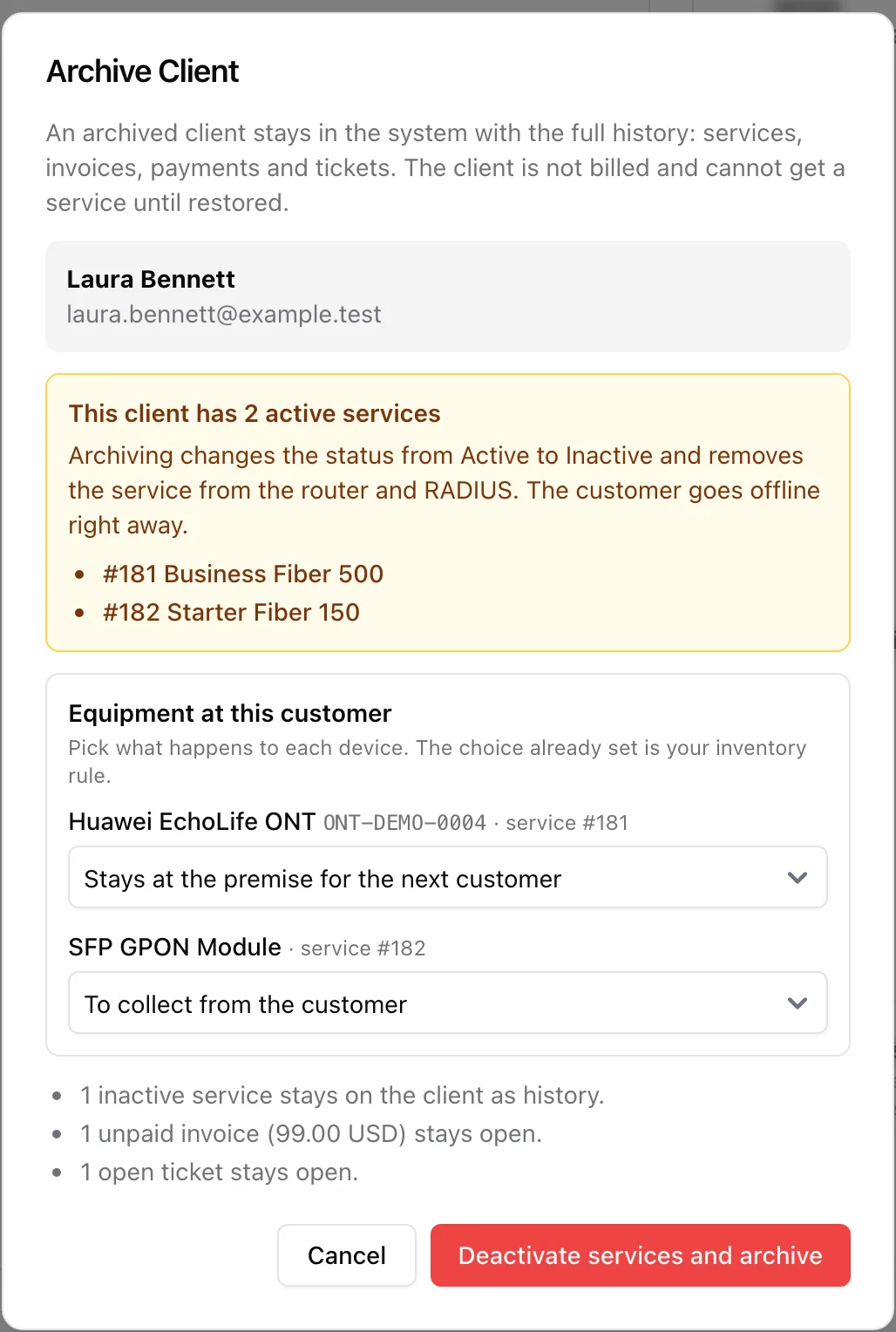
When a customer leaves, archive them instead of deleting anything. An archived client keeps the whole history - services, invoices, payments, tickets and documents - but is no longer billed, no longer counted as a subscriber and cannot be given a service until you restore them. You do not have to remove the customer's services first: archiving switches the running ones off for you. Archiving needs the clients manage permission, and services manage when the client still has active services.
1. Where to archive
There are two places, and both open the same dialog:
- Edit Client Details - set Status to Archived and click Update Client.
- Clients > List - open the three-dot menu on the row and choose Archive.
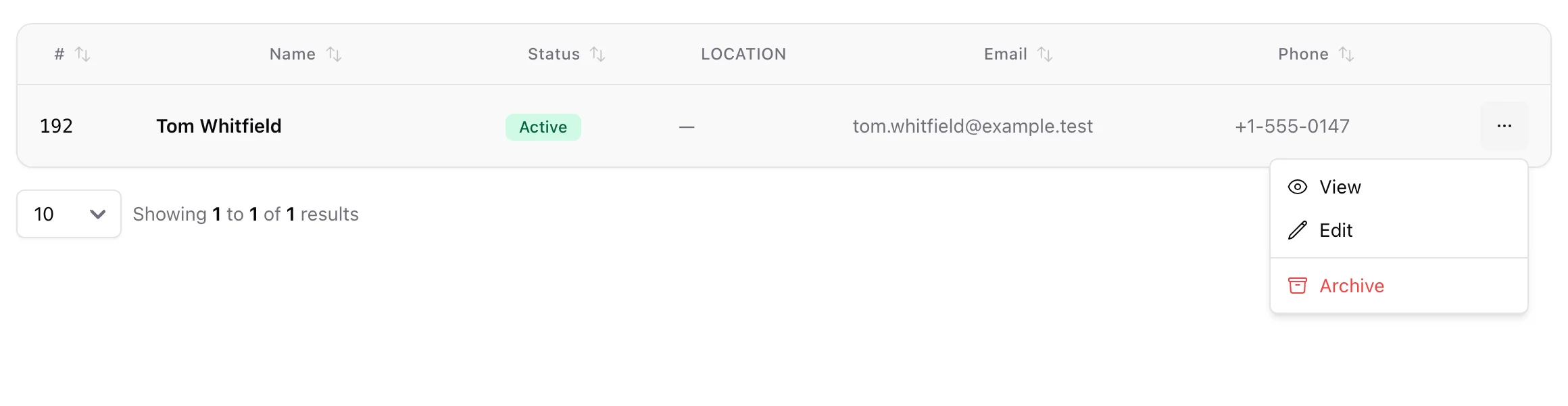
Nothing changes until you confirm in the dialog. Cancel leaves the client exactly as it was.
2. What the dialog tells you
Before anything is touched, the dialog lists what archiving this particular client means:
- Active services - each one is switched from Active to Inactive and removed from the router and RADIUS, so the customer goes offline right away. The button then reads Deactivate services and archive.
- Inactive services - they stay on the client as history, untouched.
- Equipment at this customer - one line per device, with a choice (see the next section).
- Scheduled plan changes - cancelled, since there is nothing left to change.
- Unpaid invoices and open tickets - they stay open. Archiving does not write off a debt or close a ticket.
- Prepaid services - paid days that are left are lost; no refund is created. Refund the customer first if you owe them one.
A seasonal suspension, a manual block and the overdue state are all cleared, so nothing switches the services back on later.
3. Deciding what happens to the equipment
Every device still recorded on the client's services gets its own choice. The option already selected is your inventory rule for a service that ends, so for an ordinary customer there is nothing to click.
- To collect from the customer - the device is marked To collect, so someone knows to pick it up.
- Stays at the premise for the next customer - for a modem or ONT that belongs to the address. Offered when the service is tied to a premise; the device then waits there and goes onto the next service at that address.
- Return to stock - the device is already back. Offered when a return location is set in the inventory settings.
- Leave with the customer - the device stays recorded on the (now inactive) service.
4. When a service is under contract
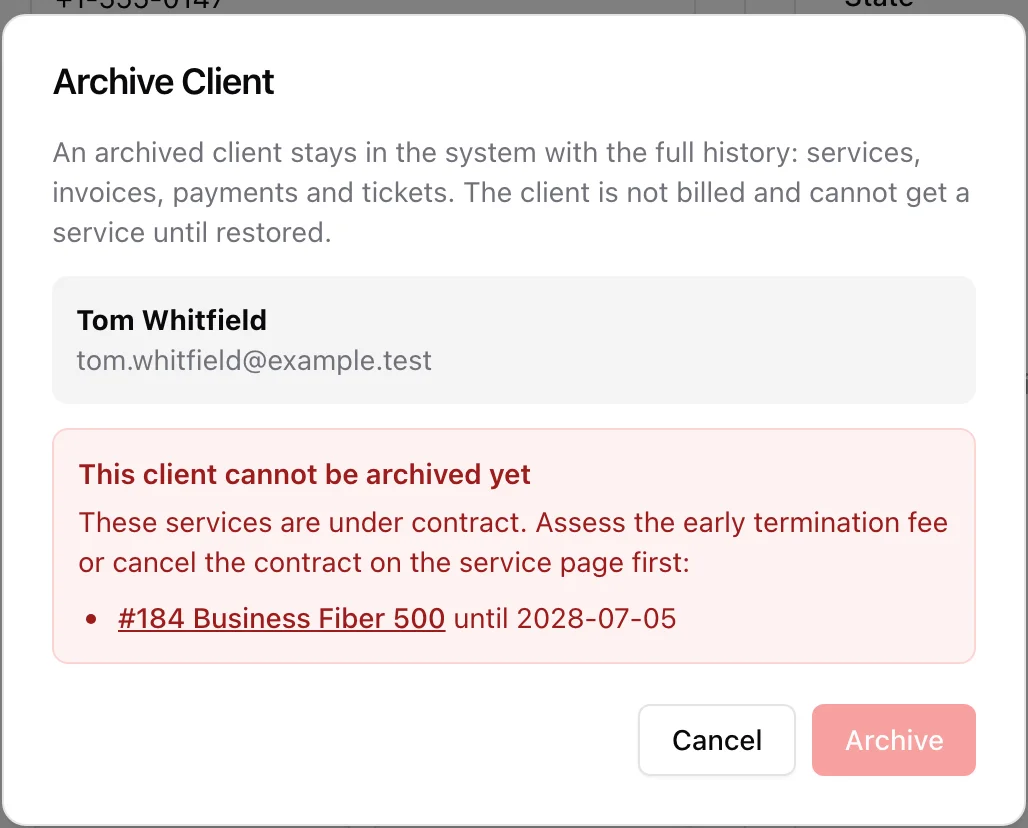
A service inside a contract term is never ended on the side. The dialog names the service and its end date and the Archive button stays disabled. Open the service, assess the early termination fee or cancel the contract, then archive the client.
5. An archived client
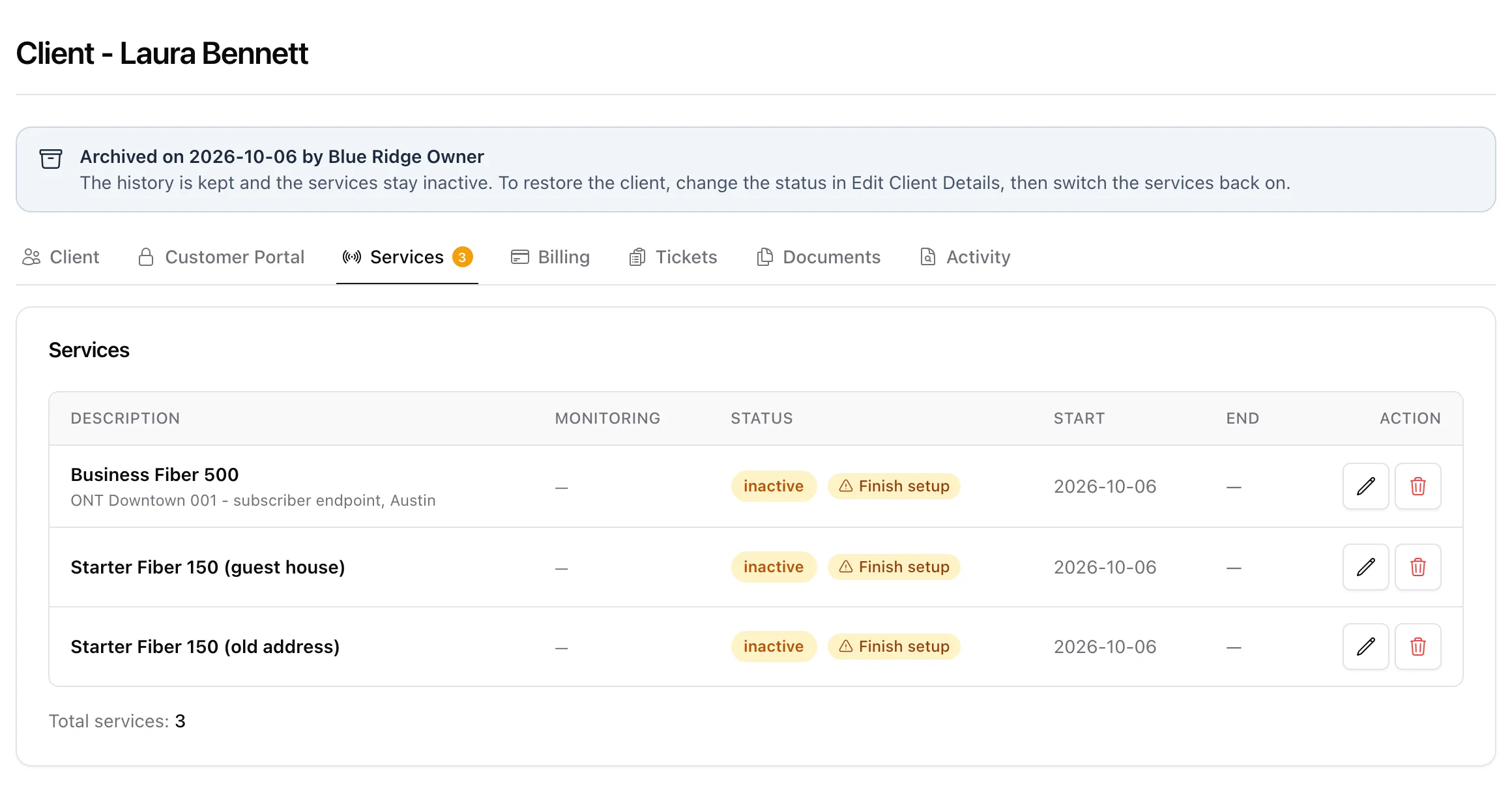
The client page shows a banner with the date and who archived the client. The services are still listed, all inactive, and there is no Add Service button. Nobody can add or switch on a service for an archived client, from the panel, the REST API, a prepaid sale or an agent top-up; each of these answers that the client must be restored first.
If a router could not be reached at that moment, the client is archived anyway. The affected service shows a provisioning warning and ISPBox keeps retrying until the router has taken the removal.
6. Restoring a client
Open Edit Client Details, change Status from Archived to Active or Inactive and save. The banner goes away. The services stay inactive on purpose: switch on the ones the customer is coming back to from each service's page, so nothing starts billing by accident.
7. Over the API
DELETE /api/v1/clients/{id} archives a client. With active services it answers 409 unless you send deactivate_services=true (the key then also needs the services.write scope), so an integration never cuts a customer off by accident. An optional equipment map (inventory unit id to to_collect, stay_at_premise, return_to_stock or keep) decides per device; without it the inventory rule applies.