Router Configuration Backups
Every MikroTik you manage backed up every night and a few minutes after anyone changes it, every version kept, any two compared line by line, and the change shown next to the fault it caused.
"What changed on that router last night?" is the first question after most outages, and the answer usually lives in someone's memory. Configuration backups keep it in the panel instead: every MikroTik you manage is backed up every night and a few minutes after anyone changes it, every version is kept, and any two versions can be compared line by line.
Which routers
Every MikroTik the panel holds RouterOS API credentials for: API routers, and RADIUS routers that also have an API user, reached by their address or over their WireGuard tunnel like every other API call. Nothing has to be switched on per router.
When a backup is taken
- Every night, from 02:00 in your workspace's time zone (changeable), each router at its own fixed slot spread over the next three hours, once per night.
- After a change. If the router sends its logs to a probe (see Device logs), a line that says the configuration changed or the firmware was upgraded asks for a backup five minutes later. A burst of changes becomes one backup, at most 30 minutes after the first.
- On demand, with Back up now on the router's Backups tab.
An unchanged router stores nothing new; the latest version is marked as checked. A changed one becomes the next version, with the number of lines added and removed.
The Backups tab
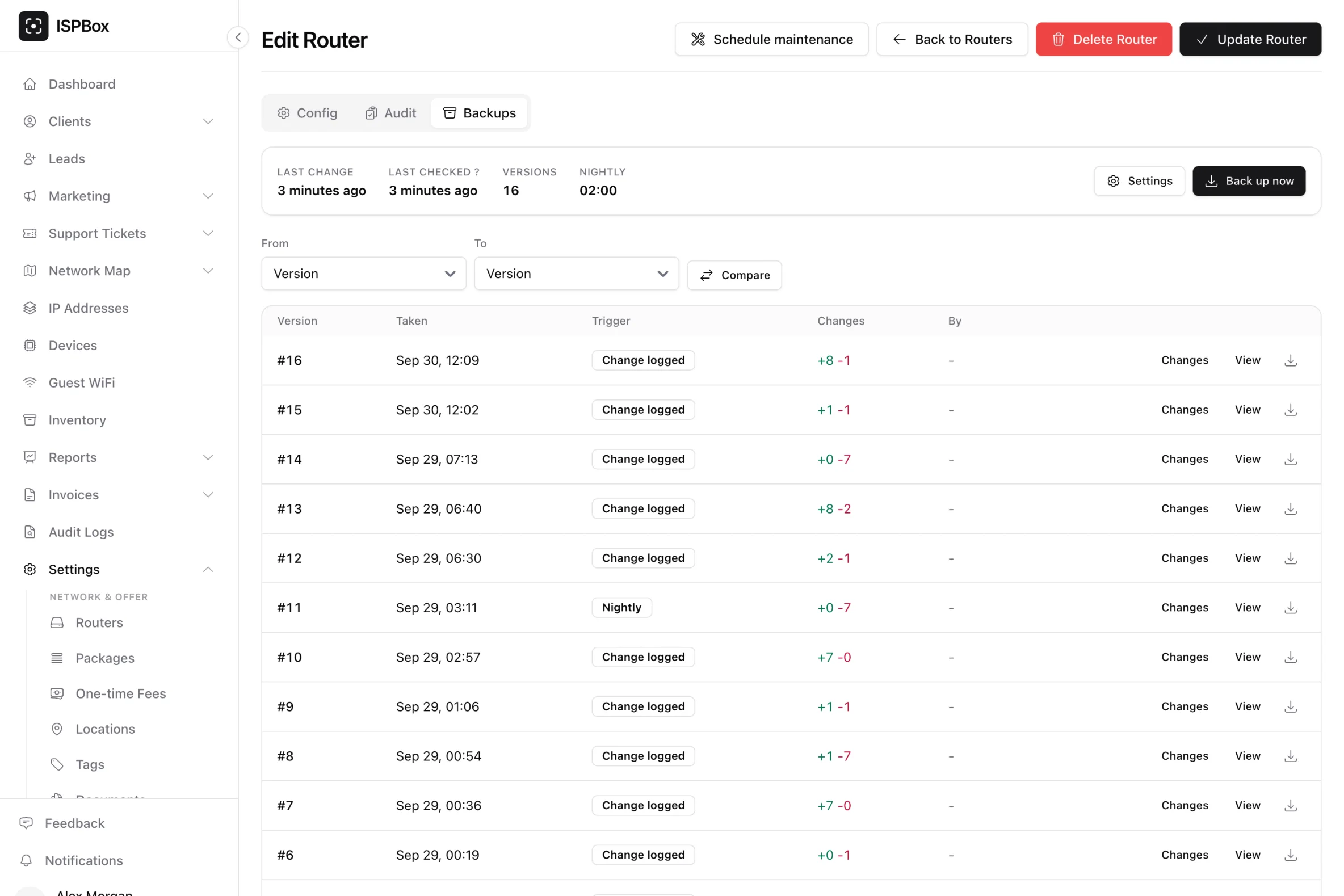
Open a router in Settings > Routers and go to Backups:
- when it last changed and was last checked, the number of versions and the nightly time,
- the list of versions: when, why (Nightly, Change logged, Manual), lines added and removed, and who pressed the button,
- one version in full, with search,
- the difference between any two versions, coloured, with unchanged stretches folded ("412 unchanged lines") and the RouterOS menus that changed named,
- download of any version as an
.rscfile.
The same tab holds the workspace settings: backups on or off, the nightly start hour, and whether passwords and keys are included.
Next to the diagnosis
When the monitoring diagnoses a fault that followed a configuration change on a router (Recent config change), the diagnosis carries the backup taken right after the change against the one before, with a What changed link straight to that difference, on the diagnosis and on the host page. People who may not edit routers see only that it changed and by how many lines.
What it does on the router
RouterOS has no export command on its API, so the panel does what you would do by hand: it adds a temporary script named ispbox-backup- followed by random characters that runs /export terse into a file of the same name, reads the file back, and removes both, always, even after a timeout (an earlier interrupted run is cleaned up on the next one). Nothing else on the router is written, and nothing is ever restored automatically.
Those two temporary objects appear in the router's own log as "new script added" and "script removed". The panel knows they are its own: they show in the device log as read the configuration for an ISPBox backup, and they never trigger another backup, an alert or a diagnosis.
Passwords and keys
By default passwords, keys and secrets stay on the router: RouterOS 7 hides them from an export unless asked, and RouterOS 6 is asked to hide them. Turn on Include passwords and keys only if you want the backups to be a full restore source; the setting warns you plainly. Stored versions are compressed and encrypted either way.
Good to know
- RouterOS 7.13 and later: the whole export is read in pieces, up to 16 MB. Older versions hand out only a small export over the API (about 4 KB on RouterOS 6); a larger one is refused with "upgrade to 7.13" rather than stored cut off.
- A year of changed versions is kept, and never fewer than the newest 30 per router.
- A failed attempt shows on the router's Backups tab with the reason. If the nightly backup of a router that has been backed up before fails three nights in a row, staff who may edit routers get one notice (bell, Routers badge, and email in the daily summary by default) until it works again. A router the panel has never managed to back up, for example because its API port cannot be reached from the panel, only shows the error on its tab.
- The Backups tab needs permission to edit routers. Every view, comparison and download is in the audit log.
- Versions and changes are in the REST API and the MCP server, with every secret masked.