Test Customer Login
Every few minutes a probe logs in like a customer: a RADIUS request, a full PPPoE login and a DHCP lease. When that fails you hear about it even though every ping is green.
Every tower can answer pings while nobody can connect: RADIUS rejects everyone after a database change, the PPPoE server ran out of addresses, the DHCP relay stopped relaying. The first you hear of it is usually the phone. A test customer login finds it first: each probe logs in the way a customer does, every few minutes, and tells you the moment it stops working and at which step.
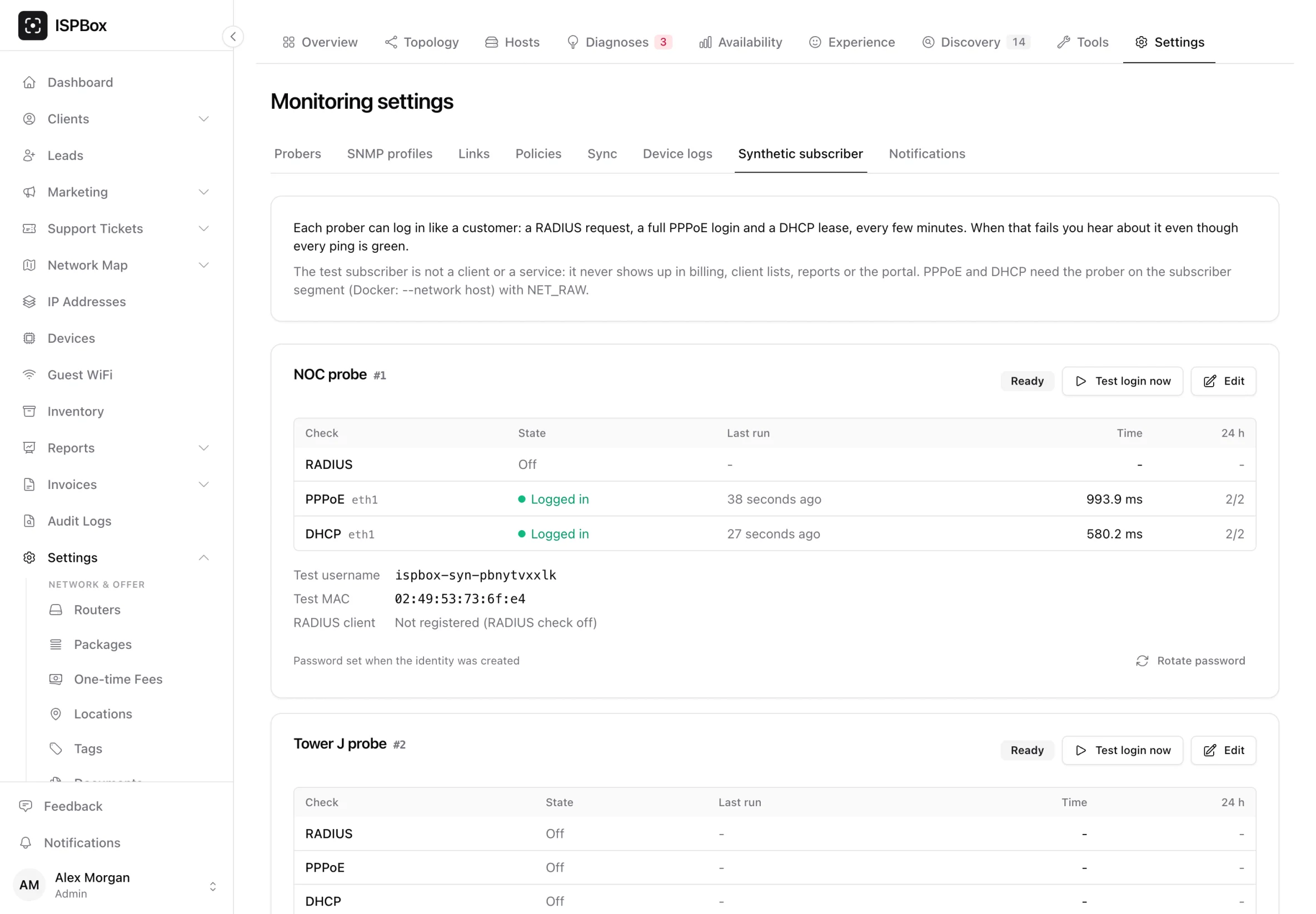
Three kinds of check
- RADIUS: the probe sends an Access-Request for its own test customer (PAP or CHAP) to your RADIUS server and checks the answer, including that the reply carries the rate limit your routers need.
- PPPoE: a full login as a customer's router does it: discovery, the link, authentication, an address, then a clean hang-up. Needs the probe on the subscriber network (see below).
- DHCP: asks for an address with a test MAC address, takes the lease and releases it again, or only checks that an offer comes.
Each run records how long each step took and, when it fails, the step and what the server said: a rejection message, a CHAP failure, "no PPPoE server answered", "no address offered".
The test customer
The panel creates one test customer per probe, with a username starting ispbox-syn-, a random password and a MAC address of its own, and writes it to RADIUS with a small rate limit and a two-minute session timeout, so a stuck test session ends by itself. It is not a client or a service: it never appears in billing, your subscriber count, client lists, reports, exports, availability or experience scores, the portal, or the unassigned devices list. Rotate password changes its password in one click.
For the RADIUS check the probe must be a RADIUS client, the way a router is. The panel registers the probe's address for you (it detects the address the probe connects from, or you type it for a probe that reaches RADIUS through a tunnel).
Setting it up
Go to Settings > Network monitoring > Synthetic subscriber. Each probe has a card showing what it can do (whether it may send raw packets, and which interfaces it has) and one row per check with its state, the failing step, when it last ran and how many runs worked in 24 hours. Edit opens one dialog for all three checks:
- Run every (seconds): from 60 seconds to an hour,
- RADIUS: the server, port and PAP or CHAP,
- PPPoE: the interface the probe logs in on, PAP, CHAP or either, and optionally the Service name and the Concentrator name that must answer (useful when more than one server listens on the segment),
- DHCP: the interface, and whether to take a full lease or only look for an offer,
- for PPPoE and DHCP, the router the login goes through, so an alert names it.
Test login now runs every check at once instead of waiting for the next turn. It is also on the Tools page.
Placing the probe for PPPoE and DHCP
A PPPoE or DHCP login has to happen on the network segment your customers are on. Run the probe with host networking (--network host) and the NET_RAW capability on a machine with an interface in that segment (a VLAN interface works), and name that interface in the check. RADIUS needs nothing special: any probe that can reach the server can check it.
When it fails
Three alert presets, one per kind: RADIUS test login failing, PPPoE test login failing and DHCP test lease failing. They open after two failed runs in a row and close after two good ones (tunable in Settings > Network monitoring > Policies), and follow the usual acknowledge and escalation. Planned maintenance on the probe, its site or the router the check goes through holds them back.
Two diagnoses explain what broke:
- Login path broken: RADIUS reachable but rejecting, timing out, not listening, answering with a different secret, or accepting without the reply that gives new sessions their speed; or the concentrator refusing logins while RADIUS is fine.
- Access service down: no PPPoE server answering, a refused session, no address from the pool, no DHCP offer.
Both give the step, the reason, the last good run and what to check next. A probe that cannot reach anything pauses them, and a check that cannot even start (an interface that does not exist) is shown as a settings problem, never as a network fault.
Good to know
- A Login path tile on the monitoring overview shows every probe's checks at a glance; the probe's own status page shows the last run of each check too.
- Tested against FreeRADIUS, a MikroTik PPPoE server and MikroTik and dnsmasq DHCP servers.
disable_synthetic: truein the probe's ownprobe.yamlswitches the checks off on that box whatever the panel says.