Burst, Night Speed and Login Limits
The optional extras of an internet package: burst, a different speed at night, a limit on connections per login, and locking a login to one device.
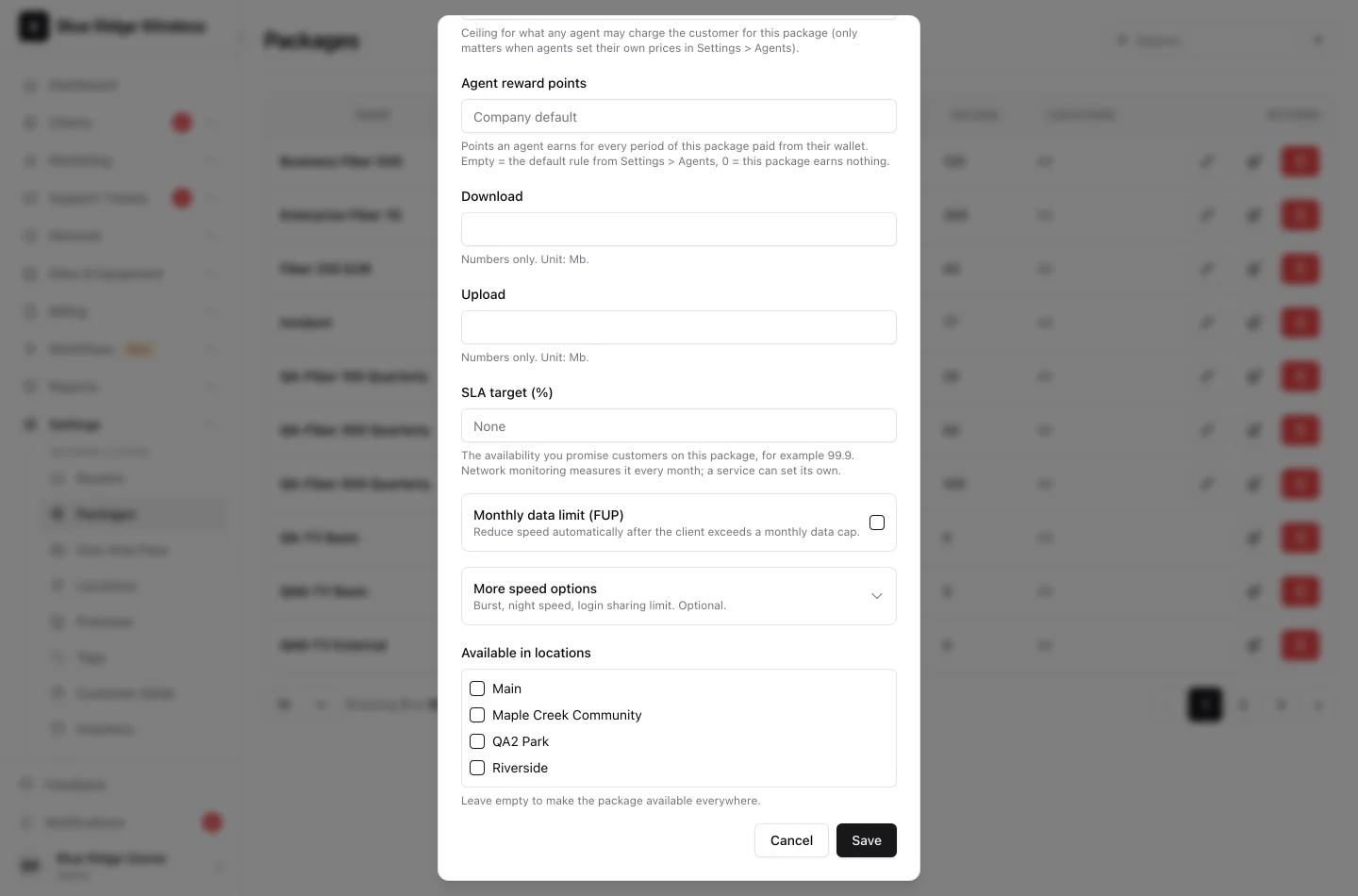
Every internet package has a download and an upload speed. Three optional extras sit under More speed options on the package form, closed until you need them: a burst, a night speed and a limit on connections per login. A fourth tool, the device lock, is set per service. Open a package in Settings > Packages to find the row; when something is switched on, the closed row says what.
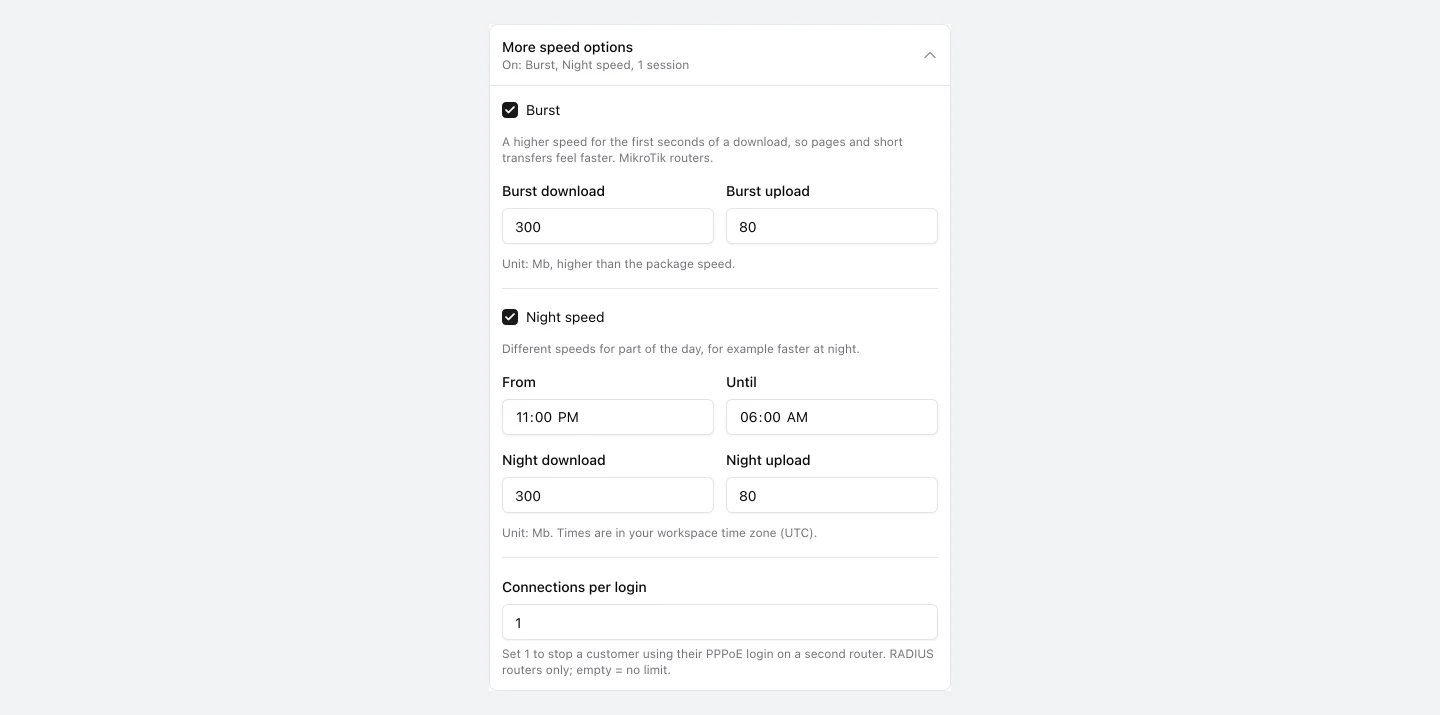
1. Burst
A higher speed for the first seconds of a download, so pages and short transfers feel faster while long downloads stay at the package speed. Tick Burst and enter the burst download and burst upload in Mb. Both must be higher than the package speed.
The rest is set for you: the burst lasts while the average speed over 16 seconds stays under 75% of the package speed. Burst works on MikroTik routers, with RADIUS and with the API. A customer who is slowed down for a data limit or an unpaid invoice does not burst.
2. Night speed
A second pair of speeds for part of the day, for example faster at night when the network is quiet. Tick Night speed, set From and Until, and the night download and upload. Times are in your workspace time zone, and a window may cross midnight (22:00 until 06:00).
Customers switch within five minutes of each time. Where the router accepts live speed changes (CoA), the session is not dropped. A data limit or a payment restriction still wins over the night speed.
3. Connections per login
How many connections one PPPoE login may hold at the same time. Set 1 to stop a customer using their login on a second router. Leave it empty for no limit. This applies to RADIUS routers.
4. Locking a login to one device
On a service that uses PPPoE on a RADIUS router, the Authentication Details card has a Device lock row. Click Lock to device and the login works only from the device it last connected from. Any other device is refused.

If the customer has not connected yet, the lock waits and closes on the first device that does. Click Unlock before the customer replaces their router, then lock again once the new one is online.