Workflows
Build routine work as a tree of steps: what starts it, what it checks and what it does, with waits, approvals, AI steps, retries, a message limit and results per workflow.
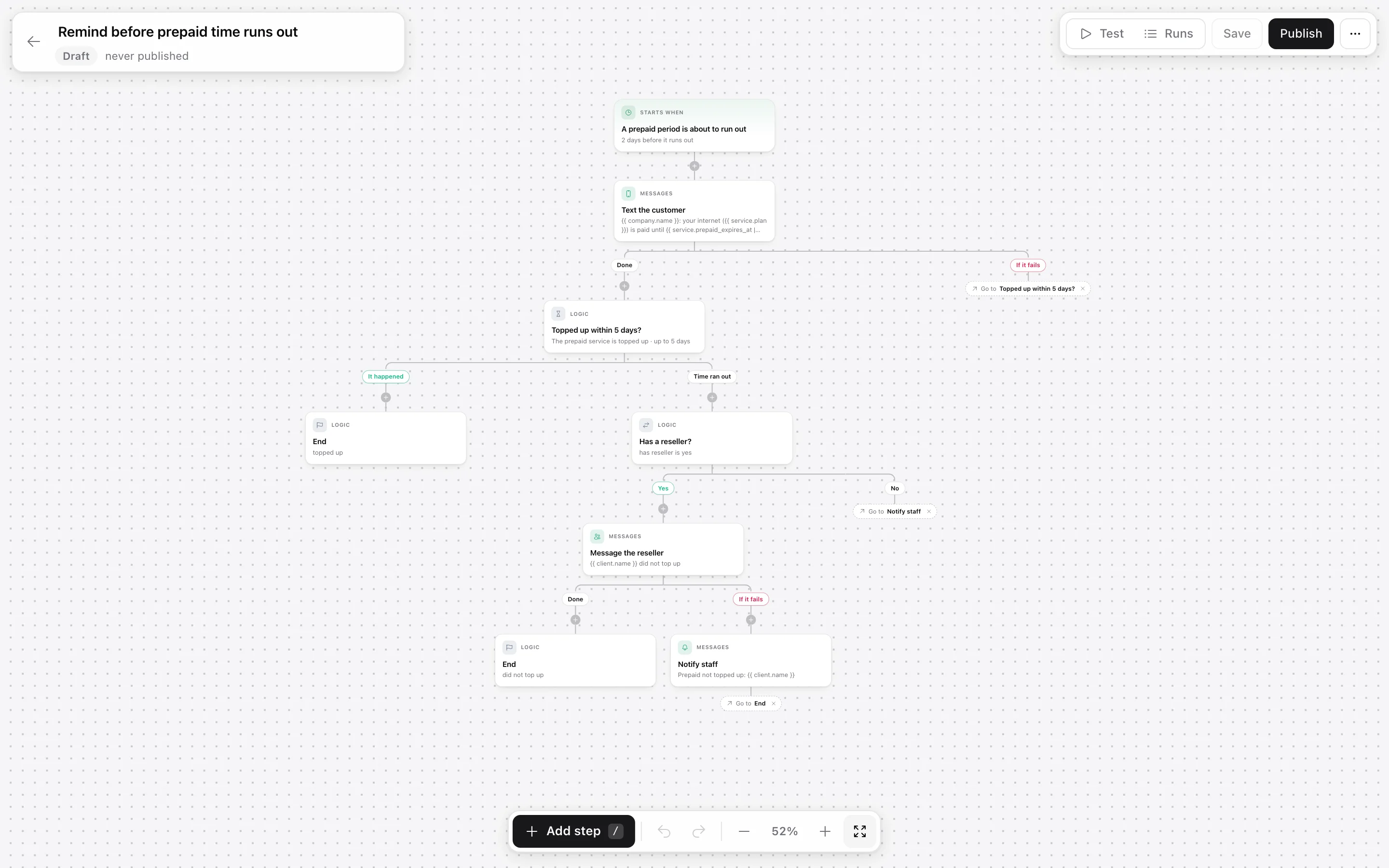
A workflow is routine work the panel does for you: when something happens (a ticket comes in, an invoice is three days from due, a technician marks a visit done), it checks what you told it to check and then acts. You build one as a tree that reads from top to bottom, with no code. This article walks through what can start a workflow, what it can do, and how you keep it under control.
Workflows is in beta. It is a new part of ISPbox: try a workflow with the test run before you publish it, and tell us what is missing with the feedback button in the panel.
1. Starting a workflow
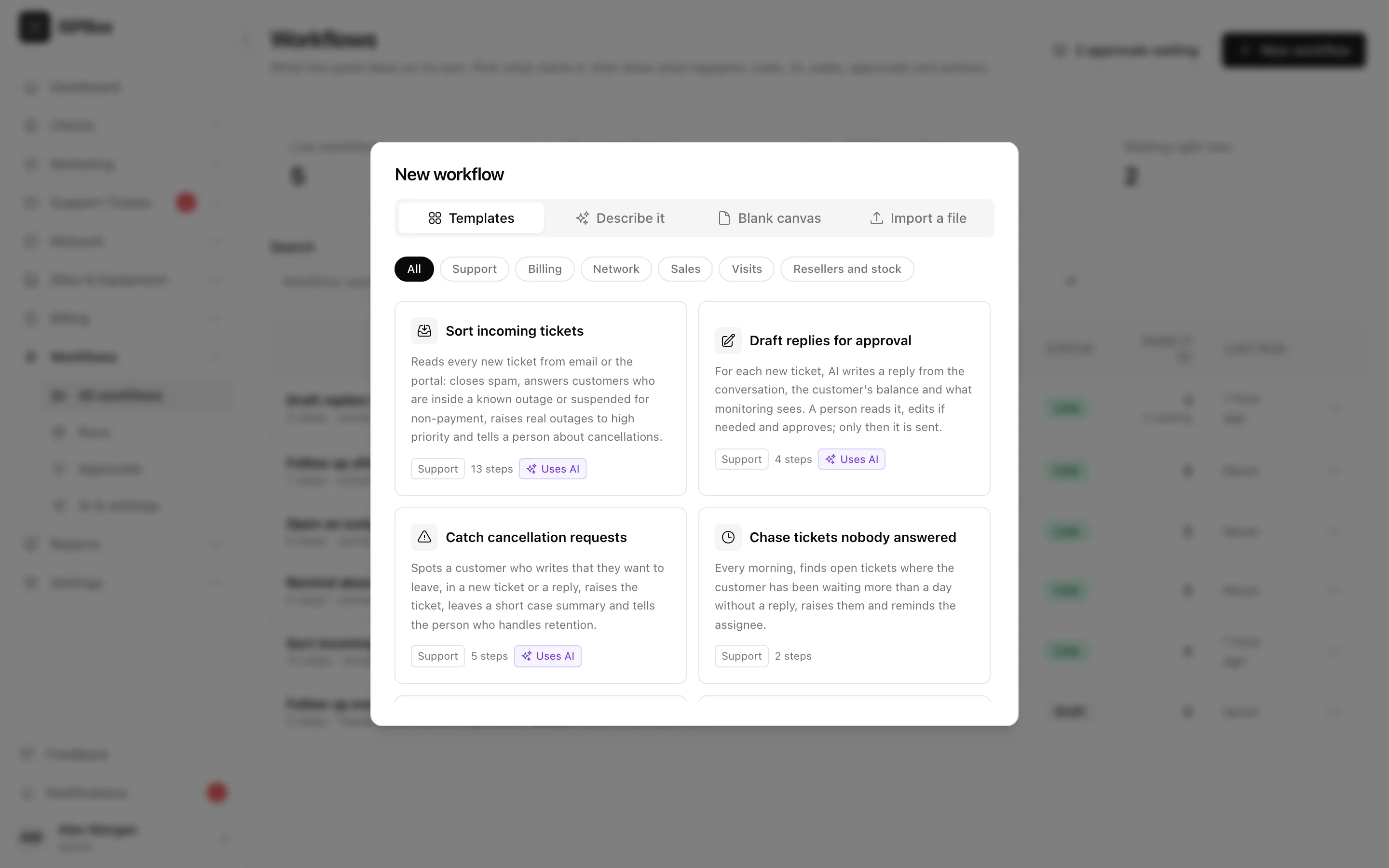
Open Workflows in the sidebar and press New workflow. There are four ways in:
- Templates - twenty-one ready-made workflows for support, billing, the network, sales, visits, resellers and stock. Taking one puts it on the canvas as a draft you can change.
- Describe it - write what you want in plain words and your own AI account drafts the whole tree. It lands as a draft: read every step before you publish.
- Blank canvas - start from the trigger.
- Import a file - a workflow exported from this or another workspace. Tags, groups, plans and locations are matched by name; people, AI accounts and secrets never travel in a file and have to be picked again.
Nothing runs until you press Publish. Saving keeps a draft; publishing freezes a version, and runs that are already under way finish on the version they started on.
2. What can start it
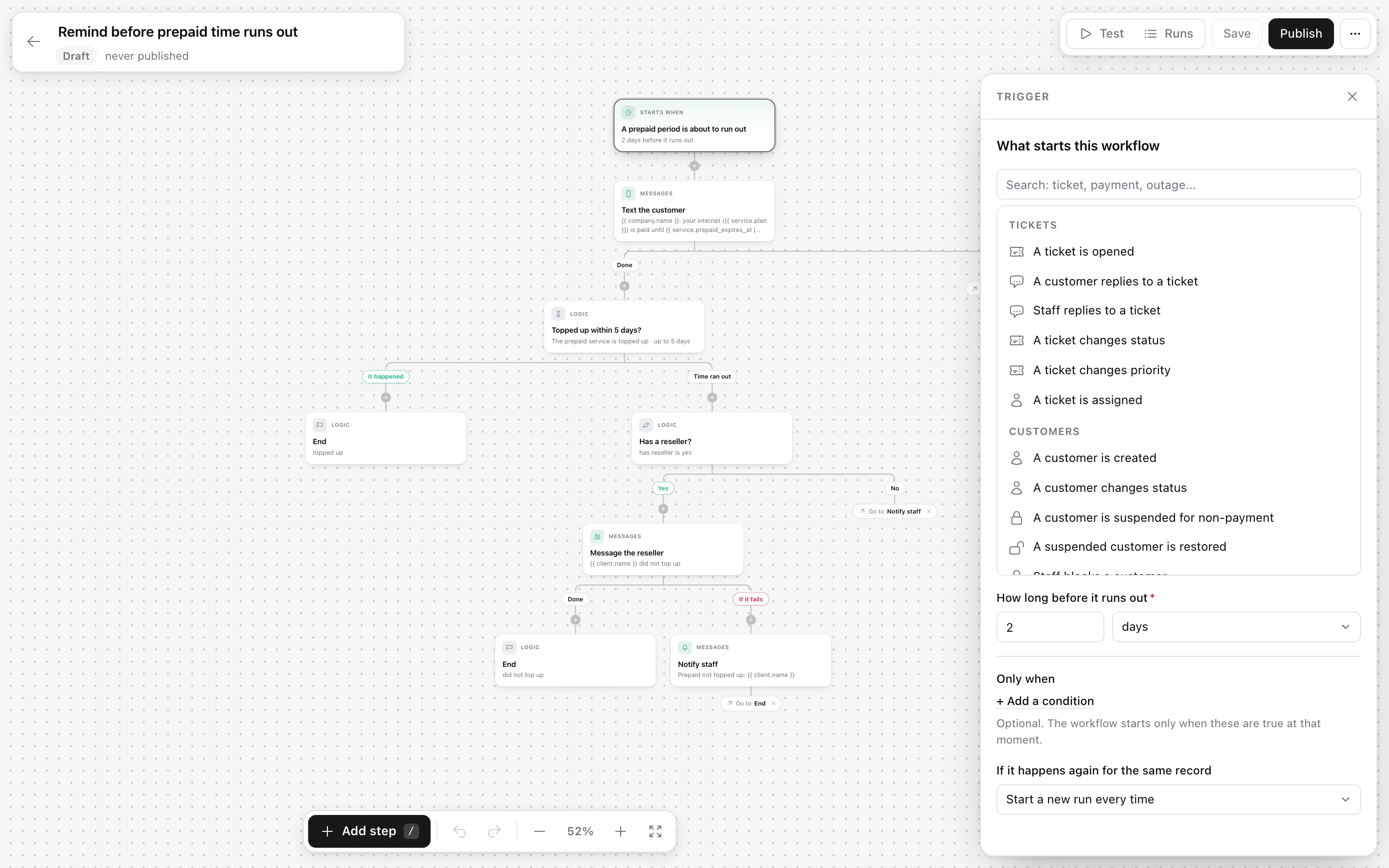
Click the top card to pick the trigger. They are grouped by the part of the panel they come from:
- Tickets - opened (by email, portal, staff, reseller or API), customer or staff replied, status, priority or assignment changed.
- Customers - created, status changed, suspended for non-payment, restored after paying, blocked or unblocked by staff, a portal request.
- Billing - invoice issued, about to be due, overdue, paid; payment received, failed or refunded.
- Services - added, status or plan changed, a plan change booked for later, paused for the season or switched back on, provisioning failed, connection offline or back online, for prepaid: about to run out, ran out, topped up; and for plans with a data limit: most of the limit used, slowed down after the limit.
- Visits and field work - a visit is booked, moved, confirmed, done or cancelled, or is coming up.
- Sales - a lead comes in, changes stage or becomes a customer, a lead task passes its date, someone signs up online or their sign-up gets stuck.
- Resellers - a top-up request, a wallet topped up, a wallet running low, a reseller adding a customer.
- Premises - a building or address changes status (for example becomes ready), so you can tell every lead or customer there.
- Inventory - stock of an item runs low (once each time it drops to the count you set, however the stock changed), equipment is installed at a customer.
- Guest WiFi - a guest buys access.
- Network and monitoring - an alert opens or clears, a cause is diagnosed, an outage opens or is resolved, a router or map device goes down or comes back.
- Schedule, manual, webhook - every hour, day, week or month (optionally once for each customer, service, unpaid invoice, open ticket, lead, coming visit or reseller), started by hand, or when another system posts to the workflow's own address.
The "before" triggers (an invoice about to be due, a prepaid period about to run out, a visit coming up) run once per date: a visit moved to next week is reminded again, and a renewed prepaid period gets its own reminder. Every trigger takes optional conditions under Only when, and a rule for what to do if the same thing happens again for the same record. Records brought in by an importer never start a workflow.
A webhook trigger can also carry a signing secret. When the other system signs what it sends (an HMAC-SHA256 of the body), requests without a matching signature are refused.
3. What it can do
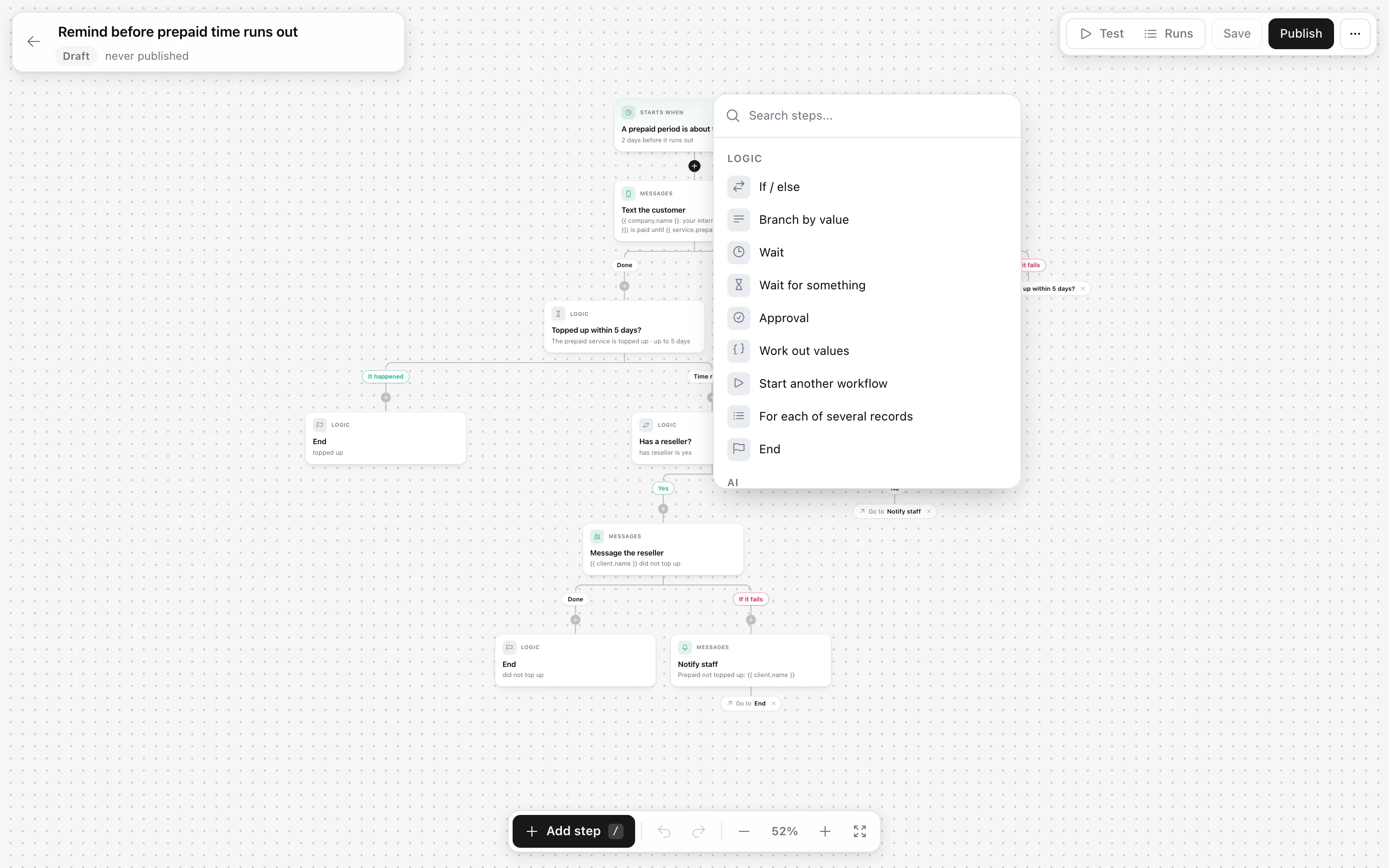
Press a + between two steps, or at the end of a branch, and search for a step:
- Logic - if/else, branch by value, wait (for a time, until an hour, until business hours), wait for something to happen with a branch for when it does not, ask a person to approve, work out values (for example a late fee of 5% of the balance), start another workflow, do something for each of the customer's invoices, services, tickets or visits, end with a named outcome.
- AI - decide between answers you list, write a reply or a summary, pull details such as a promised payment date out of a message.
- Tickets - open, reply, note, assign, change status or priority, tag, add participants.
- Messages - email, text, WhatsApp or app push to the customer; email or text to any address; a message to the customer's reseller; a notification to staff; a post to an alert channel.
- Customers - note, tags, update the record, grace period, block, unblock, portal invitation.
- Billing - payment reminder, email or text the invoice, add a charge, give a credit, charge the saved card.
- Services - change the plan now or on a later day (with an optional switch back), pause one service, resume it, add free prepaid days.
- Visits - book a technician visit for the ticket, update a visit.
- Network - open an outage, post an update, notify affected customers, resolve, disconnect a session, push the service to the router again.
- Sales and Connect - lead stage, activity and tasks; an HTTP request to another system.
Steps that touch money or cut service are marked, and the editor suggests an approval step in front of them. A value that came from AI or from a webhook cannot feed such a step unless a person approves first.
4. Settings every message step has
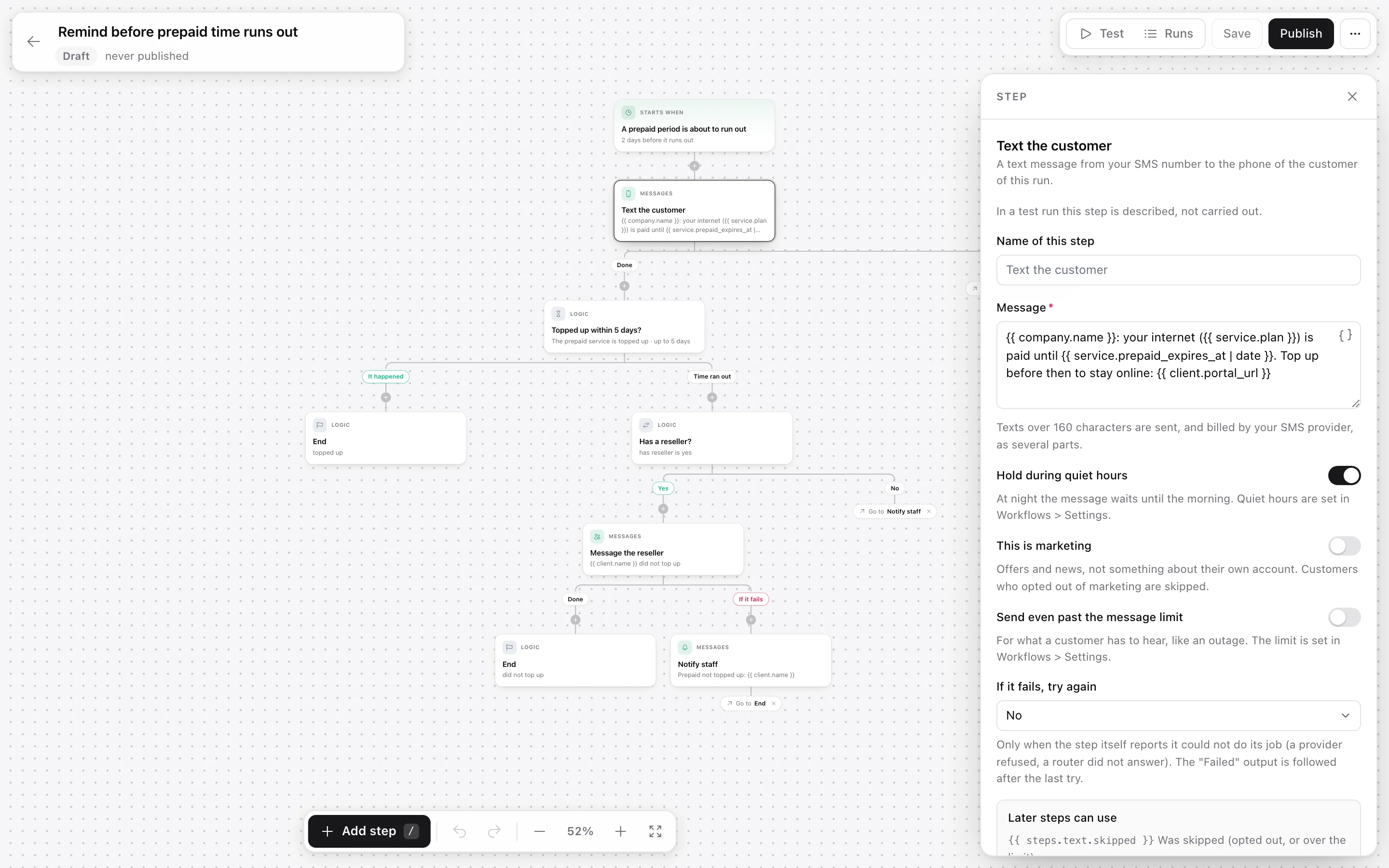
- Hold during quiet hours - at night the message waits until the morning.
- This is marketing - customers who opted out of marketing are skipped. Leave it off for anything about the customer's own account.
- Send even past the message limit - for what a customer has to hear, like an outage.
- If it fails, try again - up to five more tries with a wait between them, for a provider that was down for a minute. The Failed output is followed only after the last try. Steps that touch money or cut service are never tried again on their own.
A skipped message is not a failure: the run carries on, and a later step can check whether it was skipped.
5. The message limit
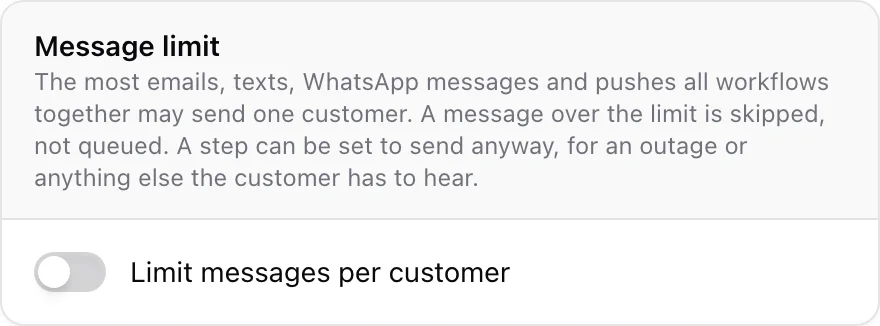
When several workflows overlap, one customer can end up with five messages in a day. In Workflows > AI & settings you can cap how many emails, texts, WhatsApp messages and pushes all workflows together send one customer in a day, in 7 days or in 30 days. A message over the limit is skipped, not queued. The same page holds your business hours, quiet hours, AI accounts and who hears about a failed run.
6. Testing, runs and results
The Test tab runs the canvas as it is, saved or not, on a real ticket, customer or invoice from your workspace. Nothing is sent or changed: each action is described instead, waits are stepped over, and the path lights up on the tree.
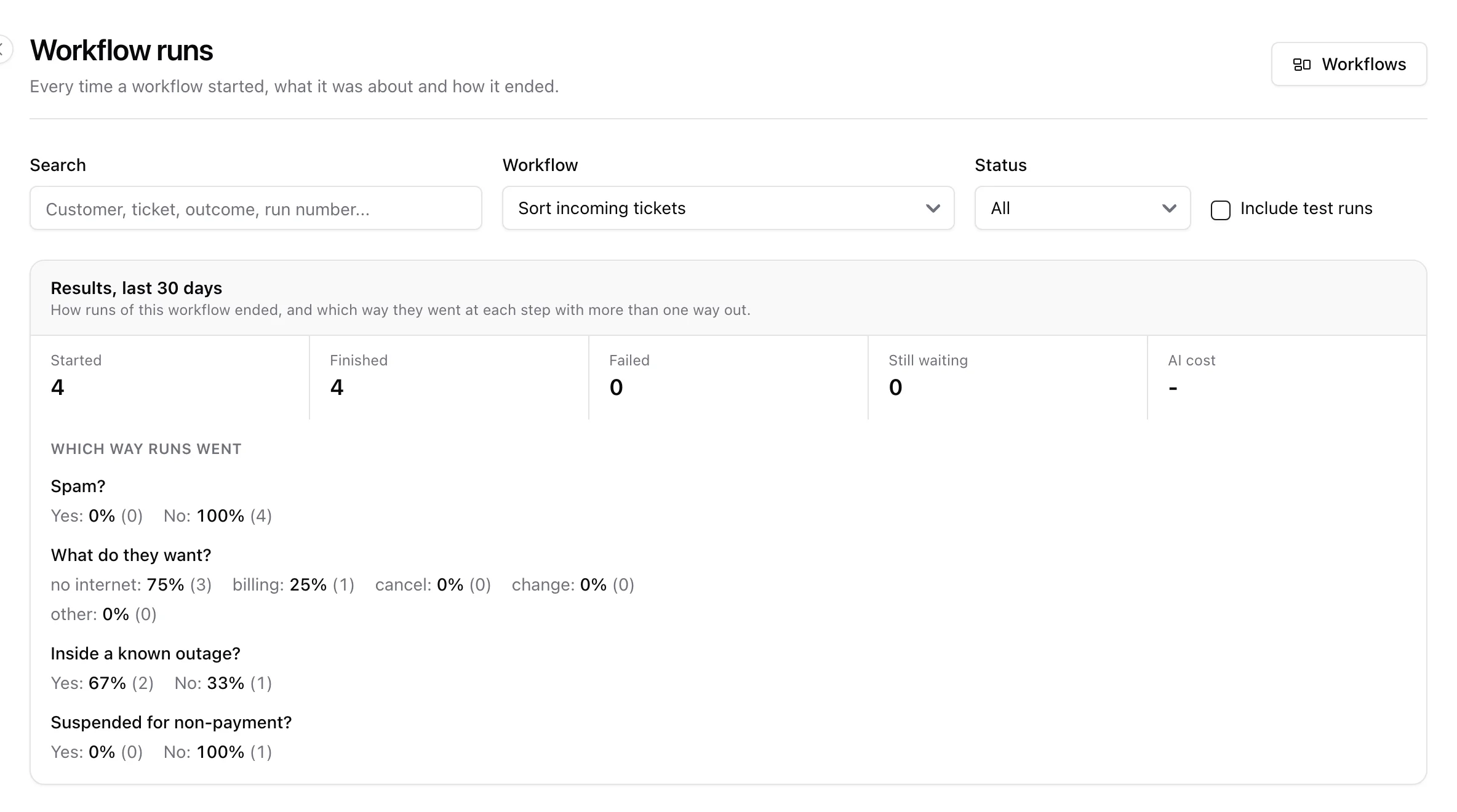
Workflows > Runs lists every run with what it was about and how it ended. Pick one workflow there to see its results for the last 30 days: how many runs started, finished and failed, how finished runs ended (the outcomes you named on its End steps), and which way runs went at every step with more than one way out. "Topped up within 5 days: it happened 62%" is the number that tells you whether a reminder works. Open a run to replay its path and see what each step did.
7. Staying in control
- Approvals wait in Workflows > Approvals, where the approver can edit the drafted text before saying yes.
- Everything a workflow does is in the audit log under the workflow's name.
- A workflow's own actions never start it again, and workflows that start one another are cut after four in a row.
- A workflow that starts an absurd number of runs in an hour is paused and you are told.
- Export to a file in a workflow's menu keeps a copy without secrets.
Workflows can also be listed and started through the REST API and by the AI assistant.