Bulk plan change
Move many services to another plan at once: pick the customers on the client list, choose the plan and the timing, read a preview of every service, confirm, and take it back if needed.
A bulk plan change moves many services to another plan in one go: retiring a plan, moving a whole location to a new offer, or putting one reseller's customers on a different package. You pick the customers on the client list, choose the new plan, and get a preview of every single service before anything changes.
You need the permission Move many services to another plan at once (Settings > Users & Roles). Admins have it by default; other roles do not.
1. Pick the customers
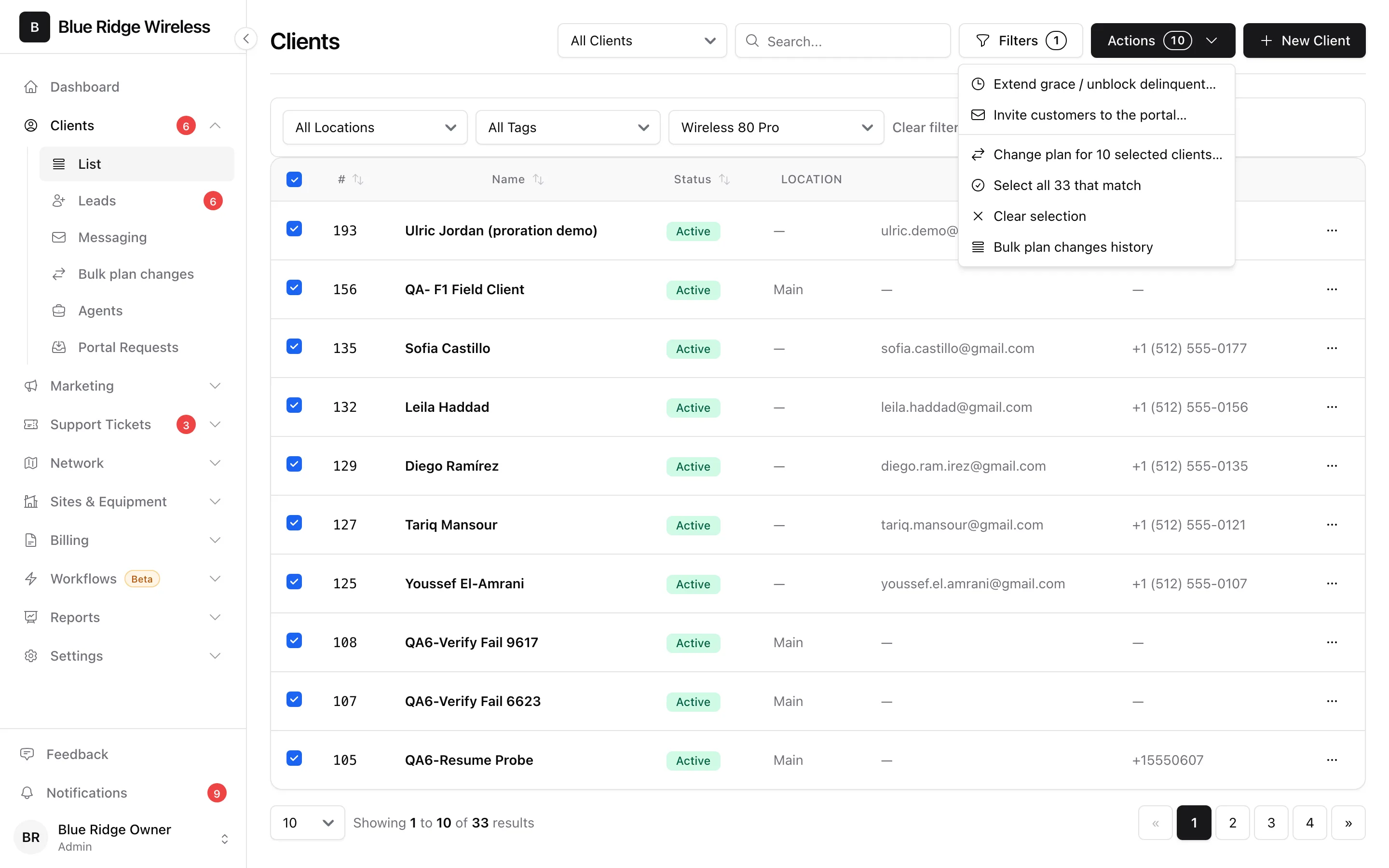
Open Clients > List. Use the search, the status select and Filters (location, tag, plan) to narrow the list to the customers you mean, then tick them. The box in the table heading ticks the page. The Actions button shows how many clients are ticked, and its menu has Select all N that match, which takes everything the filters match on every page.
Open Actions and choose Change plan for N selected clients…. This only opens a draft: nothing has changed yet.
- With a plan filter on, only the services on that plan come along. A customer with a second line on another plan keeps that line as it is.
- Only active internet services can be moved. TV, voice and inactive services are never part of a bulk change.
- Another way in: Settings > Packages has a "Move its subscribers" button on every internet package, and the "Cannot delete package" dialog offers it too.
2. Choose the new plan and the timing
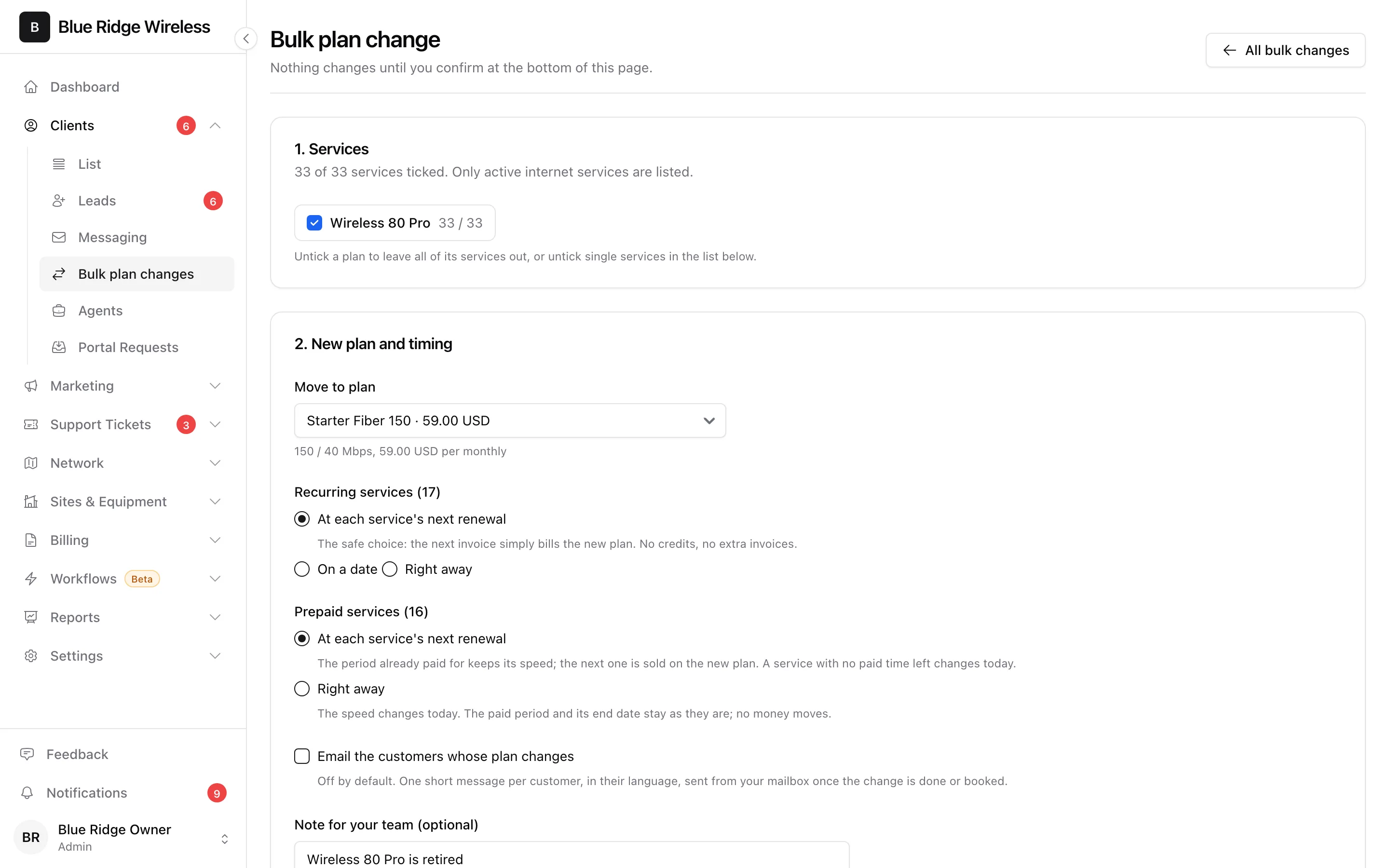
At the top you can still untick a whole source plan, and in the list at the bottom single services. Then pick the plan to move to and when the change happens. Recurring and prepaid services are asked about separately, because they work differently:
- Recurring, at each service's next renewal (the default) - the next invoice simply bills the new plan. No credits and no extra invoices.
- Recurring, on a date - every service changes on that day. A date inside a paid period is settled on that day, as your billing settings say.
- Recurring, right away - the plan changes today. You choose what happens to the part of the period that is already paid: settle the difference as your billing settings say, always put it on the next invoice, or change the plan only.
- Prepaid, at the next renewal (the default) - the period already paid for keeps its speed and the next one is sold on the new plan. A service with no paid time left changes today.
- Prepaid, right away - the speed changes today. The paid period and its end date stay as they are and no money moves.
Email the customers is off by default. When you tick it, each customer gets one short message in their own language once their change is done or booked. It is sent from your own mailbox, so a mailbox has to be connected in Settings > Mail.
3. Read the preview
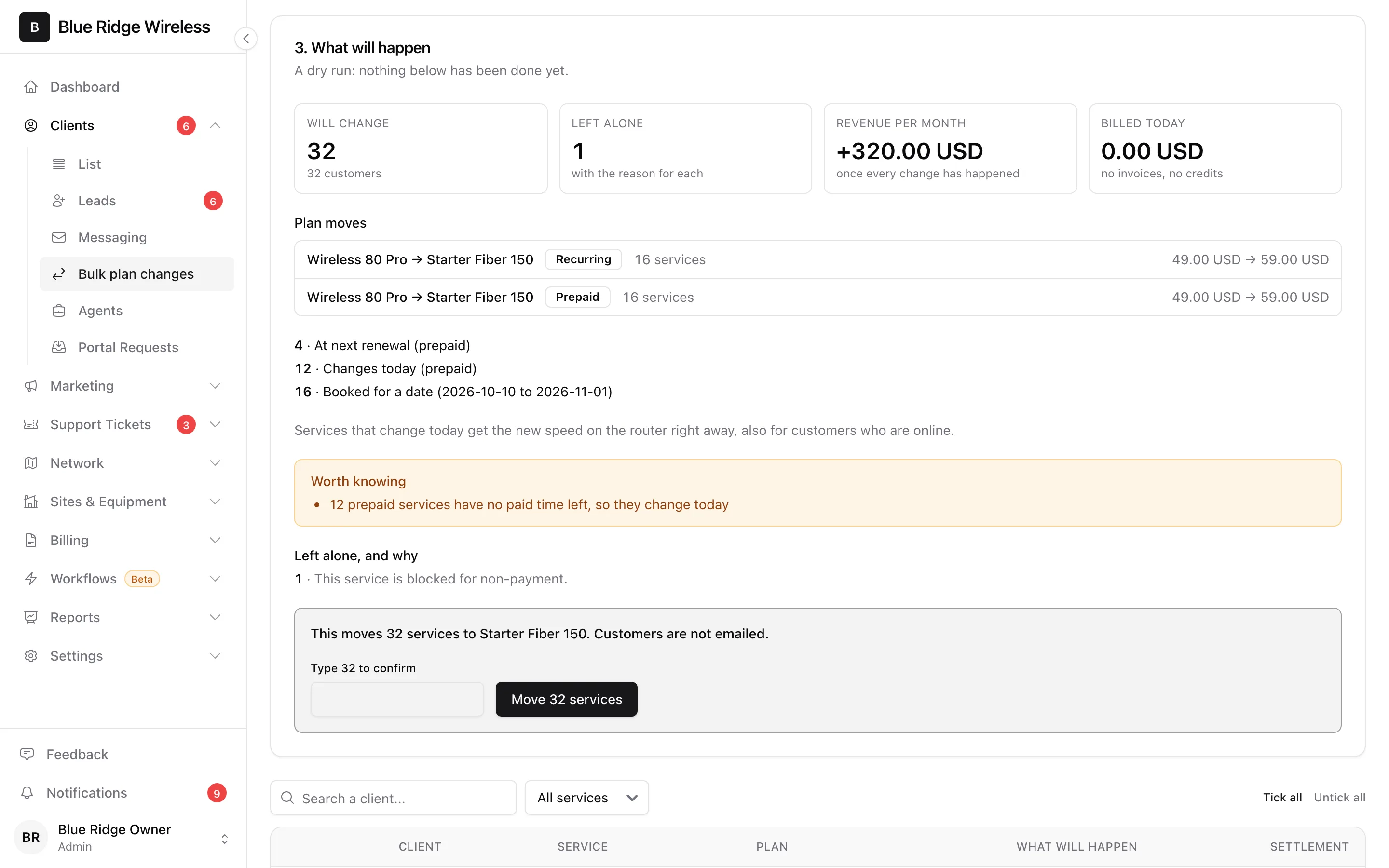
Press Preview the changes. The panel checks every ticked service with the same rules as a single plan change and shows:
- how many services will change and how many customers that is,
- each plan move with the old and the new price the customer pays,
- what the move does to your revenue per month,
- what is billed today: credits, charges and how many settlement invoices (only when you chose "right away" with a settlement),
- things worth knowing, for example services on another billing cycle that change at their renewal instead, or prepaid services with no paid time left that change today,
- every service that is left alone, with the reason: already on that plan, blocked for non-payment, a contract that does not allow the change, a plan in another currency, a plan that is not offered at the service's location.
The list at the bottom shows the same for each service; filter it to "Will change" or "Left alone". If you change any option or tick, the preview is thrown away and you run it again, so what you confirm is always what you saw. A preview from an earlier day has to be run again too, because dates and amounts move.
4. Confirm
The button names what happens ("Move 32 services"). For ten or more services you type the number first. The changes then run in the background, one service at a time; you can leave the page. A service that someone changed by hand in the meantime is left alone and marked. Stop ends a run early: what is done stays done, the rest is not touched.
5. The result, and taking it back
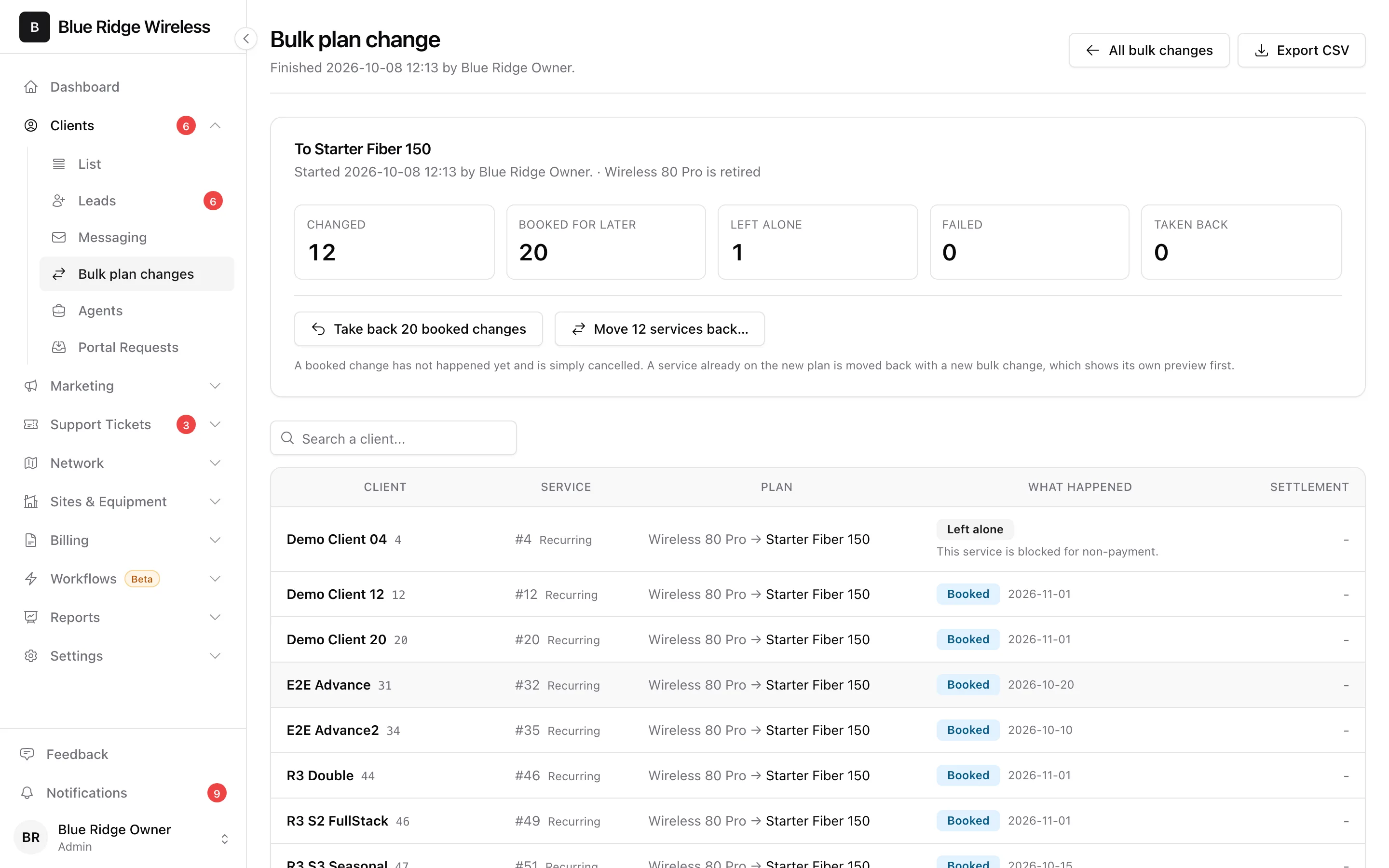
The result page lists every service with its outcome. Click a tile to filter, or use Export CSV.
- Take back N booked changes cancels changes that are booked but have not happened yet. Those services stay on their current plan.
- Move N services back… is for services that are already on the new plan. It opens a new bulk change that returns each of them to the plan it had, with its own preview and confirmation.
If you ticked the customer email and some messages could not be sent (for example the mailbox was down), the result page says how many are waiting and offers Send them now.
On a customer's page a booked change is visible too: under Billing > Plan changes for recurring services, and as a "Changes to … at renewal" chip next to a prepaid service, each with its own cancel.
6. History
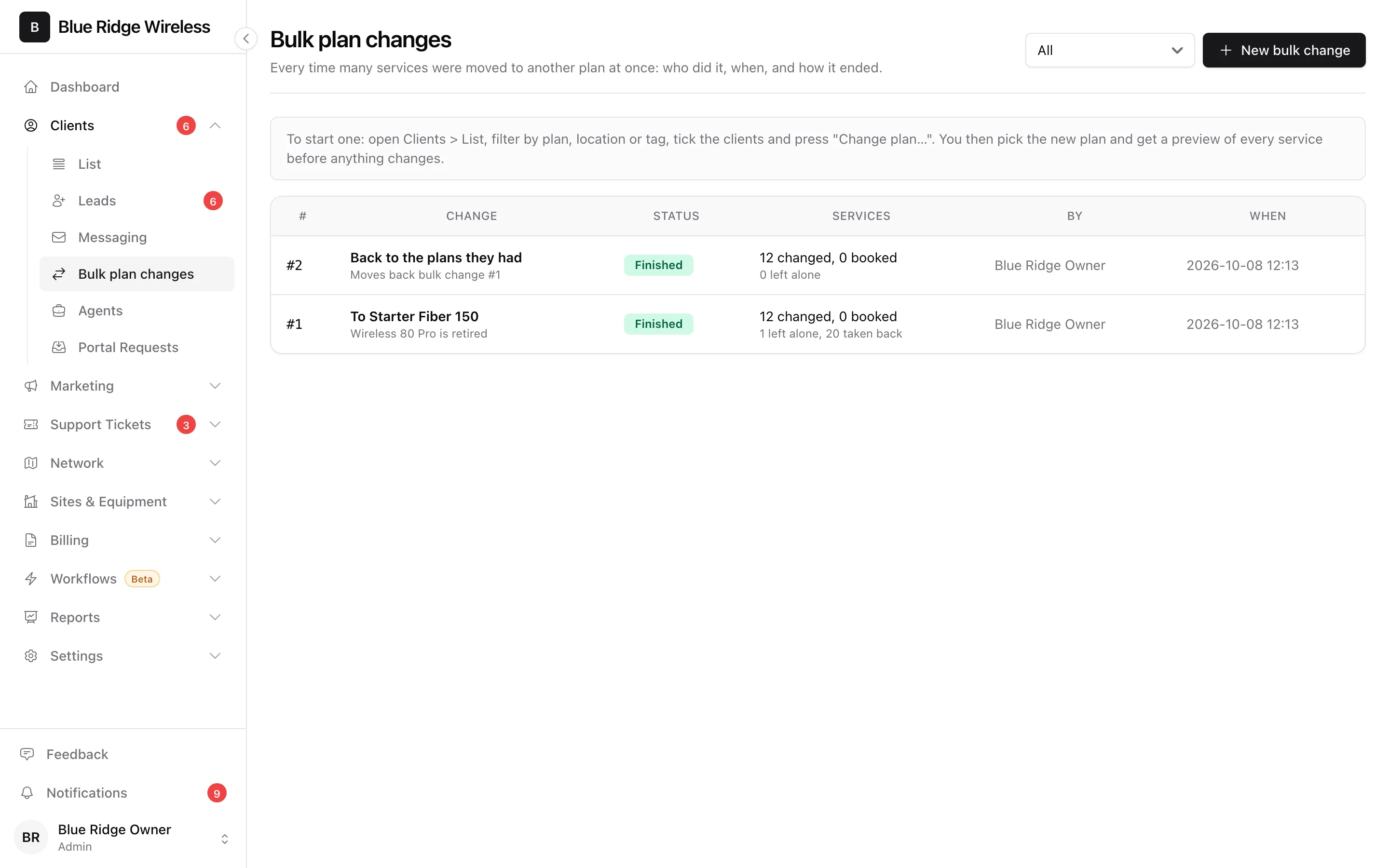
Clients > Bulk plan changes lists every bulk change: who ran it, when, to which plan and how it ended. Drafts you have not run wait there; a draft nobody comes back to is discarded after two weeks. Every run is also in the audit log, and every plan change it made is marked as part of it.
For a single service see Changing a Client's Plan.