How to Add a Ruijie Gateway (Reyee EG) with WireGuard and RADIUS
Connect a Ruijie Reyee EG gateway to ISPBox: WireGuard tunnel, ISPBox as RADIUS server, PPPoE logins with plan speeds and live plan changes, DHCP subscribers by MAC through Web Authentication. Lab-tested on an EG406XS-P.
This guide connects a Ruijie Reyee EG gateway to ISPBox so your subscribers log in with PPPoE and ISPBox checks every login, sets the plan speed and changes or cuts live sessions over RADIUS. The gateway reaches ISPBox through a WireGuard tunnel that ISPBox creates for you, so it does not need a public IP.
Every step below was done and measured on a real EG406XS-P with ReyeeOS 2.430 against ISPBox, including speed tests. Where the gateway has a limit, the guide says so.
The whole setup in one video (3.5 minutes). Each step below also has its own short video.
1. What works on a Ruijie gateway
| Feature | Works | Notes |
|---|---|---|
| PPPoE login checked by ISPBox (RADIUS) | Yes | Needs ReyeeOS 2.430 or newer (section 2). |
| Plan speed (download and upload) | Yes | Only with Flow Control (Smart QoS) turned on (section 7). |
| Plan change on a live session (CoA) | Yes | The new speed applies within seconds, the session stays up. |
| Suspend or block cuts the session (Disconnect) | Yes | The next login is rejected until the service is active again. |
| Live speed, traffic charts, usage and data caps | No | The gateway reports 0 bytes in RADIUS accounting. Reported to Ruijie (section 11). |
| DHCP subscribers checked by ISPBox (by MAC address) | Yes | Only with the gateway's Web Authentication set to RADIUS (section 10). |
2. Before you start: firmware 2.430 or newer
PPPoE with RADIUS exists on the Reyee EG only from ReyeeOS 2.430. On older firmware (we started from 2.342) the PPPoE server can only use accounts stored on the gateway itself, in eWeb and in Ruijie Cloud alike, and there is nowhere to enter a RADIUS server.
Check the version in the gateway's web interface (eWeb) under System > Upgrade. Upgrade there with Online Upgrade, or from Ruijie Cloud > Firmware Upgrade if the gateway is in a cloud project. The upgrade keeps the configuration and reboots the gateway.

You also need the eWeb admin password and outbound internet access from the gateway's WAN (the tunnel uses UDP port 51820 towards ISPBox).
3. Add the gateway in ISPBox
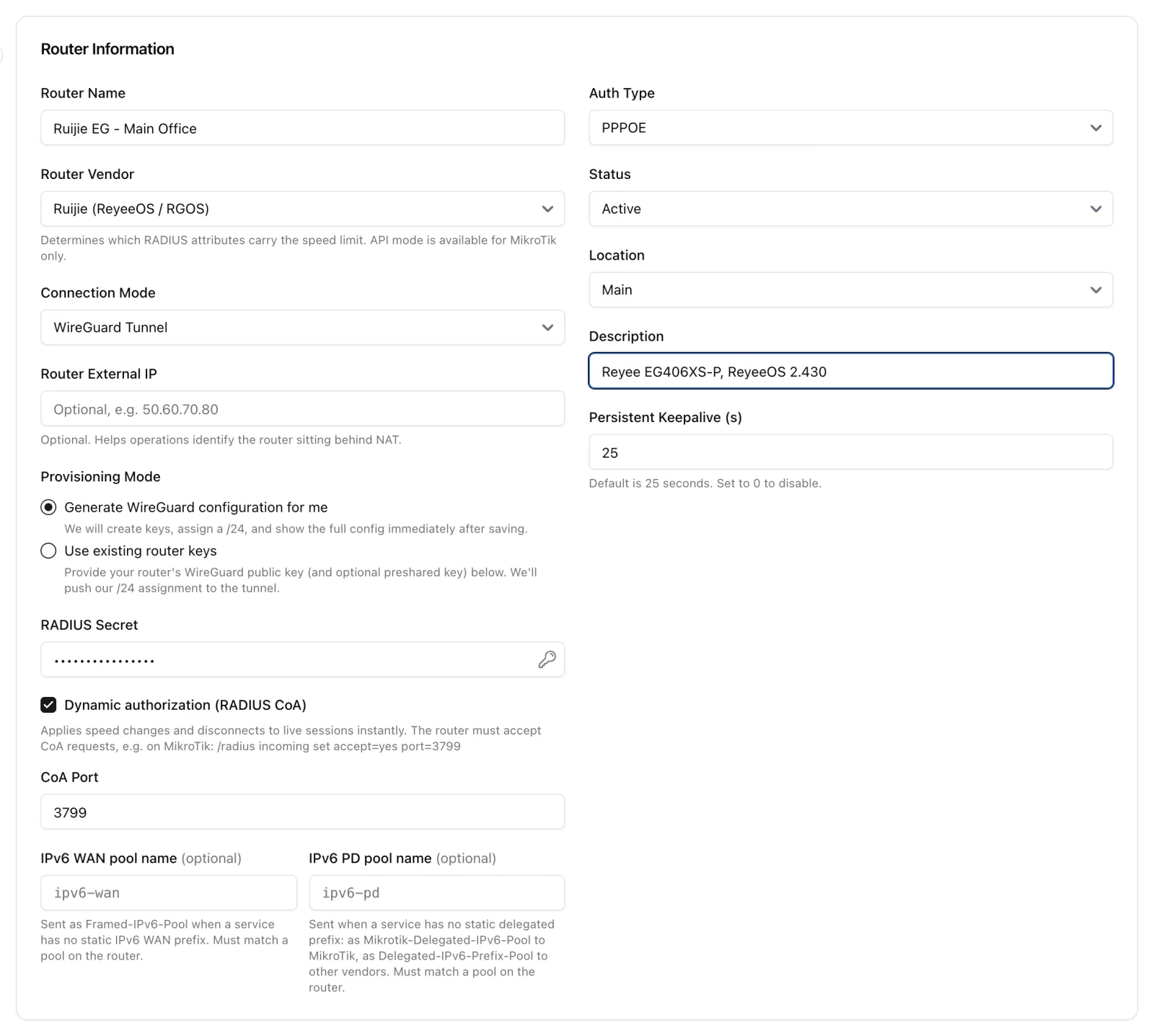
Go to Settings > Routers > Add Router (see the screenshot at the top) and set:
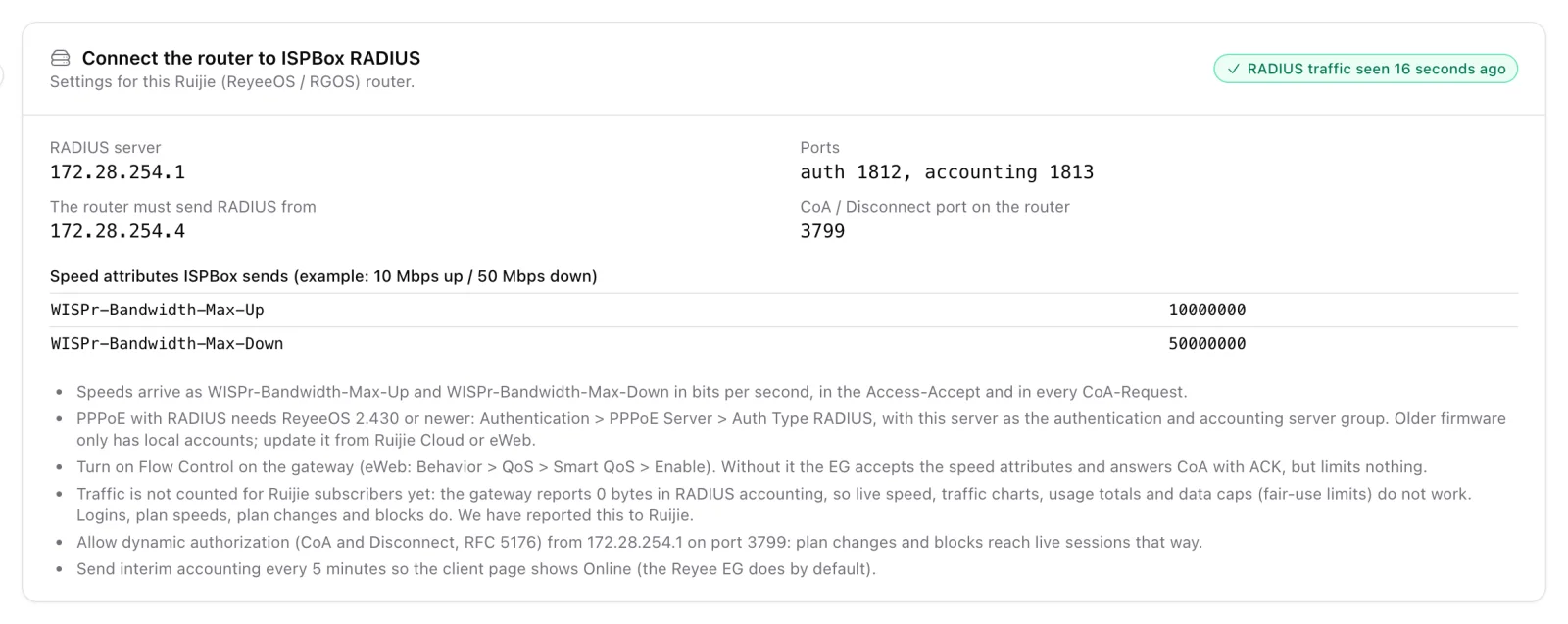
- Router Vendor: Ruijie (ReyeeOS / RGOS). ISPBox then sends the plan speed as WISPr-Bandwidth-Max-Up and WISPr-Bandwidth-Max-Down in bits per second, the attributes the EG applies.
- Connection Mode: WireGuard Tunnel, provisioning mode Generate WireGuard configuration for me.
- Auth Type: PPPOE.
- RADIUS Secret: click the key icon to generate one. You will paste it on the gateway in section 5.
- Dynamic authorization (RADIUS CoA): leave it on, port 3799. The EG accepts CoA and Disconnect on that port with no extra setting.
Save. ISPBox opens the router's setup page with three steps: define pools, connect the tunnel, connect RADIUS.
Define pools: ISPBox needs one PPPoE pool on the router. Enter the same subnet you will give the EG's PPPoE server in section 6, so the addresses ISPBox shows match the ones the gateway hands out. The addresses themselves come from the gateway's IP range.
4. Connect the WireGuard tunnel
The tunnel step on the setup page shows the WireGuard config for this gateway: its tunnel address, its local port (ListenPort) and the ISPBox server in the [Peer] block.
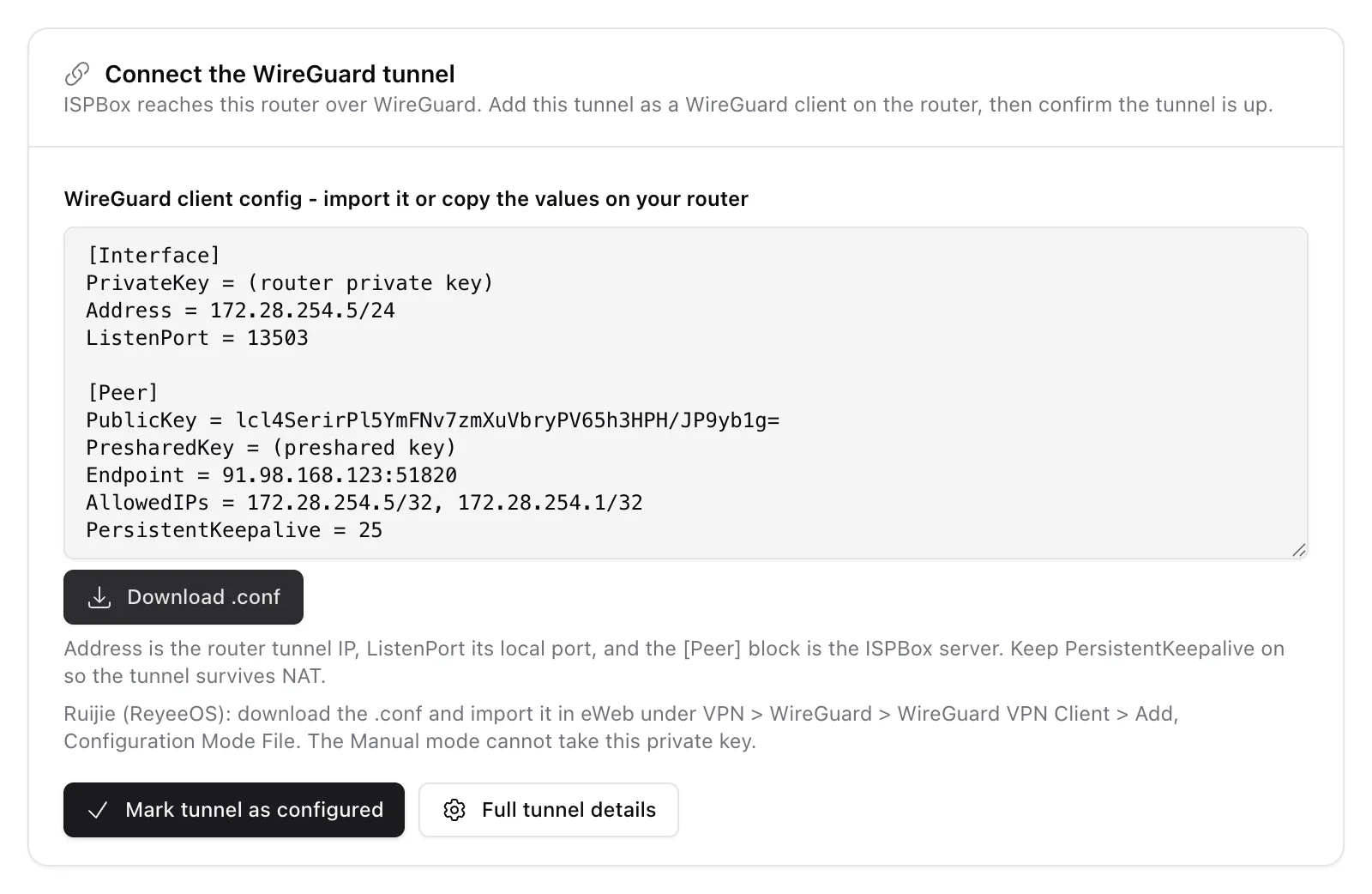
- Click Download .conf. You get a file named after the router, for example ispbox-ruijie-eg-main-office.conf. The same button is on the router's page under the tunnel details.
- In eWeb open VPN > WireGuard > WireGuard VPN Client and click Add.
- Enter a Policy Name (for example ISPBox), set Configuration Mode to File and select the downloaded file. eWeb fills in every field from the file: interface IP, port, private key, the allowed ranges and the server.
- Click OK.
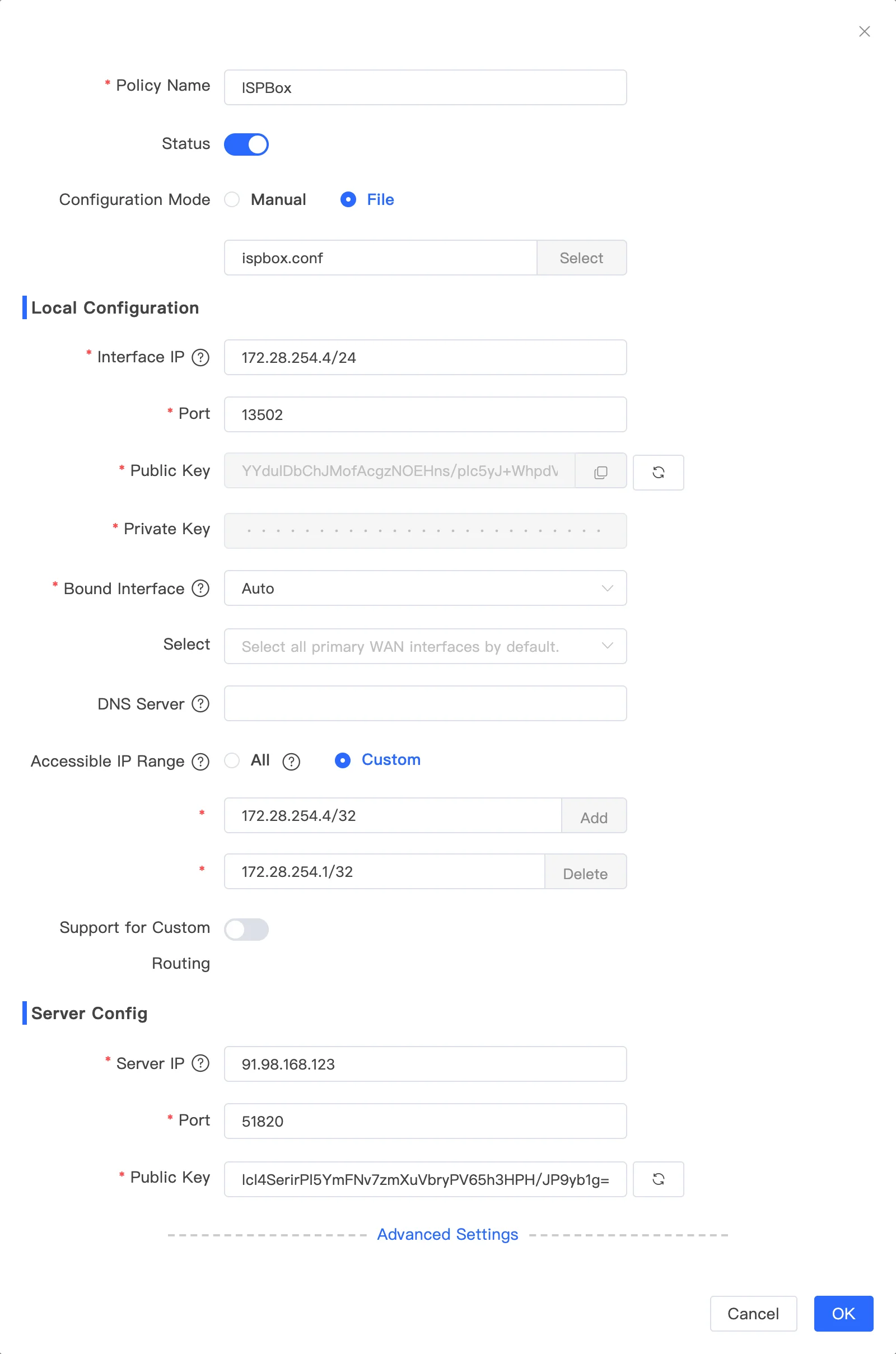
Use the File mode. In the Manual mode the gateway generates its own key pair and its Private Key field cannot be edited, so the key ISPBox created for it cannot be entered there.
The new entry shows the interface IP, the local port and the ISPBox server, with status Enable:
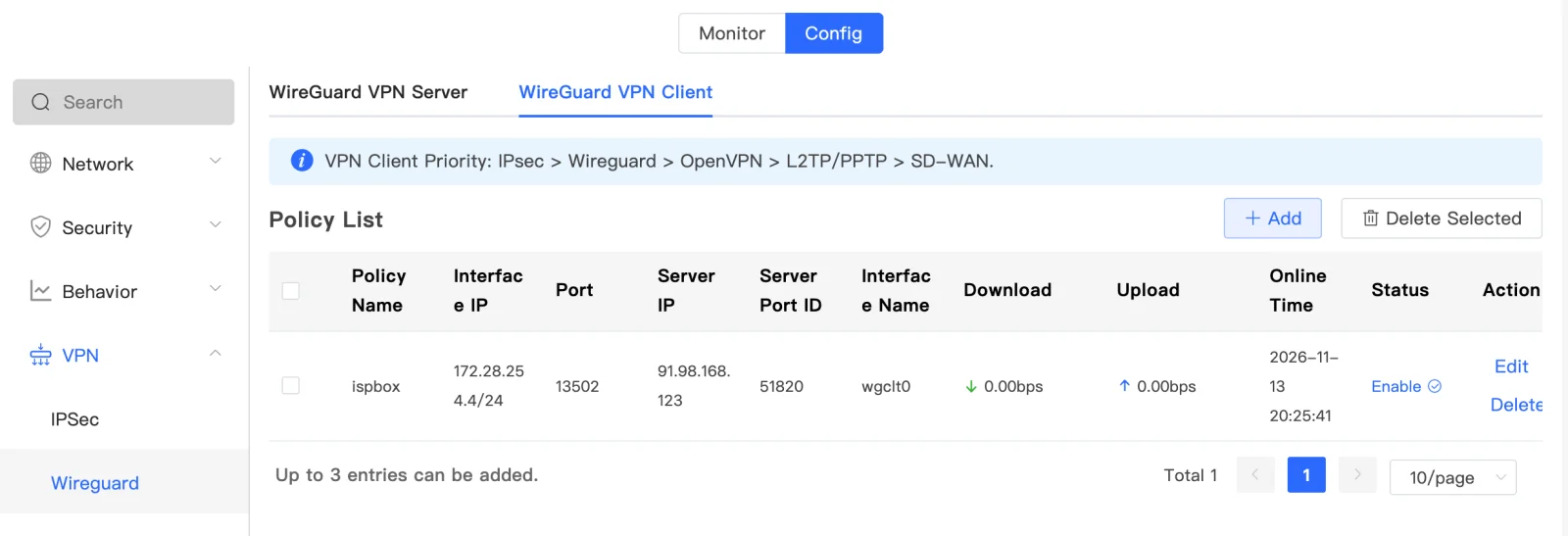
Back in ISPBox the tunnel step completes by itself as soon as the gateway answers through the tunnel. If it does not, click Mark tunnel as configured. After a reboot of the gateway the tunnel comes back by itself, in our test about 3 minutes after the gateway was up again.
5. Add ISPBox as the RADIUS server
The video covers this section and the next one.
The RADIUS step on the setup page lists everything the gateway needs: the RADIUS server address (the ISPBox end of the tunnel), the ports, the address the gateway must send RADIUS from (its tunnel IP) and the CoA port.
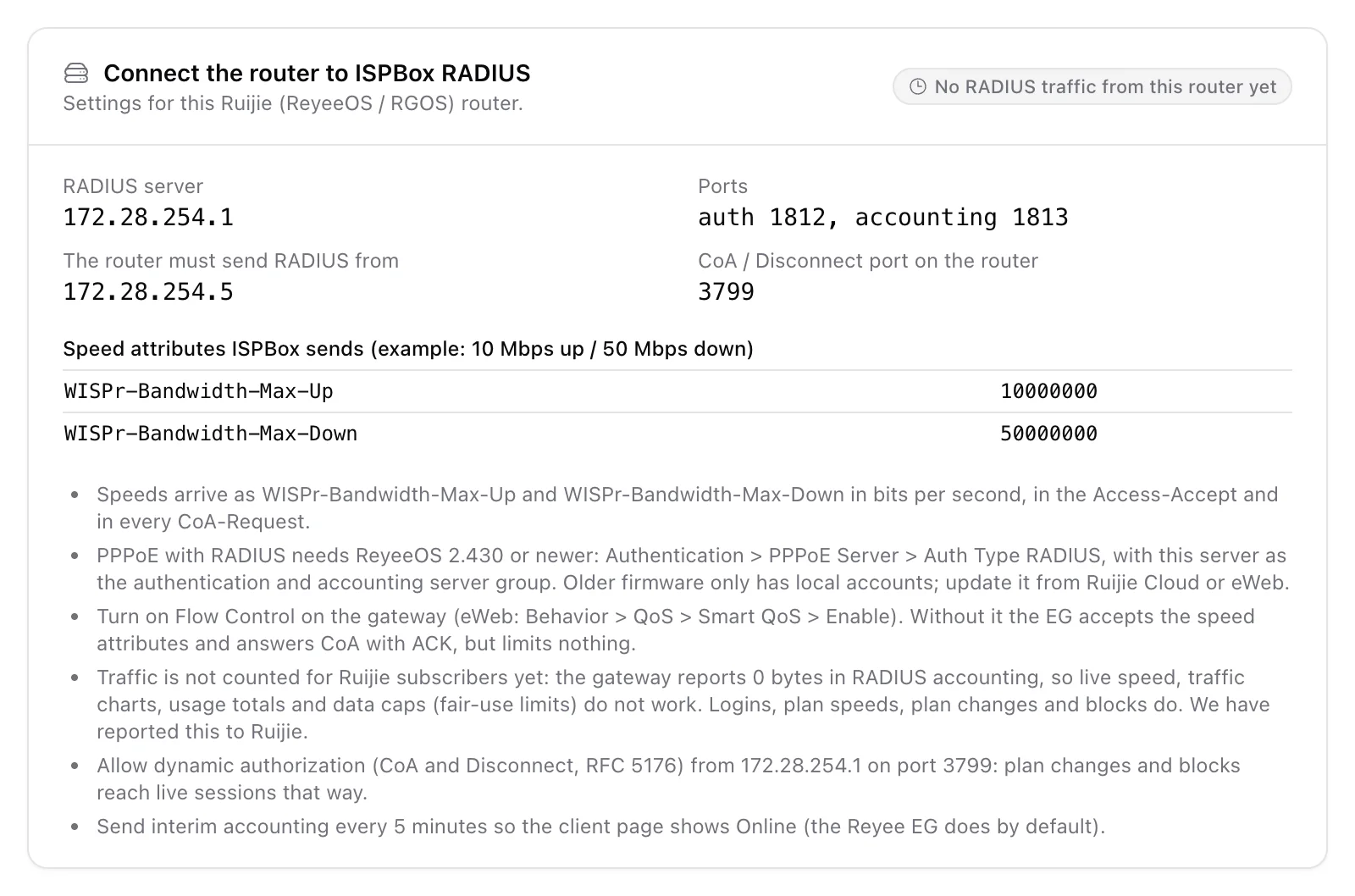
In eWeb open Authentication > PPPoE Server. The server group is created from the Authentication server group field there (the Edit link next to it opens RADIUS Server Management). Add a server group:
- Server Group Name: for example ispbox.
- Server IP: the RADIUS server shown in ISPBox.
- Auth Port 1812 and Accounting Port 1813.
- Shared Password: the RADIUS secret of this router in ISPBox.
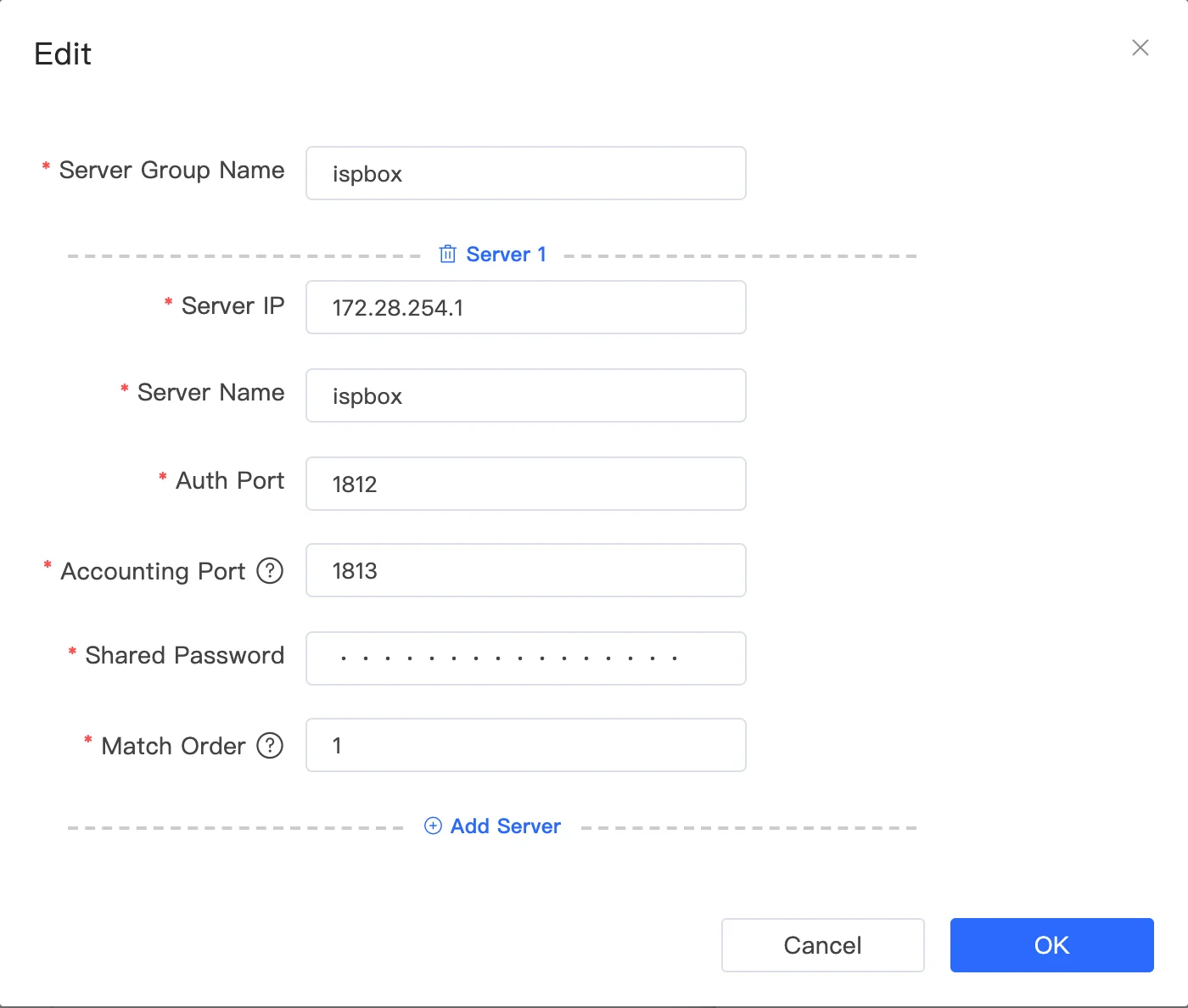
Nothing else is needed for the source address: the gateway sends RADIUS through the tunnel, from its tunnel IP, which is the address ISPBox expects.
6. Turn on the PPPoE server with RADIUS
Still on Authentication > PPPoE Server, Global Settings:
- PPPoE Server: Enable.
- Local Tunnel IP and IP Range: the gateway address on the PPPoE side and the addresses subscribers get. They must not overlap any interface of the gateway.
- Auth Mode: leave PAP, CHAP, MSCHAP and MSCHAP2 ticked.
- Authentication type: tick RADIUS and untick Local account.
- Authentication server group and Accounting server group: the group from section 5.
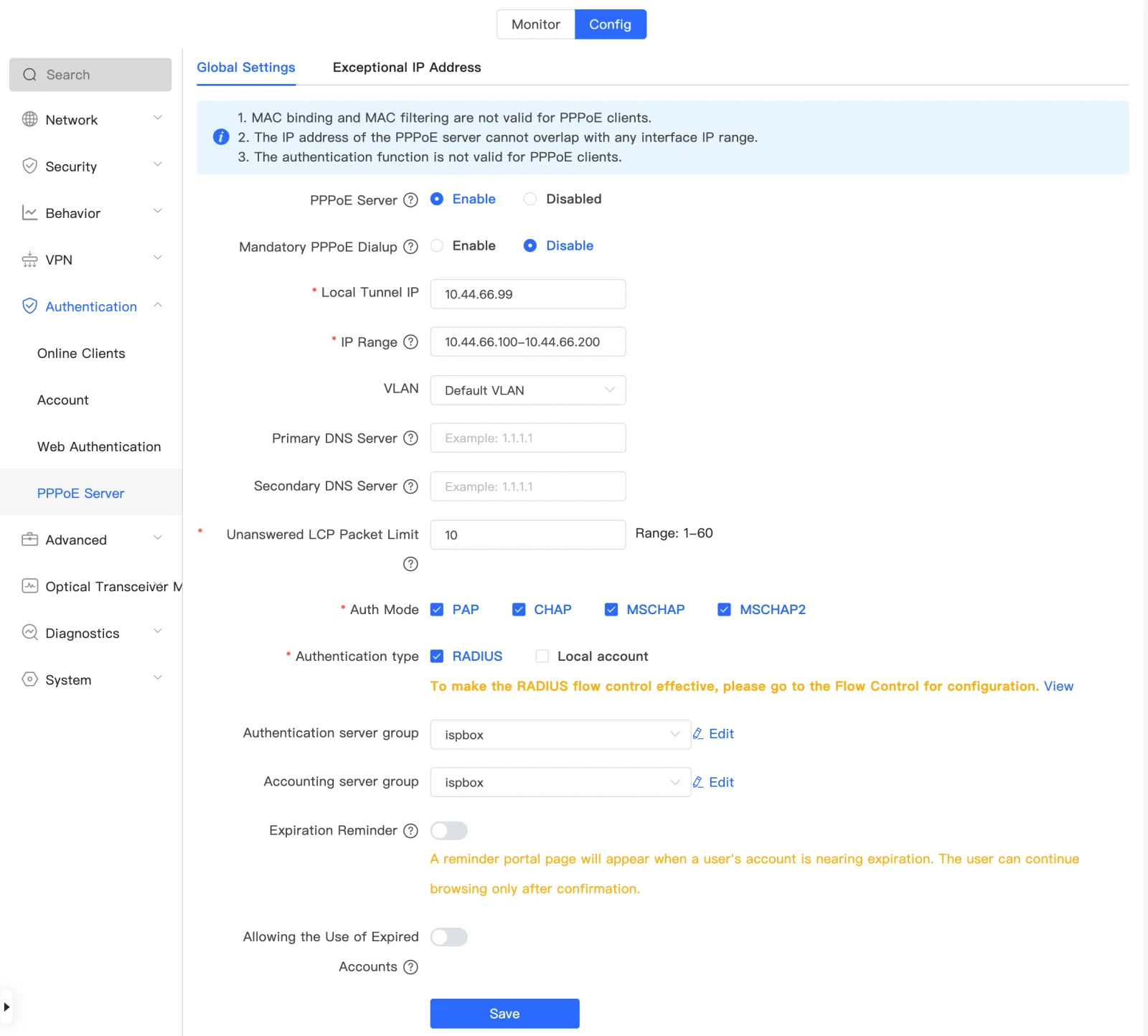
Save. Note the orange line under Authentication type: speed limits from RADIUS need Flow Control, which is the next step.
7. Turn on Flow Control (Smart QoS)
This step decides whether your plans have any speed limit at all. Without it the gateway accepts the speed ISPBox sends, even answers plan changes with an acknowledgement, and still limits nothing.
In eWeb open Behavior > QoS > Smart QoS, switch Enable on and enter your real line speeds as the WAN Uplink and Downlink. Save.
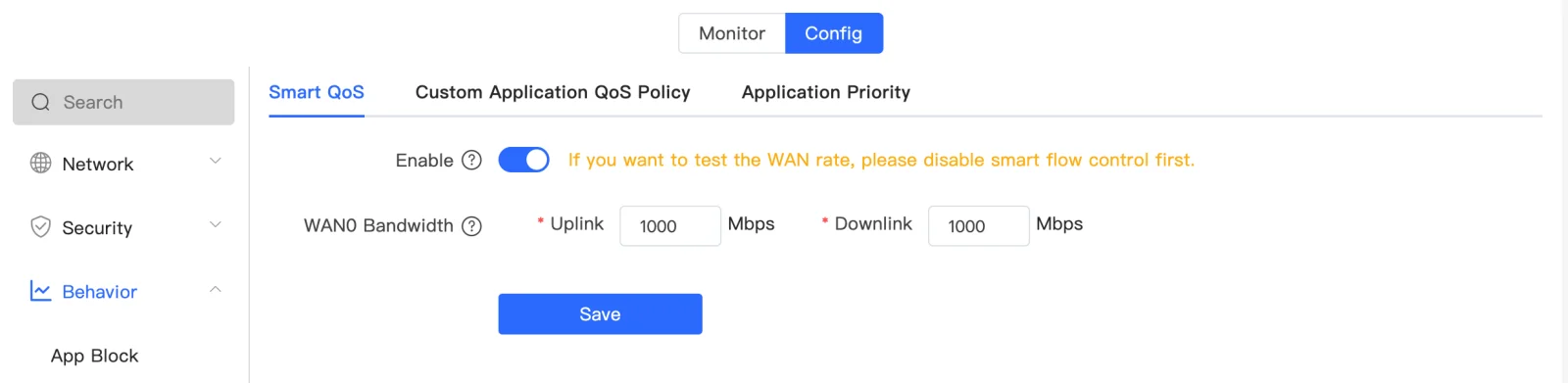
What we measured on a 5/2 Mbps plan:
| Smart QoS | Download | Upload |
|---|---|---|
| Off (factory default) | 299 Mbps | 15.9 Mbps |
| On | 4.6 Mbps | 1.8 Mbps |
Why ISPBox sends Ruijie 4% more than the plan
Smart QoS counts the frame headers into the limit, so the data a speed test measures comes out a little lower than on a MikroTik with the same plan. We measured both on the same PPPoE line with a TCP speed test:
| Plan (download) | Ruijie, exact plan speed | MikroTik queue | Ruijie, plan + 4% (what ISPBox sends) |
|---|---|---|---|
| 5 Mbps | 4.6 | 4.8 | 4.8 |
| 20 Mbps | 18.7 | 19.3 | 19.4 |
| 50 Mbps | 46.6 | 48.4 | 48.4 |
| 100 Mbps | 93.2 | 96.5 | 96.4 |
| 10 Mbps upload | 9.3 | 9.6 | 9.6 |
So ISPBox adds 4% to the speed it sends a Ruijie gateway, at login, on plan changes and for fair-use or unpaid limits. A subscriber on a 50 Mbps plan sees about 48 Mbps in a speed test, the same as on a MikroTik. The plan, invoices and the customer portal keep showing the plan speed. You do not need to set anything.
To make the speed test show the full plan on every router, Ruijie included, set Speed test headroom under Settings > Packages > Speed settings (we recommend 4%; see Burst, Night Speed and Login Limits). With 4% headroom our Ruijie measured 50.3 / 10.0 Mbps on a 50/10 plan and 5.0 / 1.99 Mbps on 5/2.
8. Connect a subscriber
The video covers this section and the checks in section 9.
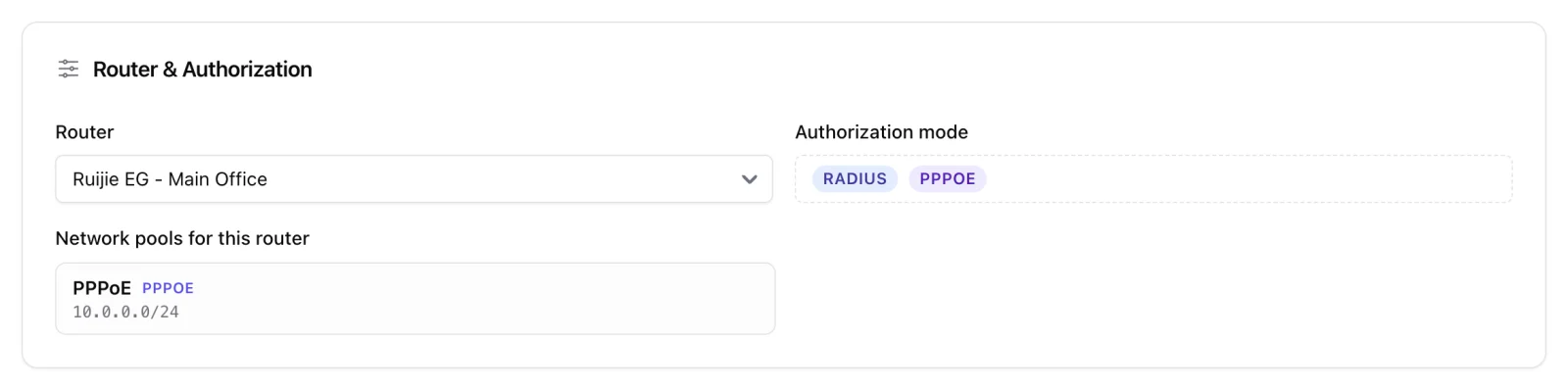
Create the client and their service as usual. On the service, under Router & Authorization, choose the Ruijie gateway: the authorization mode shows RADIUS and PPPOE.
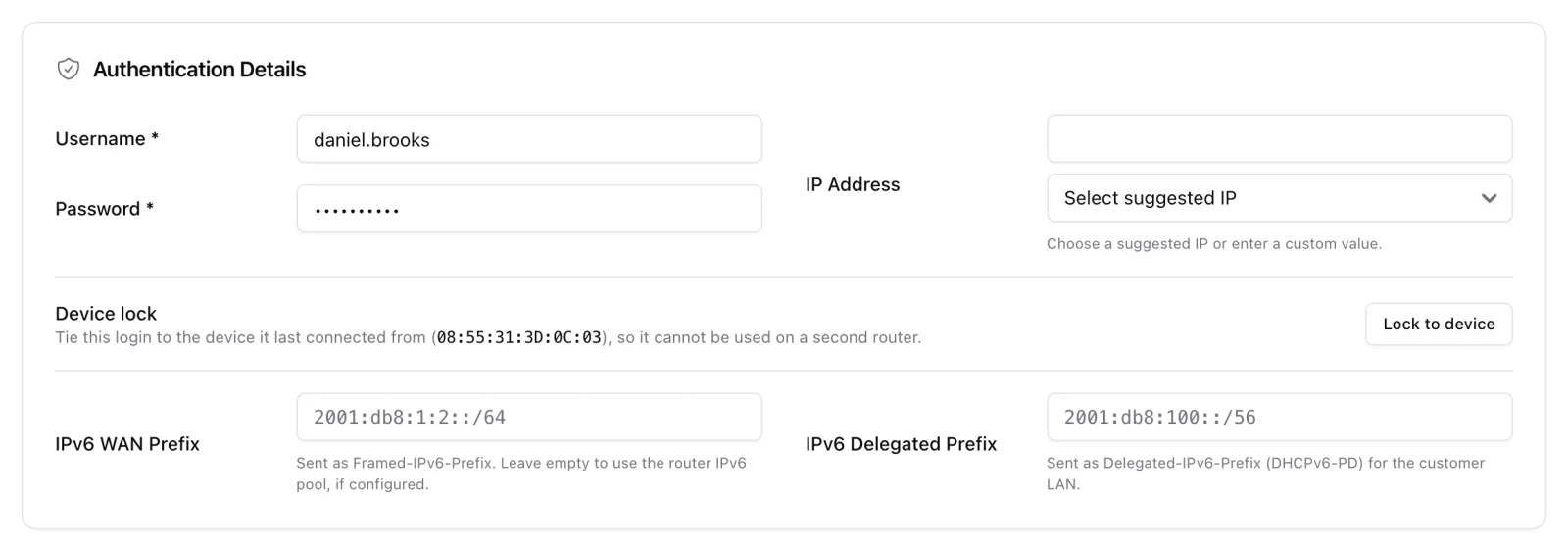
Under Authentication Details set the PPPoE Username and Password, choose the package and save the service as Active.
On the subscriber side, set the customer's router or CPE to dial PPPoE on the port that leads to the gateway, with that username and password. Any PPPoE client works; we used a MikroTik.
9. Check that it works
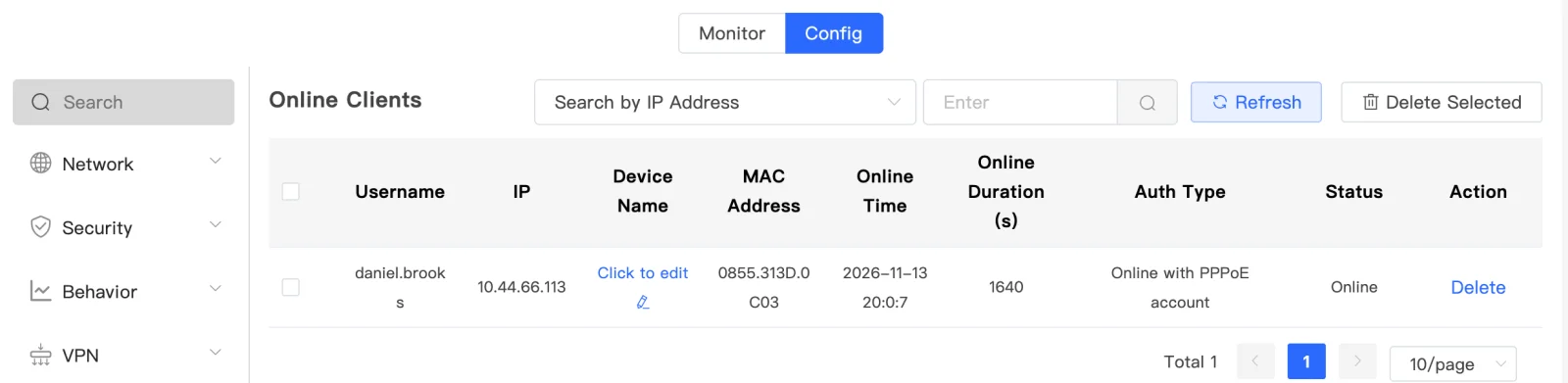
In eWeb, Authentication > Online Clients lists the subscriber with the auth type Online with PPPoE account:
In ISPBox, the RADIUS card on the router's page turns green with RADIUS traffic seen once the first login arrives:
Then check the controls:
- Speed: a speed test from the subscriber should end just under the plan speed (we got 48.6 / 9.6 Mbps on a 50/10 plan).
- Plan change: change the service's package in ISPBox. The new speed applies to the running session within seconds, without a reconnect.
- Suspend: set the service to Suspended. The gateway drops the session and refuses the next login. Set it back to Active and the subscriber connects again.
10. DHCP subscribers on a Ruijie gateway
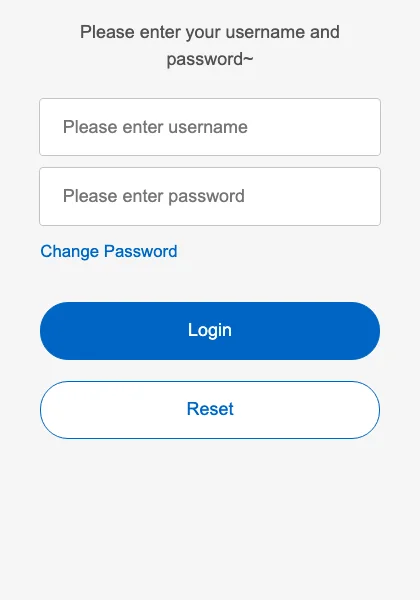
On its own a Reyee EG gives every DHCP device an address and internet without asking anyone. ISPBox can control DHCP subscribers on a Ruijie gateway only through the gateway's Web Authentication: with RADIUS selected there, the gateway asks ISPBox about every new device on the LAN, using the device's MAC address as the login. A device whose MAC is on an active service goes online at once, with no login page; any other device gets the gateway's login page and no internet.
In ISPBox the router's auth type is DHCP and each service has the subscriber's router or CPE MAC address, the same as on a MikroTik DHCP router.
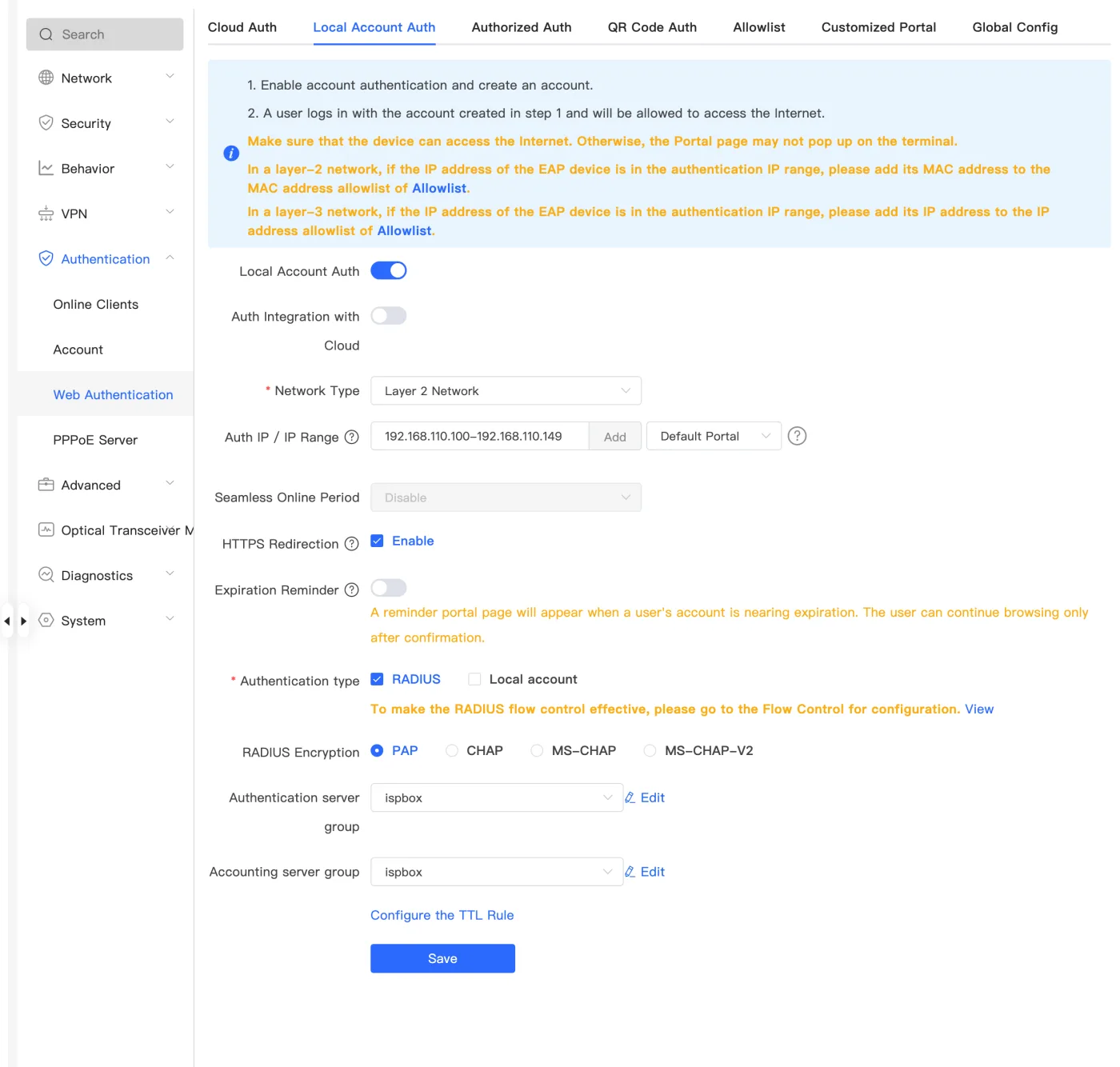
Turn on Web Authentication with RADIUS
- Do sections 2 to 5 first: firmware, the router in ISPBox (auth type DHCP), the tunnel and the ispbox RADIUS server group.
- In eWeb open Authentication > Web Authentication > Local Account Auth and turn Local Account Auth on. Leave Auth Integration with Cloud off.
- Network Type: Layer 2 Network. Auth IP / IP Range: the DHCP range of the LAN your subscribers are on, for example
192.168.110.100-192.168.110.149. Do not click Add for the first range: Add creates a second, empty row and the page then refuses to save. - Authentication type: tick RADIUS and untick Local account. Keep PAP. Pick ispbox as the authentication and the accounting server group, then Save.
- Keep Smart QoS on (section 7): the plan speeds of Web Authentication users go through it too.
What we measured
- Login by MAC: the gateway sends the MAC (lower case, with colons) as both the user name and the password. ISPBox accepts it for an active service and the device is online without seeing a login page.
- Plan speed: the same as for PPPoE, about 96% of the plan in a speed test (section 7).
- Plan change: applies to the running session through CoA, without a reconnect. In the first seconds after a change the old queue can still be in place.
- Block (suspend, or a block for non-payment): ISPBox disconnects the device, the gateway asks again, gets a reject and shows its login page. The device has no internet.
- Traffic: 0 bytes in accounting, the same as for PPPoE (section 11). For these MAC sessions the gateway sends only the accounting Start, with no interim updates and no Stop, so a blocked DHCP subscriber can still show as Online in ISPBox.
Blocks and unblocks
A block takes effect at once. An unblock does not: after a reject the gateway asks ISPBox about the same device again only much later. In our tests that took 15 and 16 minutes, and once more than an hour. Until then the device keeps getting the gateway's login page, even though its service is active again. A lower Idle Client Timeout, unplugging the device, removing it from the gateway's client list and a Disconnect-Request from ISPBox did not make the gateway ask again.
The fix: give every DHCP service on a Ruijie gateway a username and password (Service, Authentication Details; on a DHCP router they are optional, the MAC address stays the main login). A subscriber who sees the login page after paying enters them there and is online at once, with the plan speed. While a service is blocked the login is refused, so it does not get around a block. The same helps a new subscriber whose device was plugged in before you activated the service.

Things to know
- A device that also has a PPPoE session on the gateway is let through on DHCP without a check: the gateway treats its MAC as already logged in. Do not mix PPPoE and DHCP on the same subscriber device.
- Devices that must never see the login page (your own access points, switches, a server) go on the Allowlist tab of Web Authentication, or outside the Auth IP range.
11. Known limits
- No speed or traffic data. The gateway sends 0 bytes and 0 packets in every RADIUS accounting message, and its own online-user list shows no byte counts either. So for Ruijie subscribers ISPBox cannot show live speed, traffic charts or usage totals, and data caps (fair-use limits) are not counted. Logins, sessions, online status, plan speeds, plan changes and blocks all work. We have reported this to Ruijie and will update this guide when they fix it.
- Not tested yet: a fixed IP address per subscriber (set on the service), IPv6, and the Web Authentication login page for vouchers or prepaid codes.
12. Troubleshooting
- eWeb says "Invalid parameters" or the Port field stays empty when importing the tunnel: the config has no ListenPort line. Copy the config again from the router's page in ISPBox; it includes ListenPort.
- No RADIUS traffic from this router: check the firmware (2.430 or newer), that Authentication type is RADIUS with the ispbox groups selected, that the server IP is the one shown in ISPBox, and that the shared password matches the router's RADIUS secret. The tunnel must be up: its entry under WireGuard VPN Client should be enabled.
- Logins work but speeds are not limited: Smart QoS is off (section 7).
- The tunnel is down after a reboot: wait a few minutes; it reconnects by itself. To speed it up, switch the entry off and on again under WireGuard VPN Client (Edit, Status).
- eWeb says "The Public Key already exists" when importing: the gateway already has a tunnel to ISPBox. One gateway holds one tunnel to ISPBox; delete the old entry first (for example after you deleted and re-added the router in ISPBox).
- Traffic charts are empty for a Ruijie subscriber: expected for now, see section 11.